Blue Screen After Installing Microsoft Office Update with Dell Encryption Installed
Summary: After Installing Microsoft Office Update for May 29, 2019 Endpoints Running Dell Encryption Enterprise (formerly Dell Data Protection | Enterprise Edition) or Dell Encryption Personal (formerly Dell Data Protection | Personal Edition) Experience 0x7e SYSTEM_THREAD_EXCEPTION_NOT_HANDLED Blue Screen. ...
This article applies to
This article does not apply to
This article is not tied to any specific product.
Not all product versions are identified in this article.
Symptoms
Affected Products:
- Dell Encryption Enterprise
- Dell Encryption Personal
- Dell Data Protection | Enterprise Edition
- Dell Data Protection | Personal Edition
Affected Versions:
- v8.17.0 and Earlier
Customers who are running Dell Encryption Enterprise (formerly Dell Data Protection | Enterprise Edition) or Dell Encryption Personal (formerly Dell Data Protection | Personal Edition) v8.17.0 or earlier may experience a Blue Screen after installing the update for Microsoft Office, published May 29, 2019. The stop code that is associated with the Blue Screen is 0x000007e SYSTEM_THREAD_EXCEPTION_NOT_HANDLED references cmgffe.sys.
Cause
Not Applicable
Resolution
To resolve this issue:
- Contact Dell Data Security ProSupport to obtain a copy of the ISO image and updated cmgffe.sys driver. Dell Data Security ProSupport can be contacted at 877.459.7304, Ext. 4310039. To contact support outside the US, reference ProSupport’s International Contact Numbers.
- Place your LSARecovery.exe (for Dell Encryption Personal) or downloaded key bundle using the
cmgau utility(for Dell Encryption Enterprise) on the root of a USB drive. Also place the appropriate 32-bit or 64-bit version of thecmgffe.sysdriver to match the bit version of the operating system we are recovering. - Boot to the recovery ISO and press F followed by Enter at the main menu to start the repair.
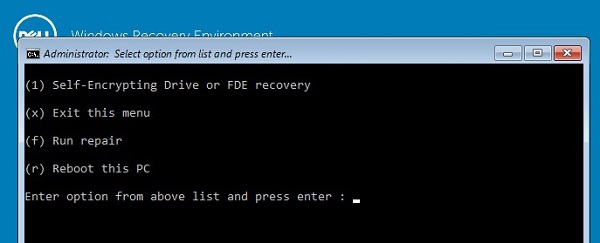
- This renames the current
[DRIVELETTER]:\windows\system32\cmgffe.systocmgffe.sys.oldand copies the updatedcmgffe.systo[DRIVELETTER]:\windows\system32\.Note: [DRIVELETTER] = The drive letter where the operating system is installed.
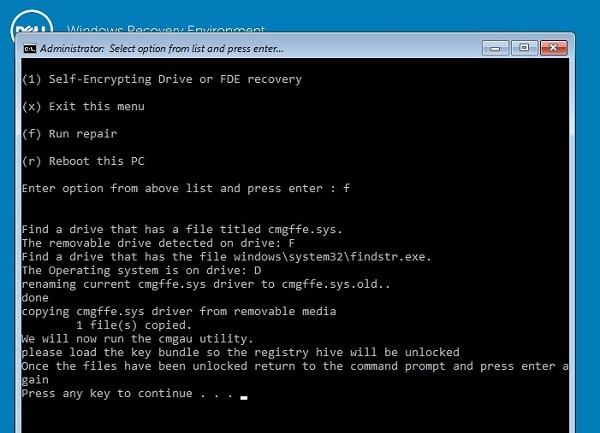
- This renames the current
- The
cmgau utilityis launched, which allows you to load your LSARecovery.exe or key bundle so the registry hive can be unlocked. - Once you have received the message, your files are unlocked, click back onto the command prompt, and then press Enter to complete the repair.
Note: Do not close the
CMGAU utility.
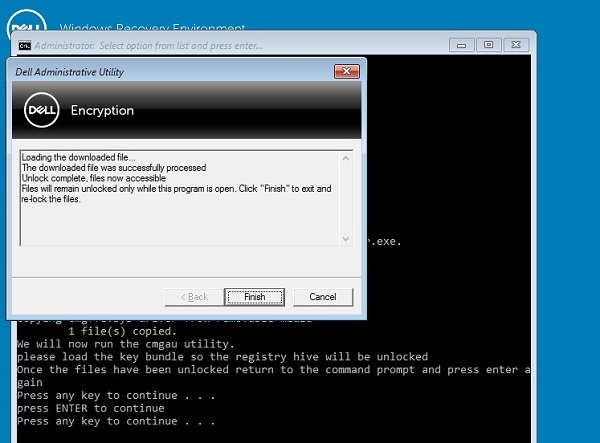
- Once it is completed, it loads back to the main menu, and you can press R to reboot.
- Once logged back into Windows, update Dell Encryption to the latest version found at https://www.dell.com/support/.
To contact support, reference Dell Data Security International Support Phone Numbers.
Go to TechDirect to generate a technical support request online.
For additional insights and resources, join the Dell Security Community Forum.
Affected Products
Dell EncryptionArticle Properties
Article Number: 000130896
Article Type: Solution
Last Modified: 18 Jun 2024
Version: 15
Find answers to your questions from other Dell users
Support Services
Check if your device is covered by Support Services.