MD Series: Setup IP Address and Password on ME3xxx controllers with serial
Summary: This article details how to set an IP address or change the Administrator Password on MD3xxx storage with a serial connection.
This article applies to
This article does not apply to
This article is not tied to any specific product.
Not all product versions are identified in this article.
Instructions
Serial connection programs like PuTTY are required for the following steps. The below steps are shown using PuTTY as that is the software used by Support, and is widely used.
PuTTY is an open source SSH and telnet client, developed for the Windows platform. The software can be downloaded here.
- Connect with the Serial-Cable from the Host or Client to one of the Controllers
- Open a Terminal Session with PuTTY
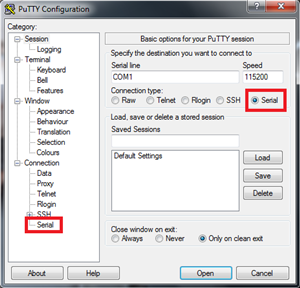
- Choose Serial as Connection Type and click in the menu on the left side to change more settings
- Set the following parameters in the Options controlling local serial lines:
-
Bits per second: 9600 Data bits: 8 Parity: none Stop bits: 1 Flow control: none 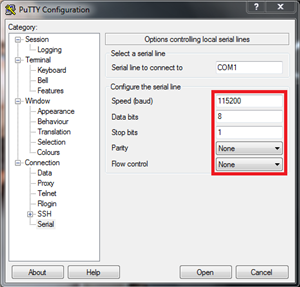
-
- Click Session
- Give the connection a name
- Click Save for future use
- Click Open and a console window opens
- Press CTRL + Break simultaneously
- Now press SHIFT + S simultaneously to enter the Service menu
- When asked for a password, type "
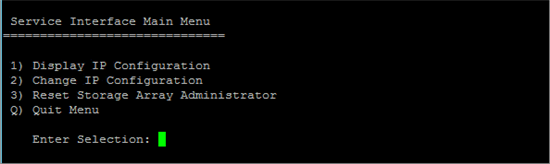
supportDell" and press Enter - The Service Interface Main Menu displays
- This Menu provides options to display and change the IP Address of the Controller connected with the serial cable
- Changing the IP Address causes the controller to restart in order to implement the changes.
- The Menu also provides the option to reset the Administrator Password of the Storage Array
Affected Products
PowerVault MD3000, PowerVault MD3000i, PowerVault MD3200, PowerVault MD3200i, PowerVault MD3220, PowerVault MD3220i, PowerVault MD3260, PowerVault MD3260i, PowerVault MD3400, PowerVault MD3420, PowerVault MD3460, PowerVault MD3600F
, PowerVault MD3600i, PowerVault MD3620F, PowerVault MD3620i, PowerVault MD3660f, PowerVault MD3660i, PowerVault MD3800f, PowerVault MD3800i, PowerVault MD3820f, PowerVault MD3820i, PowerVault MD3860f, PowerVault MD3860i
...
Article Properties
Article Number: 000143466
Article Type: How To
Last Modified: 05 Sept 2025
Version: 5
Find answers to your questions from other Dell users
Support Services
Check if your device is covered by Support Services.