Troubleshooting Tape Library Unload Problems in NetWorker
Summary: This article helps Supporters, and backup administrators troubleshoot library unload issues at the library or application level. It identifies whether the problem is logical or physical, and whether it involves the robot, drive, or media cartridge. ...
Symptoms
- Sporadic or consistent errors unloading tape cartridges from drives
- Compromised backup windows due to unload failures
- Tape cartridges stuck in drives
- Library is detectable, confirmed functional and Ready
- Able to perform load and label operations, but unable to unload
- Possible
ASC / ASCQ / SCSISENSE errors or messages in system or application logs
Cause
If library configuration worked previously and suddenly encounters an issue, consider possible changes that may be impeding detection and configuration:
- Robot, switch or adapter firmware, driver or configuration change
- Addition, replacement or removal of drives, tape cartridges or other library components
- Change of NetWorker software version, Operating System patches
- Any hardware event such as power loss or reboot of any component in the data path
- Discrepancies between NetWorker configuration and library (for example, tape cartridges moved outside of NetWorker's control)
If the library has never worked - confirm that the hardware is supported in the NetWorker Hardware Compatibility Guide. Remember that it is possible for a library to be partially functional; discovery alone does not guarantee usability or supportability.
Well-known causes of Library Unload issues:
- Understanding and troubleshooting how media is unloaded from a Tape Library
- Tape volumes intermittenly fail to eject
Resolution
After reviewing recent changes, troubleshoot library unload issues by breaking down the process into basic components and testing each one individually.
The required data is collected by NSRGet when run with the -o:d switch. The script excludes operations that could be dangerous if run automatically, such as those not safe to perform through the collector.
WARNING: Some commands may trigger SCSI resets, causing tape devices to rewind. Avoid using them if any tapes are active and accessible to the host.
Library unload: Communications
- Again, ensure that the library is responsive and capable of loading tapes before proceeding. If not:
Troubleshooting Tape Library Readiness Problems in NetWorker
Troubleshooting Tape Library Access Problems in NetWorker
Troubleshooting Tape Library Detection Problems in NetWorker
Troubleshooting Tape Library Hardware Problems in NetWorker
Library unload: Loading preparation
- To prepare for any of the following tests, prepare to load a test volume. First, unload all devices to prevent confusion:
nsrjb -HHvvvvv
- Ensure that the devices are empty by querying both NetWorker and the robot directly; also find a slot with an available volume:
nsrjb -C
sjirdtag <robot SCSI address>
- Set the NSR Jukebox property Idle Device Timeout of the tape library that you are using to 0 to disable unexpected unload operations
- Load a volume into a device using regular NetWorker commands, where ideally both have experienced unload issues:
nsrjb -lnvvvvv -f <NetWorker device name> -S <slot number>
- Confirm that the volume appears in the device you just loaded, by running the command on the appropriate host:
mt -f <local device name> status

     nsrmm -pvvvvv -f <full NetWorker device name>
- If there is any discrepancy with the volumes, verify load and mount succeeded; if mount fails, and the volume is immediately ejected, you may proceed to troubleshoot mount failures using Link Error Troubleshooting Media Mounting Problems in NetWorker. If you wish tor proceed regardless troubleshooting unload failures, you may retry by loading without mount (
nsrjb -lnvvvvvinstead ofnsrjb -lvvvvvabove)
Library unload: Physical Operation (Ejection)
- To test the eject function of the tape cartridge you loaded in the previous step, use the native (or Windows-ported)
mtcommand (you can also try the CDI command equivalent, which uses extra NetWorker code, but allows for use of theCDI_DEBUGvariable)
mt -f <local device name> offline
cdi_load_unload -u -f /dev/nst0 -vvvvvv
- Check the output and confirm that the ejection has indeed completed using either the native/ported
mtcommand, or the equivalent CDIcommand:
mt -f <local device name> status
cdi_get_status -f /dev/nst0 -vvvvvv
- Reload the volume into the tape device before attempting full unload:
cdi_load_unload -l -f /dev/nst0 -vvvvvv
- If the eject operation fails to use either native or CDI-command operations, consider the possibility of problems with the drive or tape cartridge, and test using lower-level mechanisms below the driver level:
- Attempt moving the volume from within the robot's control interface itself
- Attempt moving the volume from a physical Library's LCD panel
- Attempt moving the volume from a virtual Library's command-line interface
- Reattempt the same operation using a different drive, and a different tape cartridge, to test the scope of the problem
- Schedule a vendor call if the above ejection/move attempts experience problems
- If the eject operation fails, but the low-level interfaces can move tape cartridges, then the problem is likely related to the driver
- Check the Operating System logs and outputs (
dmesg, messages, errpt -a, syslog,System Event Log) - Consider Drive Ordering problems
- Check the Operating System logs and outputs (
Library unload: Physical Operation (tape cartridge Move)
- Check to ensure that library operations are physically possible at a basic level. Ensure that testing is done when the library is not otherwise active, and confirm the test tape cartridge from above is where you left it, both in the robot and in NetWorker's configuration:
sjirdtag <changer address> nsrjb -C
- Then move tape cartridges from the drive element to a slot, and back again:
 sjimm <changer address> drive <element_number> slot <element_number>
 sjimm <changer address> slot <element_number> drive <element_number>
- In particular - if the movement from drive to slot fails - then autoeject (autooffline on a Data Domain VTL) is likely not enabled on the library. You can confirm this by first ejecting the volume (previous section), and retrying the move operation. Move the volume back when complete.
Library Unload: Logical Operation (Unload from within NetWorker)
Once we have established that physical operations are error free (at least superficially), we can attempt to trace the problem within NetWorker.
- Once again - confirm that the Library robot and NetWorker agree as to the location of the tape cartridges:
nsrjb [<-j library_name>] -C
sjirdtag <changer address>
- Attempt to unload the test tape in high verbosity:
nsrjb [<-j library_name>] -uvvvvv -f <device_handle>
If the library unloads successfully across devices and cartridges, the issue may be situational. Isolate the condition causing the failure and begin debugging.
- If unload operations fail, and volumes are marked as 'unlabeled', then it is likeliest that the NSR Jukebox: Verify that the Label on Unload setting is interfering, due to read failure preceding the unload operation. Disable the setting and retry.
- Set NSR Jukebox properties Eject Sleep and Unload Sleep to 60 and retry; if this allows for errorless unloads, decrease the sleep successively until the failures resume.
Library Unload: Debugging
If all else fails, collect the appropriate data to assist debugging the problem before consulting SMEs:
- Before reproducing the issue in NetWorker, change the debug trace level to 5 in the NSR Jukebox resource
- Also use
dbgcommandin order to increase the debug level of the runningnsrdandnsrmmgdprocesses to 5 - Consider
truss/tusc/strace,pstack,gcore/gencoreon the appropriatensrlcpdprior to or during the problem event - Set the debug variables in the System environment (Windows) or the startup script (UNIX) in order to get richer debugging data:
SJI_DEBUG=9LUS_DEBUG=9CDI_DEBUG=9SCSI_DEBUG=9JBDEBUG=9
If the library unload operations are tested and found to be working, but other problems persist, refer back to NetWorker: Troubleshooting Tape Libraries home page to continue troubleshooting.
If the suggestions do not help, contact your library vendor’s support if debug data shows internal anomalies. Otherwise, escalate the debug output to NetWorker Support to investigate a possible code defect.
Additional Information
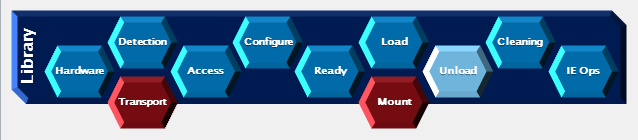
This article is one of a series in Troubleshooting Tape Libraries with NetWorker. The list is here:
NetWorker: Troubleshooting Tape Libraries Homepage