Changing the Storage Controller Mode Causes Windows Blue Screen with INACCESSIBLE BOOT DEVICE Error
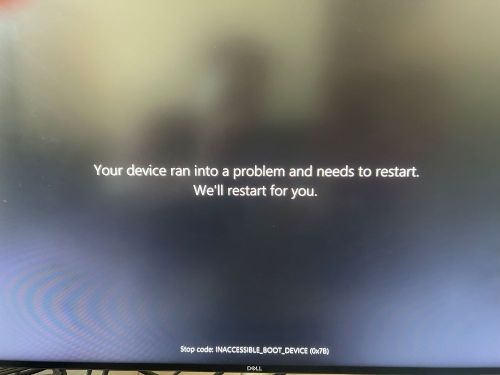
Summary: This article provides information about Windows blue screen issue with "INACCEESSIBLE_BOOT_DEVICE (0X7B)" error code.
Symptoms
Affected Operating Systems:
- Windows
Users encounter extended long load times and an inability to boot into Windows or Blue Screen errors. These symptoms occur when users change the storage operation mode in the BIOS. Changing the computer storage SATA/NVMe Operation settings to the opposite option (from AHCI/NVMe to RAID ON or from RAID ON to AHCI/NVMe) in the BIOS, could cause windows to present an INACCESSIBLE BOOT DEVICE (0X7B) error while booting the computer, causing an inability to boot into the operating system.
The Blue screen error occurs when the storage mode is not the same as the mode used when the operating system is installed. If the computer is operated in a different mode than shipped, installing the operating system with the controller in that mode is required. Example: If the controller is set to the AHCI/NVMe mode (RAID ON is default), then an operating system reinstall is required.
Cause
Changing the storage controller mode in the BIOS requires reinstallation of the operating system to align the storage driver configuration with the controller mode.
Resolution
Do one of the following to resolve:
- If Storage mode is changed, option (AHCI/NVMe to RAID ON or RAID ON to AHCI/NVMe) reinstallation of the operating system in that controller mode is required.
- Change the Storage controller settings back to the original configuration can resolve the blue screen error.
If you continue to get the blue screen or STOP error, reference our blue screen troubleshooting guide.
If a computer does not have the SATA operations in the BIOS and have the issue discussed in this knowledge base article, the drivers must be installed.
Follow these steps to install drivers in Save Mode:
- Hold down the power button for ten seconds to turn off your device
- Press the power button again to turn on your device
- On the first sign that Windows has started (Wait until the Dell or Alienware Logo appear and once the rolling circle appears) hold down the power button for ten seconds to turn off your device
- Press the power button again to turn on your device.
- When Windows restarts, hold down the power button for ten seconds to turn off your device (same as step 3)
- Press the power button again to turn on your device.
- Allow your device to restart into Automatic Repair, and select Advanced options to enter winRE, select Startup Settings, click restart.
- Once the computer restarts select Enable Safe Mode with Networking
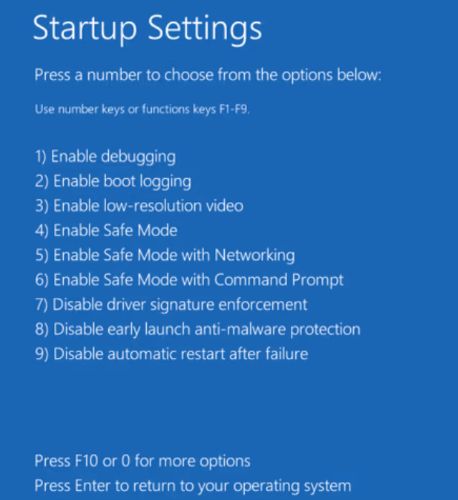
- Windows starts up in SAFE Mode.
- Open the Command Prompt as an Administrator.
- There are two options:
- Install the IRST or RAID driver
- Open the Command Prompt as an Administrator. Run the following command:
bcdedit /deletevalue
{ current }
safeboot – Restart Windows