Microsoft Windows: Using Windows Task Scheduler for Scheduled RAID Consistency Checks
Summary: This article shows how to use Windows Task Scheduler to perform consistency checks on a RAID array at regular intervals.
Instructions
A highly recommended routine maintenance operation is to perform a "Check Consistency" in Dell OpenManage Server Administrator every 30 days.
A consistency check is a manual operation which consumes a portion of the overall available bandwidth of the RAID controller. However, the consistency check can be scheduled for a time when it has the least impact on performance.
For more information, see PowerEdge: How to fix Double Faults and Punctures in RAID Arrays.
Prerequisites:
- Dell OpenManage Server Administrator 7.x or later with Storage Management option installed
- Administrative privileges to create scheduled tasks in Windows
Create Windows Scheduled Task:
- At the Windows desktop, click Start -> All Programs -> Accessories -> System Tools, then Task Scheduler.
 .
.
- In the Task Scheduler console: Right-click Task Scheduler (Local), then click Create Task.
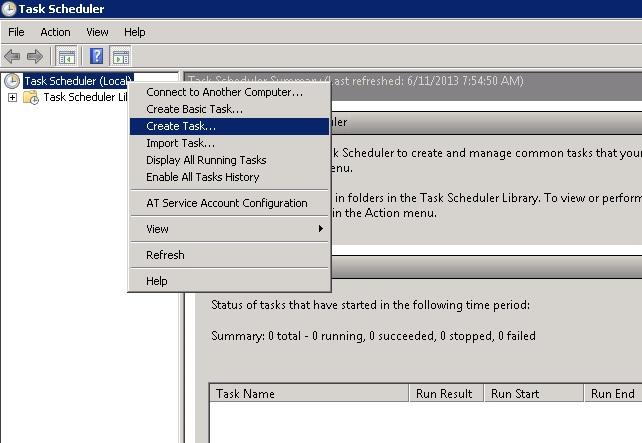
Figure 1: Click Create Task in the Task Scheduler console.
- In the "Create Task" panel, enter the pertinent information in the General tab. Be sure and select Run whether user is logged on or not.
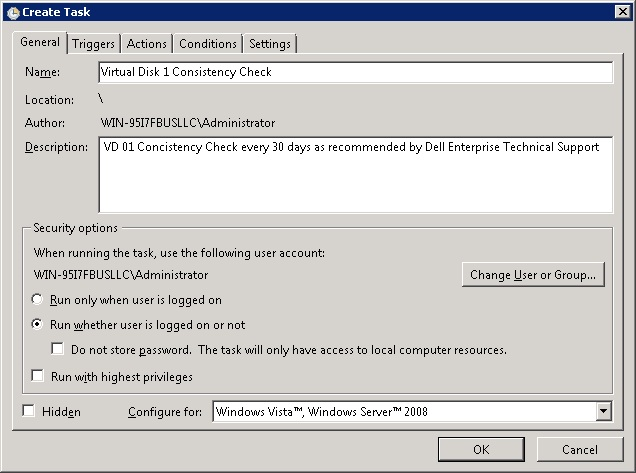
Figure 2: Set the appropriate options for the task.
- Next, click the Triggers tab, then click New to create a new trigger schedule. At the New Trigger panel, select all the pertinent options and click OK to continue.
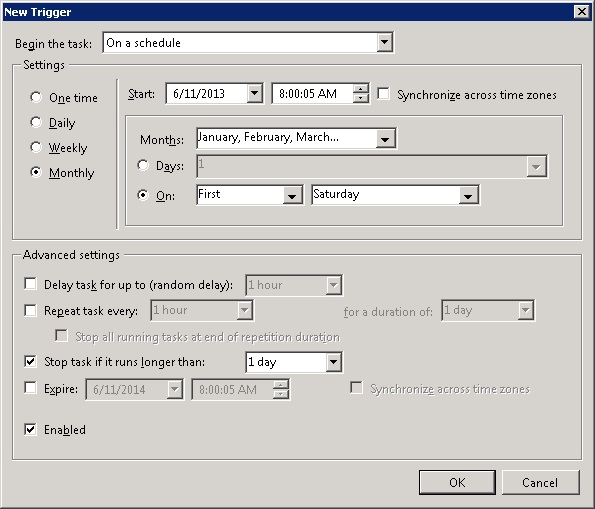
Figure 3: Configure the trigger for the task.
- Next, click the Actions tab and click New to create a new action. In the New Action panel, enter the "Program/Script" and "arguments," then click OK. For our intended purpose, use the following command and switch. When ready, click OK to continue.
Program/script: C:\Program Files\Dell\SysMgt\oma\bin\omconfig.exe
Arguments: omconfig storage vdisk action=checkconsistency controller=x vdisk=x
x = Component ID (Controller=0, vdisk=1)
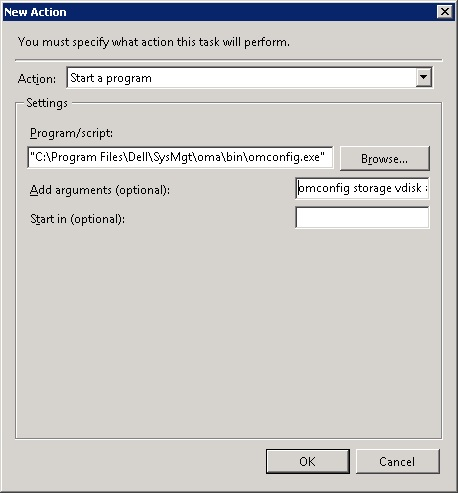
Figure 4: Specify the program or script and optional arguments.
- In the "Create Task" panel, click OK to save the newly created task. If prompted, enter a user account with enough administrative privileges to run the program or script that was entered above.
- When feasible, test the new scheduled task to ensure that it starts the Consistency Check task. You can view the Consistency Check operation using OpenManage Server Administrator - Storage Management.
For more references, see the Server Administrator Storage Management Guide.