IDPA: Firmware task failed error: 9029 timeout while waiting
Summary: This article describes the solution to the problem that could be seen when running the PowerProtect-DP-Rapid-Upgrade-Checker (RUCK) error during the ESXi check phase. This error is related to Node Event service or IRAC Service Module or IDRAC status. Firmware task failed with error: 9029 timeout while waiting for an internal task to complete ...
This article applies to
This article does not apply to
This article is not tied to any specific product.
Not all product versions are identified in this article.
Symptoms
The RUCK tool fails during the firmware_readiness check with the following message:
Firmware pre-upgrade checks failed. Firmware task failed with error: [9029] timeout while waiting for an internal task to complete. Check Node Event service/IRAC Service Module/IDRAC status and check logs for details.
Cause
The iDRAC Service Module (ISM) status on the ESXi could be on the following states:
- Inactive
- Active (not running)
- Active (running)
The first two statuses (inactive, active (not running)) prevents the upgrade from starting.
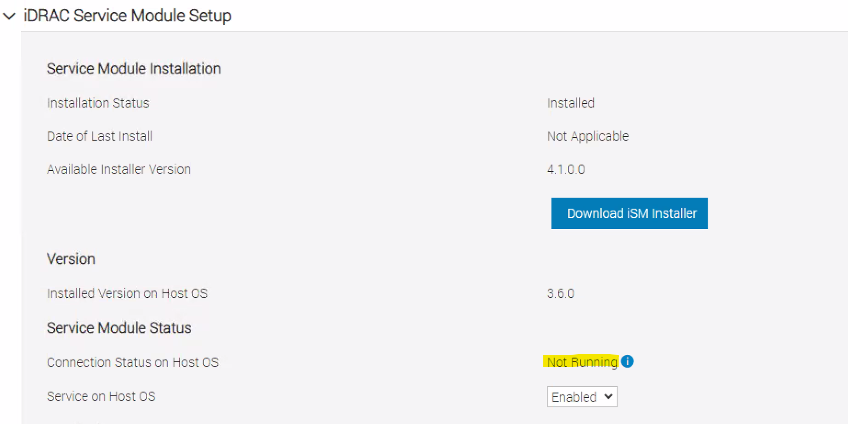
The ISM service is showing as "not running" in the iDRAC as seen below:
- Inactive
- Active (not running)
- Active (running)
The first two statuses (inactive, active (not running)) prevents the upgrade from starting.
The ISM service is showing as "not running" in the iDRAC as seen below:
Resolution
To change the ISM service into a "running" state, follow these guidelines:
1- Log in to the ESXi that reports the error as root.
2- Run /etc/init.d/dcism-netmon-watchdog status to verify the status of the ISM service on the ESXi host:
root@idpahypervisor1:~> /etc/init.d/dcism-netmon-watchdog status
iSM is active (not running)
3- Check the iDRAC user interface in the iDRAC Settings/Settings tab to confirm the "not running" status:
If both services are in a "not running" state, proceed with the following action plan. No downtime is required:
1. Log in to the ESXi server as root.
2. Stop dcism service on the ESXi:
/etc/init.d/dcism-netmon-watchdog stop
- Stop sfcdb-watchdog service:
/etc/init.d/sfcbd-watchdog stop
- Reboot iDRAC:
/opt/dell/DellPTAgent/tools/ipmitool_static mc reset cold
- Wait for the iDRAC to come up again.
- Start the service sfcg-watchdog:
/etc/init.d/sfcbd-watchdog start
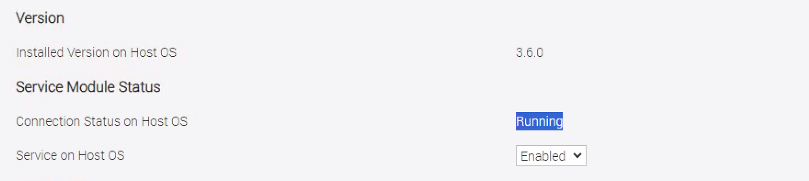
- Wait for some minutes and check the status of the ISM service on the ESXi and iDRAC. It should show as "running":
Additional Information
The iDRAC IP can be obtained with the command:
esxcli hardware ipmi bmc get
Create a tunnel in case the iDRAC IP is the default one:
PowerProtect DP Series Appliances and IDPA: DP4400 How to access the iDRAC UI by an SSH tunnel from ESXi
Alternatively, ssh to IDRAC and run the command:
racadm get idrac.servicemodule
The following article described other scenarios for the same error:
PowerProtect DP Series and IDPA: Rapid Upgrade ChecKer Utility shows failure for "firmware_readiness" check
Affected Products
PowerProtect Data Protection ApplianceArticle Properties
Article Number: 000222521
Article Type: Solution
Last Modified: 17 Feb 2025
Version: 2
Find answers to your questions from other Dell users
Support Services
Check if your device is covered by Support Services.