Alienware 和戴尔游戏显示器上的鼠标未对齐
Summary: 有关在 Alienware 和 Dell Gaming 显示器上玩视频游戏时鼠标指针问题的信息。
This article applies to
This article does not apply to
This article is not tied to any specific product.
Not all product versions are identified in this article.
Symptoms
鼠标未对齐,这意味着鼠标指针的位置与用户与屏幕交互的位置不同。在以下情况下,某些视频游戏可能会发生这种情况。
在视频游戏设置中:
- 分辨率已更改,并且...
- 显示模式从窗口更改为全屏,或反之亦然。
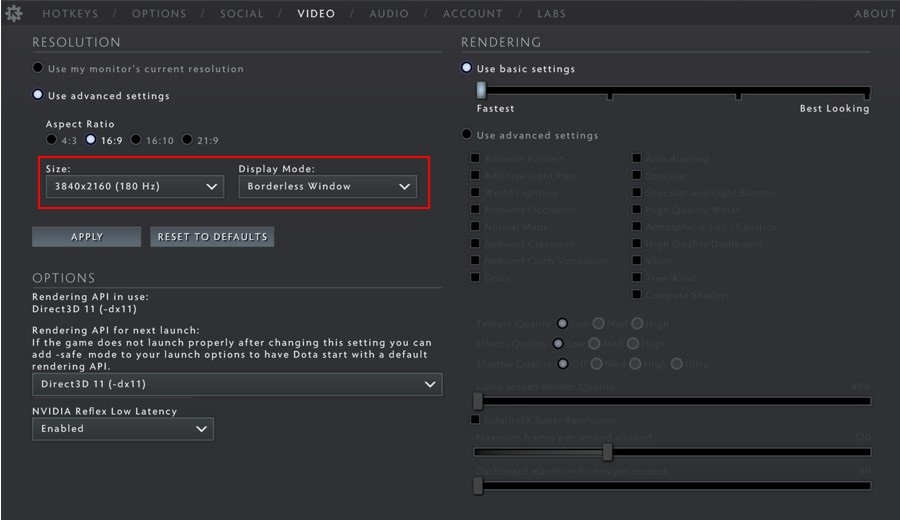
受影响的显示器
- 具有高每英寸点数 (DPI) 的 Alienware 或 Dell Gaming 显示器(通常是 4K 显示器)。
Cause
鼠标未对齐是由 Windows 和某些视频游戏之间的缩放不匹配引起的 (这不是显示器 问题)。
Resolution
替代 Windows 缩放
此行为的解决方法是使用以下步骤配置视频游戏应用程序的视频游戏可执行二进制文件,以替代 Windows 缩放:
Windows 10 和 11
- 找到视频游戏可执行二进制文件。以 Steam 为例,视频游戏的默认安装路径为:C:\Program Files (x86)\Steam\steamapps\common
- 右键单击视频游戏二进制文件,然后选择 属性。
- 单击“Compatibility(兼容性)”选项卡。
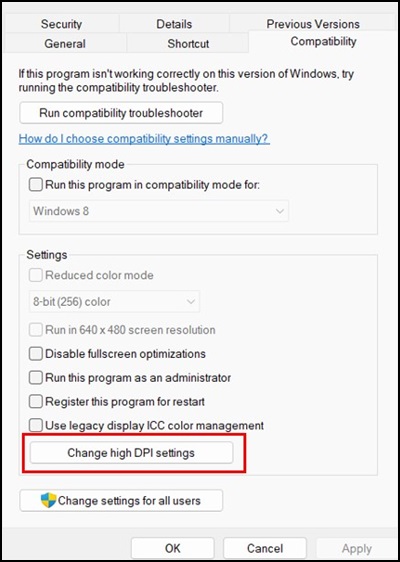
- 单击 更改高 DPI 设置。
- 选中 覆盖高 DPI 缩放行为 复选框。确保在下拉列表中选择了 应用程序 。
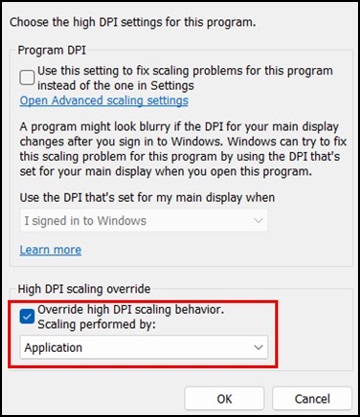
- 单击 OK 以关闭 High DPI settings 窗口。再次单击 “确定 ”以关闭 “属性 ”窗口。
提醒:对于每个视频游戏二进制文件,仅需要执行一次上述解决方法,并且必须对具有此行为的每个视频游戏执行。
Affected Products
Alienware Advanced Gaming Mouse – AW558, Alienware Elite Gaming Mouse – AW958, Alienware Wireless Gaming Mouse AW310M, Alienware RGB Gaming Mouse AW510M, Alienware Wired/Wireless Gaming Mouse AW610M, Alienware Tri-Mode Wireless Gaming Mouse AW720M
, Alienware Elite Gaming Mouse - AW959, Alienware and Dell Gaming Monitors, Alienware Wired Gaming Mouse AW320M, Alienware Pro Wireless Gaming Mouse, Alienware Wireless Gaming Mouse AW620M
...
Article Properties
Article Number: 000226094
Article Type: Solution
Last Modified: 13 May 2025
Version: 2
Find answers to your questions from other Dell users
Support Services
Check if your device is covered by Support Services.