Dell Unity: How To Configure 'enablePacketReflect' On A Unity NAS Server
Summary: Packet reflect (-enablePacketReflect) is a feature that ensures outbound (reply) packets are sent back to the same host or router as the inbound (request) packet.
Instructions
Packet Reflect (-enablePacketReflect)
Packet reflect, available starting in UnityOS 4.1, is a feature that ensures outbound (reply) packets are sent back to the same host or router as the inbound (request) packet. This enables the NAS server to bypass routing and Address Resolution Protocol (ARP) table lookups when replying to a packet, so no routing configuration is required. With packet reflect, information including the local IP, remote IP, and next-hop MAC address are cached from the incoming packet. When the NAS server replies to that packet, it leverages this information to send the outbound packet to the proper location.
Packet reflect enables dynamic routing automatic configuration and does not require any changes to the infrastructure. An example is if there is a router failure, replacement, or IP change. In these scenarios, packets may still be able to reach the Dell Unity system through a different router. Packet reflect enables the Dell Unity system to seamlessly adapt by sending the reply packets to the new router, since that is where the request packet was received from. This is an advantage compared to static routes, which must be manually managed by the network administrator.
Although Packet Reflect works for most of the communication to a NAS server, such as client-initiated file system I/O, it is important to note that it does not work for communication initiated by the NAS server. For example, communication to a Domain Name System (DNS) or Lightweight Directory Access Protocol (LDAP) server still requires routing and ARP table lookups since there is no inbound packet to cache the necessary information from. Regardless of whether Packet Reflect is enabled, it is important to configure the appropriate routes on the Routes to External Services page to allow the NAS server to access these services.
With packet reflect enabled, reply packets are always returned to the local MAC interface from which the request packet was sent, regardless of the destination IP address. For example, if a packet is received from a local gateway that is unknown to the NAS server’s routing table, the reply packet will be returned to that unknown gateway, independent of the destination IP address. The return path is not influenced by the routing table. However, with packet reflect disabled, the reply packet path is determined by the destination IP address and the routing table. In this scenario, reply packets are returned using the routes defined in the routing table. The chosen path could be different than that of the originating unknown local gateway. This feature can be disabled (default) or enabled at the NAS server level and takes effect immediately.
Unisphere (UI):
- Under Storage, select File > NAS Servers.
- Select the NAS server to modify, and select the Edit icon.
- Select the Network tab.
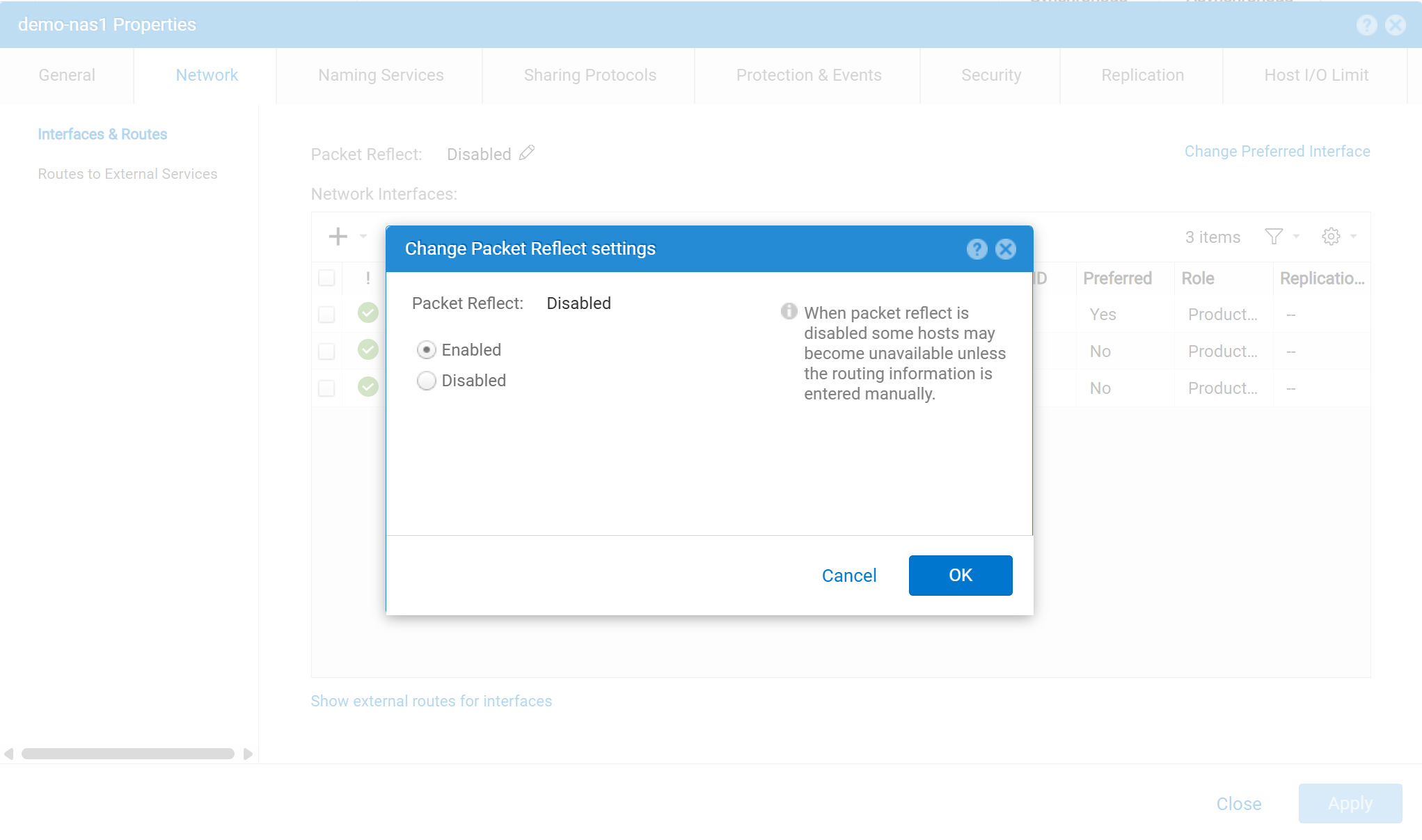
- In the Packet Reflect field, select the Edit, icon, and then select Enabled or Disabled.
You can enable or disable IP packet reflect for each NAS server. IP packet reflect is disabled for all NAS servers by default. Before you disable IP packet reflect, make sure that the hosts are reachable through a default, network, or host route. Otherwise, some hosts may become unavailable when IP packet reflect is disabled.
UEMCLI:
20:41:36 service@FNMXXXXX spa:~/user# uemcli /net/nas/server --help

Manage NAS servers.
Upload/Download:
 [Upload]
  uemcli -upload [...] /net/nas/server [...]
  Refer to uemcli -upload /net/nas/server -help for details

  [Download]
  uemcli -download [...] /net/nas/server [...]
  Refer to uemcli -download /net/nas/server -help for details

Actions:
  [Create]
  /net/nas/server create [ -async ] -name <value> -sp { spa | spb } { -pool <value> | -poolName <value> } [ -tenant <value> ] [ -mpSharingEnabled { no | yes [ -autoUserMappingEnabled { yes | no } ] [ -defaultUnixUser <value> ] [ -defaultWindowsUser <value> ] } ] [ -unixDirectoryService { local | nis | ldap | localThenNis | localThenLdap | none } ] [ -replDest { yes [ -backupOnly { yes | no } ] | no } ] [ -enablePacketReflect { yes | no } ] [ -ioLimit <value> ]

  [Show]
  /net/nas/server [ { -id <value> | -name <value> | -tenant { none | <value> } } ] show [ -output { nvp | csv | table [ -wrap ] } ] [ { -brief | -detail | -filter <value> } ]

  [Delete]
  /net/nas/server { -id <value> | -name <value> } delete [ { -cifsDomUser <value> { -cifsDomPwd <value> | -cifsDomPwdSecure } | -skipUnjoin } ]

  [Set]
  /net/nas/server { -id <value> | -name <value> } set [ -name <value> ] [ -sp { spa | spb } ] [ -mpSharingEnabled { yes | no } ] [ -unixDirectoryService { local | nis | ldap | localThenNis | localThenLdap | none } ] [ -autoUserMappingEnabled { yes | no } ] [ { -defaultAccessDisabled | [ -defaultUnixUser <value> ] [ -defaultWindowsUser <value> ] } ] [ -replDest { yes | no } ] [ -backupOnly { yes | no } ] [ -enablePacketReflect { yes | no } ] [ -preferredProductionOverride { no | yes } ] [ -preferredProductionIPv4 { auto | <value> } ] [ -preferredProductionIPv6 { auto | <value> } ] [ -preferredBackupIPv4 { auto | <value> } ] [ -preferredBackupIPv6 { auto | <value> } ] [ { -ioLimit <value> | -noIoLimit } ]

  [Update]
  /net/nas/server { -id <value> | -name <value> } update [ -async ] { -userMapping [ -dryRun ] | -confView }
Additional Information
Dell Unity: NAS Capabilities (March 2025)
Dell Unity™ Family Unisphere® Command Line Interface User Guide Version 5.5.1 (July 2025)