PowerFlex Rack: /var/log space issues when syslog forwarding feature is enabled
Summary: This article explains the problem in /var/log space due to log rotation is not happening frequently enough.
Symptoms
The current logrotate configuration rotates the messages file once a week, but in cases where syslog forwarding is enabled in VxFlex Manager it, may not rotate fast enough.
Facts:
- The syslog forwarding feature is enabled in VxFlex Manager.
- The /var/log partition is filling up quickly.
- This can vary greatly from system to system
- Remote syslog is enabled on devices in the VxFlex integrated rack or appliance system and configured to send syslog events to VxFlex Manager
Cause
The resource inventory fails for all the resources, when the /var/log file system is at 100%.
Note: Warnings or critical alerts listed below may not work if the space is too full to perform those checks or if it is filling up too fast.
- VxFlex Manager UI shows a warning if >75%:
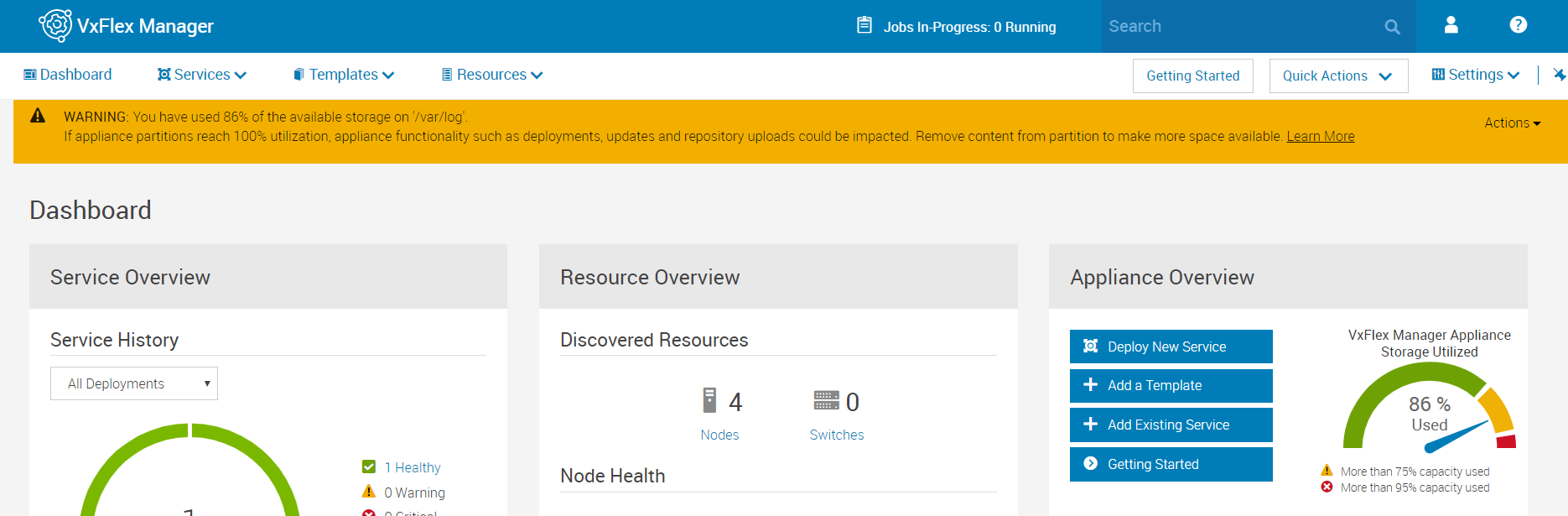
VxFlex Manager UI shows critical if > 95%: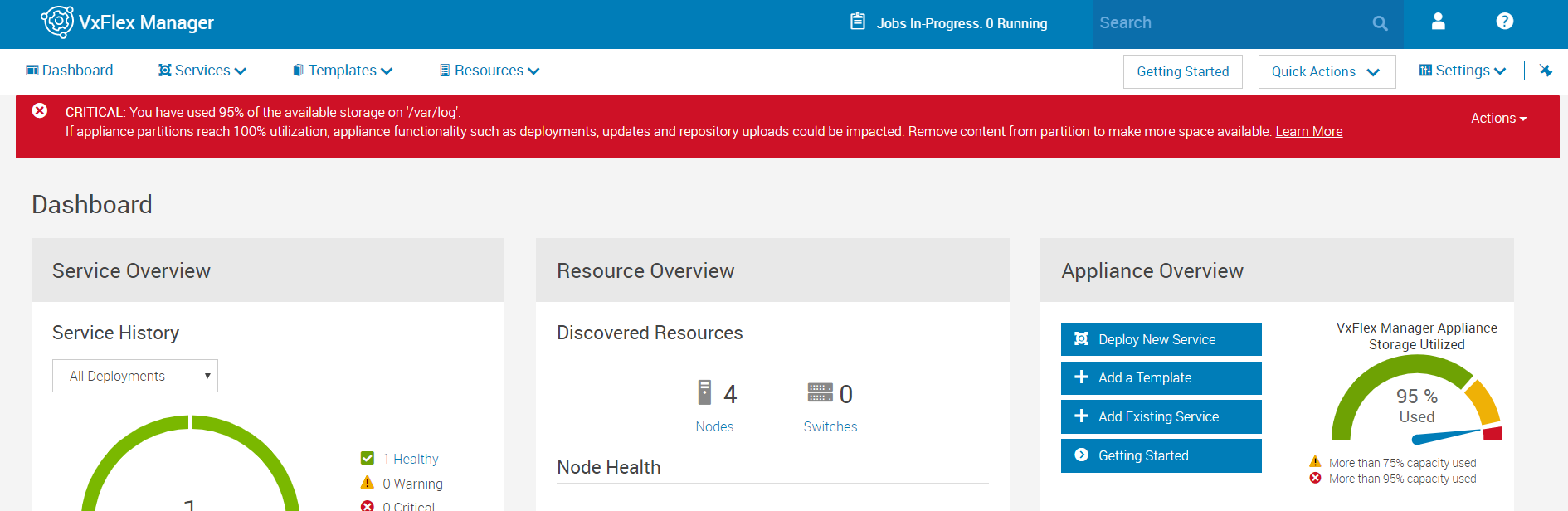
The df -h shows that /var/log is at a very high used capacity and is growing quickly.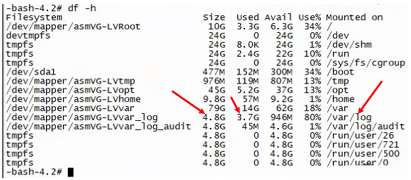
Resolution
To fix log rotate on VxFlex Manager appliances with syslog forwarding enabled, you can configure logrotate, compress existing logs, change rsyslog settings, and lower debug log levels using the following steps:
Step 1: ssh to VxFlex Manager & become root user: sudo su -
Step 2: Edit (vi editor) syslog logrotate rules by ensuring the following text exists in /etc/logrotate.d/syslog
/var/log/cron /var/log/maillog /var/log/messages /var/log/secure /var/log/spooler { size 100M nodateext rotate 5 compress missingok copytruncate postrotate /bin/killall -s SIGHUP -r rsyslog endscript }
Step 3: Enter the following command to verify if the new configuration is saved correctly:
cat /etc/logrotate.d/syslog
Step 4: Depending on how quickly the /var/log space is filling up, choose one of the following options:
For environments that do not fill up /var/log on a daily basis, but need a faster than weekly rotation, change logrotate from weekly to daily using the following command:
cp /etc/cron.weekly/logrotate /etc/cron.daily/
For environments that are filling up /var/log faster than daily rotation can accommodate, change logrotate from daily to hourly using the following command:
cp /etc/cron.daily/logrotate /etc/cron.hourly/
Step 5: Compress existing files and free up space by running the following command:
for log in `ls /var/log/messages-*`; do sudo gzip $log; done
Note: If the /var/log/messages file is so full that you cannot zip it up, then use the following command to clear it:
cat /dev/null > /var/log/messages
Step 6: To verify if the logrotate configuration is working properly, run the following command:
logrotate -f /etc/logrotate.d/syslog
Step 7: To stop logging forwarded syslog events to the /var/log/messages file on the VxFlex Manager appliance, do the following:
- Create the conf file under /etc/rsyslog.d/ using this command:
vi 21-stop-remote-host-syslog-logging.conf - Add the following line to the newly created file above:
if $fromhost-ip != '127.0.0.1' then ~ - Save the file by typing the following:
:wq! - Restart the rsyslog service:
systemctl restart rsyslog.service
Note: 21 is the priority-number used for rsyslog. After restarting rsyslog will not save the incoming remote syslogs to /var/log/messages. VxFlex Manager s local syslogs will still be saved into /var/log/messages.
Note: Even if syslog forwarding is not enabled on VxFlex Manager, hosts can be pointed to VxFlex Manager, which can spam the /var/log/messages file. Configure step 7 if the messages file is getting flooded, regardless of whether VxFlex Manager syslog is on or not.
Step 8: Change the Debug logging level of logstash in the VxFlex Manager appliance by performing the following steps:
- Edit the logging level using the following command:
vi /etc/logstash/logstash.yml - Search for Debugging Settings in the file
- Change the log level from info (default) to error
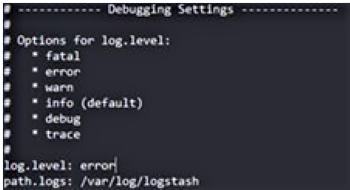
- Edit the following file: vi /etc/logstash/log4j2.properties
- In the default configuration there is a line that starts with rootLogger.appenderRef.console comment this line out using # like below:
-
Restart the logstash service by running the following: systemctl restart logstash
Step 8: Reboot the VxFlex Manager appliance if the /var/log file system was 100% full. This ensures that all services start backup correctly.
Note: Send a test alert to ensure that alert connector is functioning properly after resolving space issues and rebooting the appliance.
Additional Information
- A fix to stop logging syslog messages to /var/log/messages is being worked for a future release of VxFlex Manager.
- This is relevant to any versions of VxFlex Manager that have the syslog forwarding feature up to and including version 3.4.0.4271.