DPA: How to Increase Log Level for Troubleshooting
Summary: This article explains how to increase the log level for individual components in Data Protection Advisor (DPA) to assist with troubleshooting specific issues.
This article applies to
This article does not apply to
This article is not tied to any specific product.
Not all product versions are identified in this article.
Instructions
Use Cases:
- Diagnosing component-specific issues in DPA
- Insufficient logging information for troubleshooting failures or performance problems
Step 1: Access Logging Settings
- Log in to DPA
- Navigate to System Settings → Logging
- Locate the component for which you want to increase the log level
- Adjust the log level as required
- Click OK to apply changes
Example:
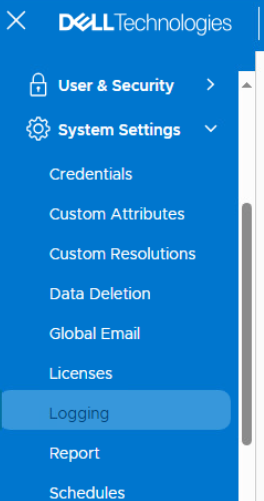
Scroll and change the log level for the required component.

Step 2: Component Details and Use Cases.
1. Analysis Engine
- Purpose: Performs rule-based analysis on collected data
- Logging helps with:
- Diagnosing rule execution failures
- Identifying performance bottlenecks
- Debugging custom analysis rules
2. Configuration
- Purpose: Manages system-wide settings and configurations
- Logging helps with:
- Troubleshooting configuration changes not taking effect
- Identifying misconfigured parameters
- Tracking updates to policies, roles, and user settings
3. Listener
- Purpose: Listens for incoming data from agents and external sources
- Logging helps with:
- Diagnosing data ingestion issues.
- Identifying dropped or malformed packets.
- Debugging agent communication problems.
4. Publisher
- Purpose: Publishes reports, alerts, and notifications
- Logging helps with:
- Troubleshooting failed report deliveries
- Diagnosing email or dashboard publishing errors
- Verifying scheduled report execution
5. Recoverability Analysis
- Purpose: Evaluates backup recoverability across systems
- Logging helps with:
- Identifying incomplete or failed backup jobs
- Debugging recoverability rule failures
- Verifying backup compliance status
6. Reporter
- Purpose: Generates and formats reports based on collected data
- Logging helps with:
- Diagnosing report generation failures
- Debugging template or data-mapping issues
- Identifying missing or corrupt report data
7. REST API
- Purpose: Enables external systems to interact with DPA over API
- Logging helps with:
- Debugging API authentication or access issues
- Tracking API calls and responses
- Identifying malformed requests or failed integrations
Affected Products
Data Protection AdvisorArticle Properties
Article Number: 000390099
Article Type: How To
Last Modified: 13 Nov 2025
Version: 1
Find answers to your questions from other Dell users
Support Services
Check if your device is covered by Support Services.