How To Use Dell Command Update Blocklist Feature
Summary: This article provides information about using Dell Command | Update (DCU) blocklist feature to block Drivers, firmware and applications from being updated.
This article applies to
This article does not apply to
This article is not tied to any specific product.
Not all product versions are identified in this article.
Instructions
Affected Products:
- Dell Command | Update
Table of Contents:
- Locating the SWB on Dell’s support page
- Locating the SWB in the Dell Command | Update Activity log
- Blocking using ADMX template
- Locally using dcu-cli.exe
Starting in v5.7 and later you can use the blocklist feature to exclude updates from being installed, customers must locate the Software Bundle ID (SWB) to add to the blocklist.
The ID is a five- or six-character alphanumeric value that can be located by finding the driver in question on the dell support page, or by searching the DCU Activity log if a computer has already attempted to install a driver you want to block.
Locating the SWB on Dell’s support page
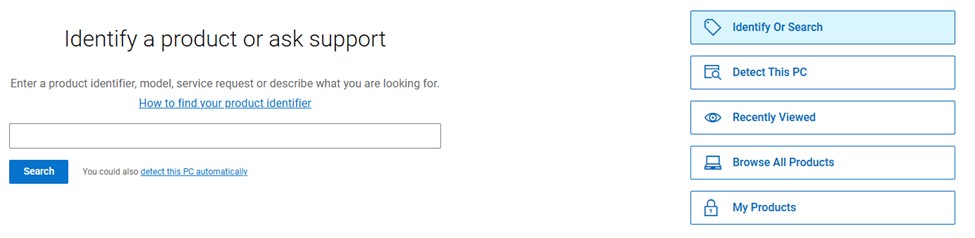
- Go to the https://www.dell.com/support and enter the service tag and click search, or use click Browse All Products.
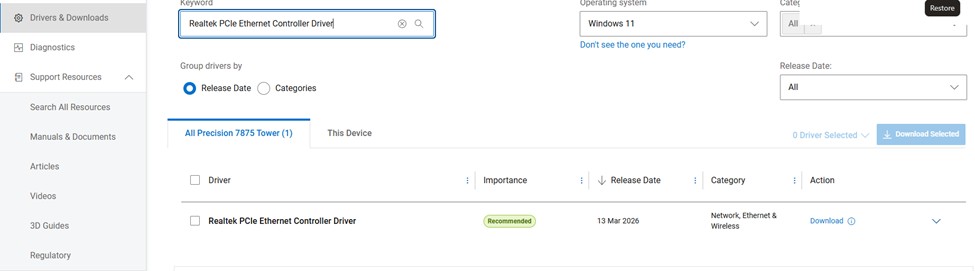
- Click Drivers & Download and use the search feature to find the driver
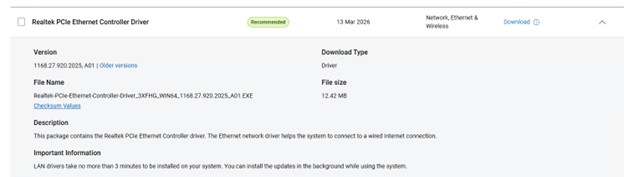
- Click the dropdown arrow next to the driver to view more details.
- The SWB is before the platform type in the file name in this example it is 3XFHG
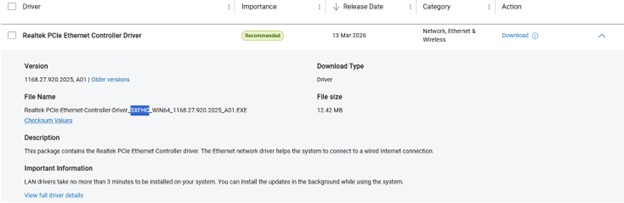
Note: If you are looking for an older driver, you can click the older versions link to view driver details for that version.
Locating the SWB in the Dell Command | Update Activity log
Note: The device must have already attempted to install the driver you want to block before it shows in the activity log.
- Open a Command Prompt as Administrator and type:
notepad.exe c:\programdata\dell\updateservice\log\activity.log
- You can then search for the driver name or search for <name> that displays the driver name with the release ID above it.
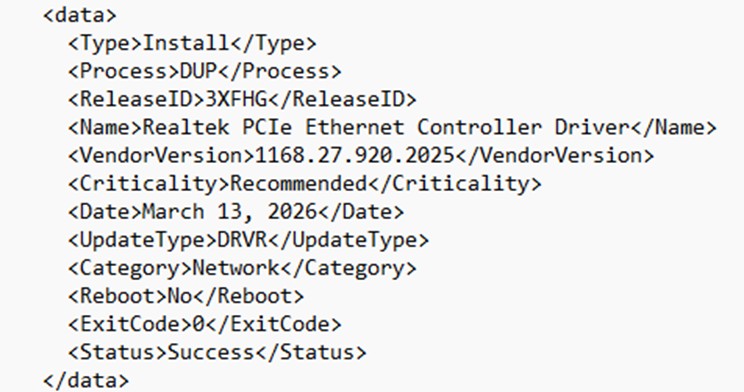
Once you have obtained the SWB that you can enforce the block by using Administrative Template XML-based file (ADMX) template using Intune and Domain GPO or, you can also add this block locally usingdcu-cli.exe.
Blocking using ADMX template
The local locked SWB List option is in the new ADMX template included with DCU v5.7 and later.
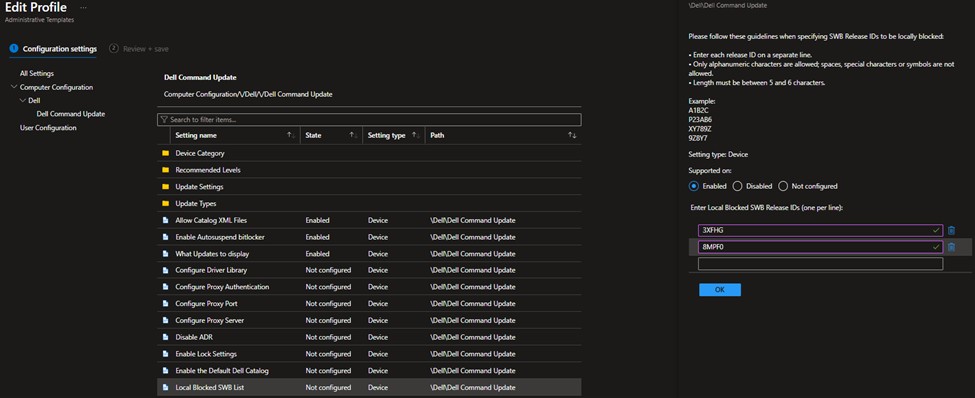
Locally using dcu-cli.exe
Note:
Dcu-cli.exe supports adding multiple SWBs separated by semicolons. This CLI is additive. If you run it more than once, the output from each run is appended to the existing values. Existing data is preserved.
- Open a Command Prompt as Administrator and type:
CD c:\ProgramFiles\Dell\commandupdate
- Next, type:
dcu-cli.exe /configure -localblockedswb=
Affected Products
Dell Command | UpdateArticle Properties
Article Number: 000458889
Article Type: How To
Last Modified: 02 Jul 2026
Version: 4
Find answers to your questions from other Dell users
Support Services
Check if your device is covered by Support Services.