Dell Networking OS10:使用 ONIE 安裝新映像
Summary: 使用 ONIE 安裝新的 OS10 映像
This article applies to
This article does not apply to
This article is not tied to any specific product.
Not all product versions are identified in this article.
Instructions
先決條件:
注意:ONIE 在 ONIE 安裝模式中啟動後,ONIE 安裝模式會持續,直到作業系統安裝成功為止。
- 作用中主控台與交換器的連線
- 存取 ONIE>ONIE 安裝
- 使用動態主機設定通訊協定 (DHCP) 或手動將 IP 位址、子網路遮罩和預設閘道 (如有需要) 指派給管理介面
- 交換器必須可使用已載入 HTTP、TFTP 或 FTP 服務的作業系統檔案伺服器詳細資料 (本文使用 HTTP)。
指示:
ONIE 解除安裝:若交換器已安裝任何作業系統,在 ONIE 安裝新作業系統之前,必須先執行 ONIE 解除安裝。
-
交換器開機時會出現畫面,顯示已安裝的軟體版本,或是選擇輸入 ONIE。使用向上或向下箭頭選取 ONIE。使用箭頭也會停止自動倒數計時器(圖 1)。

圖 1:ONIE 功能表
-
當 ONIE 功能表可用時,請使用向上和向下方向鍵選取 ONIE:解除安裝作業系統 ,然後按下 ENTER 鍵。同樣,有一個倒數計時器,一旦使用箭頭,它就會停止(圖2)。

圖 2:ONIE 子功能表
-
ONIE 會解除安裝所有現有的作業系統 (圖 3)。
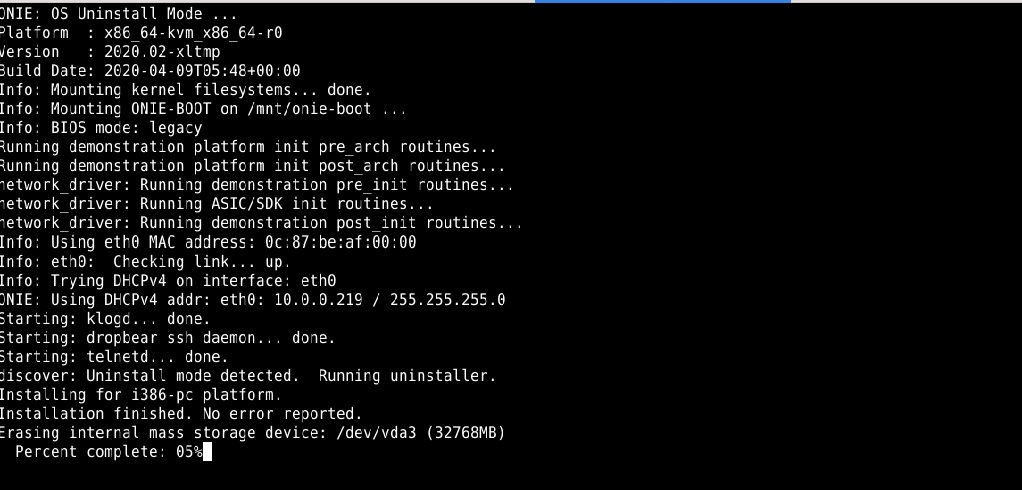
圖 3:ONIE 解除安裝範例
-
交換器會重新開機並開始 ONIE 安裝程序。
ONIE 手動安裝作業系統:使用特定IP位址、服務和檔名手動安裝作業系統。
- 使用
onie-nos-install命令為貴組織設定主要和次要 IT 連絡人。提供 HTTP、FTP 和 TFTP 選項。
ONIE:/ # onie-nos-install ftp://user:password@x.x.x.x/PKGS_OS10-Enterprise-10.5.3.2.89buster-installer-x86_64.binNOTE: Do not change the OS10 filename.
- 交換器會上傳 OS10,然後將映像安裝到兩個分割區。
Example system output:
discover: installer mode detected.
Stopping: discover... done.
Info: Attempting ftp://user:password@x.x.x.x/PKGS_OS10-Enterprise-10.5.3.2.89buster-installer-x86_64.bin ...
Connecting to x.x.x.x (x.x.x.x:21)
installer            100% |*******************************|   776M  0:00:00 ETA
ONIE: Executing installer: ftp://user:password@x.x.x.x/PKGS_OS10-Enterprise-10.5.3.2.89buster-installer-x86_64.bin
Initializing installer ... OK
Verifying image checksum ... OK
OS10 Installer: machine: dellemc_s5248f_c3538
Deleting logical volume SYSROOT ... OK
Creating logical volume SYSROOT ... OK
Creating ext4 filesystem on SYSROOT ... OK
Extracting OS10 ...
OK
Installing OS10 on primary volume ...
OK
Setting up shared data ... OK
Synchronizing standby image ... OK
OS10 installation is complete.
3.交換器完成映像安裝至兩個分割區後,交換器會重新開機,並使用主要磁碟分割開機。OS10 範例:

圖 4:ONIE 解除安裝範例
- 交換器出現使用者名稱提示後,使用預設登入資料登入交換器 (
OS10: user=admin, password=admin) 的資料儲存應用程式和系統中執行。

圖 5:OS10 登入範例
- 確認作業系統已成功載入至磁碟分割。OS10 範例:

圖 6:顯示版本輸出範例

圖 7:顯示開機詳細資料輸出範例
如需進一步協助,請參閱 Dell SmartFabric OS10 使用者指南說明文件,或聯絡 Dell 技術支援部門。
請參閱相關的 KB 文章125512:Dell SmartFabric OS10 資訊中心。
Affected Products
PowerSwitch S3048-ON, PowerSwitch S4048-ON, PowerSwitch S4048T-ON, PowerSwitch S4112F-ON/S4112T-ON, PowerSwitch S4128F-ON/S4128T-ON, PowerSwitch S4148F-ON/S4148T-ON/S4148FE-ON, PowerSwitch S4148U-ON, PowerSwitch S4248FB-ON /S4248FBL-ON
, PowerSwitch S5048F-ON, PowerSwitch S5148F-ON
...
Products
PowerSwitch S5212F-ON, PowerSwitch S5224F-ON, PowerSwitch S5232F-ON, PowerSwitch S5248F-ON, PowerSwitch S5296F-ON, PowerSwitch S5448F-ON, PowerSwitch S6010-ON, PowerSwitch S6100-ON, PowerSwitch Z9100-ON, PowerSwitch Z9264F-ON, PowerSwitch Z9332F-ON
, PowerSwitch Z9432F-ON, SmartFabric OS10 Software
...
Article Properties
Article Number: 000199005
Article Type: How To
Last Modified: 02 Dec 2025
Version: 3
Find answers to your questions from other Dell users
Support Services
Check if your device is covered by Support Services.