NetWorker: NetWorker Administrator account is unable to modify any resources in NMC or NWUI
Summary: The NetWorker server includes NSR user groups which are used to assign permissions in NetWorker. The NSR User Group "Application Administrator" contains a default entry for the NetWorker server's local Administrators group. If this setting is removed, the NetWorker Administrator account can see resources in NetWorker but is unable to modify them. An error appears stating that the user does not have Configure NetWorker or Change Application Settings privileges. ...
Symptoms
The NetWorker Management Console (NMC) or NetWorker Web User Interface (NWUI) was accessed using the default NetWorker administrator account, or another NetWorker user account in the Administrators group. All attempts to modify NetWorker resources fail, the following error is returned:
NMC:
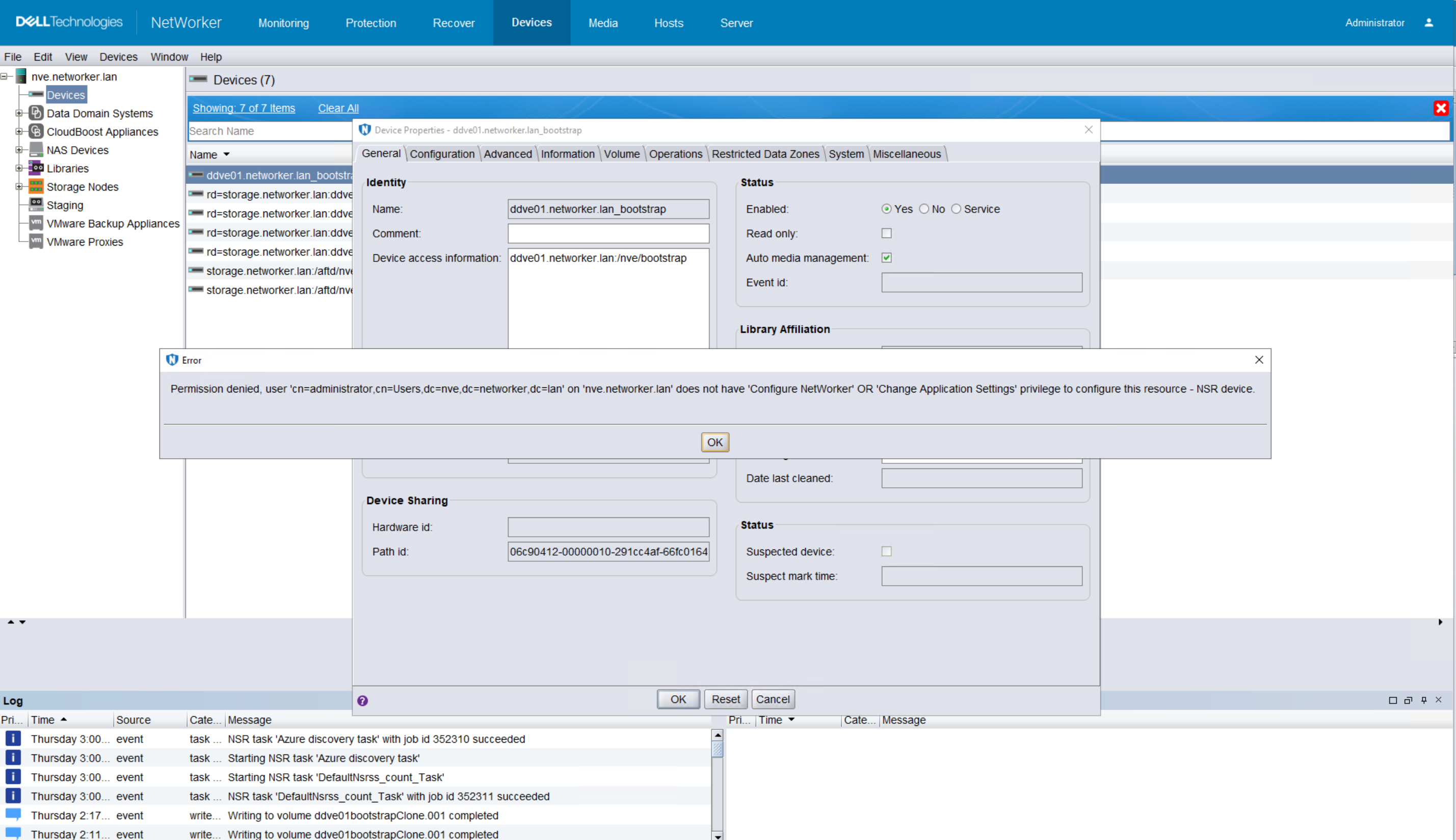
NWUI:

Permission denied, user 'cn=Administrator,cn=Users,cn=NETWORKER_SERVER_NAME,dc=DOMAIN_COMPONENT1,dc=DOMAIN_COMPONENT2' does not have 'Configure NetWorker' OR 'Change Application Settings' privilege to confgure this resourceThe NetWorker server's NSR User Group "Users" contains the NetWorker server's local Users group in the external roles field, and/or the Users field contains *@*.

This allows the NetWorker Administrator to see resources on the NetWorker server. The Administrator is unable to modify them since the Users group does not have "Configure NetWorker" OR "Change Application Settings" privileges.
Cause
The NetWorker server's NetWorker Server Resource (NSR) user group Application Administrators is missing the local Administrators group in the external roles field.
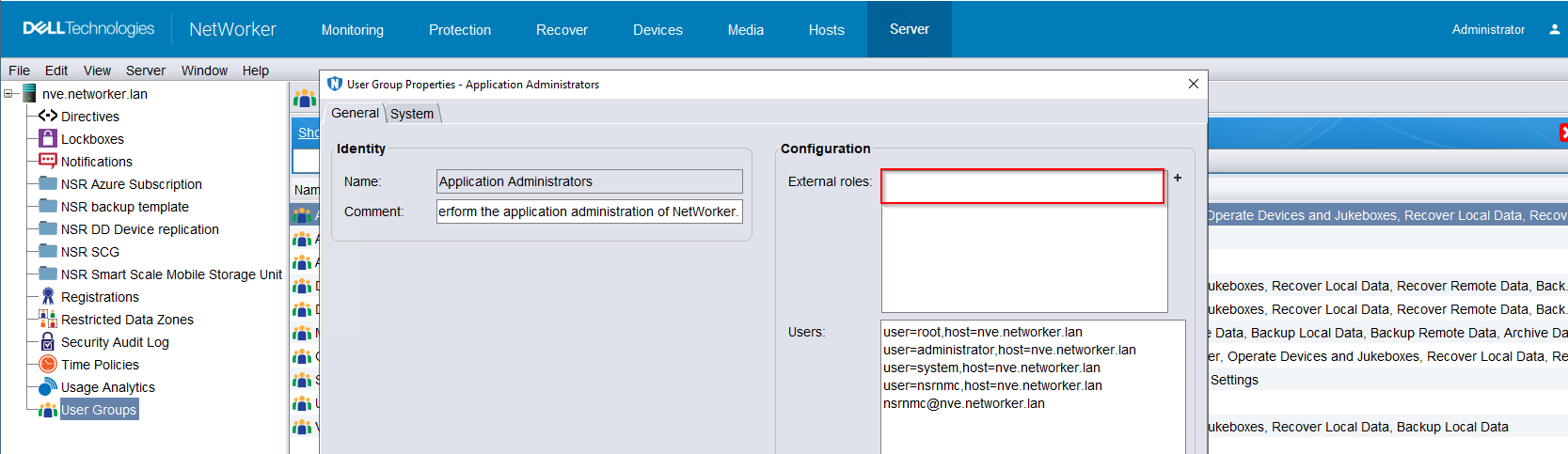
cn=Administrators,cn=Groups,cn=NETWORKER_SERVER_NAME,dc=DOMAIN_COMPONENT1,dc=DOMAIN_COMPONENT2". The NetWorker server's /nsr/logs/rap.log may show which user modified this field to remove the default settings.
Resolution
- Confirm which host is the AUTHC server.
NMC Server:
Linux: /opt/lgtonmc/etc/gstd.conf
Windows: <INSTALL_DRIVE>:\Program Files\EMC NetWorker\Management\GST\etc\gstd.conf
This file contains a string authsvc_hostname which is the AUTHC host used by the NMC.
NWUI Server:
Linux: /opt/nwui/logs/install.log
Windows: <INSTALL_DRIVE>:\Program Files\EMC NetWorker\nwui\logs\install.log
The install.log contains lines showing what host was set as the "Authentication server" during the NWUI initial configuration.
- Open an administrative command prompt or root shell on the NetWorker server.
- Enter:
nsraddadmin -H AUTHC_SERVER_NAME -p 9090NOTE: Replace AUTHC_SERVER_NAME with the AUTHC server hostname/address determined in step 1.Example:
[root@nsr ~]# nsraddadmin -H nsr.amer.lan -P 9090
134749:nsraddadmin: 'cn=Administrators,cn=Groups,dc=nsr,dc=amer,dc=lan' is already on the 'external roles' list of 'Security Administrators' user group.
134751:nsraddadmin: Added role 'cn=Administrators,cn=Groups,dc=nsr,dc=amer,dc=lan' to the 'Application Administrators' user group.
134749:nsraddadmin: 'cn=Users,cn=Groups,dc=nsr,dc=amer,dc=lan' is already on the 'external roles' list of 'Users' user group.
If the field was updated correctly, users who belong to the default Administrators group can modify NetWorker resources.
Additional Information
As an alternative to the command-line method shown in the Resolution field, the NetWorker Management Console (NMC) or NetWorker Web User Interface (NWUI) can be used to correct the Application Administrators external roles.
1. Log in to the NMC or NWUI using the default NetWorker Administrator account.
2. Go to Servers->User Groups.
NMC Method:
- Log in to the NetWorker Management Console (NMC) as the default NetWorker administrators account.
- Go to Server->User Groups.
- Open the Application Administrators user group.
- In the User Group Properties, click the + sign next to the External Roles field.
- Select the default Administrators group.

- Click OK.
- The NetWorker Administrator (and other local NetWorker users in the Administrators group) should now be able to modify NetWorker resources.
NWUI Method:
- Log in to the NWUI as the default NetWorker Administrator account.
- Go to Server->User Groups.
- Click Application Administrators.
- Click Edit.
- Click Browse External Roles.
- If the NetWorker server is the default AUTHC server, use the Default option. If the NetWorker AUTHC host is on a different host, use the Remote Host option and specify the Host Name, Username, and Password. The default AUTHC port is 9090.
- Click Browse.
- Select the Administrators group:
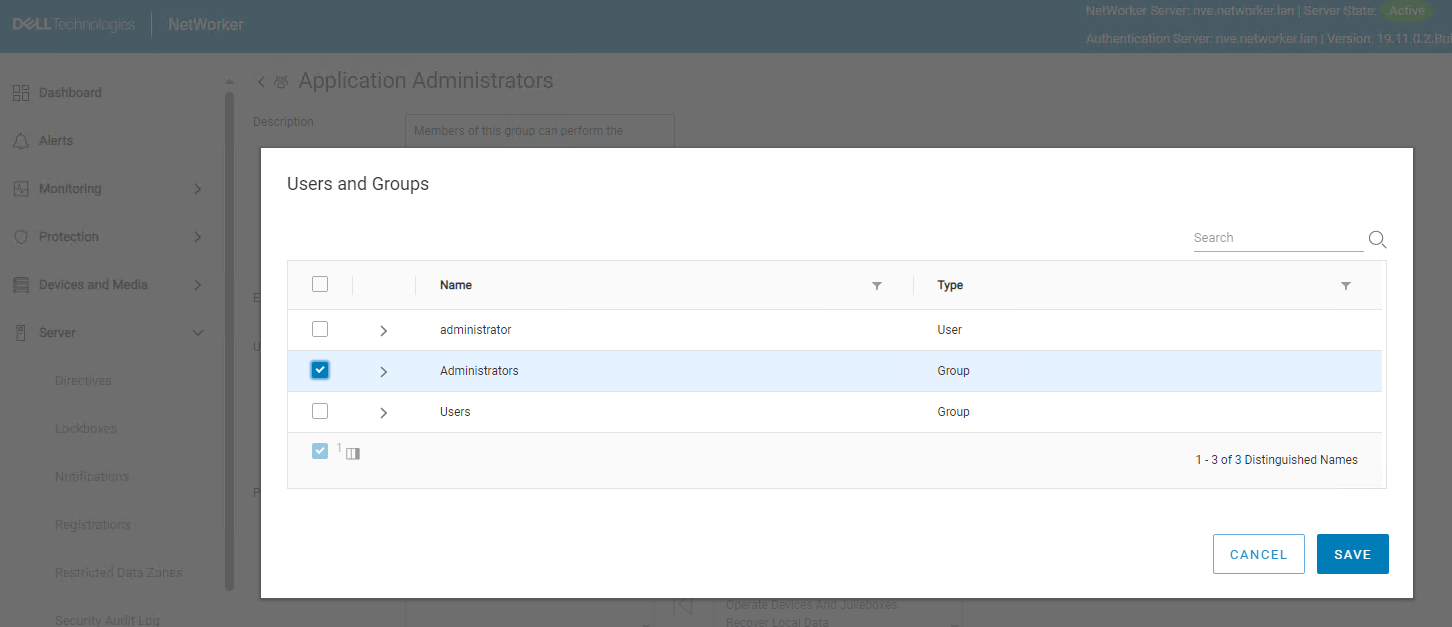
- Click SAVE.
- In the Application Administrators window, click SAVE.
- The NetWorker Administrator (and other local NetWorker users in the Administrators group) should now be able to modify NetWorker resources.