ECS: How to install a certificate on a local machine for TLS/SSL enabled applications
Summary: This KB provides a step-by-step guide on how to install and configure SSL/TLS certificates on a local machine to enable secure communication for applications such as S3-compatible storage services. It covers certificate formats, trust store configuration, and validation steps to ensure integration with TLS/SSL-enabled tools and environments. ...
This article applies to
This article does not apply to
This article is not tied to any specific product.
Not all product versions are identified in this article.
Instructions
- Access an ECS node over CLI and go to the ECS Certificate Tool directory using the following command:
admin@ecsnode2:~> cd ecs_certificate_tool-1.7
NOTE: If the tool is not available on your node, refer to the relevant KB for installation instructions: ECS: Data and Management SSL Certificate Tool
- List the available files using the following command. Then, download the data certificate file (usually with a
.crtextension):
admin@ecsnode2:~/ecs_certificate_tool-1.7> ls -lrt
total 72
-rwxr-xr-x  1 admin users  1025 Sep 24  2021 config.ini
drwxr-xr-x 18 admin users  4096 Sep 24  2021 libs
-rwxr-xr-x  1 admin users 49912 Apr 29  2022 ecs_certificate_tool.py
drwxr-xr-x  2 admin users    34 Jul  9  2024 logs
drwxr-xr-x  2 admin users  4096 Jan 20  2025 generated_files
-rwxr-xr-x  1 admin users     0 Mar 12  2025 privkey.pem
-rwxr-xr-x  1 admin users    21 Mar 12  2025 gregtest.txt
-rwxr-xr-x  1 admin users    21 Mar 12  2025 gregtest2.txt

admin@ecsnode2:~/ecs_certificate_tool-1.7> cd generated_files
admin@ecsnode2:~/ecs_certificate_tool-1.7/generated_files> ls -lrt
total 24
-rwxr-xr-x 1 admin users 1358 Jan 20  2025 CKM0xxxxxxxxxx-data.csr
-rwxr-xr-x 1 admin users 1675 Jan 20  2025 CKM0xxxxxxxxxx-data_private.key
-rwxr-xr-x 1 admin users 1663 Jan 20  2025 CKM0xxxxxxxxxx-data-ssc.crt
-rwxr-xr-x 1 admin users 1907 Apr 15 19:25 CKM0xxxxxxxxxx-management-ssc.crt
-rwxr-xr-x 1 admin users 1675 Apr 16 11:11 CKM0xxxxxxxxxx-management_private.key
-rwxr-xr-x 1 admin users 1602 Apr 16 11:11 CKM0xxxxxxxxxx-management.csr
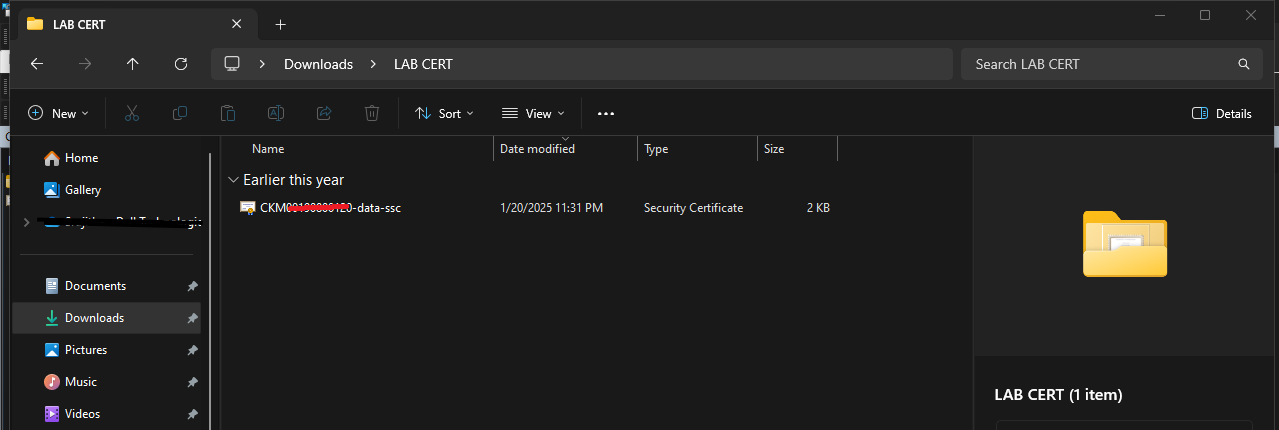
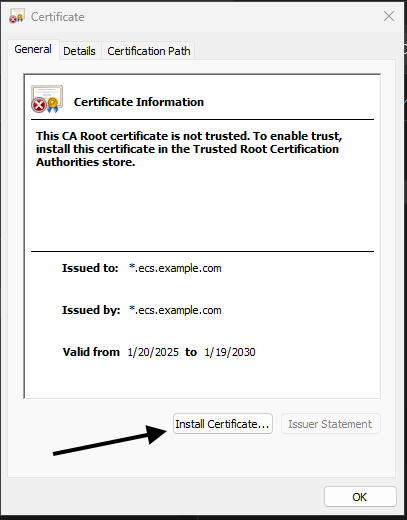
- Once the file is downloaded, locate it on your local machine. Double-clicking the certificate file (Example:
.crtor.pem) opens the Certificate Installation Wizard and then click install.
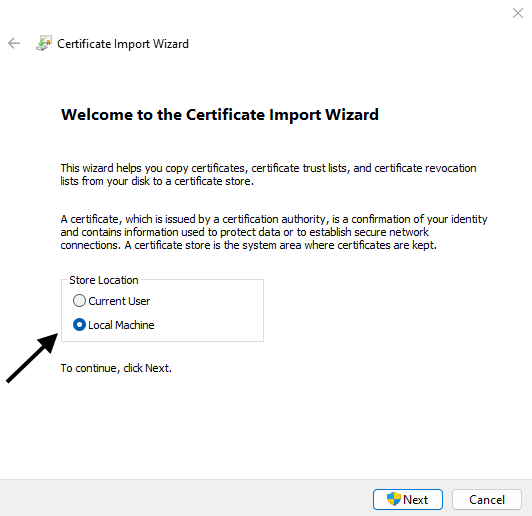
- In the Certificate Installation Wizard, select the option to install the certificate for the 'Local Machine', then click 'Next' to proceed.
- In the Certificate Import Wizard, click 'Place all certificates in the following store', then click 'Browse'.
From the list of certificate stores, choose 'Trusted Root Certification Authorities', click 'OK', and then click 'Next' to continue.
This step ensures that the certificate is placed in the trusted root store, allowing your system to recognize it as a trusted authority.
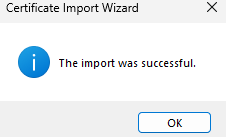
- Click 'Finish' to complete the certificate installation. Once installed, your system trusts the certificate, and you can now use TLS/SSL-enabled applications, such as S3-compatible tools securely.
The certificate is now part of your trusted root store, enabling encrypted communication without trust errors.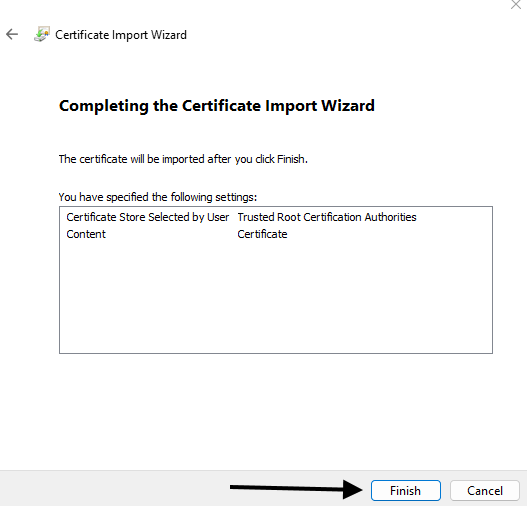
Affected Products
ECS Appliance, ECS Appliance Gen 3, ECS Appliance Hardware SeriesArticle Properties
Article Number: 000373920
Article Type: How To
Last Modified: 08 Oct 2025
Version: 1
Find answers to your questions from other Dell users
Support Services
Check if your device is covered by Support Services.