Summary:
It’s a common misconception that if a PowerEdge server fails to boot, doesn’t complete POST, or experiences other issues, the iDRAC will also be inaccessible. In reality, iDRAC is
often still online and available to assist with troubleshooting—even if it was never configured beforehand. Leveraging iDRAC to review recent events, analyze logs, and collect a SupportAssist Collection (TSR) is critical for accelerating diagnosis and recovery.
...
Please select a product to check article relevancy
This article applies to This article does not apply toThis article is not tied to any specific product.Not all product versions are identified in this article.
The iDRAC manages the system health LED (also used as the system identification LED) on PowerEdge servers. If the LED is on, no matter the color or if its blinking, iDRAC is online and should be accessible.
Check both the front and the back of the server. With age and use the LED's can become dim and difficult to see in some environments.
Even if the LEDs turn briefly on and then off, this still indicates that iDRAC came online and attempts should be made for access.
If the server is powered on:
If the server is powered on (power button LED is solid green) and iDRAC access is needed to troubleshoot issues such as missing video output, the process is straightforward. Check the system health LED on the front or back of the server:
Blue (solid or blinking) oramber (solid or blinking) – iDRAC should be accessible.
Off – Verify the opposite side of the server to ensure nothing is disconnected or failed.
If the server is off:
If the server is healthy (blue LED) and powered off, the system health LED may turn off after a set amount of time. To test, perform the following:
Press the System Identification (i button) on the front or back (if equipped) of the server. If the LED starts blinking blue the iDRAC should be online and accessible.
See the Installation and Service Manual for your specific product to determine where this button is.
If the server isn't powering on:
This procedure helps determine if the iDRAC is operational even when the server itself does not power on, allowing for diagnostics and log collection. It is recommended to perform the following steps:
Ensure the Power Supply LED(s) are showing a solid green health LED. If not, there is likely a power issue such as being plugged into the wrong voltage circuit, offline UPS, etc.
Disconnect all power cables from the server and wait 2–3 minutes to ensure a full power drain.
Firmly re-seat the power cable or cables into the server.
Confirm each power supply LED is solid green, indicating proper power input.
Wait about 2 minutes for the iDRAC to boot.
Check the system health LED at the front and back of the server. If either or both LED is illuminated (blue or amber), the iDRAC is likely online and accessible. Below is a general idea and may vary based on generation of server and model. See your specific models Installation and Service Guide for more details.
Solid blue – System is healthy
Solid amber – System is in fail-safe mode
Blinking amber – System has a fault
Example Pictures:
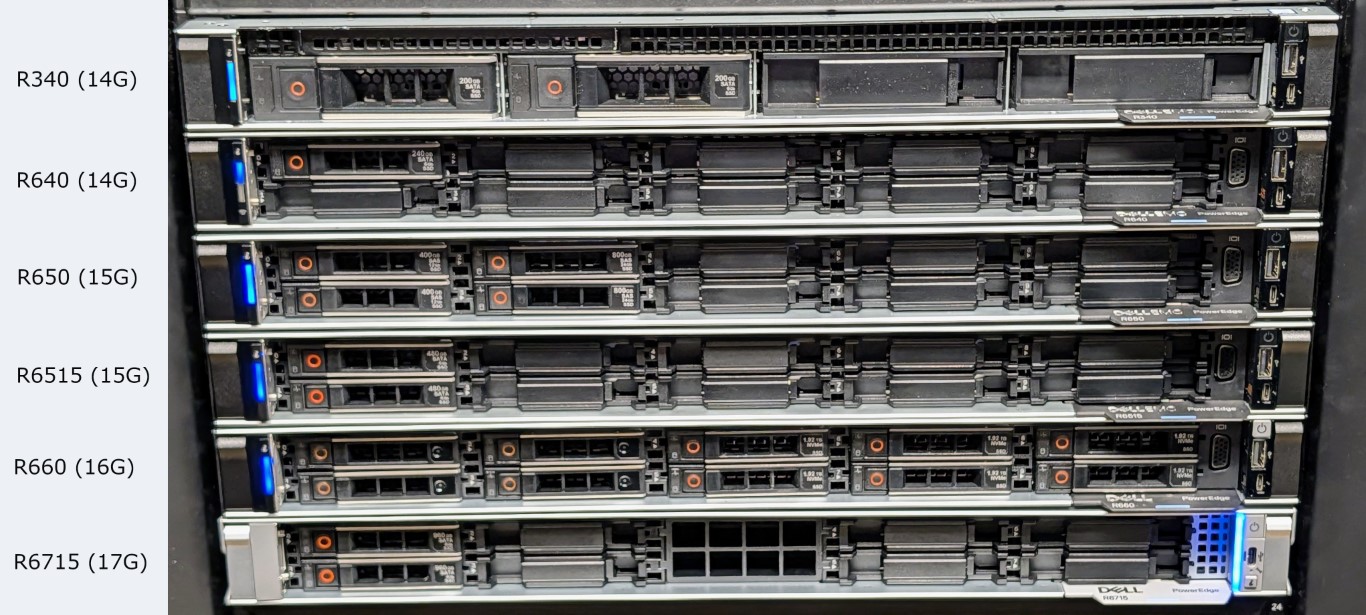
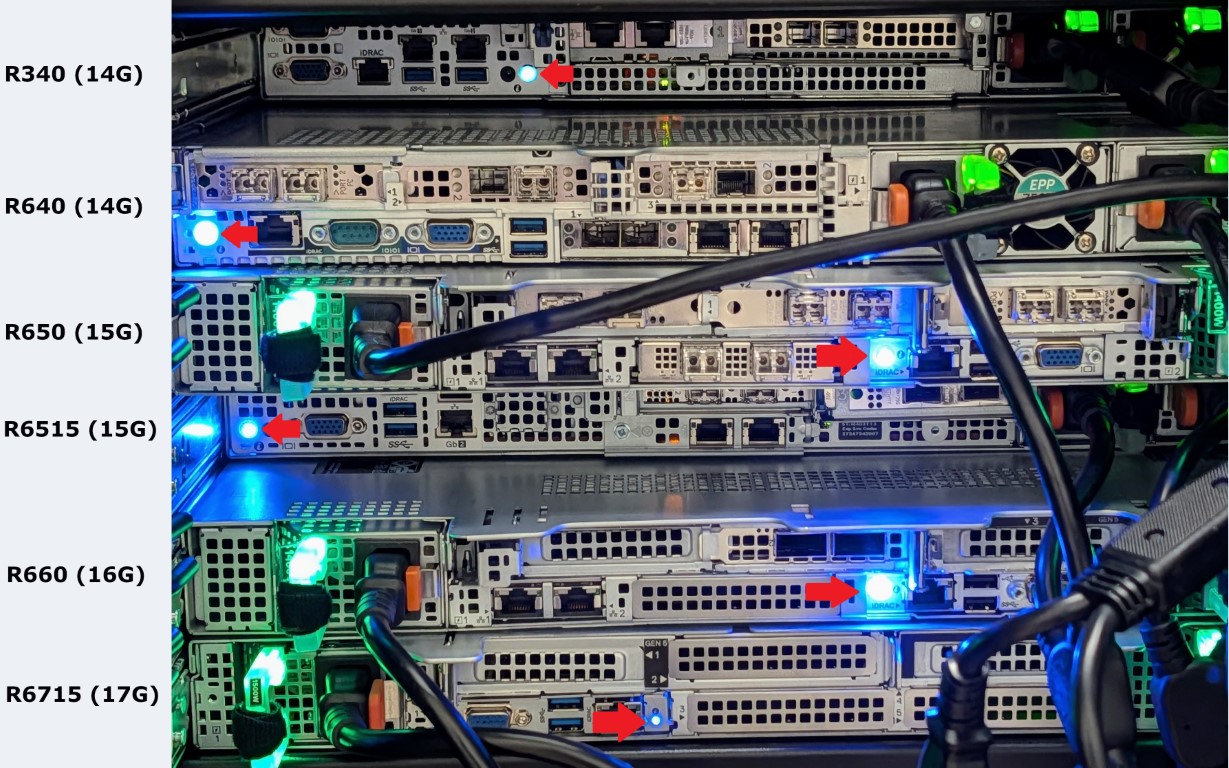
Pictures of systems in a healthy state (blue LED) but servers are off
Note: All of these servers have a solid blue health LED
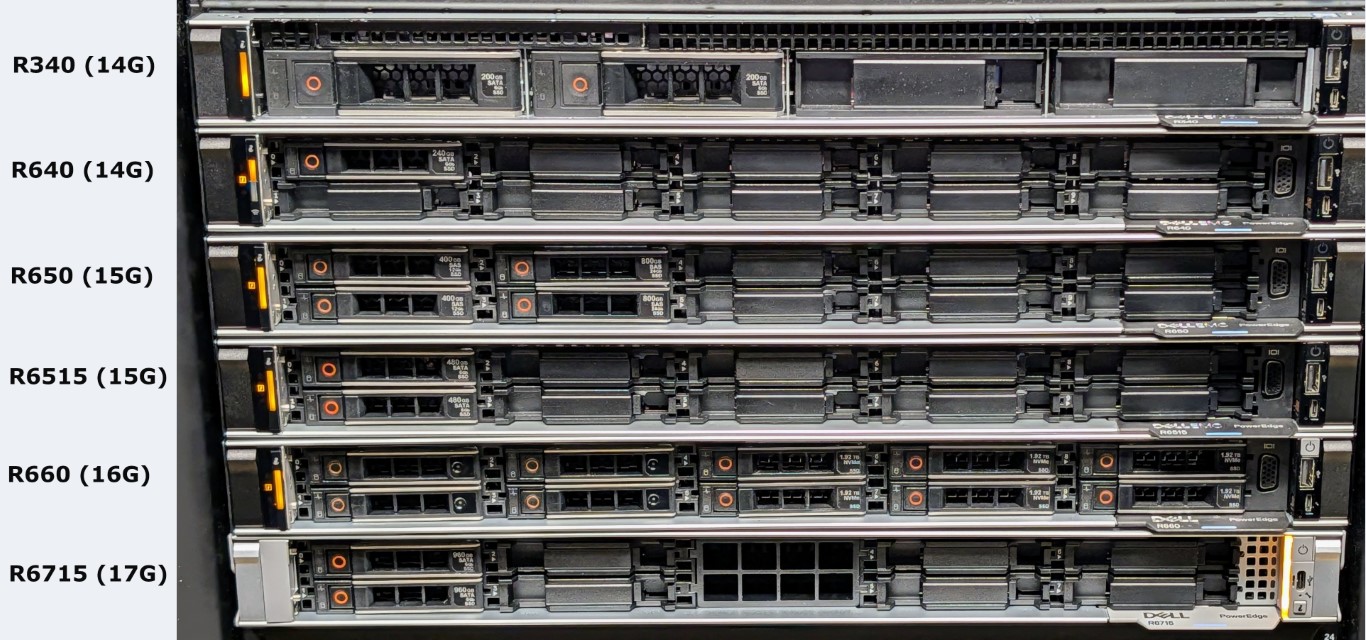
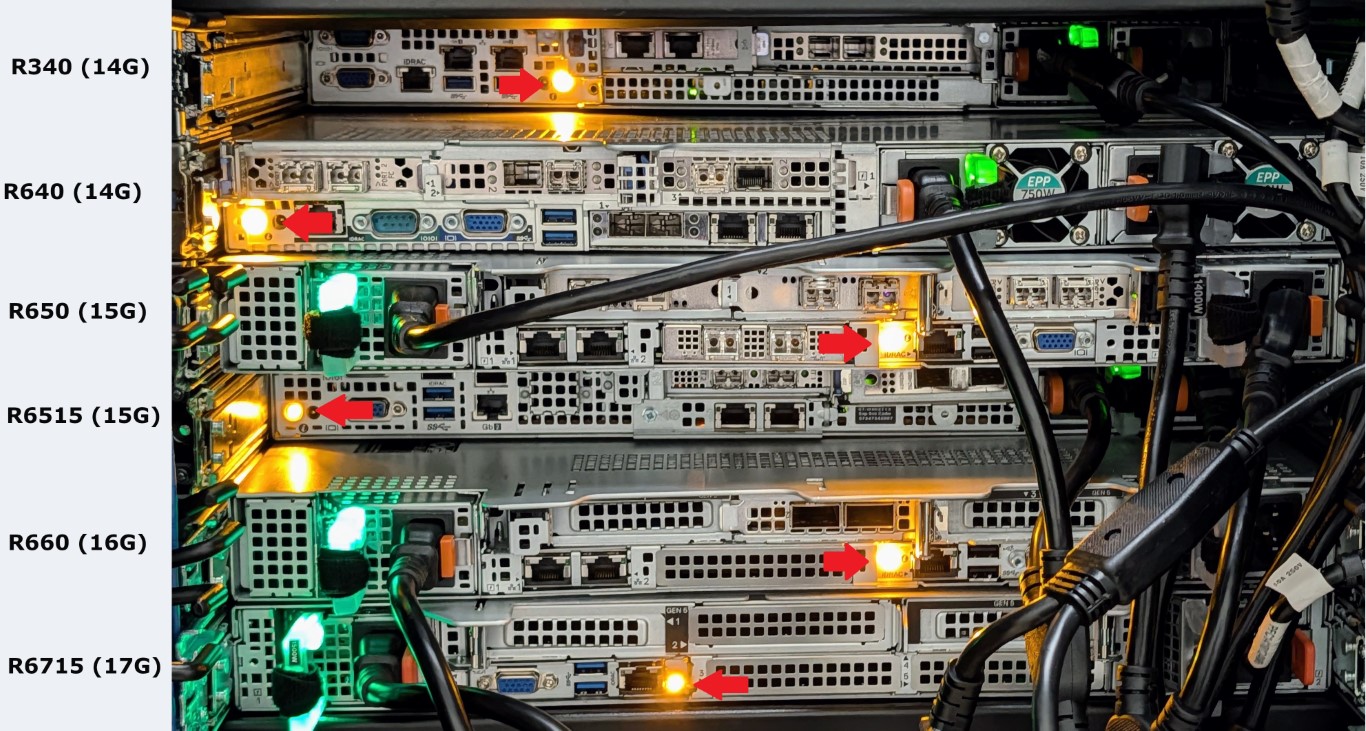
Pictures of systems reporting error (simulated by unplugging PSU2 power cable)
Note: All of the servers are showing a blinking amber health LED with the exception of the R6715 (17G) which is solid amber.
Next steps to access the iDRAC:
If the iDRAC was previously configured:
Confirm its network connection (if not shared with another NIC) is plugged in and shows activity
Access the iDRAC via its configured IP and login
If the iDRAC was not previously configured, or when local to the server, iDRAC Direct can be used to expedite access to the iDRAC to gather a SupportAssist collection (TSR) and review for any issues.