如何访问 Dell Data Security 服务器管理控制台
Summary: 按照这些逐步说明了解如何访问 Dell Data Security 或 Dell Data Protection 服务器管理控制台。
This article applies to
This article does not apply to
This article is not tied to any specific product.
Not all product versions are identified in this article.
Instructions
Dell Data Security(以前称为 Dell Data Protection)需要安装管理控制台才能管理:
- 策略
- 报告
- 加密密钥
受影响的产品:
- Dell Security Management Server
- Dell Data Protection Enterprise Edition Server
- Dell Security Management Server Virtual
- Dell Data Protection Virtual Edition
受影响的版本:
- 8.0 及更高版本
登录管理控制台的说明因 Dell Data Security 服务器的版本而异。
单击相应的产品版本,了解有关访问管理控制台的具体步骤。有关版本信息,请参阅 如何确定 Dell Data Security 服务器版本。
9.2 及更高版本
- 打开网页浏览器并访问 https://servername.company.com:8443/webui。
 注:
注:- 该 FQDN(完全限定域名)示例将不同于您的环境中的服务器。
- 端口 8443 可能与您环境中的管理控制台端口不同。
- 登录管理控制台。
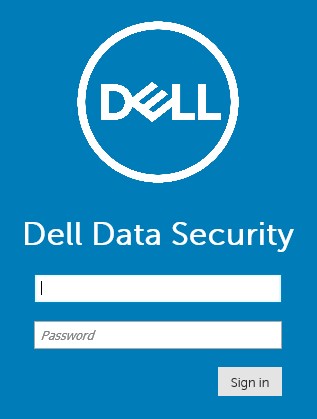 注:
注:- 在版本 11.4 及更高版本中,如果为用户配置了 Google Authenticator 或电子邮件 MFA(多重身份验证),则系统会提示用户输入 OTP(一次性密码)。
- 有关配置 MFA 的更多信息,请参阅如何在 Dell Security Management Server 管理控制台中管理多因素身份验证。
8.0 至 9.1.5
- 在 Windows 资源管理器中,转至:
- Dell Data Protection Enterprise Edition Server:
C:\Program Files\Dell\Enterprise Edition - 端点:
C:\Program Files\Dell\Virtual Edition
注:- 端点访问需要从 Dell Data Protection Virtual Edition 介质安装管理控制台(以前称为远程管理控制台)。
- 有关安装步骤,请参阅如何安装 Dell Data Protection 远程管理控制台。
- Dell Data Protection Enterprise Edition Server:
- 双击
Credant.Console。

- 提交凭据以登录到管理控制台。
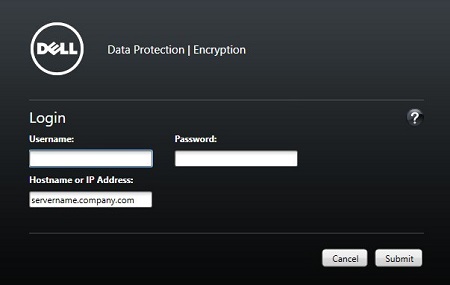
Additional Information
Videos
Affected Products
Dell EncryptionArticle Properties
Article Number: 000126852
Article Type: How To
Last Modified: 21 Jul 2026
Version: 16
Find answers to your questions from other Dell users
Support Services
Check if your device is covered by Support Services.