Dell Data Security Server管理コンソールにアクセスする方法
Summary: 次の手順に従って、Dell Data SecurityまたはDell Data Protection Server管理コンソールにアクセスする方法について説明します。
This article applies to
This article does not apply to
This article is not tied to any specific product.
Not all product versions are identified in this article.
Instructions
Dell Data Security(旧Dell Data Protection)には、次を管理するための管理コンソールが必要です。
- ポリシー
- レポート
- 暗号化キー
対象製品:
- Dell Security Management Server
- Dell Data Protection Enterprise Edition Server
- Dell Security Management Server Virtual
- Dell Data Protection Virtual Edition
影響を受けるバージョン:
- 8.0以降
管理コンソールにログインする手順は、Dell Data Securityサーバーのバージョンによって異なります。
管理コンソールのアクセスに関する具体的な手順については、該当する製品バージョンをクリックしてください。バージョン情報については、「 Dell Data Security Serverのバージョンを識別する方法」を参照してください。
9.2以降
- Webブラウザーを開いて、https://servername.company.com:8443/webuiに移動します
 注:
注:- この例のFQDN(完全修飾ドメイン名)は、お使いの環境内のサーバーとは異なります。
- ポート8443は、ご使用の環境の管理コンソール ポートとは異なる場合があります。
- 管理コンソールにサイン インします。
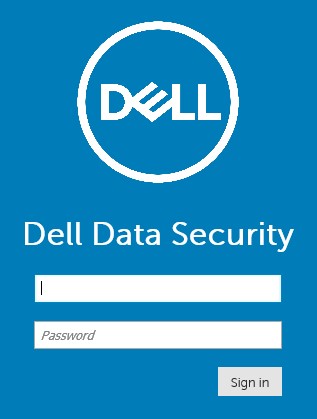 注:
注:- バージョン11.4以降では、Google AuthenticatorまたはEメールMFA(多要素認証)のいずれかがユーザーに設定されている場合、OTP(ワンタイム パスワード)の入力を求めるプロンプトが表示されます。
- MFAの構成の詳細については、「 Dell Security Management Server管理コンソールで多要素認証を管理する方法」を参照してください。
8.0~9.1.5
- Windowsエクスプローラーで、次に移動します。
- Dell Data Protection Enterprise Edition Server:
C:\Program Files\Dell\Enterprise Edition - エンドポイント:
C:\Program Files\Dell\Virtual Edition
注:- エンドポイント アクセスには、Dell Data Protection Virtual Editionメディアから管理コンソール(旧リモート管理コンソール)をインストールする必要があります。
- インストール手順については、「Dell Data Protectionリモート管理コンソールをインストールする方法」を参照してください。
- Dell Data Protection Enterprise Edition Server:
- ダブル クリック
Credant.Console。

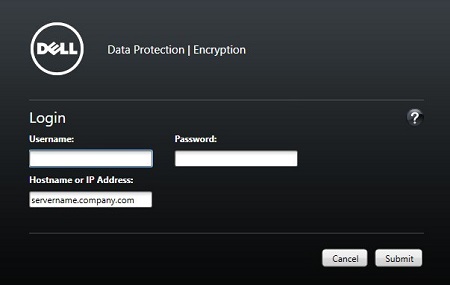
- 認証情報を送信して、管理コンソールにサインインします。
Additional Information
Videos
Affected Products
Dell EncryptionArticle Properties
Article Number: 000126852
Article Type: How To
Last Modified: 21 Jul 2026
Version: 16
Find answers to your questions from other Dell users
Support Services
Check if your device is covered by Support Services.