PowerFlex 3.X: How-to enable_background_device_scanner to fix device failed errors
Summary: How-to Enable the background device scanner on the devices in the specified storage pool to check for errors (not supported in fine granularity storage pools). And How errors are reported in the User Interface. ...
This article applies to
This article does not apply to
This article is not tied to any specific product.
Not all product versions are identified in this article.
Instructions
Steps
The Below Command can be used to run the background device scanner.
scli --enable_background_device_scanner --protection_domain_name pd1 --storage_pool_name pool --scanner_mode device_only --report_and_fix
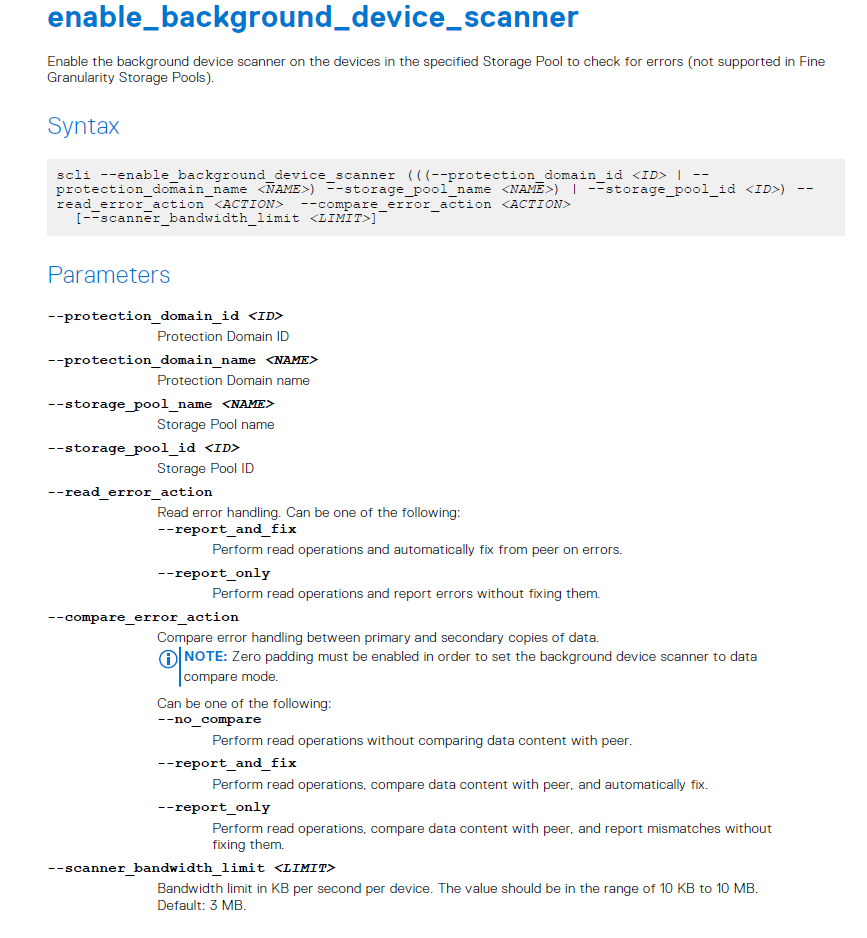
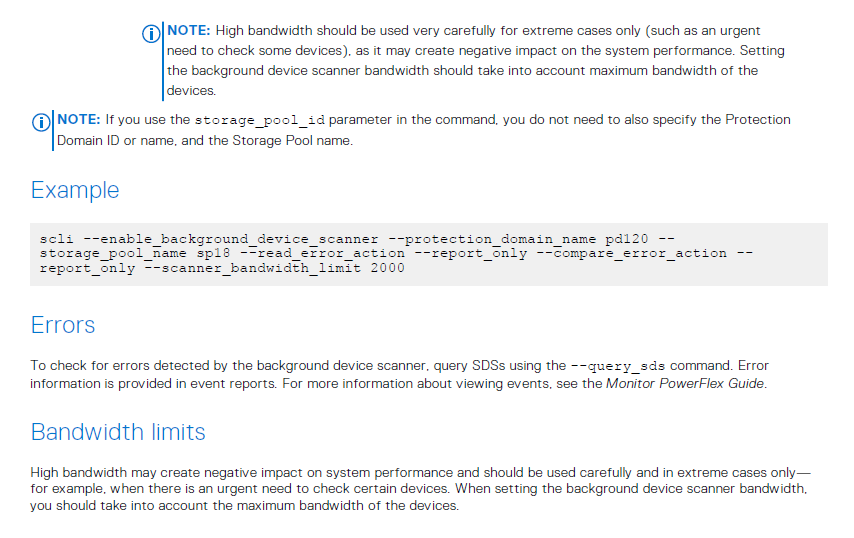
Note: settings "report_and_fix" will result in UI reporting on device scanner errors
Example #1: Presentation server Alerts for PowerFlex 3.5 or higher:
Read from the device failed. Data was corrected from the other copy. No action is required, but note that the device might be faulty.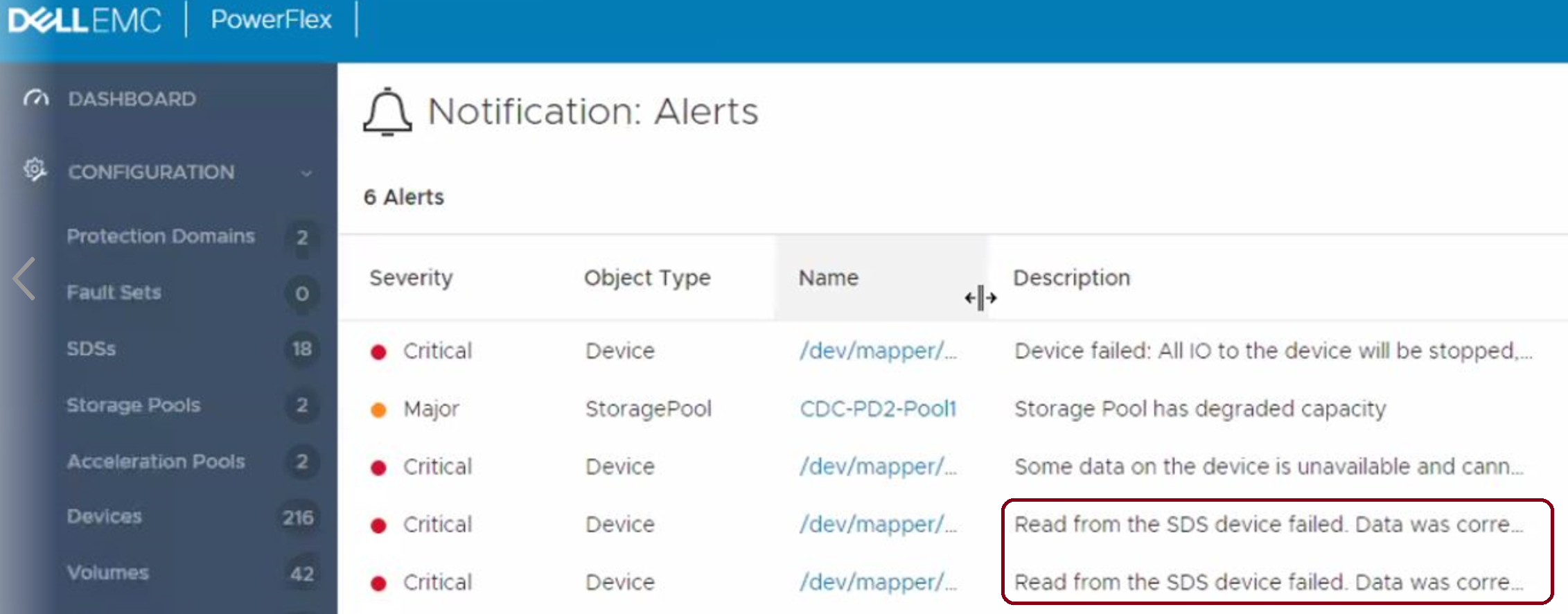
Example #2: PowerFlex version lower than 3.5:
SDS device read failed more than five times. Replace the physical device.
This is also the default behavior in VxFlex OS version 3.0.
No errors are fixed (report_only):
scli --enable_background_device_scanner --protection_domain_name pd1 --storage_pool_name pool --scanner_mode device_only --report_only
Note: Settings "report_only" will result in no reports in the UI, but will report in the comparison.XX file as noted below.
There is a file named comparison.XX in the SDS logs folder, which contains information about each read error detected by scanner, for example:
" lwc-ocu6ikr8h3="">24/02 11:21:03.278967 vtreeId adf1ced400000009 Comb 4ab780000163, offset 2928640 - skipping fixing read error from primary due to configuration flag. primary failed on rc= 65
Additional Information
Affected Products
PowerFlex rack, ScaleIOArticle Properties
Article Number: 000022259
Article Type: How To
Last Modified: 15 Sept 2025
Version: 7
Find answers to your questions from other Dell users
Support Services
Check if your device is covered by Support Services.