Avamar : ADME-Backup Error - Login error 74 : Compte introuvable dans la base de données Avamar
Summary: Avamar Data Migration Enabler (ADME) échoue lors de l’exportation car un client a un chemin de domaine non valide en raison d’un changement d’emplacement de domaine. Cela entraîne une erreur de connexion 74 : Compte introuvable dans la base de données Avamar. ...
This article applies to
This article does not apply to
This article is not tied to any specific product.
Not all product versions are identified in this article.
Symptoms
Lors du déclenchement d’une sauvegarde, ADME échoue instantanément lors de la phase de sélection :
========================================== SELECTION - PHASE =========================================ADMe is locked - retaining existing password...
ADMe session started...
Environment-1 is now locked by [ Batch-Owner=admbatch-OracleJob.cfg PID=13218 ]
User-Input: 1 -sid OracleGrp -select -d -butype cod mod nah
INFO-01A: Active-Auto Date Range - 2018-08-01 to 2018-08-10
Purging previous pseudo client backups from [/ADME/admepseudo]
avtar Error 5126: Login error 74: Account not found in the Avamar database
avtar FATAL 5308: Failed to initiate session with server
avtar Error 5126: Login error 74: Account not found in the Avamar database
avtar FATAL 5308: Failed to initiate session with server
avtar Error 5126: Login error 74: Account not found in the Avamar database
avtar FATAL 5308: Failed to initiate session with server
Scanning-Group [OracleGrp]-[cai-oracle.emc.com]...
avtar Error 5126: Login error 74: Account not found in the Avamar database
avtar FATAL 5308: Failed to initiate session with server
INFO-07: Configuration check succeeded
INFO-14: Total backup count selected [0]
ERROR-04A Selection list is empty [ RC=1 ], this will impact continuing with a migration operation
Env- Session Complete: RC=1 08/09/18 16:52
ATO-BATCH-FAILURE: [-select] RC=[] Start-Time:09/08/18 16:52 End-Time:09/08/18 16:52 Elapsed-Time-HH:MM=n/a Env#:1
Cause
Cela est dû au fait qu’ADME ne parvient pas à trouver le client mentionné. L’une des raisons possibles est que le client est passé d’un domaine à un autre.
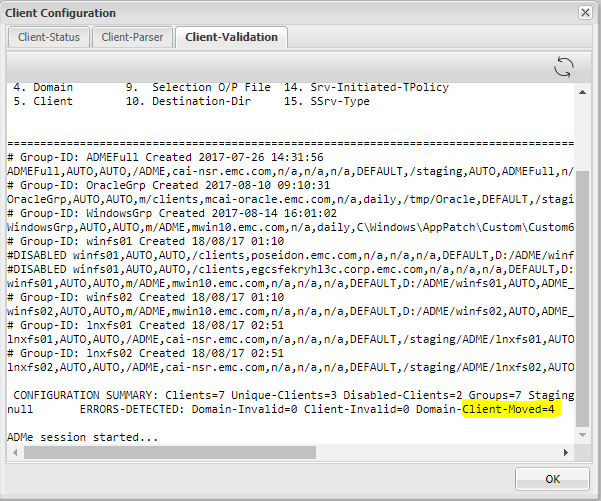
- En vérifiant la validation du client, nous pouvons voir qu’ADME indique que certains clients ont quitté leur domaine existant.
- Cela signifie que l’ADME voit l’ancien chemin client et qu’il doit être mis à jour avec le nouveau chemin (domaine) vers lequel le client s’est déplacé.
Resolution
- ADME ne parvient pas à exporter certains clients ou certains clients spécifiques, car il ne peut pas trouver le client.
- Cela est dû au fait que le client a été déplacé.
- Le client doit être mis à jour avec le chemin correct.
- Pour mettre à jour le chemin, procédez comme suit :
- Afin de mettre à jour le chemin du client, les étapes suivantes doivent être effectuées à partir de l’interface de ligne de commande interactive ADME.
- Ouvrez Avamar Server en tant qu’utilisateur root et saisissez « adme ».
- Choisissez la deuxième option, vous pouvez saisir 2 ou C.
- Cliquez sur « G » pour les groupes.
- Choisissez le groupe dans lequel se trouve le client dont le domaine a été modifié.
- Saisissez « M » pour Modify.
- Vous devez mettre à jour le quatrième champ qui contient le chemin d’accès au domaine du client.
- Enfin, après la mise à jour du nouveau domaine client, vous devez saisir « C » pour valider les modifications.
Ancien chemin :
Nouveau chemin :
Additional Information
- Ouvrez Avamar Server et saisissez « adme ».
- Choisissez la deuxième option, vous pouvez taper 2 ou C :
==< cai-ave74 >================================ | ADMe Avamar Data Migration (Enabler) | | MAIN - MENU | | Version-4.1.11.45e =============================================== | 1. J) Job Policy Manager | | 2. C) Client-Config Manager | | 3. E) Environment-File Manager | | 4. V) View Selection Worklist | | 5. L) Event Log View | | 6. H) Help | | 7. R) Recovery Manager | | 8. S) Interactive Selection | | 9. M) Interactive Migration | | 10. A) ADMe Administration | | 11. G) ADMe Upgrade | | | =============================================== - Cliquez sur « G » pour les groupes.
==========================================================================================================< cai-ave74 >=============== CONFIGURATION MANAGER [DOMAIN-VIEW]: <domain-name> [client-count] ==================================================================================================================================== 1) /ADME [1] 2) /MC_RETIRED [8] 3) /NDMP [2] 4) /Oracle [1] 5) /REPLICATE/cai-ave.emc.com [1] 6) /REPLICATE/cai-ave.emc.com/cai-vcen 7) /REPLICATE/cai-ave.emc.com/cai-vcen 8) /REPLICATE/cai-ave.emc.com/cai-vcen 9) /REPLICATE/cai-ave.emc.com/clients 10) /REPLICATE/cai-ave75.emc.com [1] 11) /REPLICATE/cai-ave75.emc.com/cai-vc 12) /VMWare [2] 13) /cai-vcenter.emc.com [3] 14) /cai-vcenter.emc.com/ContainerClien 15) /cai-vcenter.emc.com/VirtualMachine 16) /clients [4] 17) /clients/_DESACTIVATED [1] ==================================================================================================================================== Config Options: [#=Domain I=Inhibit-Stats G=Group F=Refresh H=Search S=Status-All C=Cfg-View P=Cfg-Parse R=Report U=Cfg-Edit B=Build-CSV-Stats W=Col-Width Q=Quit] > G -
Choisissez le groupe dans lequel se trouve le client dont le domaine a été modifié :
==========================================================================================================< cai-ave74 >=============== CONFIGURATION MANAGER [GROUP-VIEW]: <group-name> [client-count] ==================================================================================================================================== 1) ADMEFull [1] 2) OracleGrp [1] 3) WindowsGrp [1] 4) lnxfs01 [1] 5) lnxfs02 [1] 6) winfs01 [3] 7) winfs02 [1] ==================================================================================================================================== Config Options: [#=Group Z=Calculate-Aggregate-Size C=View-Cfg R=Report U=Cfg-Edit S=Status-All Def=Domain-View>] > 2 - Saisissez « M » pour Modify :
==========================================================================================================< cai-ave74 >=============== CONFIGURATION MANAGER [GROUP-CLIENT-VIEW]: <client-name> [#Entries-state] Blue=Not-Config Green=Enabled Red=Disabled Yellow=Invalid ==================================================================================================================================== 1) cai-oracle.emc.com [1-E] ==================================================================================================================================== CLIENT-STATS-DISABLED: Not-Configured=0 Disabled=0 Enabled=0 Invalid=0 Retired=0 ==================================================================================================================================== Config Options: [ D=Disable E=Enable M=Modify O=Remove R=Report T=Audit V=Quick-View Def=Group-View>] > M Enter a client# to add/modify or [ Press Enter to Return ]:> 1 DEBUG2 - Itemx=cai-oracle.emc.com Domainx=OracleGrp Mode=3 Available Client Group-ID's: ADMEFull OracleGrp WindowsGrp lnxfs01 lnxfs02 winfs01 winfs02 Client [cai-oracle.emc.com] is currently defined in groups: OracleGrp Ready to Modify client [/clients][cai-oracle.emc.com] in ADMe configuration. Enter An Existing or New Group-ID or [Def=OracleGrp] Q=Quit: -
Mettez à jour le 4e champ qui contient le chemin d’accès au domaine du client :
==================================================================
         Review All Fields to Establish Selected Client Entry
==================================================================

        Fld-1 ADMe Group-ID Name [OracleGrp]: >
        Fld-2 Start-Date [AUTO]: >
        Fld-3 End-Date [AUTO]: >
        Fld-4 Domain-Name [/clients]: >
        Fld-5 Client-Name [cai-oracle.emc.com]: >
        Fld-6 Avamar-Policy-Group-Name [n/a]: >
        Fld-7 Avamar-Retention-Type [daily]: >
        Fld-8 Exclude-Folders [/tmp/Oracle]: >
        Fld-9 Output-FIle [DEFAULT]: >
        Fld-10 Stage-Destination-Directory [/staging/OracleGrp]: >
        Fld-11 Migration-BU-Scripts [AUTO]: >
        Fld-12 Migration-Monthly-Policy [ORCLNWGRP]: >
        Fld-13 Migration-EOY-Policy [n/a]: >
        Fld-14 Migration-Server-Policy [n/a]: >
        Fld-15 Staging-Server-Type WINDOWS | UNIX [UNIX]: >
        Fld-16 Destination-Path-Suffix [n/a]: >
        Fld-17 Include-Folders [n/a]: >
        Fld-18 Incremental-Delete [n/a]: >


==================================================================

 Confirm Client Entry: [ C=Commit M=Modify Enter=Refresh Q=Quit]: >


==================================================================
 Enter All Fields to Modify a Client Entry, press enter to accept defaults
==================================================================

        Fld-1 ATO-Group-ID Name [OracleGrp]: >
        Fld-2 Start-Date [AUTO]:
        Fld-3 End-Date [AUTO]:
        Fld-4 Domain-Name [/clients]: > /Oracle
        Fld-5 Client-Name [cai-oracle.emc.com]: >
        Fld-6 Avamar-Policy-Group-Name [n/a]:
        Fld-7 Retention-Type [daily]:
        Fld-8 Exclude-Folders [/tmp/Oracle]:
        Fld-9 Output-FIle [DEFAULT]:
        Fld-10 Stage-Destination-Directory [/staging/OracleGrp]:
        Fld-11 Migration-BU-Scripts [AUTO]:
        Fld-12 Export-Policy-Client-Initiated [ORCLNWGRP]:
        Fld-13 Export-EOY-Policy-Client-Initiated [n/a]:
        Fld-14 Export-Policy-Server-Initiated [n/a]:
        Fld-15 Staging-Server-Type WINDOWS | UNIX [UNIX]:
        Fld-16 User-Defined-Destination-Path-Suffix [n/a]:
        Fld-17 Include-Folders [n/a]:
        Fld-18 Incremental-Delete [n/a]:


==================================================================

 Confirm Client Entry: [ C=Commit M=Modify Enter=Refresh Q=Quit]: > C
Affected Products
Avamar Data Migration EnablerProducts
Avamar Client, Avamar Data Migration EnablerArticle Properties
Article Number: 000052310
Article Type: Solution
Last Modified: 05 Sept 2025
Version: 5
Find answers to your questions from other Dell users
Support Services
Check if your device is covered by Support Services.