Dell Display Pixel Guidelines
Summary: Discover Dell's display resolution guidelines for LCD panels on our monitors and laptops. We explain what dots and pixels are, introduce you to the Premium Panel Exchange, and show you how to spot bright or dead pixels on your screen. ...
This article applies to
This article does not apply to
This article is not tied to any specific product.
Not all product versions are identified in this article.
Instructions
What You'll Learn
This article helps you understand:
- What pixels, subpixels, and partial subpixels are
- The difference between bright pixels, dark pixels, and partial subpixels
- Dell's warranty policy for display issues
- How to check your screen for pixel problems
- What to do if you find a pixel issue
Understanding Your Display: Pixels, Subpixels, and Partial Subpixels
Your display screen creates images using millions of tiny colored dots. Let's break down what these are and how they work.
What Is a Pixel?
A pixel (short for "picture element") is a single point of color on your screen. Think of it as one tiny square in a digital mosaic.
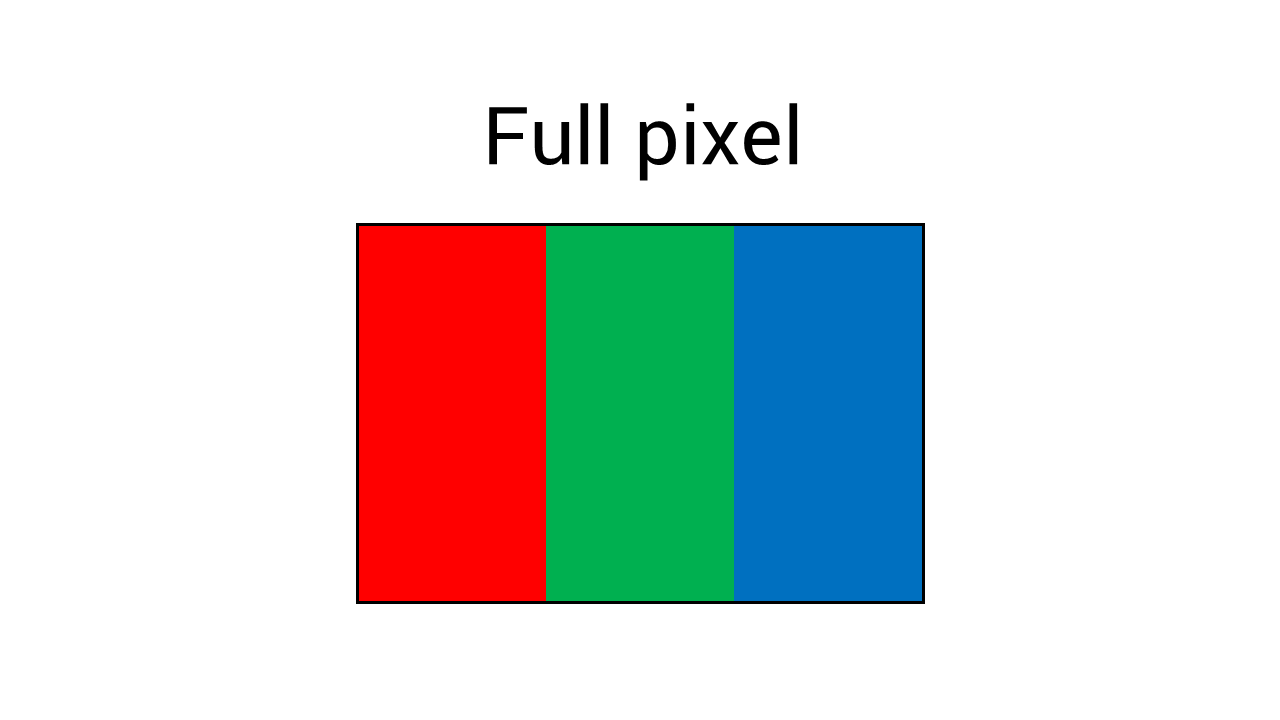
Your display divides the screen into rows and columns of pixels. These pixels sit so close together that they look like one smooth image. Each pixel is made up of three even smaller parts called subpixels.
What Is a Subpixel?
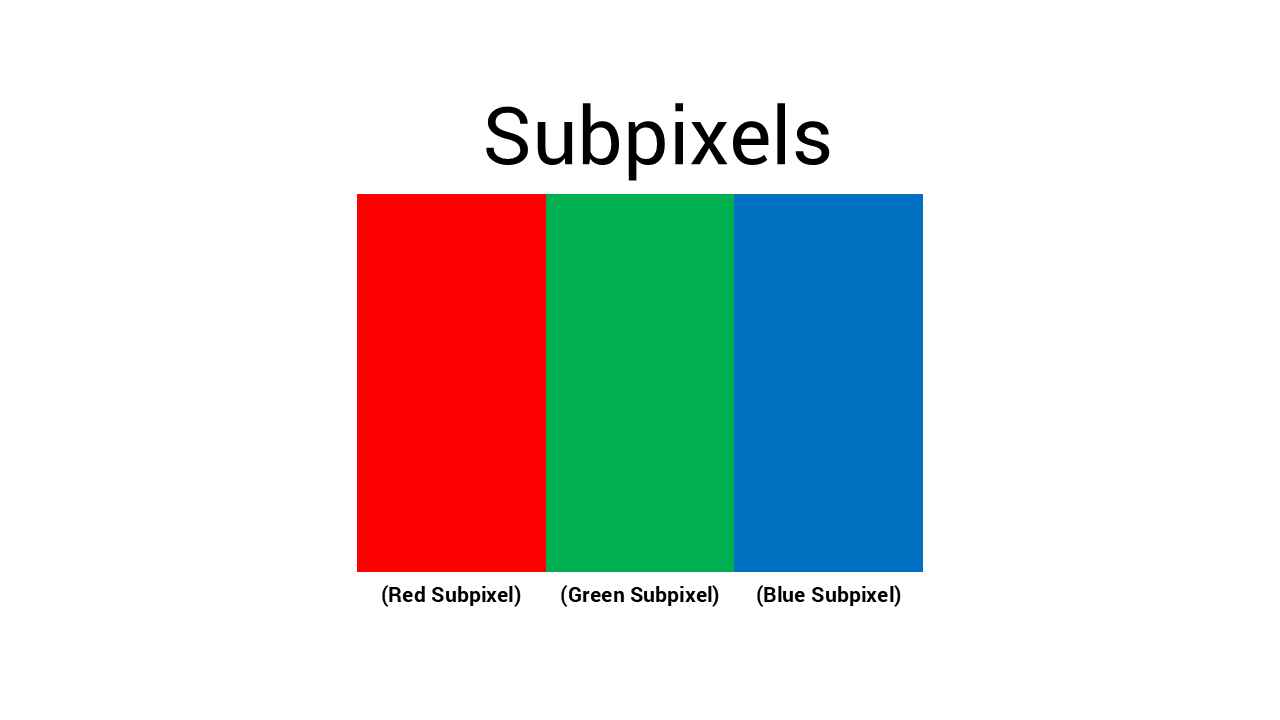
Each pixel contains three subpixels:
- One red subpixel
- One green subpixel
- One blue subpixel
These three subpixels work together like a team. By changing how bright each one is, they can create millions of different colors. When you see white on your screen, all three subpixels are lit up. When you see black, all three are turned off.
Example: To show purple, the red and blue subpixels turn on, while the green stays off.
What Is a Partial Subpixel?
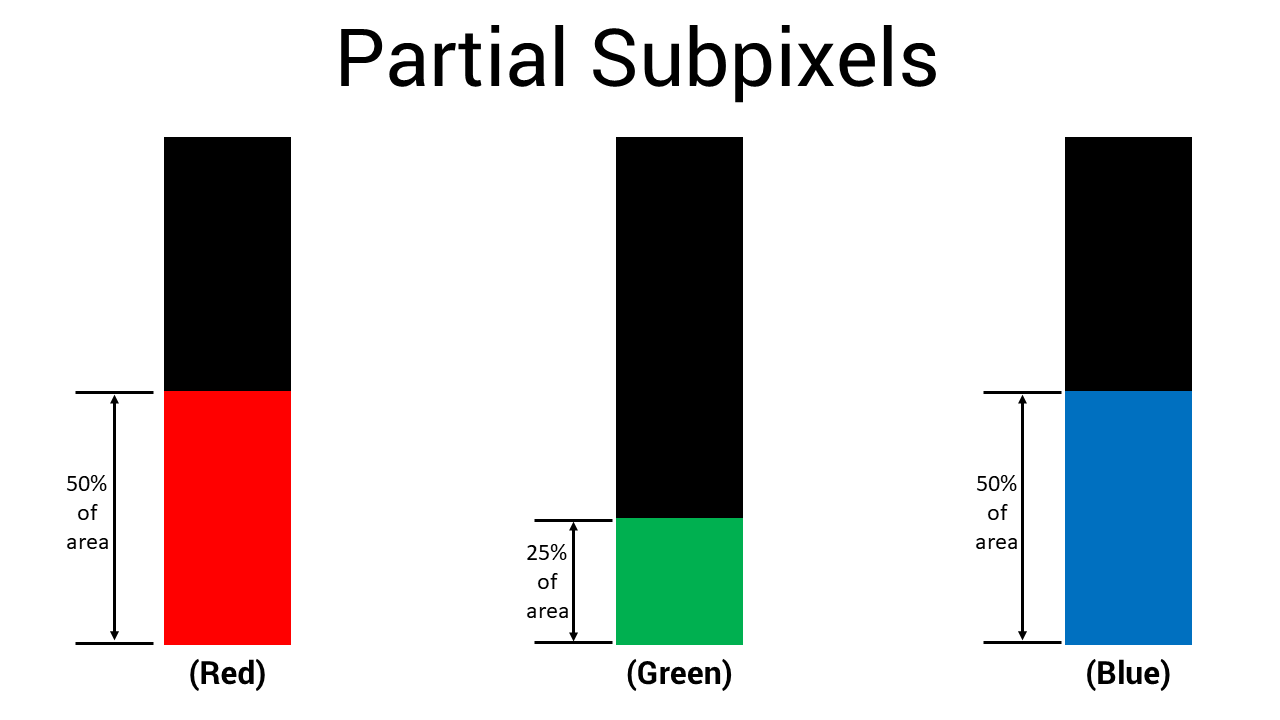
A partial subpixel is smaller than a full subpixel, typically less than half the size of a full subpixel element.
Think of it this way, if a full subpixel is like a grain of rice, a partial subpixel is like a tiny fragment of that grain. It's an extremely small element on your screen.
How small are they?
Partial subpixels are so small that you cannot tell them apart from a subpixel without proper magnification. Even when looking directly at your screen at normal viewing distance, you won’t be able to determine whether a tiny dot is a partial subpixel or an actual subpixel.
Where do they come from?
During LCD manufacturing, microscopic variations in the production process can create these tiny subpixel fragments. This happens with virtually all LCD panels, it's part of the normal manufacturing process, not a sign of poor quality.
Note: Only pixels and subpixels that are stuck (permanently on or off) are considered defects. Partial subpixels are a normal part of LCD manufacturing.
Quick Comparison: Understanding the Differences
Note: Only pixels and subpixels that are stuck (permanently on or off) are considered defects. Partial subpixels are a normal part of LCD manufacturing.
|
Type |
Size |
What You See |
Is It a Defect? |
|
Pixel |
3 subpixels together |
Bright white dot or black dot |
Yes, if stuck |
|
Subpixel |
1/3 of a pixel |
Red, green, or blue dot (bright) or black dot (dark) |
Yes, if stuck |
|
Partial Subpixel |
Less than half a subpixel |
Tiny dot that cannot be distinguished from a subpixel without magnification |
No, this is normal |
Types of Pixel and Subpixel Issues
Sometimes pixels or subpixels get stuck in one position. Here are the different types you might see:
Bright Pixel (Also Called "Stuck Pixel")
- What it is: All three subpixels in one pixel are permanently turned on.
- What you see: A bright white dot that's always visible, especially on dark backgrounds.
- Why it happens: The pixel got stuck in the "on" position during manufacturing.
Dark Pixel (Also Called "Dead Pixel")
- What it is: All three subpixels in one pixel are permanently turned off.
- What you see: A black dot that you can see on white or colored backgrounds (but not on black backgrounds).
- Why it happens: The pixel stopped working and can't turn on.
Bright Subpixel
- What it is: Just one subpixel (red, green, or blue) is stuck in the "on" position.
- What you see: A small colored dot red, green, or blue that stays lit on dark backgrounds.
- Why it happens: One of the three color parts got stuck during manufacturing.
Dark Subpixel
- What it is: Just one subpixel is stuck in the "off" position.
- What you see: A small dark spot on white backgrounds. You might see a slightly different color instead of pure black, depending on which subpixel is stuck.
- Why it happens: One of the three subpixels stopped working.
Partial Subpixel Anomalies (Not a Defect)
- What it is: An incomplete subpixel fragment that occurs during normal LCD manufacturing.
- What you see: A tiny dim dot that cannot be distinguished from a subpixel defect without magnification.
Why it's not a defect:
- Partial subpixel anomalies appear on nearly all LCD displays
- They're a normal part of the manufacturing process
- They're too small to affect image quality or your viewing experience
- Industry standards (including Dell's pixel policy) do not classify them as defects
Important: If you can clearly see a bright or colored dot with your naked eye at normal viewing distance, it is not a partial subpixel, it's a stuck subpixel or pixel that should be evaluated against warranty policy.
Normal viewing distance (recommended) is about 35 to 50 cm, and for large format monitors it’s around 100 to 150 cm.
Illustration
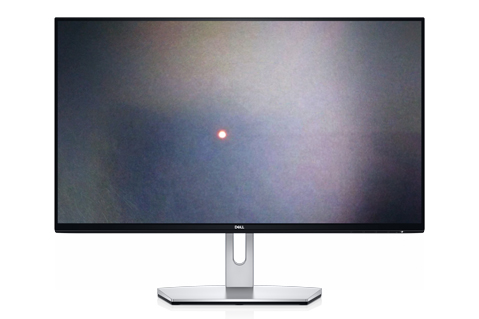
Bright Subpixel
One color subpixel stays on, creating a colored dot on dark backgrounds.
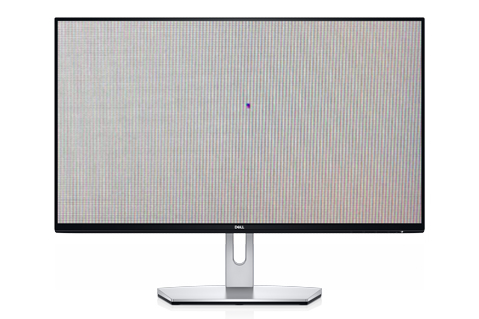
Dark Subpixel
One color subpixel stays off, creating a dark spot on light backgrounds.
Can You Fix Stuck or Dead Pixels?
Here's what you need to know about fixing pixel issues:
Stuck Pixels (Bright Pixels or Subpixels)
Do not attempt to fix stuck pixels yourself.
You may find information online about pixel-fixing software or methods that involve applying pressure to the screen. We strongly recommend against trying these methods because:
- They can cause further damage to your display
- They may void your warranty
- Applying pressure can crack the screen or damage internal components
- Software tools are not officially supported by Dell and may not work
Dead Pixels (Dark Pixels or Subpixels)
Cannot be fixed: A dead pixel has stopped working completely. No software or other methods can bring it back to life. The only solution is replacing the display panel.
What Dell Recommends
If your display has pixel issues:
- Do not attempt DIY fixes. Avoid pixel-fixing software or applying pressure to the screen
- Count how many pixels are affected (see "How to Check Your Screen" below)
- Compare the count to Dell's warranty policy (see "Dell's Pixel Policy" below)
- If your display qualifies, contact Dell Technical Support for a replacement
Warning: Attempting to fix stuck pixels yourself can damage your display and may void your warranty.
Dell Premium Panel Exchange
We want you to have the best viewing experience possible. That's why we offer Premium Panel Exchange on select monitors.
What Is Premium Panel Exchange?
This guarantee means zero tolerance for bright pixels on eligible displays. If you see even one bright pixel during your warranty period, we'll replace your display.
Which Displays Are Covered?
Premium Panel Exchange applies to these Dell monitor series:
- UltraSharp monitors (U series)
- UltraSharp PremierColor (UP series)
- Dell Pro P monitors (P series, except P1424H and P1425)
- Dell P monitors (S series, 2020 and newer models)
- Gaming monitors (G series and most S series gaming monitors, except S2716DG and S2417DG)
- Alienware monitors (AW series, except AW5520QF)
- C-series/P-series Conferencing monitors (24 to 34 inches)
- All Dell laptops with HD+ resolution (1600 x 900) and higher
- Dell All-in-One computers with Premium Panel displays
What's Covered?
- Bright pixels: Zero allowed—we'll replace the display even for one bright pixel
- Bright subpixels: Zero allowed—we'll replace the display even for one bright subpixel
- Dark subpixels: Up to 5 allowed (varies by model—see policy tables below)
How Long Does It Last?
Premium Panel Exchange lasts for your entire warranty period:
- Standard warranty (1 year or 3 years)
- Extended warranty (if you purchased one)
Note: If you bought your monitor from Best Buy in the USA, exchange it at any Best Buy store with your original receipt.
Dell's Pixel Policy
We follow industry-standard guidelines for pixel defects. A small number of stuck pixels is considered normal in LCD manufacturing.
Note: Only stuck pixels and subpixels visible at normal viewing distance count toward warranty evaluation. Partial subpixel anomalies (less than half a subpixel in size) cannot be distinguished from subpixel defects without magnification, but are not classified as defects under industry standards or Dell's warranty policy. If you see tiny dots, count them and contact Dell Technical Support, our team will help verify warranty coverage.
For Dell Monitors
Monitors with Premium Panel Exchange
|
Monitor Type |
Bright Pixels/Subpixels Allowed |
Dark Subpixels Allowed |
Total Combined Defects Allowed |
|---|---|---|---|
|
UltraSharp (U series)
|
0 |
Up to 5 |
Up to 5 |
|
UltraSharp PremierColor (UP series) |
0 |
Up to 5 |
Up to 5 |
|
Dell Pro P (P series) |
0 |
Up to 5 |
Up to 5 |
|
Dell P (S series, 2020+) |
0 |
Up to 5 |
Up to 5 |
|
Gaming (G series) |
0 |
Up to 5 |
Up to 5 |
|
Alienware (most models) |
0 |
Up to 5 |
Up to 5 |
|
C-series/P-series Conferencing Monitors (24-34 inches) |
0 |
Up to 5 |
Up to 5 |
|
Alienware AW5520QF |
0 |
Up to 12 |
Up to 12 |
Standard Monitors without Premium Panel Exchange
|
Monitor Type |
Bright Pixels/Subpixels Allowed |
Dark Subpixels Allowed |
Total Combined Defects Allowed |
|---|---|---|---|
|
D series |
Up to 5 |
Up to 8 |
Up to 8 |
|
C-series/Large format (43 inches and larger) |
Up to 5 |
Up to 12-15 |
Up to 12-15 |
|
Dell Pro (E-Series) |
Up to 5 |
Up to 5 |
Up to 5 |
|
Dell P (S2716DG and S2417DG) |
Up to 5 |
Up to 5 |
Up to 5 |
|
Dell (SE series) |
Up to 5 |
Up to 5 |
Up to 5 |
|
Dell IN series |
Up to 5 |
Up to 5 |
Up to 5 |
For Dell Laptops
|
Screen Resolution |
Bright Pixels/Subpixels Allowed |
Dark Subpixels Allowed |
Total Combined Defects Allowed |
|---|---|---|---|
|
HD+ (1600 x 900) or higher |
0 |
Up to 5 |
Up to 5 |
|
HD (1366 x 768) or lower |
Up to 2 |
Up to 5 |
Up to 5 |
For Dell All-in-One Computers
|
Display Type |
Bright Pixels/Subpixels Allowed |
Dark Subpixels Allowed |
Total Combined Defects Allowed |
|---|---|---|---|
|
Premium Panel |
0 |
Up to 5 |
Up to 5 |
|
Standard Display |
Up to 5 |
Up to 5 |
Up to 5 |
How to Check Your Screen for Pixel Issues
Follow these steps to check if you have stuck or dead pixels on your display.
Before You Start
You'll need:
- A clean, lint-free cloth
- Your display
Tip: Clean your screen first. Sometimes what looks like a stuck pixel is usual dust or dirt.
For Dell Monitors
- Turn off your computer and monitor.
- Unplug the video cable from your monitor.
This is the cable connecting your monitor to your computer (might be VGA, DVI, HDMI, DisplayPort, or USB-C). - Clean your screen gently with a lint-free cloth.
- Plug the power cable back into your monitor.
- Turn on your monitor.
You should see a floating box on a black background. This means your monitor is working but has no video signal. - Look carefully at the black screen.
Check for bright dots (white, red, green, or blue). These would be bright pixels or bright subpixels. - Run the built-in diagnostic test for more thorough checking.
Note: The steps to start diagnostics vary by monitor model. For specific instructions for your monitor, check your monitor’s user manual. The diagnostic test will cycle through different solid colors: red, green, blue, white, and black. - Watch carefully as each color appears.
- On black: Look for any bright dots
- On white: Look for any dark dots
- On red, green, blue: Look for dots that don't match the background color
- Count how many stuck pixels you found.
- Compare your count to the policy table above for your monitor model.
For Dell Laptops
- Turn off your laptop completely.
- Unplug any external monitors.
- Clean your laptop screen gently with a lint-free cloth.
- Turn on your laptop.
- Run the built-in LCD test:
- Restart your laptop
- When the Dell logo appears, press F12 repeatedly
- Select Diagnostics from the menu
- The screen cycles through solid colors
- Watch carefully as each color appears.
- On black: Look for any bright dots
- On white: Look for any dark dots
- On red, green, blue: Look for dots that don't match the background color
- Count how many stuck pixels you found.
- Compare your count to the policy table above for your laptop's resolution.
What to Look For
Note: Normal viewing distance is about 35 to 50 cm for standard monitors, and 100 to 150 cm for large format monitors (43 inches and larger).
Stuck pixels are:
- Fixed in one spot (they don't move)
- Always the same color
- Visible with your eyes at normal viewing distance
- Noticeable without zooming in or using a magnifying glass
Not stuck pixels:
- Dots that disappear when you clean the screen (these are dust)
- Very small dots could be either partial subpixels or subpixel defects. Count all visible dots and refer to the warranty policy tables.
- Dots that change color or move (these might be a different issue)
What to Do If You See Pixel Issues
Step 1: Count the Pixels
Write down:
- How many bright pixels or bright subpixels you see
- How many dark pixels or dark subpixels you see
- Where they're located on your screen
Step 2: Check Your Warranty Status
For monitors: Most Dell monitors come with a 1-year or 3-year limited warranty. Monitors purchased with a computer are covered under the computer's warranty.
For laptops: Check when you purchased your laptop and what warranty coverage you have.
Check your warranty: Visit Dell Support and enter your monitor’s Service Tag or Express Service Code to check your coverage.
Step 3: Compare to Dell's Policy
Look at the policy tables above:
- Find your display type
- Check if your pixel count exceeds the allowed number of defects
- Check if you have Premium Panel Exchange coverage
Step 4: Contact Dell Support (If You Qualify)
If your display has more stuck pixels than allowed by the policy. contact Dell Technical Support
Note: If you bought your Dell UltraSharp, Professional, or Alienware monitor at Best Buy in the USA, you can exchange it at any Best Buy store. Bring your original receipt.
Frequently Asked Questions
Q: Can bright pixels or subpixels get dimmer over time?
A: No. A stuck pixel stays stuck until the monitor is replaced. It won't get better or worse on its own.
Q: I have one tiny bright dot. Is this covered?
A: It depends on your display:
- With Premium Panel Exchange: Yes, even one bright pixel or bright subpixel is covered (partial subpixel anomalies are not covered, as they are not defects).
- Without Premium Panel Exchange: Only if you have more than 5 total stuck pixels/subpixels (partial subpixel anomalies are not covered, as they are not defects).
Check the policy tables above to check if your display has Premium Panel Exchange.
Q: My display has a few very tiny dots. Should I worry?
A: Tiny dots could be either partial subpixels (normal) or subpixel defects (may be covered under warranty). You cannot tell the difference without magnification.
Q: What's the difference between a stuck pixel and a dead pixel?
A:
- Stuck pixel: Shows a constant color (white or a color). Sometimes called a bright pixel.
- Dead pixel: Shows black because it’s completely turned off.
Q: I found stuck pixels after my warranty expired. What can I do?
A: Unfortunately, pixel defects are only covered during your warranty period. After warranty expiration:
- You can continue using the display (most stuck pixels don't affect usability)
- You can purchase a new display
Consider our extended warranty options when buying new displays to extend your coverage.
Q: How do I prevent stuck pixels?
A: Stuck pixels happen during manufacturing and aren't caused by how you use your display. You can't prevent them through normal use. However:
- Handle your display carefully during setup
- Avoid pressing hard on the screen
- Keep your display clean
- Use appropriate brightness settings
Q: Do all Dell monitors have the same pixel policy?
A: No. Our Premium Panel Exchange monitors have stricter standards (zero bright pixels allowed). Standard monitors follow industry norms (up to 5 stuck pixels allowed). Check the policy tables above to see what applies to your specific model.
Q: What if I think I see a stuck pixel, but I'm not sure?
A: Run the diagnostic tests described in the "How to Check Your Screen" section above. The solid color screens make it much easier to spot stuck pixels. If you're still unsure, contact our support team, we're happy to help you identify the issue.
Need help with other display issues?
This article focuses on pixel defects. If you're experiencing different display problems, we have other guides to help:
Common Display Problems
- Fix Laptop Display Issues – Screen not turning on, flickering, or other laptop screen problems
- Fix Monitor Problems – External monitor won't display, color issues, or connection problems
- Set Up Multiple Monitors – Configure two or three monitors for your workspace
- Connect a Monitor to Your Computer – Step-by-step connection instructions
- Fix Touchscreen Issues – Touchscreen not responding or working incorrectly
Symptoms That Aren't Pixel Defects
If you see any of these issues, check the links above instead:
- Blank or black screen
- Horizontal or vertical lines across the screen
- Colors look washed out or incorrect overall
- Blurry or fuzzy image
- Screen flickers or flashes
- Image appears stretched or distorted
- Light bleeding from screen edges
- Bright or dark patches (larger than a pixel)
Affected Products
Chromebox, Alienware, Dell All-in-One, Dell Pro All-in-One, Dell Pro Max Micro, Dell Pro Max Slim, Dell Pro Max Tower, Dell Pro Micro, Dell Pro Slim, Dell Pro Tower, Dell Slim, Dell Tower, Inspiron, Legacy Desktop Models, OptiPlex, Vostro, XPS
, G Series, Alienware and Dell Gaming Monitors, C Series, D Series, E Series, Legacy Monitors, P Series, S Series, SE Series, UltraSharp Premier (UP) Series, UltraSharp (U) Series, Dell Monitors, Dell Plus Monitors, Dell Pro Monitors, Dell Pro Plus Monitors, Chromebook, G Series, Alienware, Dell Laptops, Dell Plus, Dell Pro, Dell Pro Max, Dell Pro Plus, Dell Pro Premium, Inspiron, Latitude, Dell Pro Rugged, Vostro, XPS, Legacy Laptop Models, Fixed Workstations, Mobile Workstations, Dell Pro Max Micro XE FCM2250, Dell Pro Max Slim XE FCS1250, Dell Pro Max Tower T2 XE FCT2250, Dell Pro Max 16 XE MC16250, Dell Pro Micro Plus XE QBM1250, Dell Pro Slim Plus XE5 QBS1250, Dell Pro Tower Plus XE5 QBT1250
...
Article Properties
Article Number: 000126004
Article Type: How To
Last Modified: 22 May 2026
Version: 42
Find answers to your questions from other Dell users
Support Services
Check if your device is covered by Support Services.