NetWorker: How to Debug Backup Operations
Summary: Several options are listed for debugging a failed NetWorker Backup.
Instructions
1. Log Files:
The principle logs for debugging backup failures are the policy log files which are at the following location.
Linux: /nsr/logs/policy_name/workflow_name/action_name
Windows (Default): C:\Program Files\EMC NetWorker\nsr\logs\policy_name\workflow_name\action_name
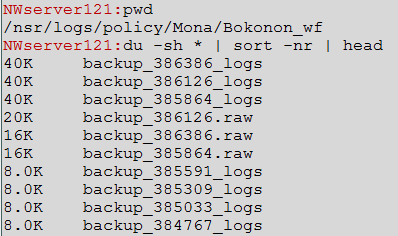
There are workflow log files in the raw format under /nsr/logs/policy/policy_name/workflow_name/jobid.raw and a subdirectory for each action. Each child action of an action has its own log file with the jobid of that child job. When the parent action starts a child action, NetWorker creates a directory for these child action logs.
Example:
The log sizes vary based on the debug level used during the backup. The raw files are the workflow logs, while the backup_[jobid]_logs directories contain the action logs and child action logs.
The main NetWorker log file for all NetWorker operations is the daemon.raw log file.
/nsr/logs/daemon.raw
Windows (Default):
C:\Program Files\EMC NetWorker\nsr\logs\daemon.raw
To read this log, you use the nsr_render_log command, see: NetWorker: How to use nsr_render_log to render .raw log files
Example:

Additional Resources:
- NetWorker: Log Files and Locations
- NetWorker: Processes and Ports
- NetWorker: How to Use the NSRGet NetWorker Data Collection Tool
- See the NetWorker Command Reference Guide, available through: Support for NetWorker | Manuals & Documents (You must sign in with your Dell support account).
2. save on the NetWorker Client:
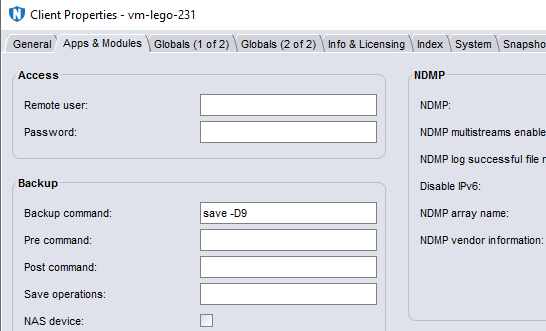
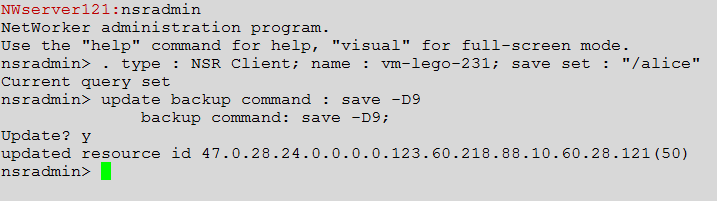
NetWorker client-based backups use the save process. The save process communicates with the NetWorker server, storage node (where applicable), or target backup device media. Debug can be enabled on the save process by passing the -D debug flag to the save process using either the NetWorker Management Console (NMC) or using the nsradmin command.
In the NMC, you change the 'Backup command' field in the relevant client properties to 'save -D9':
Example:
You can do the same operation using the nsradmin command:
Example:
Additional Resources:
- NetWorker: NDMP Troubleshooting Guide
- NetWorker: NMM Troubleshooting Guide
- NetWorker: How to enable debug for NMDA
- NetWorker VMware Protection-vProxy: How to Enable Debug Logging
3. Workflow Operation on the NetWorker Server:
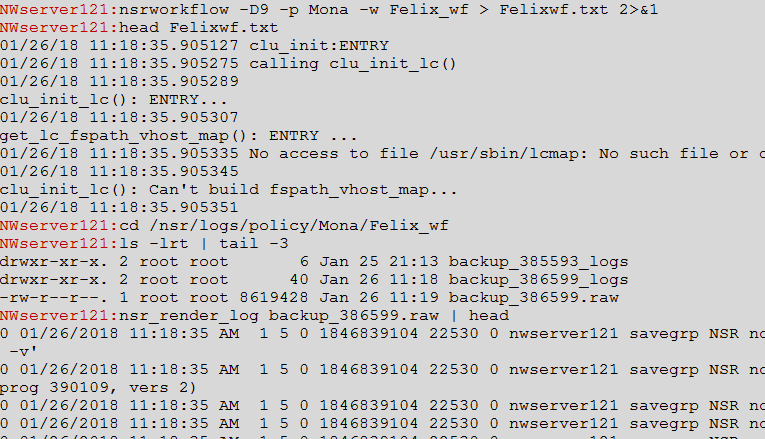
Debugging the start of a workflow operation and detailed debug output is needed.
nsrworkflow -D9 -p [policy] -w [workflow]
This logs the workflow job debug output to the raw file in:
/nsr/logs/policy/policy_name/workflow_name/
Example:
Running the nsrworkflow command initiates the job manually but use the same scheduling and level configuration options that are used as a scheduled automated backup. Another possibility is to use the -a flag to define the nsrworkflow run as an adhoc backup which allows to override the backup schedule or level. To specify the backup level that, you want (not what is set for today's run of the workflow), you use the -l (or -L for virtual machine backups).
Example:
nsrworkflow -p [policy] -w [workflow] -A "'[action]' -l [level]" -ansrworkflow -p Mona -w Bokonon_wf -A "'backup' -l full" -a
Additional Resources:
- NetWorker: How to use the NetWorker nsrworkflow command
- NetWorker: How to use the NetWorker nsrpolicy command
- See the NetWorker Command Reference Guide, available through: Support for NetWorker | Manuals & Documents (You must sign in with your Dell support account).
4. savefs on the NetWorker Client:
The savefs command is used during client-based backups. It is sent to the NetWorker client after the backup is initiated on the NetWorker server. savefs is this process which is responsible for determining the files and directories to back up for this specific backup run on this client.
You can obtain the exact savefs command which is being run on the client side from the raw file in the policy logs (/nsr/logs/policy/[policy name]/[workflow name]). Then run this on the client side, adding the -D9 option:
Example:
On the NetWorker server:

And then on the client side:

5. Assigning Target Media on the NetWorker Server:
The assignment of the correct target volume for a backup is managed by the nsrd process on the NetWorker server. To debug this, you must temporarily increase the debug level of the nsrd process on the NetWorker server using the dbgcommand.
Example:

After debugging is completed, you must disable debugging by setting the debug level back to zero:

dbgcommand can be used against a process name or process ID (PID), example:
dbgcommand -n PROCESS_NAME Debug=DEBUG_LEVEL

    dbgcommand -p PROCESS_ID Debug=DEBUG_LEVEL
Additional Resources:
6. Backups Waiting for writable Volume:
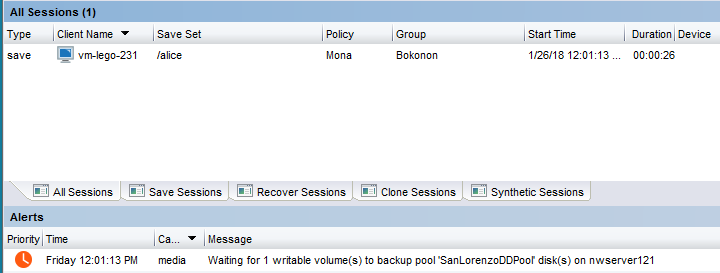
If the NetWorker server cannot find a suitable NetWorker volume to write to, it stops responding and generates an alert. In this case, the job is in the 'active' state. You can check the state of the job using the nsrpolicy monitor command.
Example:

The alert in the NetWorker Management Console gives more details on what type of volume is being sought and on which Storage Node.
Example:
Additional Resources:
- Troubleshooting Media Waiting Events - waiting for 1 writable volume or no matching devices
- NetWorker: Troubleshooting Tape Library Problems in NetWorker
- NetWorker: How to use the DDPCONNCHK tool to test DD ddboost connectivity from NetWorker Hosts
- NetWorker with Data Domain Cloud Tier: Triage and Troubleshooting Guide
7. Backups unexpectedly stopped responding due to parallelism:
If the NetWorker server determines that it cannot continue with the backup because there is no free parallelism slot, the job is in the 'queued' state.
In order to debug the parallelism, you need must increase the debug level of the nsrjobd process on the NetWorker server as shown below. The daemon log file outputs a lot of debugging data relative to parallelism.
Example:


Additional Resources:
- NetWorker: Parallelism and Target Sessions
- See the NetWorker Administration and Performance Optimization and Planning Guides. Support for NetWorker | Manuals & Documents (You must sign in with your Dell support account).
8. Client Direct backup not working as expected:
A "Client direct" backup sends data directly from the NetWorker client to the target media without first writing to the NetWorker Storage Node.
You can define in the client properties whether client direct backup should be used or not for this client instance.
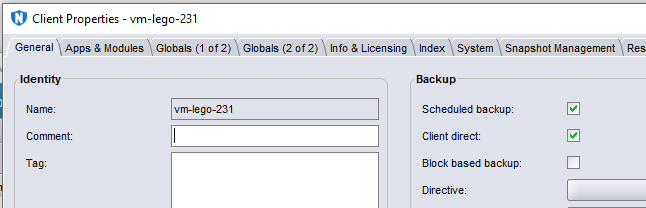
In order to troubleshoot whether client direct is working or not, you must inspect the logs as per the below example:
Example:
Log output: Clients direct in operation.
The daemon.raw file on the NetWorker server:
91787 MM/DD/YYYY HH:mm:SS nsrmmd NSR notice Save-set ID '4091251191' (vm-lego-231:/NetWorker) is using direct file save with Data Domain device 'dd4500-dd.local_onetwoone'.
lsof on the NetWorker client
[root@vm-lego-231 ~]# lsof -i TCP | grep save
save       9831    root    3u  IPv4 111668      0t0  TCP vm-lego-231:23178->vm-lego-121:8985 (ESTABLISHED)
save       9831    root    5u  IPv4 111695      0t0  TCP vm-lego-231:19752->vm-lego-121:9417 (ESTABLISHED)
save       9831    root    7u  IPv4 111720      0t0  TCP vm-lego-231:31095->vm-lego-121:9035 (ESTABLISHED)
save       9831    root    8u  IPv4 111728      0t0  TCP vm-lego-231:12421->vm-lego-121:9653 (ESTABLISHED)
save       9831    root    9u  IPv4 111731      0t0  TCP vm-lego-231:33739->dd4500-dd.local:nfs (ESTABLISHED)
save       9831    root   10u  IPv4 111736      0t0  TCP vm-lego-231:60278->dd4500-dd.local:midnight-tech (ESTABLISHED)
lsof lists open TCP connections from the client both to the NetWorker server and to the DD. To determine which processes the NetWorker server is connected to, you can cross-check with lsof on the server. The fourth column is the file descriptor being used.
On Windows hosts, you can perform similar diagnostics using SysInternals Procmon.

9: Client Direct Backup is not using Client Direct:
The daemon.raw file on the NetWorker server:
91797 MM/DD/YYYY HH:mm:SS nsrmmd NSR severe Unable to perform direct file save with Data Domain device 'ONETWOONE'; setting up traditional save for save-set ID '4024143566' (vm-lego-231:/NetWorker)
traditional in the log gives you this output quickly. See the NetWorker Administration Guide's list of conditions that must be met for client direct to work. The most common causes are that the client lacks direct network access to the Data Domain or its name resolution is not working correctly.
lsof on the NetWorker client:
[root@vm-lego-231 ~]# lsof -i TCP | grep save
save      10114    root    3u  IPv4 123335      0t0  TCP vm-lego-231:46461->vm-lego-121:8985 (ESTABLISHED)
save      10114    root    5u  IPv4 123369      0t0  TCP vm-lego-231:12593->vm-lego-121:9417 (ESTABLISHED)
save      10114    root    7u  IPv4 123392      0t0  TCP vm-lego-231:63952->vm-lego-121:9035 (ESTABLISHED)
save      10114    root    8u  IPv4 123400      0t0  TCP vm-lego-231:29597->vm-lego-121:9653 (ESTABLISHED)
Additional Resources:
- NetWorker: Best practices for networking configuration
- See the Performance Optimization and Planning Guides. Support for NetWorker | Manuals & Documents (You must sign in with your Dell support account).
10. Parallel Save Stream (PSS) Backups:
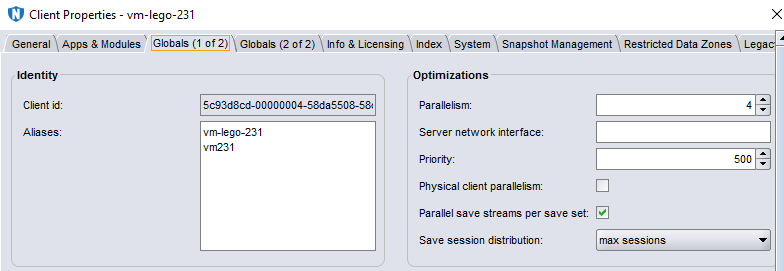
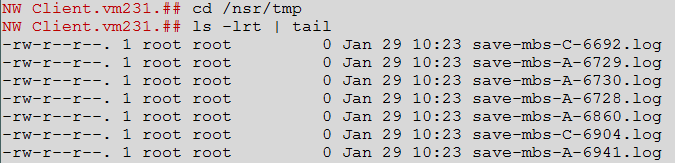
To debug PSS backups. Ensure that the 'parallel save stream' property is ticked in the client resource in the NetWorker Management Console. Modify the save command to put it in debug as per section 2. Also, create an empty file in ../nsr/debug called 'mbsdopen'. This provides extra debug logging both on the client in /nsr/tmp and in the policy logs on the NetWorker server (see section 1).
Example:

Additional Resources:
- How to Troubleshoot NetWorker Parallel Save Stream backups
- See the Performance Optimization and Planning Guides. Support for NetWorker | Manuals & Documents (You must sign in with your Dell support account).
11. NetWorker Storage Node nsrmmd process not working as expected as it writes to the target media:
You can increase the debug level of the nsrmmd processes using the dbgcommand (See Section 5). You can either increase the debug level of all the nsrmmd processes or else use operating system tools to identify which nsrmmd process is active:

Additional Resources:
- NetWorker: Troubleshooting Tape Library Problems in NetWorker
- NetWorker: How to use the DDPCONNCHK tool to test DD ddboost connectivity from NetWorker Hosts
- NetWorker with Data Domain Cloud Tier: Triage and Troubleshooting Guide
- See the NetWorker DD Boost Integration Guide, available through: Support for NetWorker | Manuals & Documents (You must sign in with your Dell support account).