如何为 Dell Endpoint Security Suite Enterprise Web 控制和客户端防火墙功能启用调试日志记录
Summary: 可以使用以下说明为 Dell Endpoint Security Suite Enterprise Web 控制和客户端防火墙功能启用调试日志记录。
This article applies to
This article does not apply to
This article is not tied to any specific product.
Not all product versions are identified in this article.
Symptoms
提醒:
- 从 2022 年 5 月起,Dell Endpoint Security Suite Enterprise 停止维护。戴尔不再更新本产品及其文章。
- 从 2019 年 1 月起,Dell Endpoint Security Suite Pro 停止维护。戴尔不再更新本产品及其文章。
- 有关详细信息,请参阅 戴尔数据安全产品生命周期(支持终止和停售)政策。如果您对其他文章有任何疑问,请联系您的销售团队或联系 endpointsecurity@dell.com。
- 请参阅端点安全性,了解有关当前产品的其他信息。
本文讨论如何启用调试日志记录以对 Dell Endpoint Security Enterprise Web 控制和客户端防火墙功能进行故障处理。
受影响的产品:
- Dell Endpoint Security Suite Enterprise
- Dell Endpoint Security Suite Pro
Cause
不适用
Resolution
为了帮助戴尔更快地识别问题,Dell Technologies 建议您启用详细信息(调试日志记录),然后在收集日志之前重现问题。
警告:仅在为了对问题进行故障处理时,才应该启用详细模式。Dell Technologies 建议在问题解决后禁用详细功能。在启用详细模式时,端点可能会遇到性能下降的问题。
- 从网页浏览器通过 https://servername.company.com:8443/webui 转到 Dell Data Security 管理控制台。
提醒:
- 示例 servername.company.com 可能与环境中的服务器 DNS 不同。
- 端口 8443 可能与环境中的远程管理控制台端口不同。
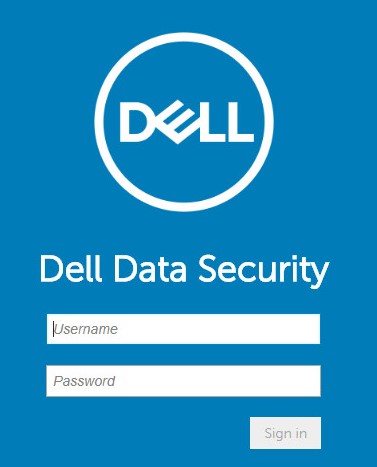
- 登录到 Dell Data Security 管理控制台。
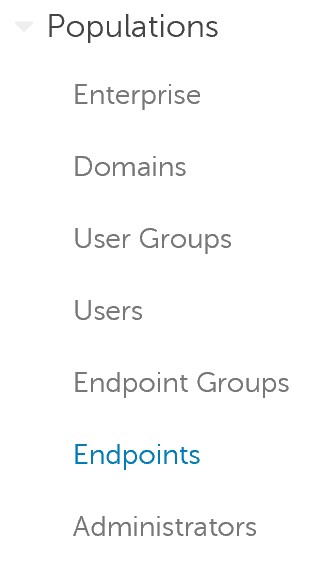
- 在左侧菜单中,展开 Populations,然后单击 Endpoints。
- 单击受影响的主机名。
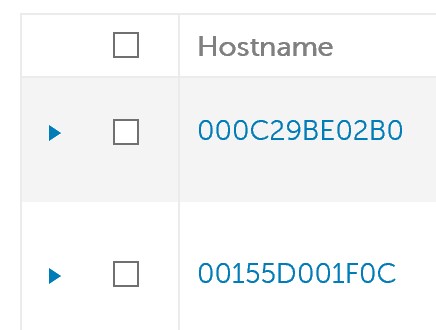
提醒:您环境中的主机名将与示例不同。
- 在“Threat Prevention”下,单击 Protection Settings。
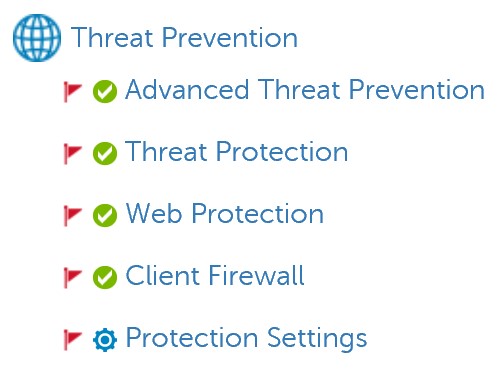
- 选中 Debug Logging for Web Protection 和 Debug Logging for Client Firewall。

- 在右上角,单击 保存 。

- 提交策略更改。
提醒:
- 有关更多信息,请参阅 How to Commit Policies for Dell Data Security Servers (如何提交 Dell Data Security Server 的策略)。
- 主机名在下次签入时接收更新的策略。
- 在受影响的主机名(步骤 4)上重现问题。
要联系支持部门,请参阅 Dell Data Security 国际支持电话号码。
转至 TechDirect,在线生成技术支持请求。
要获得更多见解和资源,请加入戴尔安全社区论坛。
Additional Information
Videos
Affected Products
Dell Endpoint Security Suite Pro, Dell Endpoint Security Suite EnterpriseArticle Properties
Article Number: 000130129
Article Type: Solution
Last Modified: 03 Nov 2023
Version: 10
Find answers to your questions from other Dell users
Support Services
Check if your device is covered by Support Services.