Windows 11のタスクバーの配置を変更する方法
Summary: Windows 11でデフォルトの中央揃えのタスクバーを左揃えに変更する方法について説明します。このガイドに従って、Windows 11のタスクバーの配置をカスタマイズします。
This article applies to
This article does not apply to
This article is not tied to any specific product.
Not all product versions are identified in this article.
Instructions
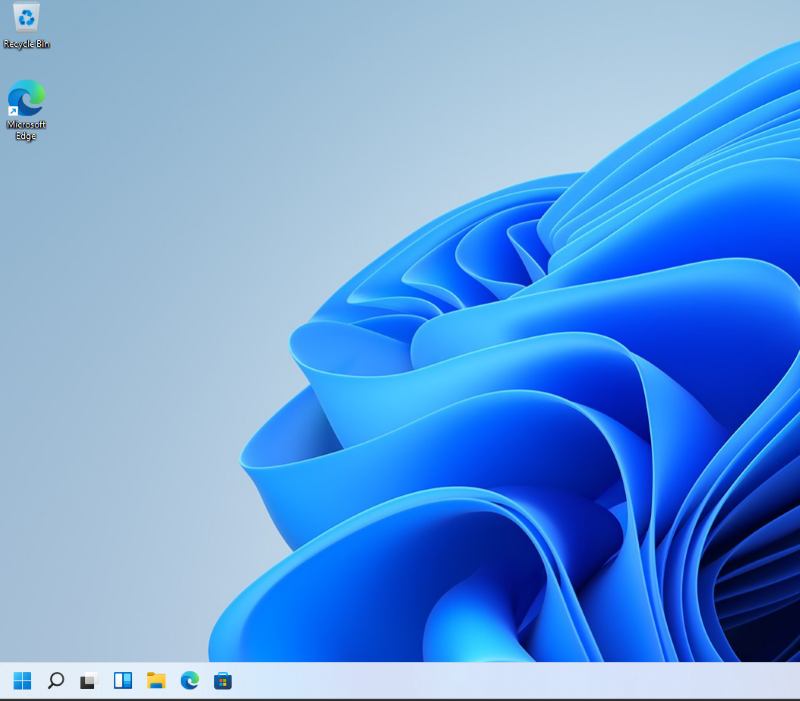
Windows 11のタスクバーはデフォルトで中央揃えですが、タスクバーの配置は変更できます。この記事では、Windows 11のタスクバーを左揃えに移動する手順について説明します。
影響を受けるオペレーティング システム:
- Windows 11
- Windows 11のデスクトップで、タスクバーの任意の余白を右クリックし、[ タスクバーの設定]を選択します。

- 右ペインで、[Taskbar behaviors]をクリックします。

- [タスクバーの配置]ドロップダウンを選択し、[中央]から[左]に変更します。

- これで、タスクバーが左揃えになりました。
Affected Products
Alienware, Dell All-in-One, Dell Pro All-in-One, Dell Pro Max Micro, Dell Pro Max Slim, Dell Pro Max Tower, Dell Pro Micro, Dell Pro Slim, Dell Pro Tower, Dell Slim, Dell Tower, Inspiron, OptiPlex, Vostro, XPS, G Series, G Series, Alienware
, Dell Plus, Dell Pro, Dell Pro Max, Dell Pro Plus, Dell Pro Premium, Inspiron, Latitude, Dell Pro Rugged, Vostro, XPS, Fixed Workstations, Mobile Workstations, Dell Pro Max Micro XE FCM2250, Dell Pro Max Slim XE FCS1250, Dell Pro Max Tower T2 XE FCT2250, Dell Pro Max 16 XE MC16250, Dell Pro Micro Plus XE QBM1250, Dell Pro Slim Plus XE5 QBS1250, Dell Pro Tower Plus XE5 QBT1250
...
Article Properties
Article Number: 000192071
Article Type: How To
Last Modified: 21 Jul 2025
Version: 7
Find answers to your questions from other Dell users
Support Services
Check if your device is covered by Support Services.