NRE 17.x: How to Clear Java Cache, Enable Java Console, and Debugging
Summary: This article provides an overview of how to clear Java cache, enable Java console, and configure Java debug on Microsoft Windows systems using NetWorker Runtime Environment (NRE) to access the NetWorker Management Console (NMC). ...
This article applies to
This article does not apply to
This article is not tied to any specific product.
Not all product versions are identified in this article.
Instructions
NetWorker Runtime Environment (NRE) provides the Java Runtime Environment (JRE) used by the NetWorker authentication service and NetWorker Management Console (NMC).
NOTE: This article is only applicable for NRE 17.x, which NetWorker 19.13.x and later uses. It does not apply for NRE 8.x used by NetWorker 19.12 and prior. For NetWorker 19.12.x (and older): NRE 8.x: How to clear Java Cache, enable Java Console and Debugging.
Clearing Java Cache:
- Open Windows File Explorer and go to "
C:\Program Files\OpenWebStart" - Open
itw-settings.exe(OpenWebStart Console). - Go to Cache
- Use one of the following options to remove all the files (purge), or remove the files for specific NMC server connection.
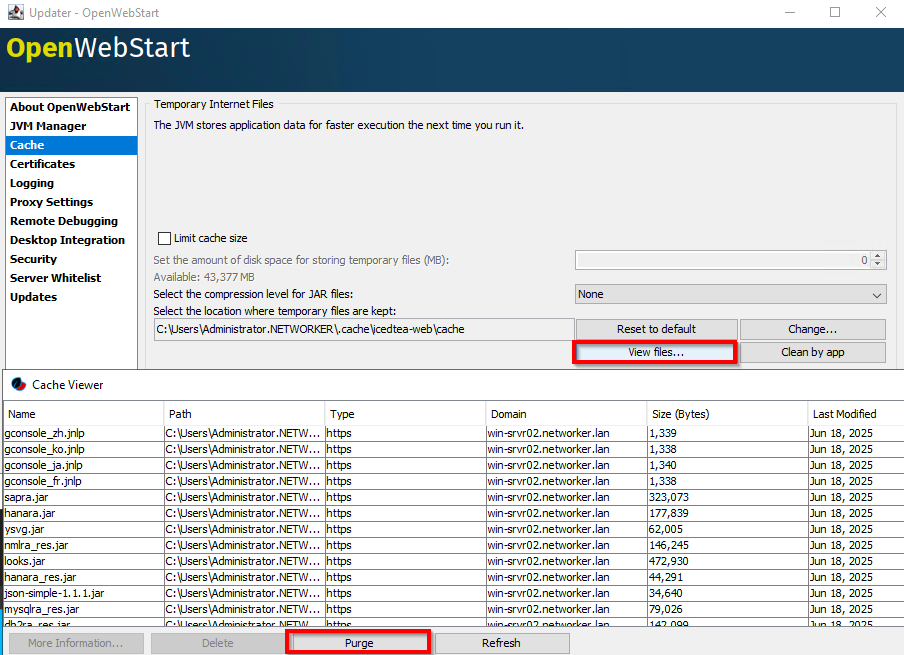
Option One: Click View Files. Click Purge to remove all the java cache files:
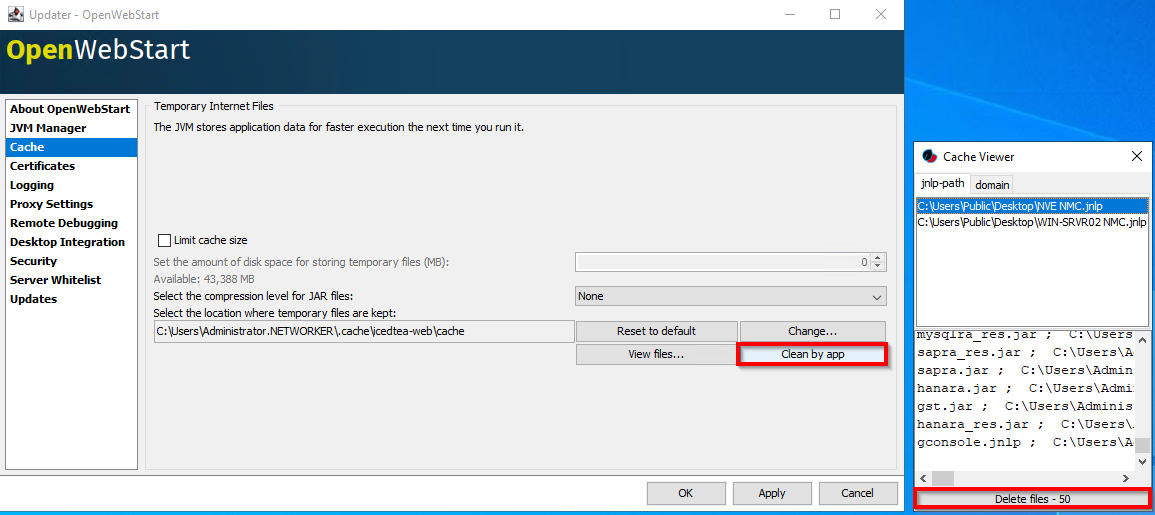
Option Two: From Cache Viewer, click Clean by app. Select the NMC gconsole.jnlp for a specific NMC server, click Delete Files.
Logging (Option One): Enable Java Console:
- Open Windows File Explorer and go to "
C:\Program Files\OpenWebStart" - Open itw-settings.exe (OpenWebStart Console).
- Go to Logging.
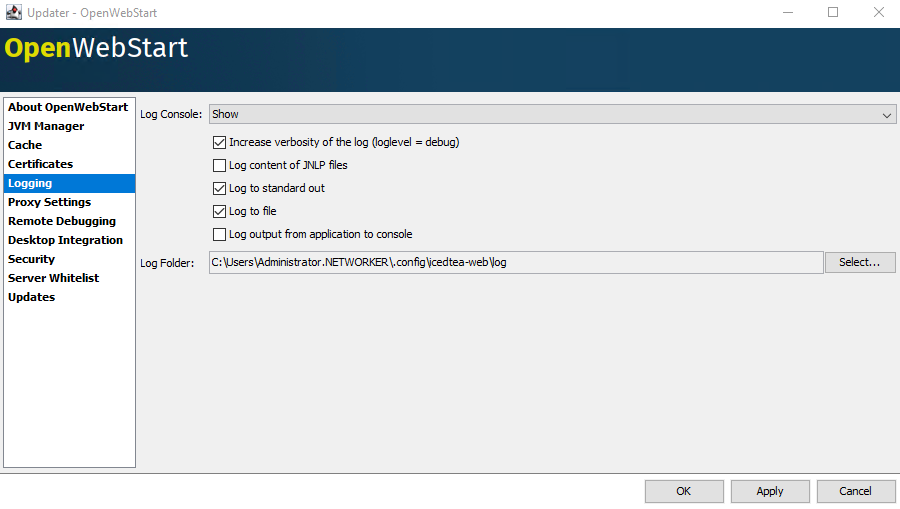
- Select the following options:
- Log Console: Show
- Increase verbosity of the log (debug)
- Log to standard output (logs to the console)
- Log to file (logs to log file)
- Optional: Change the location of the log folder. If this is not changed, the log output is logged to
C:\Users\USER-NAME\.config\icedtea-web\log.
- Click Apply, then click Ok.
CAUTION: These changes are only suggested for diagnosing an issue. Ensure that adequate disk space is available in the log output location and carefully monitor the file system consumption while debugging operations. Once the troubleshooting session has completed, revert these settings to default.
Logging (Option Two): Java Output to a File:
- On the NetWorker Management Console (NMC) server, open the
gconsole.jnlpfile in a text editor.
- Linux:
/opt/lgtonmc/web/gconsole.jnlp - Windows (Default): C:\Program Files\EMC NetWorker\Management\GST\web\gconsole.jnlp
- In the
application-descsection, add the following options:
<argument>-f</argument>
<argument>C:\\Program Files\\NRE\\logs\\java1.log</argument>
Example:
<application-desc main-class="COM.legato.gwt.framework.LMainWindow">
		<argument>-g</argument>
		<argument>IPADDR_REPLACE_AT_RUNTIME(fe80::d3e7:121a:e342:3332)</argument>
		<argument>-p</argument>
		<argument>gconsole</argument>
		<argument>-i</argument>
		<argument>false</argument>
		<argument>-s</argument>
		<argument>X_NO_SERVER_X</argument>
		<argument>-P</argument>
		<argument>X_NO_SERVER_PORT_X</argument>
		<argument>-t</argument>
		<argument>X_NO_TASK_X</argument>
		<argument>-h</argument>
		<argument>9000</argument>
		<argument>-n</argument>
		<argument>9001</argument>
		<argument>-b</argument>
		<argument>5432</argument>
		<argument>-A</argument>
		<argument>9090</argument>
		<argument>-d</argument>
		<argument>0</argument>
		<argument>-a</argument>
		<argument>X_NO_AUTH_X</argument>
		<argument>-m</argument>
		<argument>X_NO_ISSUER_X</argument>
		<argument>-f</argument>
		<argument>C:\\Program Files\\NRE\\logs\\java1.log</argument>
</application-desc>
NOTE: The log file is generated on the host accessing the NMC, not the NMC server. A different log path may be specified; however, if NRE is used to launch the NMC, this path should exist on all hosts accessing the NMC.
- On the host used to access the NMC, download a new
gconsole.jnlpfrom a we browser:https://NMC_SERVER_ADDRESS:9000/gconsole.jnlp - Launch the NMC using the new
gconsole.jnlpfile. - The
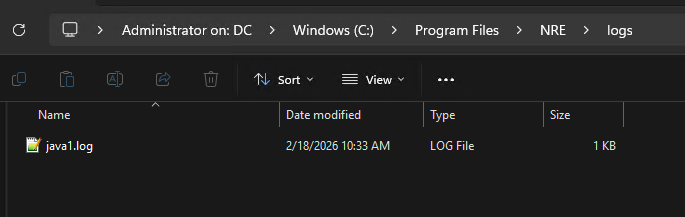
java1.logis created on the host accessing the NMC:
Enable Java Debug:
- Enable the Java Console as per the above steps.
- Launch the NetWorker Management Console's (NMC)
gconsole.jnlpfile. - Log in to the NMC.
- From the Enterprise window,
CTRL+SHIFT+Right-Click - Click Save Debug Messages… and specify an output location.

- In the Enterprise window, again
- From Set Debug Level, select the wanted debug level. Usually, 7

- Perform actions within NMC which require debug. Copy the output from the Java Console session and collect the Java output file that is created in step 5.
- To disable debug, repeat the process but set Debug Off.
Enabling NRE Debug:
NRE debug can be configured inside the NRE C:\Program Files\NRE\logs\logConfig.properties file. The default log debug level is WARNING.
The supported Log Levels from lowest to highest are:
OFF
SEVERE
WARNING
INFO
CONFIG
FINE
FINER
FINEST
ALL
Enable NMC (gstd) Debug:
Debugging can be enabled on the NMC's GST service from the NetWorker Management Console.
- From the NMC's Enterprise screen, click the Setup tab.
- Click the Setup menu and select System Options.

- From System Options, set the Debug Level as required, typically 9.

- No service restart is required, perform actions from NMC requiring debug.
- Render the
gstd.rawfrom the NMC server.
Linux: /opt/lgtonmc/logs/gstd.raw
Windows (Default): C:\Program Files\EMC NetWorker\Management\GST\logs\gstd.raw
To render .raw files, see article NetWorker: How to use nsr_render_log to render .raw log files
- Collect the rendered
gstd.rawfile from the NMC server.
NMC Heap Diagnostic:
The NetWorker Management Console (NMC) uses a Java Runtime on the host accessing the console. The console uses the file gconsole.jnlp, which it downloads from the NMC server. You may observe "running out of memory" or "Java heap space" errors in the NMC. The NMC heap limit is allocated memory limit; that said these errors may appear even though the host accessing the NMC still has sufficient memory available. This is expected behavior when performing some operations in the NMC, particularly in larger environments, or environments with a lot of data.
- Open an Administrator Command-Prompt or PowerShell.
- Change directory to your NetWorker Runtime Environment (NRE) java bin directory. For example:
PS C:\Users\administrator.AMER> cd "C:\Program Files\NRE\java\"
PS C:\Program Files\NRE\java> dir


    Directory: C:\Program Files\NRE\java


Mode                 LastWriteTime         Length Name
----                 -------------         ------ ----
d-----         1/19/2026   4:55 PM                jdk-17.0.17


PS C:\Program Files\NRE\java> cd .\jdk-17.0.17\bin
PS C:\Program Files\NRE\java\jdk-17.0.17\bin>
- Get the Process ID (PID) of the
java.exeprocess associated with OpenWebStart:
Get-CimInstance Win32_Process | Where-Object { $_.Name -like "*java*" } | Select-Object ProcessId, Name, CommandLine
Example:
PS C:\Program Files\NRE\java\jdk-17.0.17\bin> Get-CimInstance Win32_Process | Where-Object { $_.Name -like "*java*" } | Select-Object ProcessId, Name, CommandLine

ProcessId Name       CommandLine
--------- ----       -----------
     1352 javaws.exe "C:\Program Files\OpenWebStart\javaws.exe" "C:\Users\administrator.AMER\Downloads\gconsole.jnlp"
     7644 java.exe   "C:\Program Files\NRE\java\jdk-17.0.17\bin\java.exe" "-Xbootclasspath/a:C:\Program Files\OpenWebStart\openwebstart.jar" "-Dicedtea-web.bin.location=C:\Program Files\OpenWebStart\javaws" -Xms512M -Xmx2048M -Djava.locale.providers=COMPAT -Djava.util.Arrays.useLegacyMergeSort=true --add-reads=java.base=ALL-UNNAMED,java.desktop --add-reads=java.d...
4. Use
jcmd to check the Java Virtual Machine (VM) settings and GC details:
.\jcmd.exe PID VM.flags
.\jcmd.exe PID GC.heap_info
Example:
PS C:\Program Files\NRE\java\jdk-17.0.17\bin> .\jcmd.exe 7644 VM.flags
7644:
-XX:CICompilerCount=2 -XX:ConcGCThreads=1 -XX:G1ConcRefinementThreads=2 -XX:G1EagerReclaimRemSetThreshold=8 -XX:G1HeapRegionSize=1048576 -XX:GCDrainStackTargetSize=64 -XX:InitialHeapSize=536870912 -XX:MarkStackSize=4194304 -XX:MaxHeapSize=2147483648 -XX:MaxNewSize=1287651328 -XX:MinHeapDeltaBytes=1048576 -XX:MinHeapSize=536870912 -XX:NonNMethodCodeHeapSize=5826188 -XX:NonProfiledCodeHeapSize=122916026 -XX:ProfiledCodeHeapSize=122916026 -XX:ReservedCodeCacheSize=251658240 -XX:+SegmentedCodeCache -XX:SoftMaxHeapSize=2147483648 -XX:+UseCompressedClassPointers -XX:+UseCompressedOops -XX:+UseFastUnorderedTimeStamps -XX:+UseG1GC -XX:-UseLargePagesIndividualAllocation

PS C:\Program Files\NRE\java\jdk-17.0.17\bin> .\jcmd.exe 7644 GC.heap_info
7644:
 garbage-first heap   total 524288K, used 112318K [0x0000000080000000, 0x0000000100000000)
  region size 1024K, 103 young (105472K), 2 survivors (2048K)
 Metaspace       used 22772K, committed 23168K, reserved 1114112K
  class space    used 2530K, committed 2752K, reserved 1048576K
Based on the above example:
| Metric | Value |
| Heap Reserved (max) | Up to 2 GB |
| Heap Currently Committed (initial) | 512 MB |
| Heap used | ~110 MB |
| Metaspace | ~22 MB |
The above jmcd commands may need to be run intermittently or alongside NMC heap errors to observe heap conditions. It may also be necessary to script and monitor the heap conditions at set intervals to observe any consistent patterns.
NOTE: The following article details how to modify heap limits: NetWorker: How to change the java heap size for the NetWorker Management Console (NMC)
Additional Information
- NetWorker: How To Enable AUTHC DEBUG for Troubleshooting Purposes
- NetWorker: How to Enable REST API Debugging
- NetWorker: How to enable RabbitMQ Debugging
- NetWorker Management Web UI (NWUI): Triage and Troubleshooting Guide
Affected Products
NetWorkerProducts
NetWorker FamilyArticle Properties
Article Number: 000342142
Article Type: How To
Last Modified: 04 Jun 2026
Version: 7
Find answers to your questions from other Dell users
Support Services
Check if your device is covered by Support Services.