How to change the License File Format for Data Domain
Summary: This article provides instructions for Customers, Partners, and Internal users to update Data Domain License File Formats (from ".lic" to ".xml" or from ".xml" to ".lic") for license compatibility with the DD OS Version. ...
This article applies to
This article does not apply to
This article is not tied to any specific product.
Not all product versions are identified in this article.
Instructions
Pre-requisite:
Only, Partners, and Internal users who have access to the Software Licensing Central (SLC) or End-Customers who are registered to the Location ID associated with the affected License Certificates can perform this License Activity.
Note: External users who require access to the Software Licensing Central (SLC) should register for a Support Account on Dell Support, and Internal users who require access to the Software Licensing Central (SLC) can submit a MyAccess Ticket Internally.
Instructions to change License File Format to match the DD OS Version:
End Customers, Partners, and Internal users can follow these instructions to change Data Domain License File Format from ".lic" to ".xml" or from ".xml" to ".lic" for compatibility with the DD OS Version of the Appliance.
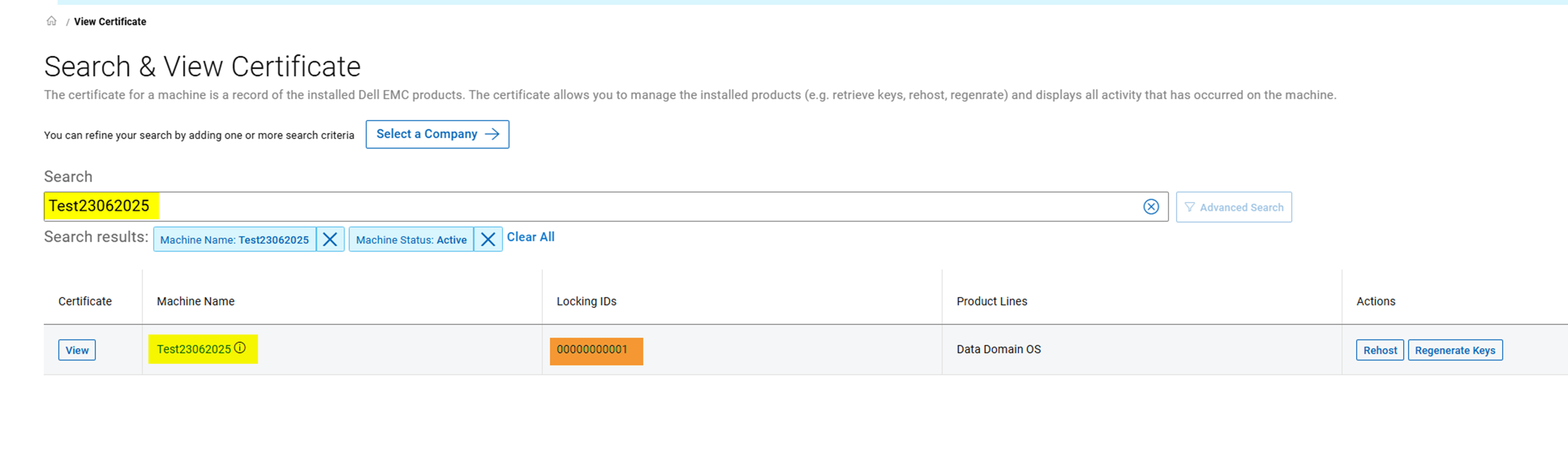
- Begin by retrieving the License Certificate or File for the affected Data Domain Serial Number from Software Licensing Central (SLC) > Certificates > Search and View Certificate Page.
Note: An external users visibility and access to certain Entitlements, Certificates, or Licenses may be limited or restricted based on their level of access to the Location IDs associated with their profile.
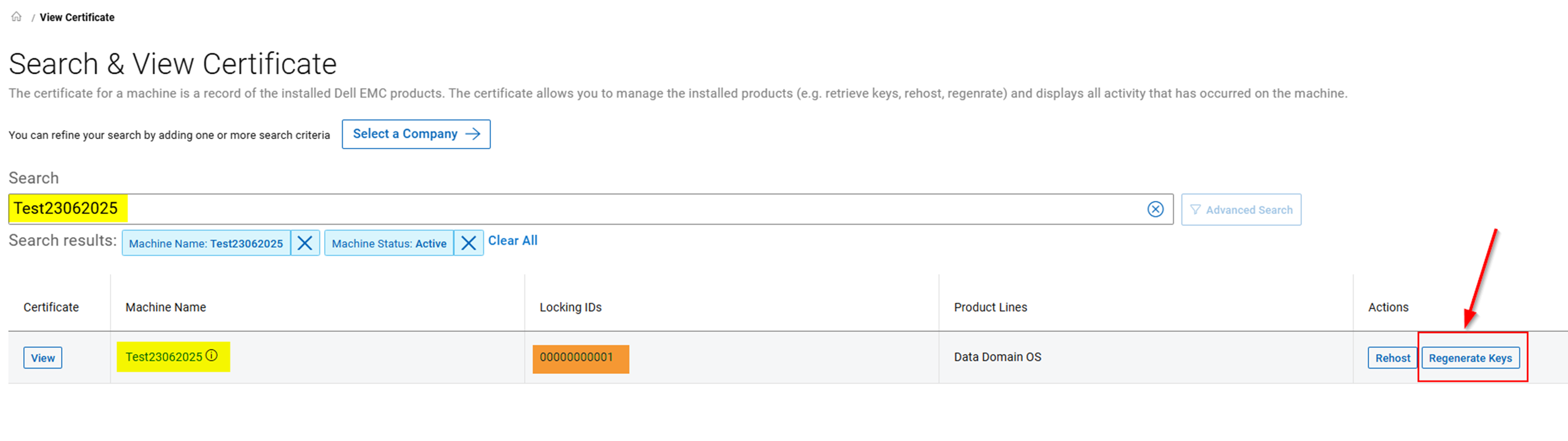
- On the Search and View Certificate Page, the user can select the Regenerate Keys action against the affected License or Certificate.
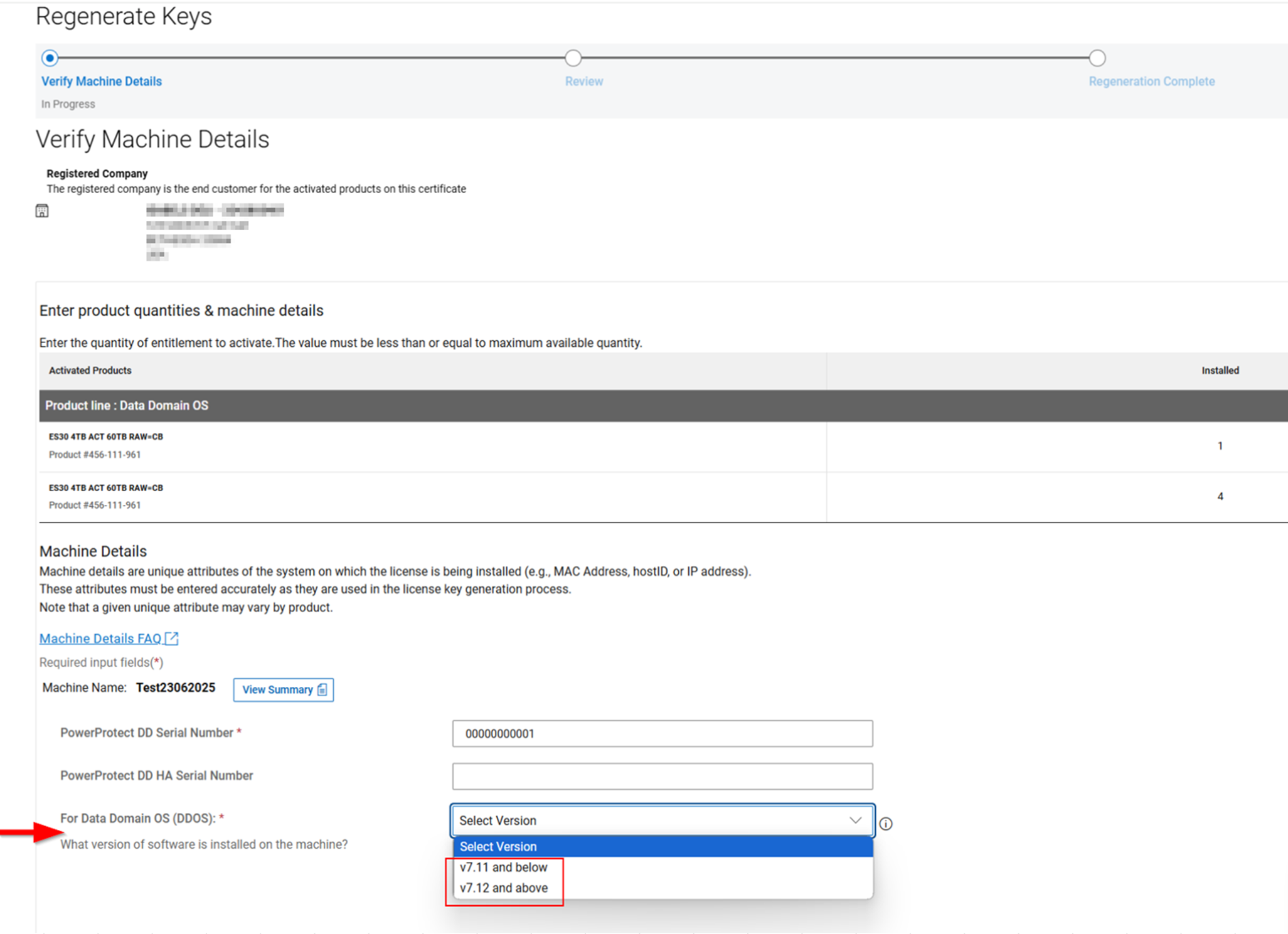
- Selecting the Regenerate Keys option takes the user to the Verify Machine Details Page (as shown in the image below). Here on the '*For Data Domain OS (DDOS) What version of software is installed on the machine?' section, the user can select the appropriate DD OS Version they require the license regenerated for.
Note: Selecting 'v7.11 and below' should generate a License File in the ".lic" Format. And, selecting 'v7.12 and above' should generate the License File in the ".xml" Format.
- The user can go to the Review page to reassess the Transaction before committing to the regeneration process after selecting the appropriate DD OS Version.
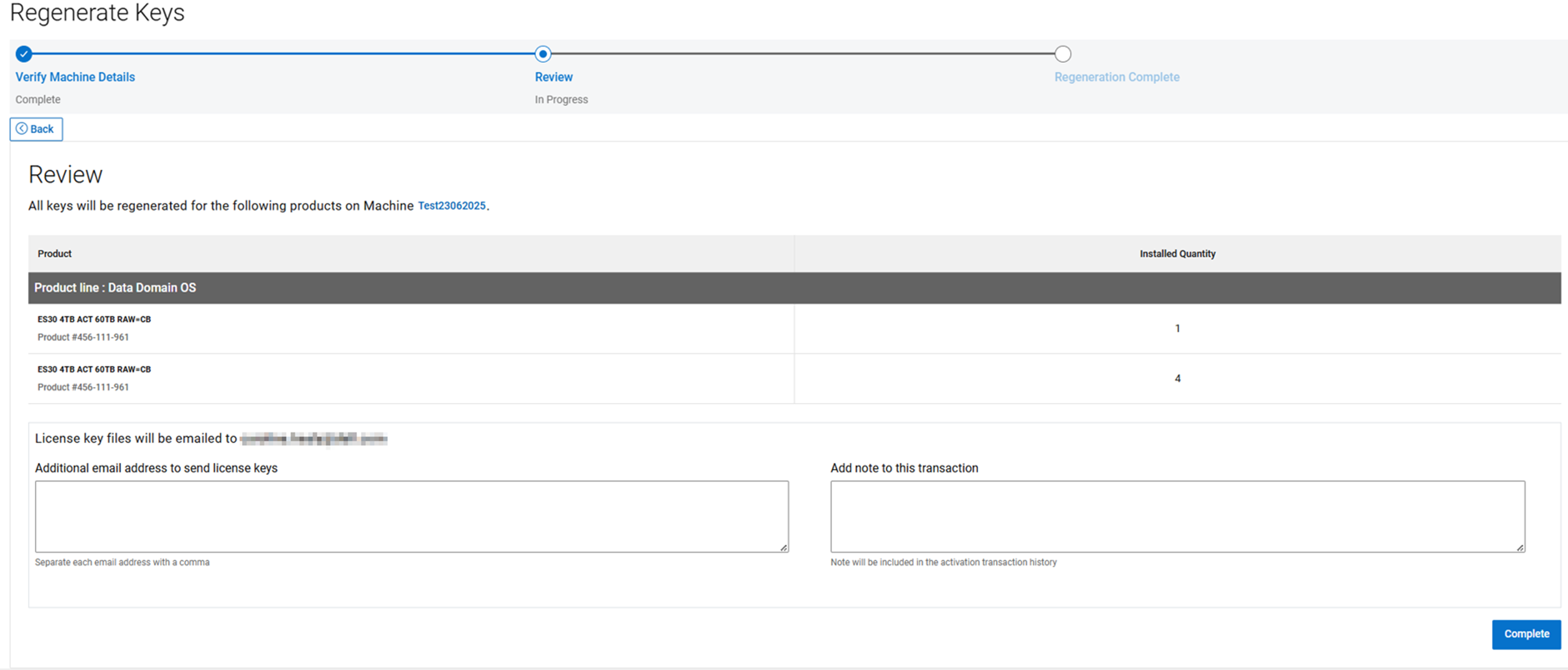
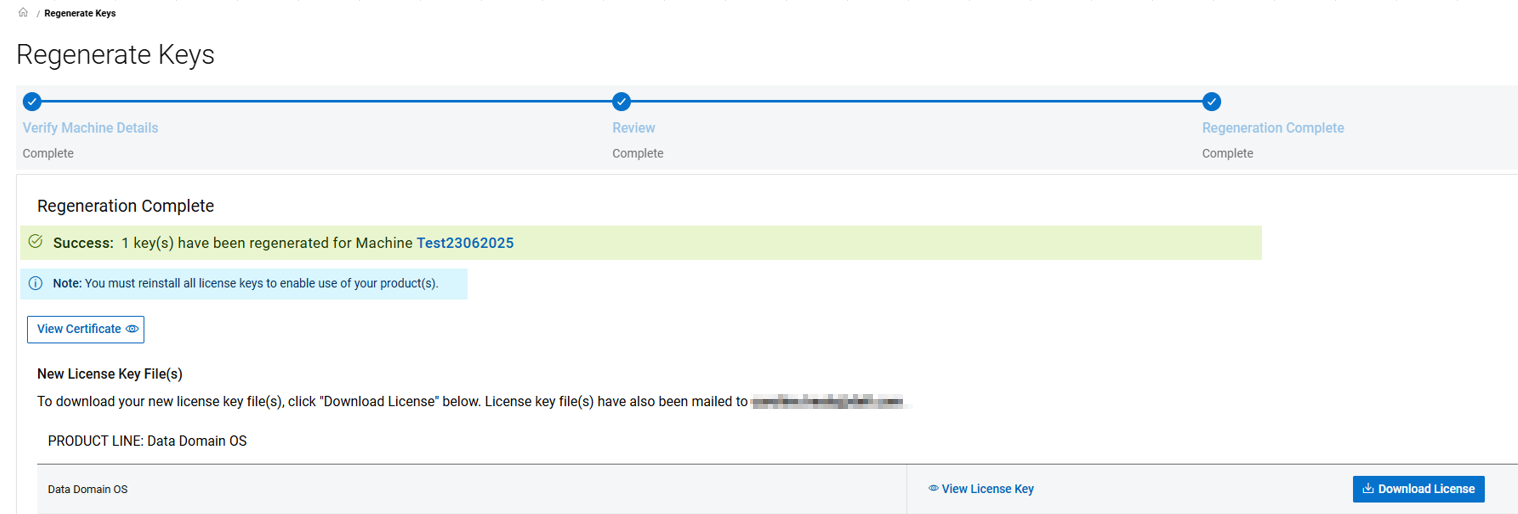
- If the user continues to Regenerate Keys on the Review Page, then that should complete the regeneration process. The user can download the updated License File to reapply to the Data Domain Appliance. Also, the Licensing System automatically sends a copy of the Transaction Summary and the updated License File to the user.
Note: If the user continues to experience any Issues with the Regeneration Process, then engage the World-Wide Licensing Support Team for further assistance (Instructions outlined below):
- Click Dell Support to use the Live Chat feature between the hours of 12:00 AM EST Monday - 11:59 PM EST Friday
- Click Dell Support to use the Online Support Feature
- Contact Dell Technologies Live Support by calling 001-800-782-4362 - mention "licensing"
- See the link for list of Phones No- by country or region, Dell Technologies Customer Support Centers
Affected Products
Data Domain, Data DomainArticle Properties
Article Number: 000225853
Article Type: How To
Last Modified: 25 Jun 2025
Version: 2
Find answers to your questions from other Dell users
Support Services
Check if your device is covered by Support Services.