NVP: How To Perform a VM FLR Using the 'Data Protection Restore Client' Web user interface
Summary: Use the 'Data Protection Restore Client' for vProxy file-level recovery from a primary or cloned backup on a Data Domain device. The Data Protection Restore Client allows users to restore specific files and folders from virtual machines in User and Admin modes. ...
Instructions
Use the Data Protection Restore Client (DPRC) for vProxy file-level recovery from a primary or cloned backup on a Data Domain device. The DPRC allows users to restore specific files and folders from virtual machines in User and Admin modes.
See the NetWorker VMware Integration Guide (available through: https://www.dell.com/support/home/product-support/product/networker/docs) concerning: Prerequisites, supported platforms and browsers, accounts that can be used, and additional procedures. This KB provides a general overview of how to access the DPRC and perform an FLR from a VM. Detailed steps are also provided in the VMware integration guide.
1. To access the 'Data Protection Restore Client' connect to the VM that needs the FLR, and open a web browser.
2. In the web browser URL, enter: https://networker_server:9090/flr (Where networker_server is the hostname or IP address of the NetWorker server that backs up this VM)
3. Select 'Admin' and enter the NetWorker Administrator credentials of the NetWorker server (See the VMware integration guide for more information about user accounts).

Figure 1: Data Protection Restore Client login screen
4. Select the vCenter, VM, and backup you would like to use for the FLR.
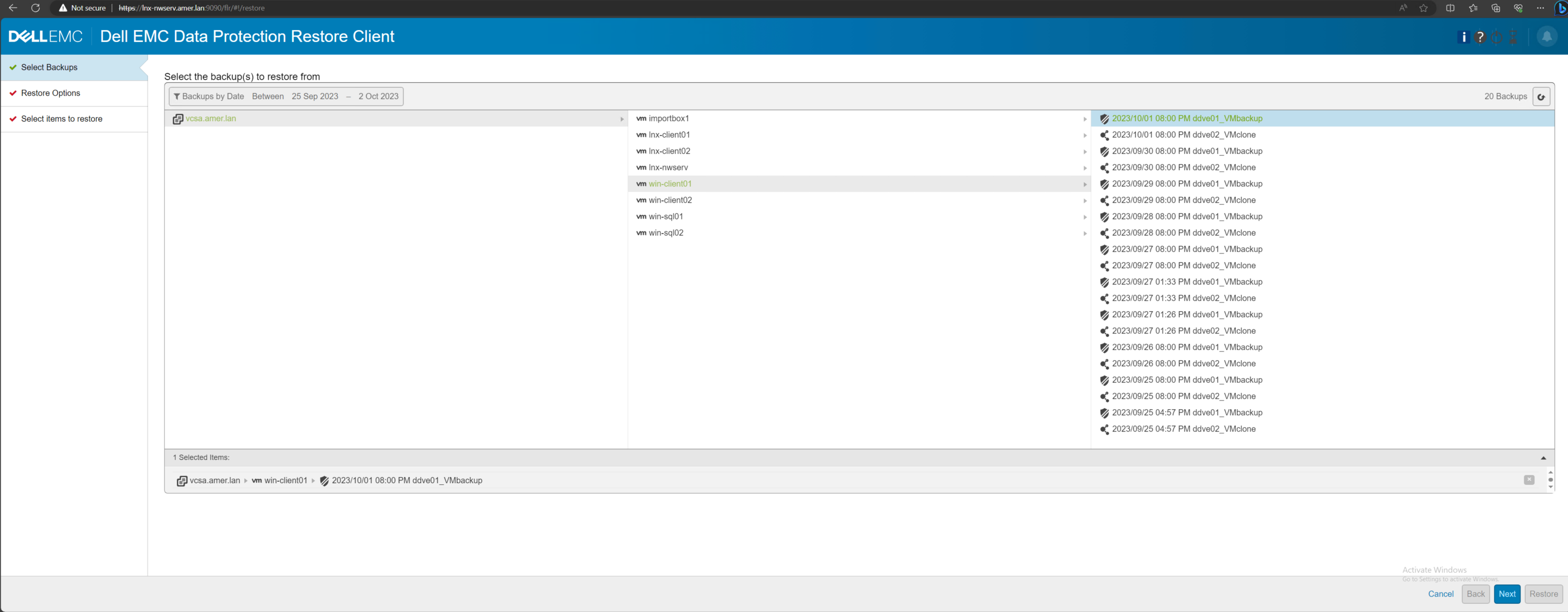
Figure 2: Backup selection options in the Data Protection Restore Client.
5. Select the target VM, and enter FLR/APP user credentials of the VM.
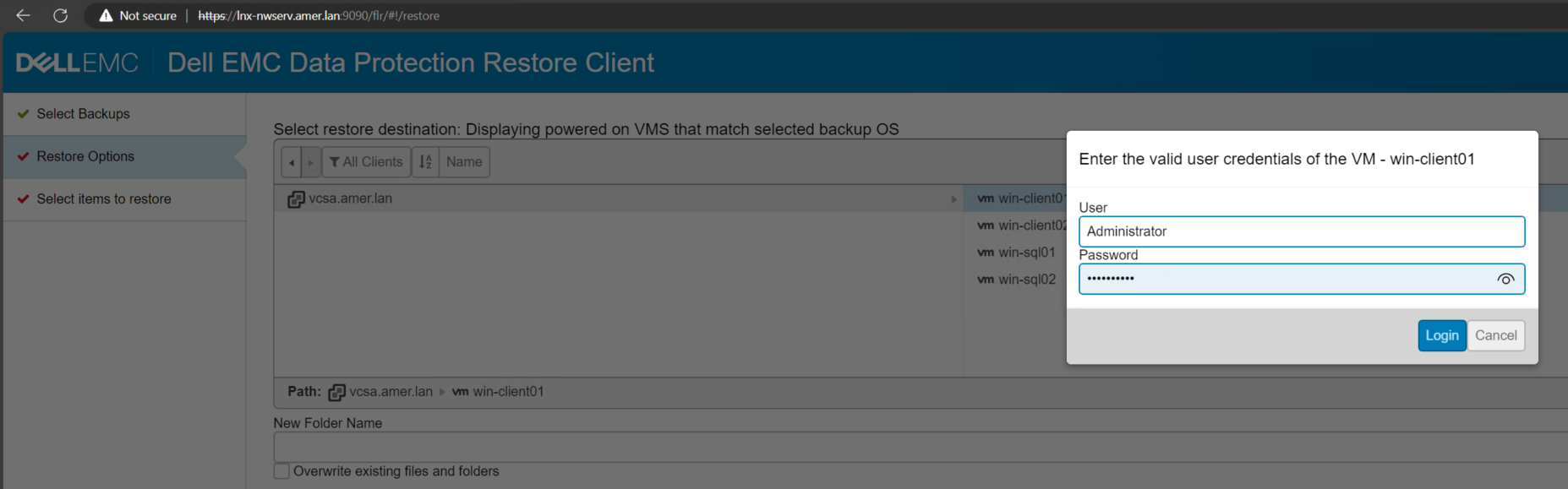
Figure 3: Target VM selection and Mount user login window.
6) Navigate through the directory structure to a restore destination (A New Folder can be created from this screen).

Figure 4: Target restore directory settings.
7. Navigate through the file system for the files needed for restore. Click the files needed for restore and drag them into the "Selected" items window below.

Figure 5: Selecting data needed for restore.
8. Select 'Restore'. The restore can be monitored from the monitoring tab (Bell icon in the upper right corner).
9. Once completed, the files are available in the selected directory for restore, maintaining their original directory structure if files from different directories are selected:
Additional Information
FLR logs from the DPRC can be found on the NetWorker server:
Linux: /nsr/logs/adhoc/nsrvproxy_flr
Windows: C:\Program Files\EMC NetWorker\nsr\logs\adhoc\nsrvproxy_flr
FLR logs can also be found on the VM where FLR was performed.
Linux: /opt/emc/vproxyra/logs/vflragentd/vflragentd-agent.log
Windows: C:\Program Files (x86)\EMC\vProxy FLR Agent\logs\vflragentd\vflragentd-agent.log
The DPRC logs can be found on the NetWorker server:
Linux: /nsr/authc/logs/flr-server.log
Windows: C:\Program Files\EMC NetWorker\nsr\authc-server\tomcat\logs\flr-server.log
Extra logs from the FLR can be found on the vProxy appliance that performed the FLR mount:
Completed sessions: /opt/emc/vproxy/runtime/logs/recycle/vflrd/DATE
Active sessions and vflrd daemon logs: /opt/emc/vproxy/runtime/logs/vflrd
NWUI: How to perform a VMware VM FLR from the NetWorker Web User Interface