Dell Pro Desktop Speakerphone SP3022 Usage and Troubleshooting Guide
Summary: The following article provides information about the Dell Pro Desktop Speakerphone SP3022. You can reference each section to learn more about the features of the Dell Pro Desktop Speakerphone SP3022 and how to use it. ...
Instructions
Table of Contents:
- What is in the Dell Pro Desktop Speakerphone SP3022 box?
- Speakerphone Features
- Setting up your Speakerphone
- Troubleshooting
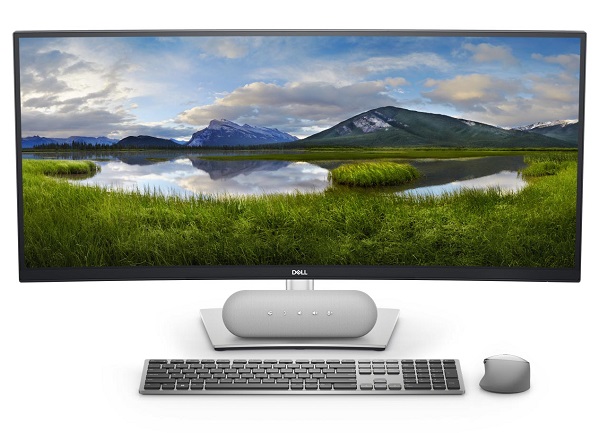
(Figure.1 Experience rich, clear sound with the world’s most intelligent Microsoft Teams-certified speakerphone. Dell Pro Desktop Speakerphone SP3022)
What is in the Dell Dell Pro Desktop Speakerphone SP3022 Speakerphone box
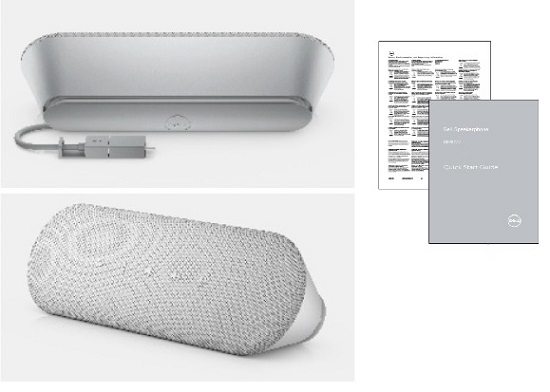
(Figure.2 Dell Pro Desktop Speakerphone SP3022 Box Contents)
| 1 | USB Type-C to Type-A adapter Cable | 2 | Speakerphone |
| 3 | Documents |
Speakerphone Features
Front View

(Figure.3 Dell Pro Desktop Speakerphone SP3022 Front View)
Rear View
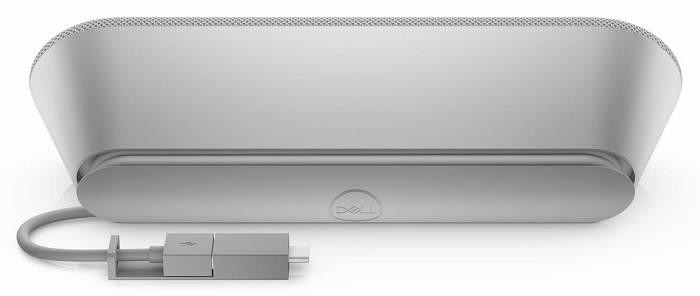
(Figure.4 Dell Pro Desktop Speakerphone SP3022 Rear View)
Product Features
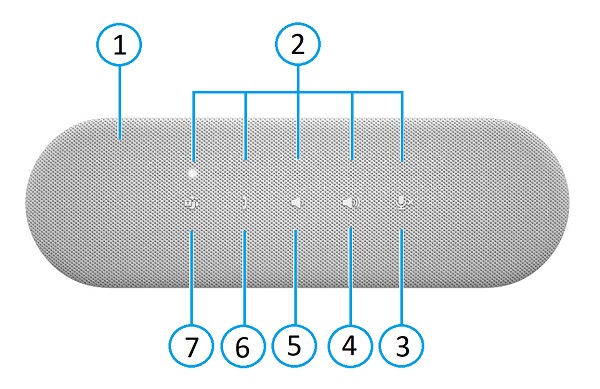
(Figure.5 Dell Pro Desktop Speakerphone SP3022 Front View Product Features)
| 1 | Speakerphone | 2 | Status LEDs (White/Red/Green) | ||
| 3 | Mute/Unmute |  |
4 | Volume Up |  |
| 5 | Volume Down |  |
6 | Answer/End/Reject Call |  |
| 7 | Microsoft Teams |  |
|||
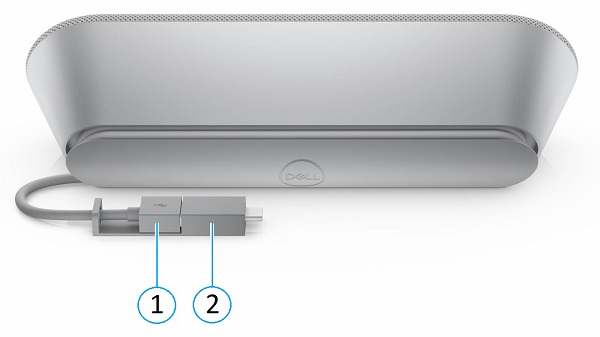
(Figure.6 Dell Pro Desktop Speakerphone SP3022 Rear View Product Features)
| 1 | USB Type-A Connector | 2 | USB Type-A to Type-C Adapter |
Setting up your Speakerphone
Compatibility
Operating Systems:
- Windows 11, and Windows 10
Using the Dell Peripheral Manager application:
- Windows 10 or later
Connecting the Speakerphone
The Dell Pro Desktop Speakerphone SP3022 sits on your desk beside your computer or under a Dell monitor. A USB Type-A cable or USB Type-A to Type-C adapter connects the speakerphone to a USB port on a compatible monitor. The monitors USB upstream cable connects to your Desktop or laptop.
If the monitor does not include a USB hub, you can plug directly to the Desktop or laptops using a Type-A or Type-C port.

(Figure.7 USB Type-A to Type-C Adapter)
Using the Speakerphone or Teams functions
The user guides on the following link take you step by step through how to use the speakerphone and its Teams function.
Troubleshooting
| Problems | Possible solutions |
|---|---|
| Audio Performance Issues |
|
| Update your computer’s BIOS and Dell Pro Desktop Speakerphone SP3022 firmware. |
|
| Dell Pro Desktop Speakerphone SP3022’s buttons do not respond while calling using conferencing applications other than Teams. |
|
| The answer call button does not work when receiving calls from Teams. |
|
| The Echo can be heard during the call. |
|
| No Audio |
|
| Microphone does not work. |
|
| Cannot make a phone call or pick up an incoming call in device button using Line, WhatsApp, and WeChat? |
|
| Abnormal sound |
|
| Volume is too low. |
|
Additional Information
Additional Information
Dell Pro Desktop Speakerphone SP3022 Support Site
Learn how to use and troubleshoot problems with the speakerphone you use and your computer. You can find information about Troubleshooting steps, How-To guides, and relevant Support Videos for assistance.
Browse to the Dell Pro Desktop Speakerphone SP3022 Online Manual Page. Touch or click View PDF to the right of the Dell Pro Desktop Speakerphone SP3022 User Guide, which is located in the Manuals and Documents section.