PowerEdge: TMP0203: CPU temperature is greater than the upper critical threshold
Summary: PowerEdge servers with iDRAC9 may report CPU x temperature greater than the upper critical threshold events when CPU workload spikes at or near CPU PowerMax.
Symptoms
PowerEdge servers with iDRAC9 may report CPU x temperature greater than the upper critical threshold events when CPU workload spikes at or near CPU Power Max. When transient power bursts occur to meet additional CPU demand, the processor temperature may briefly exceed the upper critical threshold. For example, a server that is operating at 50-60% utilization and spikes to 100% utilization for 5-20 s may exceed the upper critical threshold for CPU temperature briefly. When this threshold is exceeded, events are recorded in the System event log and Lifecycle Log. When the peak transient spike is over and CPU temperature returns to normal, an event is recorded indicating CPU x temperature is within range.
When transient spikes like this occur, the two events typically occur within 5-20 s of each other. See examples below as guidance for these types of transient events.
System event log:
2020-04-09 11:14:11  85  CPU 2 temperature is within range.

2020-04-09 11:14:06  84  CPU 2 temperature is greater than the upper critical threshold.

2020-04-09 09:16:31  83  CPU 2 temperature is within range.

2020-04-09 09:16:16  82  CPU 2 temperature is greater than the upper critical threshold.

2020-04-09 08:58:33  81  CPU 2 temperature is within range.

2020-04-09 08:58:17  80  CPU 2 temperature is greater than the upper critical threshold.

2020-04-09 08:25:47  79  CPU 2 temperature is within range.

2020-04-09 08:25:27  78  CPU 2 temperature is greater than the upper critical threshold.

2020-04-09 06:57:02  77  CPU 2 temperature is within range.

2020-04-09 06:56:57  76  CPU 2 temperature is greater than the upper critical threshold.
Lifecycle Log:
2020-04-09 00:44:15  7851  TMP0205  CPU 2 temperature is within range.

2020-04-09 00:44:07  7850  TMP0203  CPU 2 temperature is greater than the upper critical threshold.

2020-04-08 22:46:31  7773  TMP0205  CPU 2 temperature is within range.

2020-04-08 22:46:18  7772  TMP0203  CPU 2 temperature is greater than the upper critical threshold.

2020-04-08 22:28:34  7769  TMP0205  CPU 2 temperature is within range.

2020-04-08 22:28:18  7768  TMP0203  CPU 2 temperature is greater than the upper critical threshold.

2020-04-08 21:55:49  7736  TMP0205  CPU 2 temperature is within range.

2020-04-08 21:55:29  7735  TMP0203  CPU 2 temperature is greater than the upper critical threshold.

2020-04-08 20:27:03  7697  TMP0205  CPU 2 temperature is within range.

2020-04-08 20:26:58  7696  TMP0203  CPU 2 temperature is greater than the upper critical threshold.
When these temperature thresholds are met, Intel processors may throttle to reduce power consumption and lower CPU temperature.
Cause
Resolution
While these types of transient CPU performance spikes are not abnormal, iDRAC9 Engineering continues to fine-tune the thermal algorithm to prevent these events. For example, iDRAC9 4.22.00.00 and iDRAC9 4.40.00.00 includes thermal improvements specific for this sequence. To ensure that the latest dynamic thermal algorithms are installed on PowerEdge servers, update to the latest available iDRAC9 firmware.
Workarounds:
End-users can manually modify the system thermals to prevent these transient events from spiking CPU temperature. Use either of the following workarounds to increase the fan speed at baseline and maintain lower CPU temperature.
Max Performance Profile
System Thermal Profile Optimization can be modified to Maximum Performance (Performance Optimized). This thermal profile carries the following advantages:
- Reduced probability of memory or CPU throttling
- Increased probability of turbo mode activation
- Generally, higher fan speeds at idle and stress loads
Thermal Profile Optimization can be modified through following methods:
iDRAC9 UI > Configuration > System Settings > Hardware Settings > Cooling Configuration
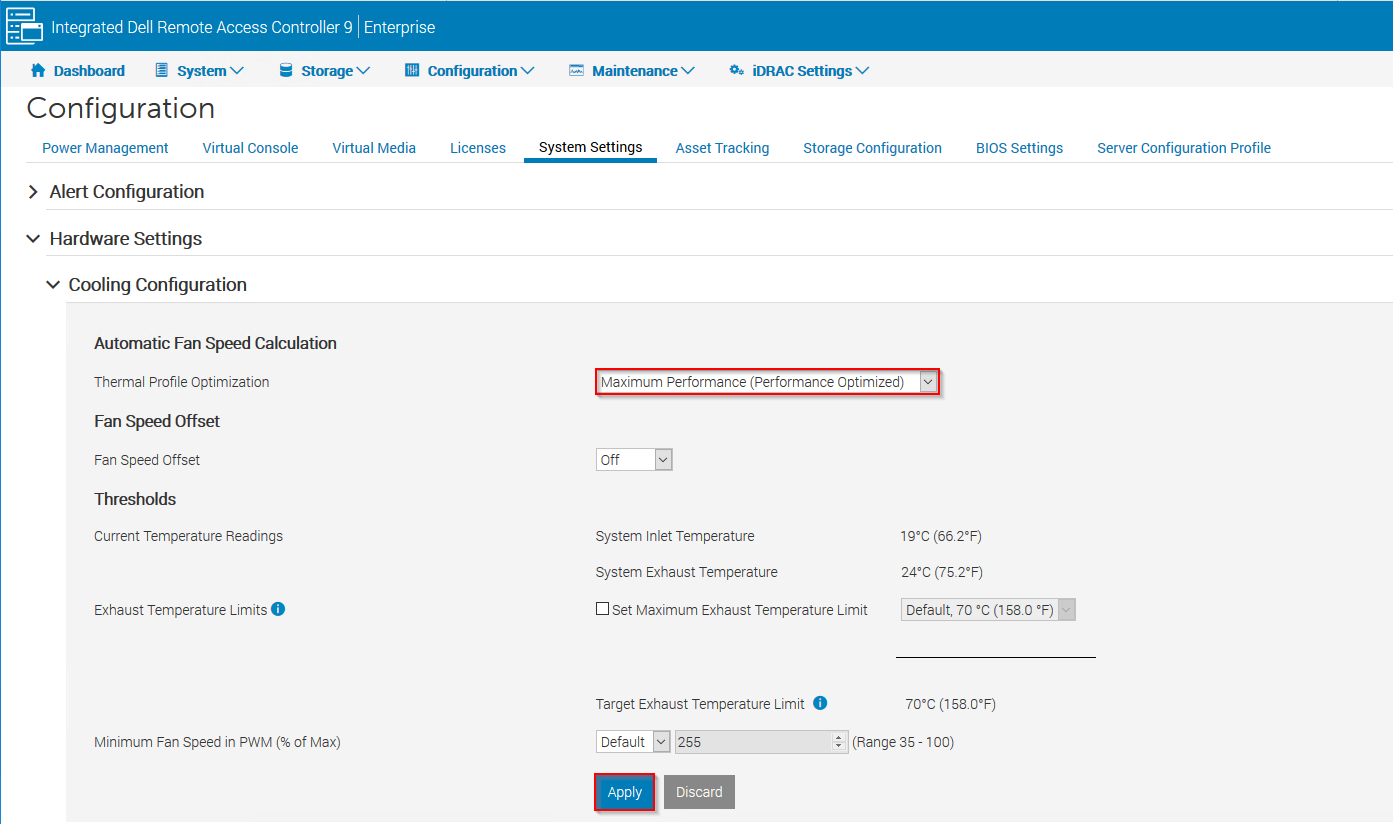
racadm set System.ThermalSettings.ThermalProfile

racadm>>racadm set System.ThermalSettings.ThermalProfile 1

[Key=System.Embedded.1#ThermalSettings.1]

Object value modified successfully


Supported Values:

0 - Default Thermal Profile Settings

1 - Maximum Performance

2 - Minimum Power

3 - Sound Cap
Fan Speed Offset
Fan speed offset allows you to increase the system fan speed with four incremental steps. These steps are equally divided between the typical baseline speed and the maximum speed of the server system fans. A fan speed offset causes fan speeds to increase (by the offset % value) over baseline fan speeds calculated by the Thermal Control algorithm. Possible values are:
- Low fan speed - Drives fan speeds to a moderate fan speed.
- Medium fan speed - Drives fan speeds close to medium.
- High fan speed - Drives fan speeds close to full speed.
- Max fan speed - Drives fan speeds to full speed.
- Off - Fan speed offset is set to off. This is the default value. When set to off, the percentage does not display. The default fan speed is applied with no offset. Conversely, the maximum setting results in all fans running at maximum speed.
Fan Speed Offset can be modified through following methods:
iDRAC9 UI > Configuration > System Settings > Hardware Settings > Cooling Configuration

racadm set System.ThermalSettings.FanSpeedOffset


racadm>>racadm set System.ThermalSettings.FanSpeedOffset 2

[Key=System.Embedded.1#ThermalSettings.1]

Object value modified successfully


Supported Values:

0 - Low

1 - High

2 - Medium

3 - Max

255 - Off
Note: Increasing fan speed baselines increase fan power consumption and increase in fan acoustics.