Importing PFX fails with parseAlgParameters error
Summary: When trying to update the certificate, using the Server Configuration Tool or Java keytool, on Dell Security Management Server the process fails with a parseAlgParameters error when the PFX is encrypted with AES256-SHA256. ...
This article applies to
This article does not apply to
This article is not tied to any specific product.
Not all product versions are identified in this article.
Symptoms
Affected Products:
- Dell Security Management Server
Cause
Not Applicable
Resolution
The PFX file must be exported using the TripleDES-SHA1 encryption option, to allow the Server Configuration Tool and Java keytool to use it.
- Click the search option from the taskbar and type MMC.
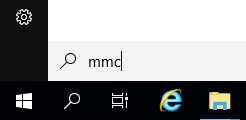
- Click the MMC application in the results.

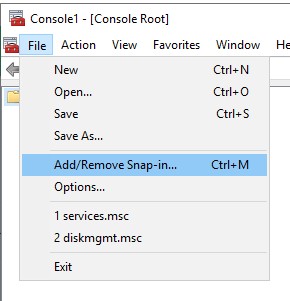
- Click File in the top menu of the MMC and select Add/Remove Snap-in.
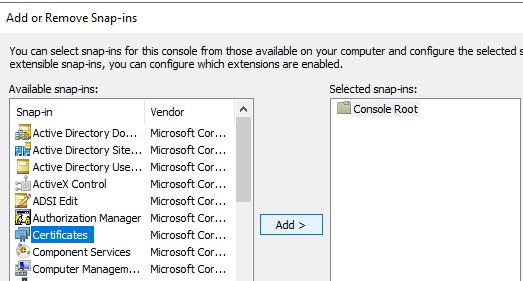
- From the Available snap-ins pane of the Add or Remove Snap-ins window, select Certificates then click the Add > button which opens the Certificates snap-in window.
- Select the Computer Account radio button then click the Next > button.
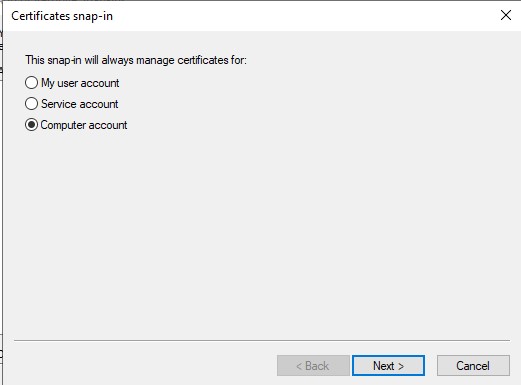
- Click the Finish button to close the Certificates snap-in window.
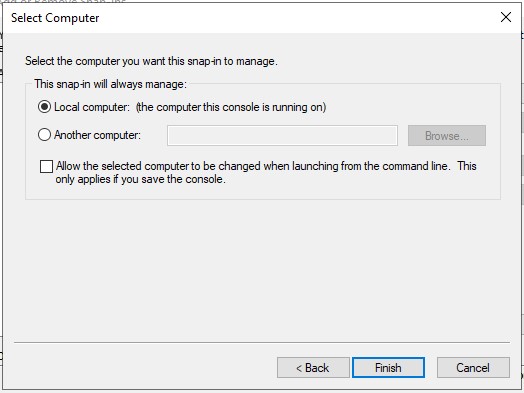
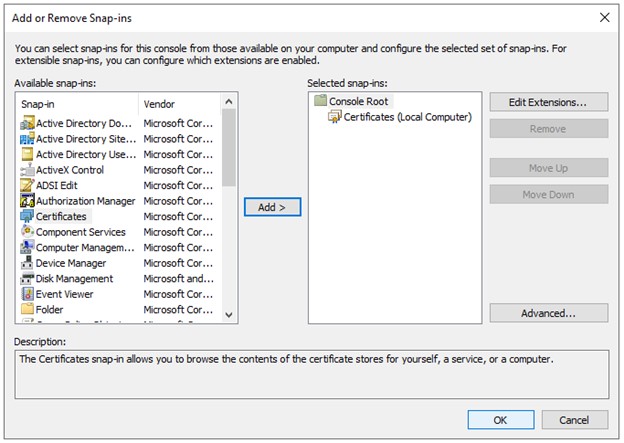
- Click OK on the Add or Remove Snap-ins window to finish adding the snap in.
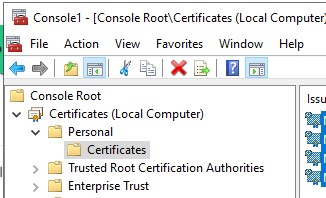
- In the MMC window, expand Certificates (Local Computer) and the Personal folder. Then select the Certificates folder.
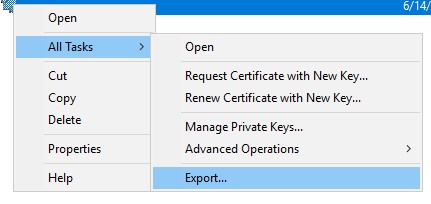
- Determine the certificate that you want to export. Right-click the certificate and select All Tasks and choose Export.
- On the Certificate Export Wizard, click the Next button.

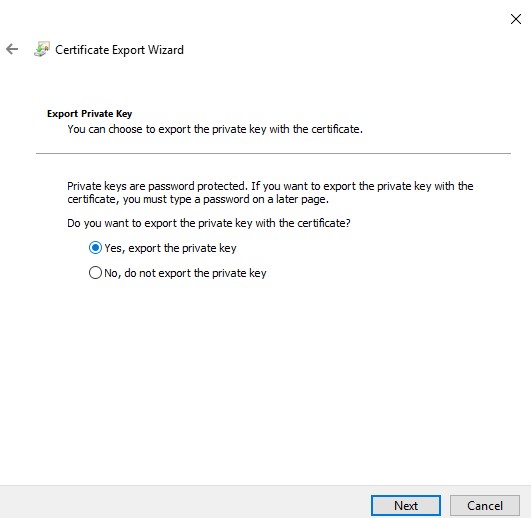
- On the Export Private Key screen select the Yes, export the private key radio button, and click the Next button.
- On the Export File Format screen:
- Select the Personal Information Exchange - PKCS #12 (.PFX) radio button.
- If not already selected, select the Include all certificates in the certification path if possible, checkbox.
- If not already selected, select the Export all extended properties checkbox
- If not already selected, select the Enable Certificate Privacy checkbox.
- Click Next.

- Check the Password checkbox, assign a password to the file, ensure the Encryption: Dropdown is set to TripleDES-SHA1, and click the Next button.

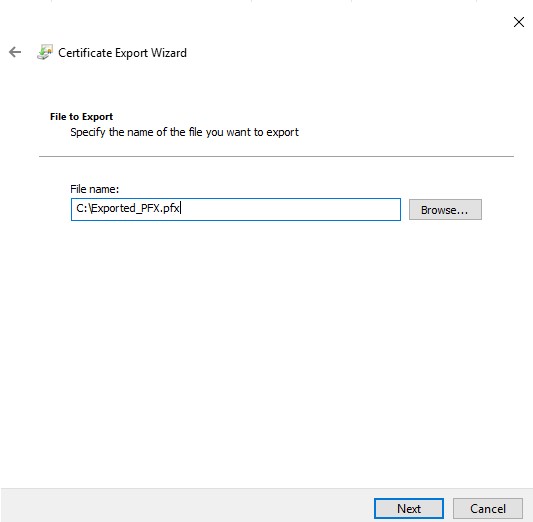
- Choose the location, and name of the export file then click the Next button.
- Click the Finish button.

To contact support, reference Dell Data Security International Support Phone Numbers.
Go to TechDirect to generate a technical support request online.
For additional insights and resources, join the Dell Security Community Forum.
Affected Products
Dell EncryptionArticle Properties
Article Number: 000200901
Article Type: Solution
Last Modified: 15 Jul 2024
Version: 4
Find answers to your questions from other Dell users
Support Services
Check if your device is covered by Support Services.