How to reset a lost Cloudlink console password if secadmin password is available
Summary: Article shows a way to reset a lost Cloudlink console password using REST API. It is possible to perform the password reset from Cloudlink WebGUI. User must be able to log into WebGUI as secadmin. ...
This article applies to
This article does not apply to
This article is not tied to any specific product.
Not all product versions are identified in this article.
Instructions
1. Open the ABOUT section on the left pane.
2. Select the REST Documentation page
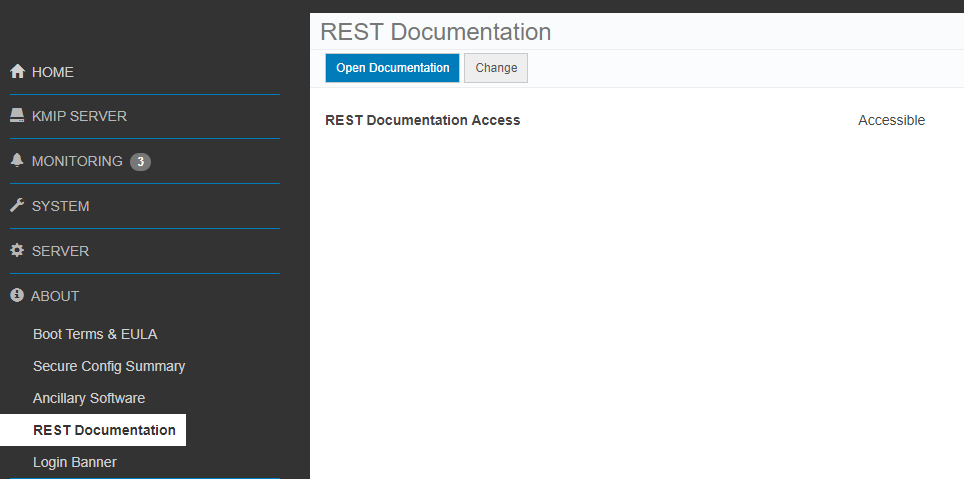
3. Click Open Documentation button.
Cloudlink Center REST API documentation page opens on a new tab.
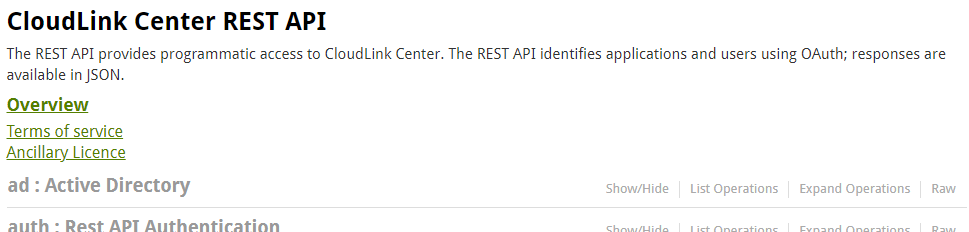
4. Scroll down to server:Server Configuration section.
5. Click Show/Hide to expand section.

6. Click set console cloudlink password.
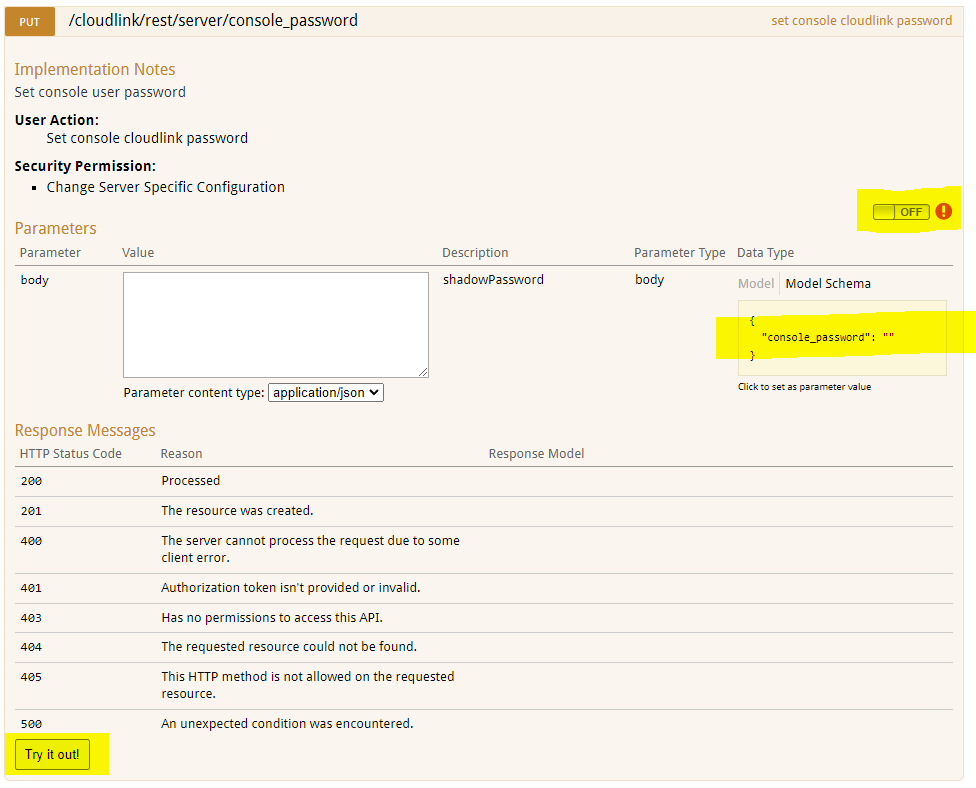
7. Click the OFF switch to authenticate. OAuth2.0 Scopes selection dialog pops up.

8. Select all, click Authorize.
9. The Login screen appears. User needs to enter secadmin credentials.(Not present in 7.1.x and higher.)
10. Click Model Schema yellow box. The content of the box is copied to white box body.

11. Type the new Cloudlink console password in the body box.
12. Click Try it out! button.
13. Result of the action is displayed.

Response Code 200 indicates successful password change.
2. Select the REST Documentation page
3. Click Open Documentation button.
Cloudlink Center REST API documentation page opens on a new tab.
4. Scroll down to server:Server Configuration section.
5. Click Show/Hide to expand section.
6. Click set console cloudlink password.
7. Click the OFF switch to authenticate. OAuth2.0 Scopes selection dialog pops up.
8. Select all, click Authorize.
9. The Login screen appears. User needs to enter secadmin credentials.(Not present in 7.1.x and higher.)
10. Click Model Schema yellow box. The content of the box is copied to white box body.
11. Type the new Cloudlink console password in the body box.
12. Click Try it out! button.
13. Result of the action is displayed.
Response Code 200 indicates successful password change.
Affected Products
CloudLink SecureVM, CloudLinkArticle Properties
Article Number: 000203931
Article Type: How To
Last Modified: 23 Feb 2023
Version: 5
Find answers to your questions from other Dell users
Support Services
Check if your device is covered by Support Services.