Microsoft SQL Server Repair Installation
Resumen: SQL Server install, SQL repair install, repair install, repair, install, SQL Server corruption, SQL corruption
Este artículo se aplica a
Este artículo no se aplica a
Este artículo no está vinculado a ningún producto específico.
No se identifican todas las versiones del producto en este artículo.
Síntomas
Issue: The SQL installation we’re working with has become corrupt preventing the basic functions and features of SQL Server from working as expected.
When the program application binary files of a SQL Server installation become corrupted one of the following options must be followed to ensure a stable working environment for the SQL Server installation.
- Perform a new installation of Server and restore SQL Server databases
- Move production databases to another like installation of SQL Server
- Perform a repair installation of the corrupted SQL Server instance retaining existing Databases
This article follows the steps involved in performing a SQL Server repair installation.
Causa
Software corruption of SQL Server application and database files.
Resolución
Installation Process:
1. Go to the Start Menu of the SQL program group for the instance we are attempting to repair. Find the "Installation Center" selection on the start menu and open that up. This example involves SQL Server 2017 and this process is the same for all supported versions of Microsoft SQL Server.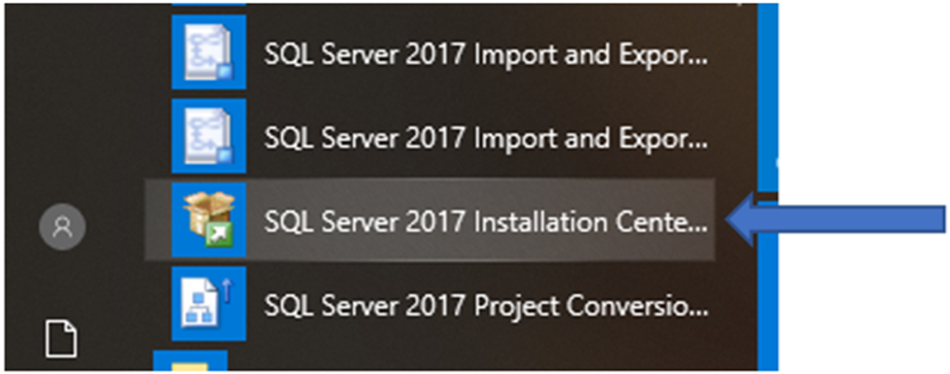
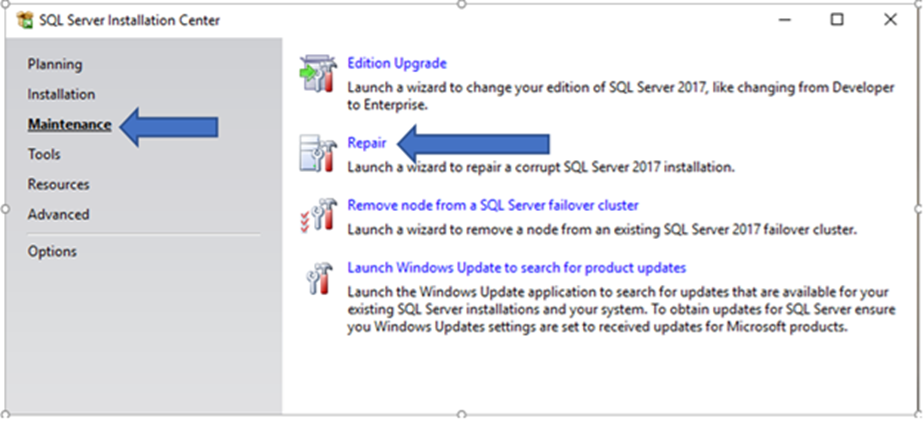
2. Next click on the "Maintenance" section in left hand portion of palate. Find "Repair" in selection list on right side and select.
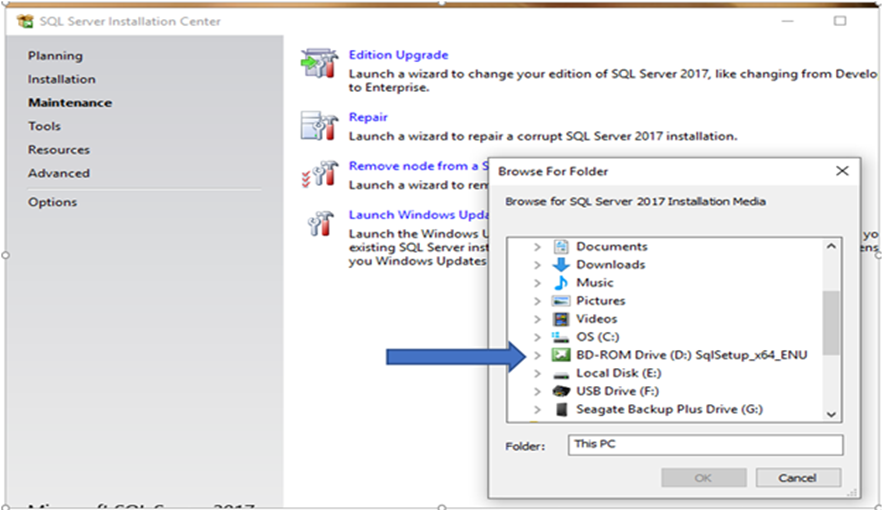
3. In the "Browse For Folder" window find the SQL Server mounted drive as a media source. The media must match the version of the SQL Server instance we are repairing. Click on the media source to begin the Setup program.
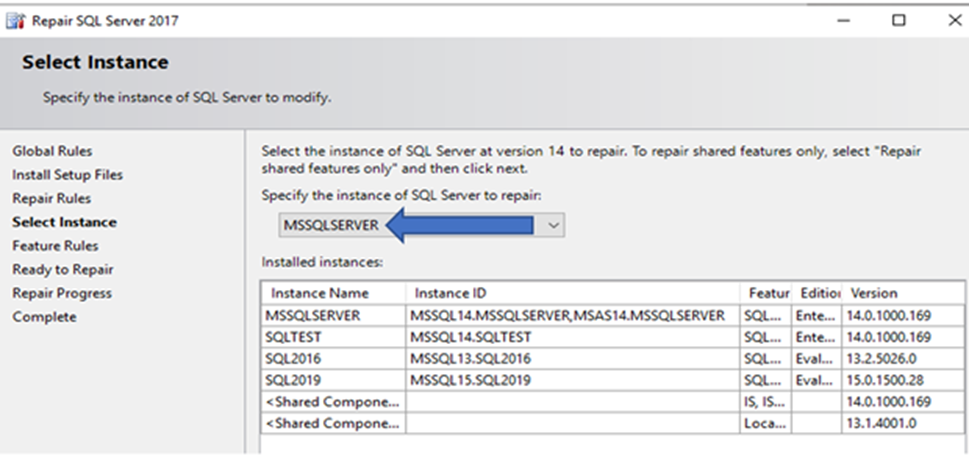
4. On Servers with multiple installations of SQL Server the Instance requiring repair must be selected from the list of registered SQL Server instances. In example below it is "MSSQLSERVER".
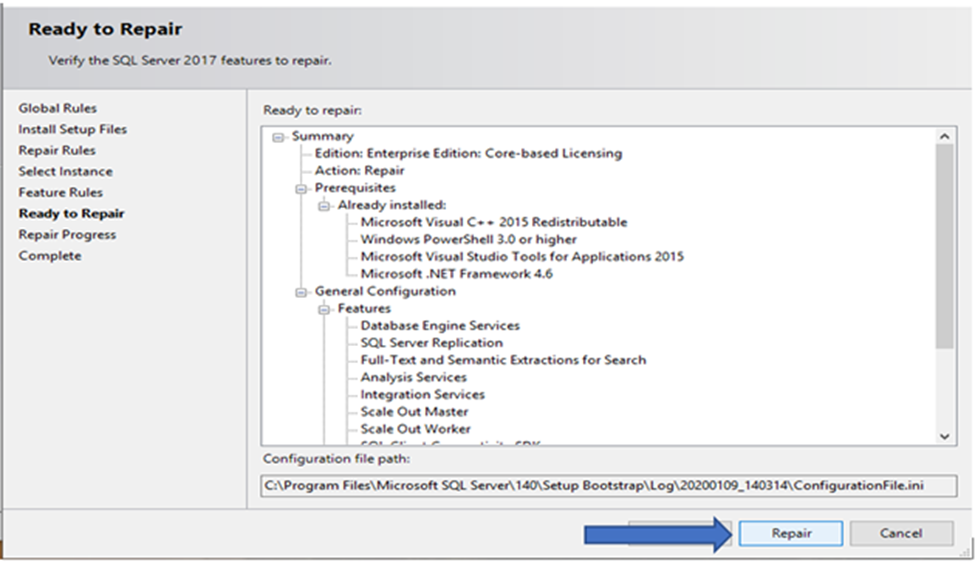
5. The "Ready to Repair" screen will display the program features originally installed. Select "Repair" button to begin the repair installation.
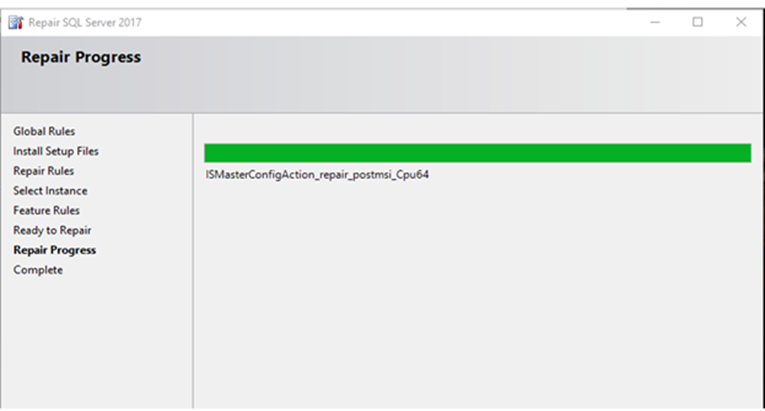
6. "Repair Progress" panel returns installation information.
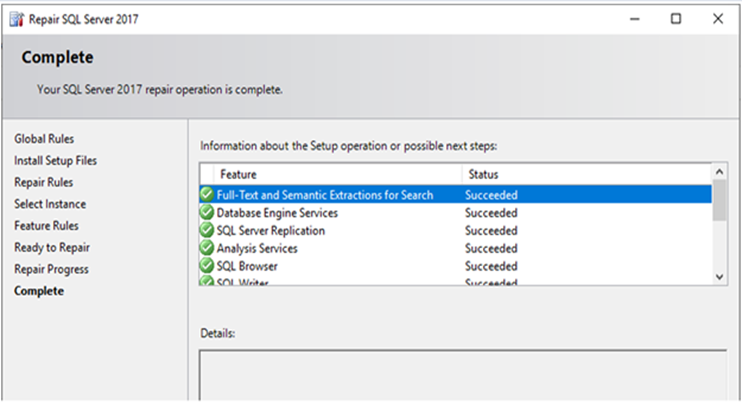
7. Last screen seen reports installation results and should have written a new set of application binaries for the SQL Server instance installation.
8. After a successful repair installation, the latest SQL Server cumulative updates should be applied insuring that program binary files will match the versions of SQL Server databases contained under the SQL Server instance.
Productos afectados
Dell Quickstart Data Warehouse Appliance, Prosupport for Microsoft SoftwarePropiedades del artículo
Número del artículo: 000128944
Tipo de artículo: Solution
Última modificación: 18 mar 2025
Versión: 5
Encuentre respuestas a sus preguntas de otros usuarios de Dell
Servicios de soporte
Compruebe si el dispositivo está cubierto por los servicios de soporte.