Dell Data Security Shield-modi
Résumé: In dit artikel worden de schildmodi van Dell Data Security (voorheen Dell Data Protection) beschreven.
Symptômes
Betreffende producten:
- Credant Mobile Guardian
- Dell Encryption Enterprise
- Dell Data Protection | Enterprise Edition
- Dell Encryption External Media
- Dell Data Protection | External Media Edition
- Dell Encryption Personal
- Dell Data Protection | Personal Edition
- Dell Data Protection | Security Tools
- Dell Encryption Enterprise voor Server
- Dell Data Protection | Server Edition
Betreffende platforms:
- Windows
Op beleid gebaseerde software van Dell Data Security (voorheen Dell Data Protection) gebruikt een identifier van de shield mode voor productclassificatie.
Cause
- De afschermingsmodus wordt bepaald op het moment van productinstallatie en kan niet handmatig worden gewijzigd.
- De afschermingsmodus wordt alleen gebruikt om problemen met producttypen of -statussen op te lossen.
Résolution
De afschermingsmodi voor Dell Data Security producten zijn:
| ID | Mode (modus) | Product |
|---|---|---|
| 0 | Onbekend/niet geïnitialiseerd | Niet geïnitialiseerd/niet ingericht1 |
| 1 | Enterprise-modus | Dell Encryption Enterprise \ Dell Data Protection Enterprise Edition Shield |
| 2 | Modus alone | Credant Mobile Guardian |
| 3 | Enterprise EME-only modus | Dell Encryption External Media \ Dell Data Protection | Editie externe media |
| 4 | Lokaal beheerde modus | Dell Encryption Personal \ Dell Data Protection | Persoonlijke editie |
| 5 | Essentials-modus | Dell Data Protection | Beveiligingstools2 |
| 6 | Serverversleutelingsmodus | Dell Encryption Enterprise for Server \ Dell Data Protection | Serverversleuteling |
| 7 | Saas-modus | Dell Encryption Enterprise Shield |
1Alle Dell Data Protection producten blijven oningericht totdat ze worden geactiveerd.
2De Essential-modus werkt alleen op installaties van Dell Data Protection | Beveiligingstools.
De schildmodus vinden:
- Het bewerken van het register kan ertoe leiden dat de computer niet meer reageert bij de volgende keer opnieuw opstarten.
- Neem contact op met de telefoonnummers van Dell Data Security International Support voor hulp als u zich zorgen maakt over het uitvoeren van deze stap.
- Klik met de rechtermuisknop op het Windows startmenu en selecteer vervolgens op Uitvoeren.
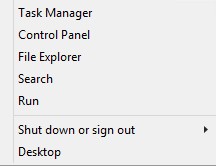
Afbeelding 1: (Alleen In het Engels) Uitvoeren
- Typ regedit in de gebruikersinterface (UI) uitvoeren en druk vervolgens op OK.
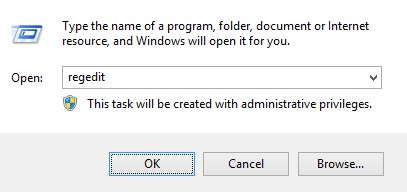
Afbeelding 2: (Alleen In het Engels) Typ regedit
- Ga naar HKEY_LOCAL_MACHINE\SOFTWARE\Credant\CMGShield.
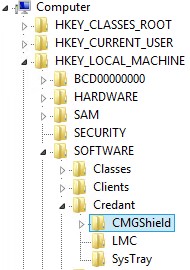
Afbeelding 3: (Alleen Engelstalig) CMGShield
- Zoek de DWORD-toets SM.
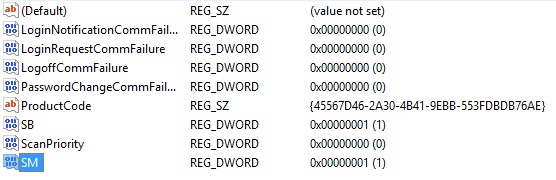
Afbeelding 4: (Alleen In het Engels) SM
Als u contact wilt opnemen met support, raadpleegt u de internationale telefoonnummers voor support van Dell Data Security.
Ga naar TechDirect om online een aanvraag voor technische support te genereren.
Voor meer informatie over inzichten en hulpbronnen kunt u zich aanmelden bij het Dell Security Community Forum.