如何識別 Dell Encryption Enterprise 或 Dell Encryption Personal 版本
Résumé: 瞭解如何依照以下指示識別 Dell Encryption Enterprise 或 Dell Encryption Personal 的版本。
Cet article concerne
Cet article ne concerne pas
Cet article n’est associé à aucun produit spécifique.
Toutes les versions du produit ne sont pas identifiées dans cet article.
Instructions
瞭解 Dell Encryption Enterprise (先前稱為 Dell Data Protection Enterprise Edition) 或 Dell Encryption Personal (先前稱為 Dell Data Protection Personal Edition) 的版本,可讓使用者:
- 識別已知問題
- 判斷 UI 差異
- 瞭解工作流程變更
- 確認系統需求
受影響的產品:
- Dell Encryption Enterprise
- Dell Encryption Personal
- Dell Data Protection Enterprise Edition
- Dell Data Protection Personal Edition
受影響的作業系統:
- Windows
可透過產品使用者介面 (UI) 或透過產品安裝程式來判斷版本。如需詳細資訊,請按一下適當的標籤。
UI
注意: 必須先安裝 Dell Encryption Enterprise 或 Dell Encryption Personal,才能透過 UI 識別版本。
- 登入 Windows 電腦。
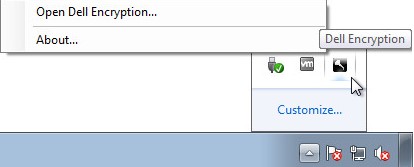
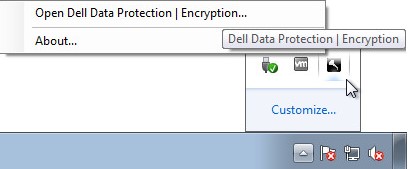
- 在 Windows 系統匣中,以滑鼠右鍵按一下 Dell Encryption (先前稱為 Dell Data Protection |加密) 圖示,然後選取 開啟 Dell Encryption 或 開啟 Dell Data Protection |加密。
- 下圖顯示 Dell Encryption 選項。
- 下圖顯示 Dell Data Protection Encryption 選項。
- 下圖顯示 Dell Encryption 選項。
- 在產品 UI 中,按一下問號圖示,然後記下 「關於版本」後顯示的版本編號。前三個號碼是要記錄的最重要數字。在範例中,前三個數字為 8.15.0。
 注意: 您的用戶端版本可能會與上述螢幕擷取畫面不同。
安裝程式
注意: 如需有關下載安裝程式的資訊,請參閱 如何下載 Dell Encryption Enterprise 或 Dell Encryption Personal。
- 在安裝程式>上<按一下滑鼠右鍵,然後選取內容。
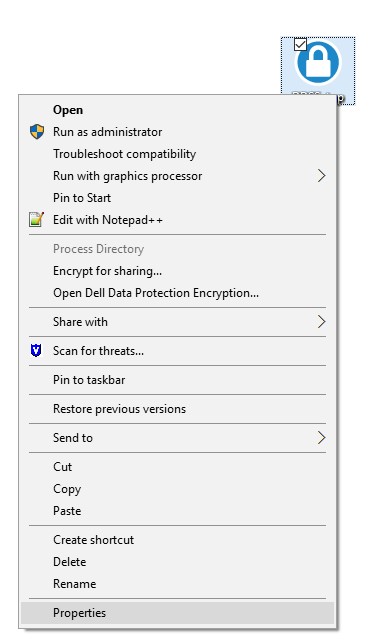 注意: <安裝程式> =
- Dell Encryption Enterprise =
DDSSetup.exe - Dell Encryption Personal =
DDSSetup.exe - Dell Data Protection Enterprise Edition =
DDPSetup.exe - Dell Data Protection Personal Edition =
DDPSetup.exe
- Dell Encryption Enterprise =
- 按一下詳細資料標籤。

- 記下產品版本。前三個號碼是要記錄的最重要數字。在範例影像中,前三個數字為 8.15.0。
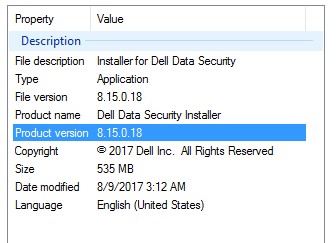 注意: 您的用戶端版本可能會與上述螢幕擷取畫面不同。
Informations supplémentaires
Vidéos
Produits concernés
Dell EncryptionPropriétés de l’article
Numéro d’article: 000124591
Type d’article: How To
Dernière modification: 15 juil. 2026
Version: 13
Trouvez des réponses à vos questions auprès d’autres utilisateurs Dell
Services de support
Vérifiez si votre appareil est couvert par les services de support.