Secure Connect Gateway - Installation steps on VMware
Résumé: This article describes the required steps to install Secure Connect Gateway (SCG) in a VMware environment.
Cet article concerne
Cet article ne concerne pas
Cet article n’est associé à aucun produit spécifique.
Toutes les versions du produit ne sont pas identifiées dans cet article.
Instructions
Introduction:
Secure connect gateway is an enterprise monitoring technology that is delivered as an appliance and a stand-alone application. It monitors your device and proactively detects hardware issues that may occur. Depending on your service contract, it also automates support request creation for issues that are detected on the monitored device.
Prerequisites and system requirements:
1. VMware Version: Supported vSphere ESXi version 7.0-8.0.x
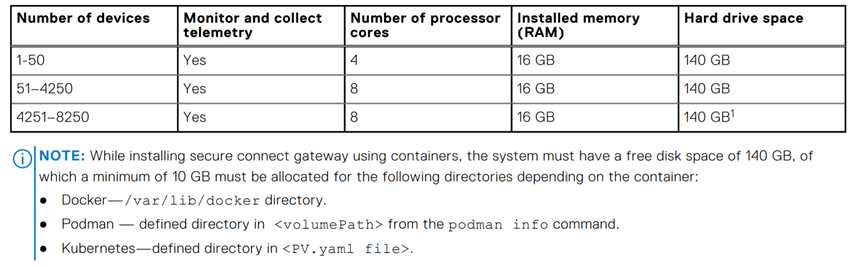
2. Minimum system requirements:The system requirements are as follows.
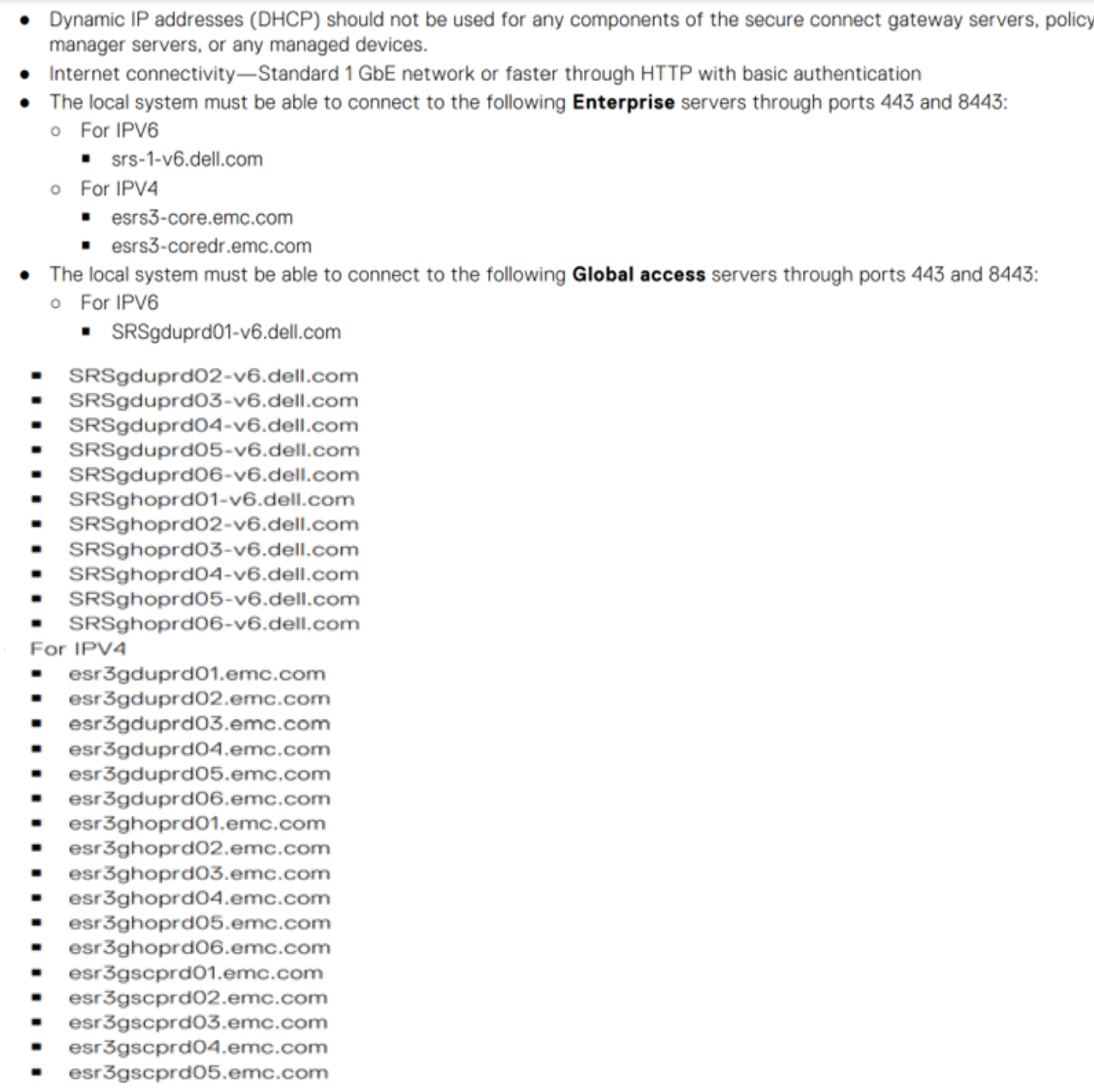
3. Network requirements: Use only a static IP address with at-least one DNS (domain naming system) address.
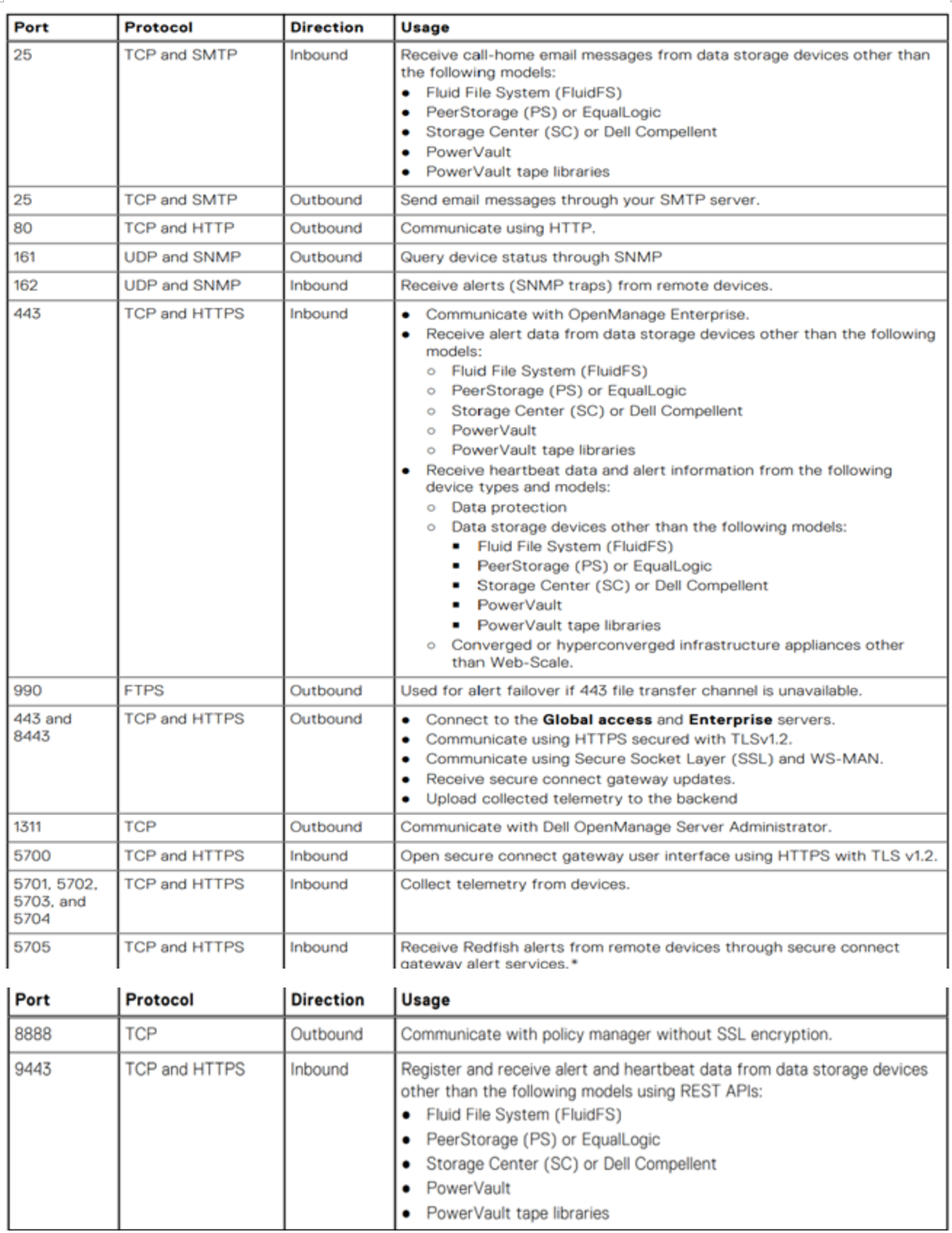
4. Port requirements: Here is the list of ports which is required.
SCG Deployment on vSphere Web Client:
1. A business account on Dell.com is mandatory. To create one contact Dell Administrative Support or check Secure Connect Gateway 5.x — Virtual Edition Deployment Guide from the support website.
2. Log in to the dell support portal and go to SCG page and download the SCG .ovf file for VMware.

![]()
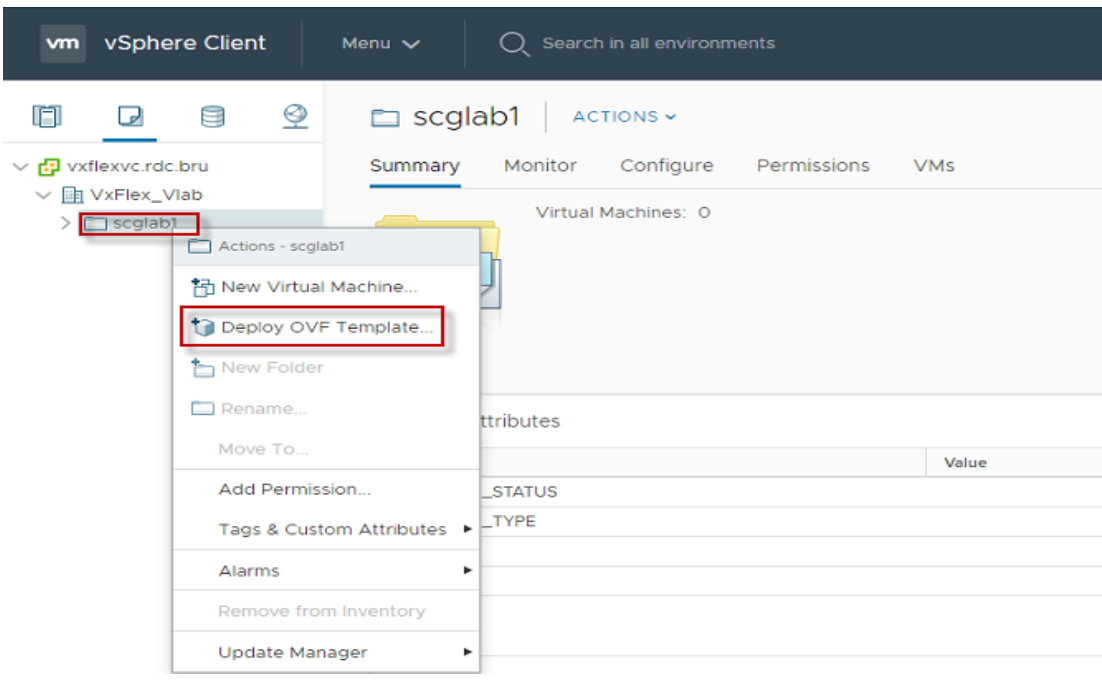
3. Once the file is downloaded, login into vSphere Client and selects Deploy OVF template.
![]()
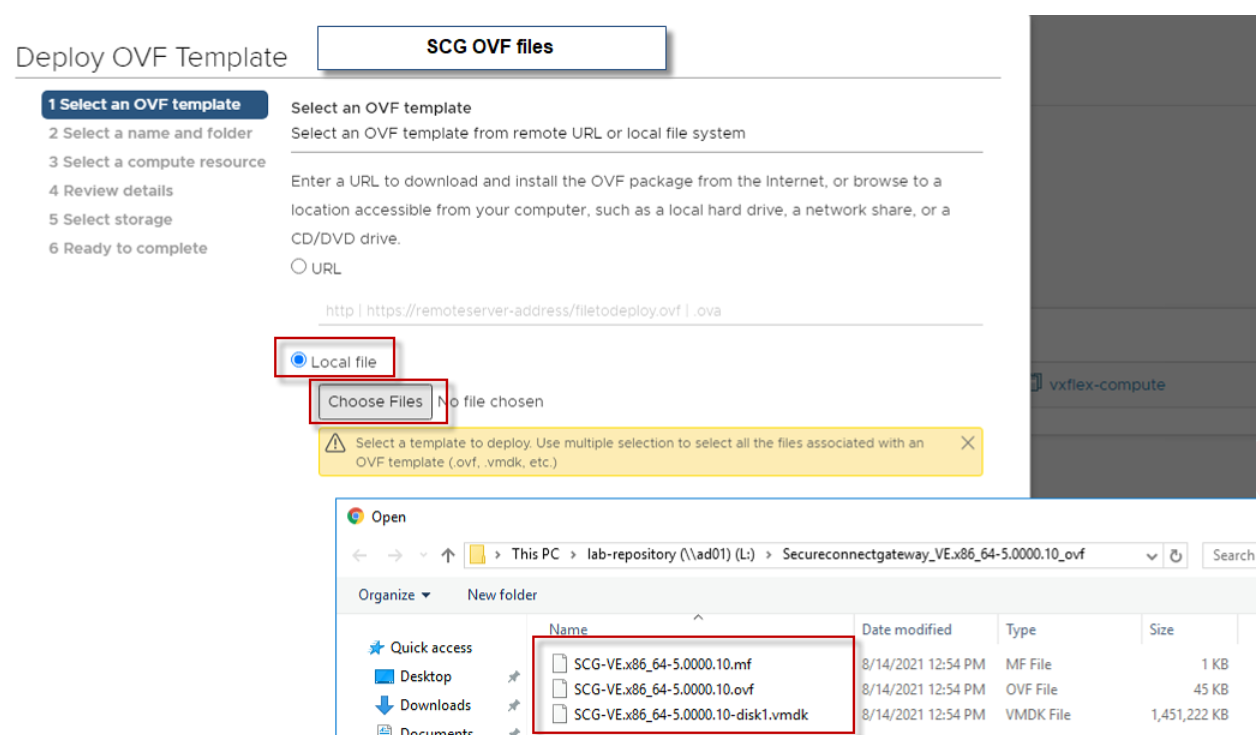
4. In the OVF template window, select Local file option and choose the location where the SCG OVF file is downloaded (Select all three files):
![]()
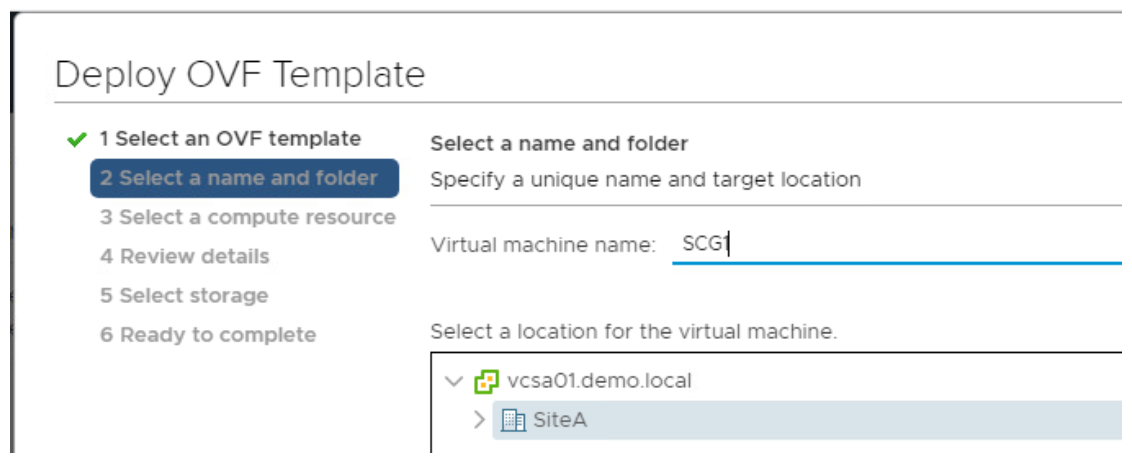
5. In step 2, enter the SCG hostname and specify the location where you want to install it.
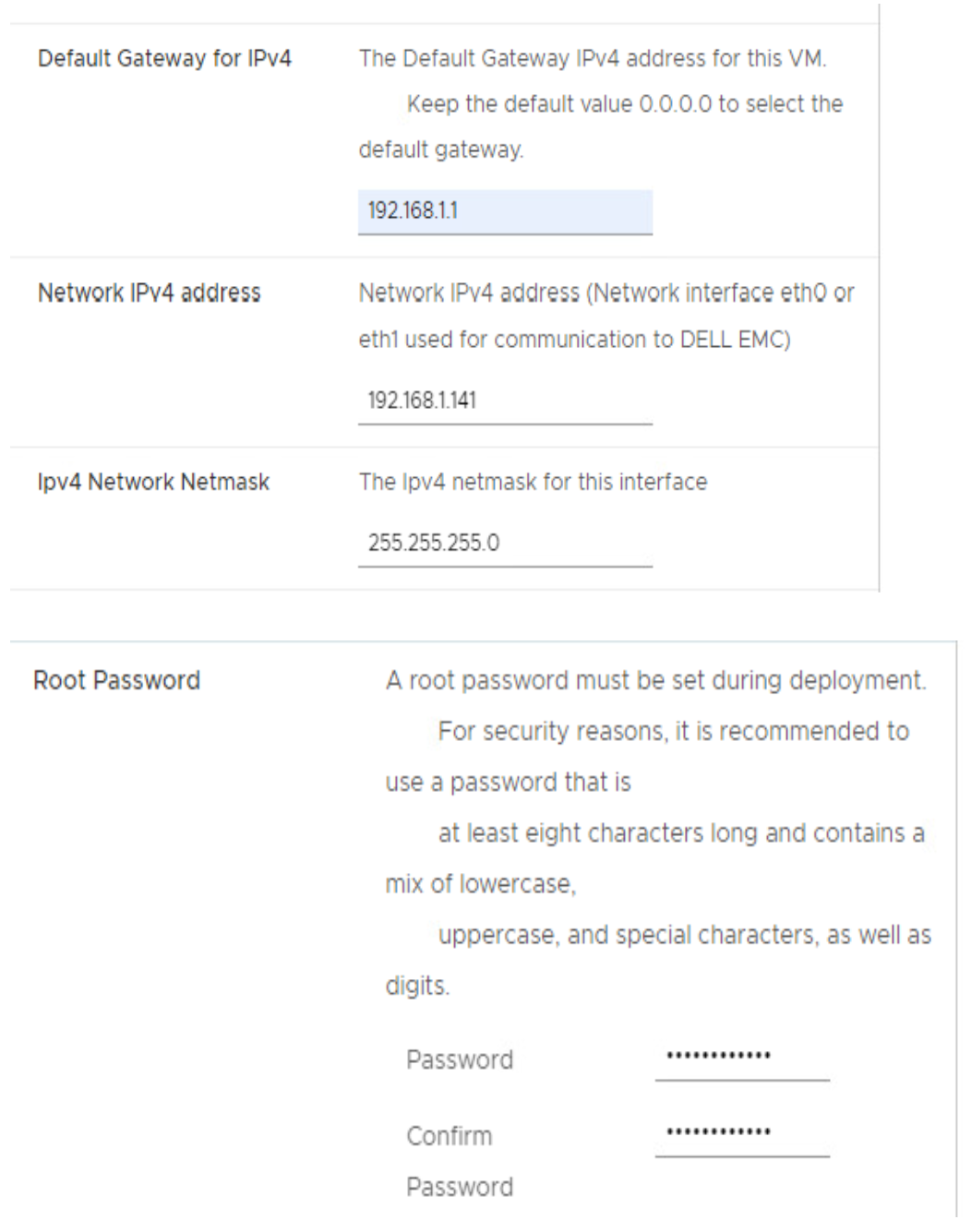
6. In steps 3, 4, and 5, select the necessary resources and proceed by clicking 'Next'. For step 6, enter the SCG IP details and establish a new root password.
NOTE: Save the root password as it is for OS login of the Secure connect gateway.
![]()
![]() 7 Once deployment is done, power-on the Secure Connect Gateway in the vSphere Client.
7 Once deployment is done, power-on the Secure Connect Gateway in the vSphere Client.
8. Wait for 10 min to 15 min before your login into the SCG user interface.
Registering Secure Connect Gateway: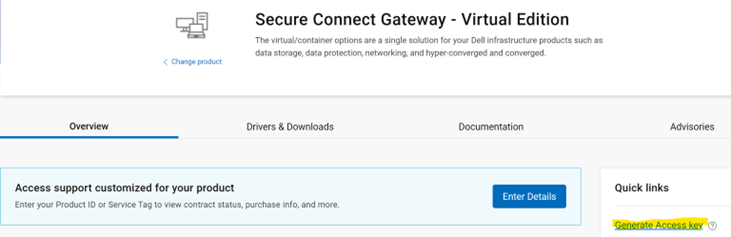
![]()
![]()
Secure connect gateway is an enterprise monitoring technology that is delivered as an appliance and a stand-alone application. It monitors your device and proactively detects hardware issues that may occur. Depending on your service contract, it also automates support request creation for issues that are detected on the monitored device.
Prerequisites and system requirements:
1. VMware Version: Supported vSphere ESXi version 7.0-8.0.x
2. Minimum system requirements:The system requirements are as follows.
3. Network requirements: Use only a static IP address with at-least one DNS (domain naming system) address.
4. Port requirements: Here is the list of ports which is required.
SCG Deployment on vSphere Web Client:
1. A business account on Dell.com is mandatory. To create one contact Dell Administrative Support or check Secure Connect Gateway 5.x — Virtual Edition Deployment Guide from the support website.
2. Log in to the dell support portal and go to SCG page and download the SCG .ovf file for VMware.
3. Once the file is downloaded, login into vSphere Client and selects Deploy OVF template.
4. In the OVF template window, select Local file option and choose the location where the SCG OVF file is downloaded (Select all three files):
5. In step 2, enter the SCG hostname and specify the location where you want to install it.
6. In steps 3, 4, and 5, select the necessary resources and proceed by clicking 'Next'. For step 6, enter the SCG IP details and establish a new root password.
NOTE: Save the root password as it is for OS login of the Secure connect gateway.
8. Wait for 10 min to 15 min before your login into the SCG user interface.
Registering Secure Connect Gateway:
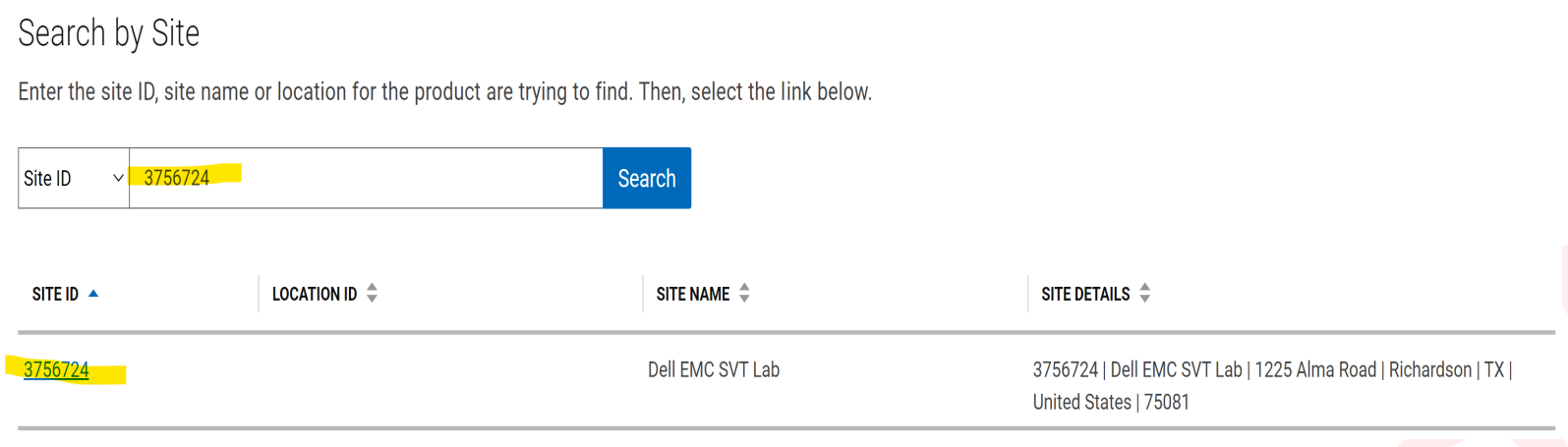
- Go to dell support portal SCG page and click the Generate access key option.
- Provide a customer site id to find specific site details.
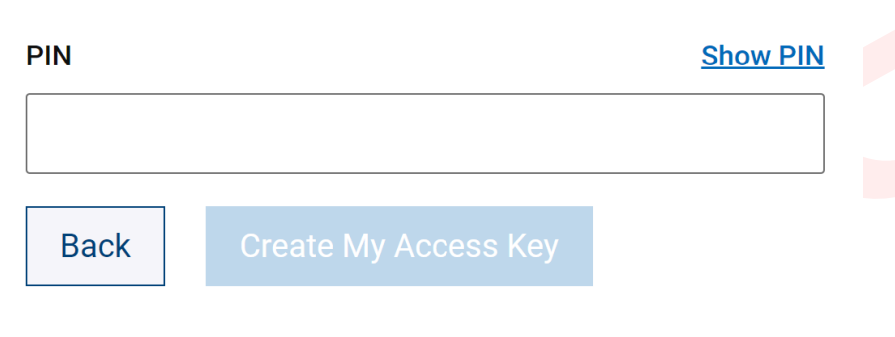
- Set up a 4-digit PIN which is required later during SCG registration.
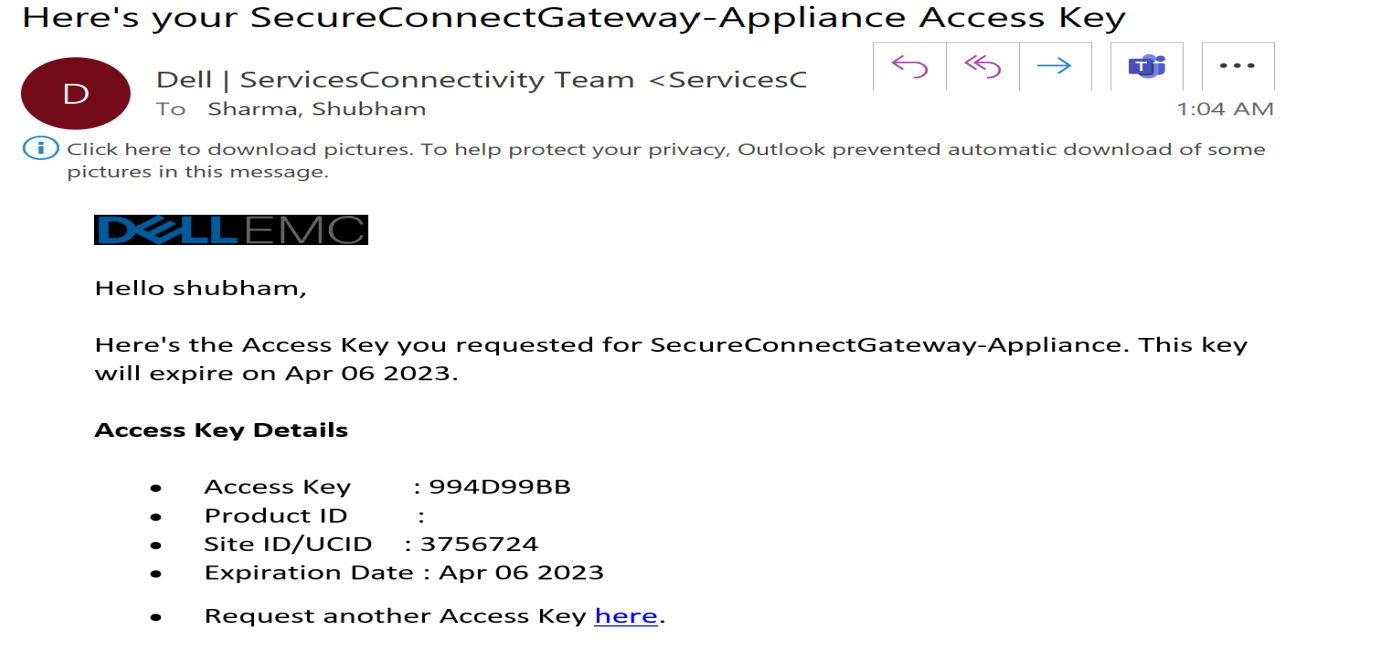
- An email is sent to the registered Dell account address containing the Access Key. The Access Key is only valid for seven days.
- Next is to register secure connect gateway to do that, open up SCG UI by typing https://<SCGHostNameOrIP>:5700 into web browser.
- Enter root username and password which was provided earlier during SCG deployment.
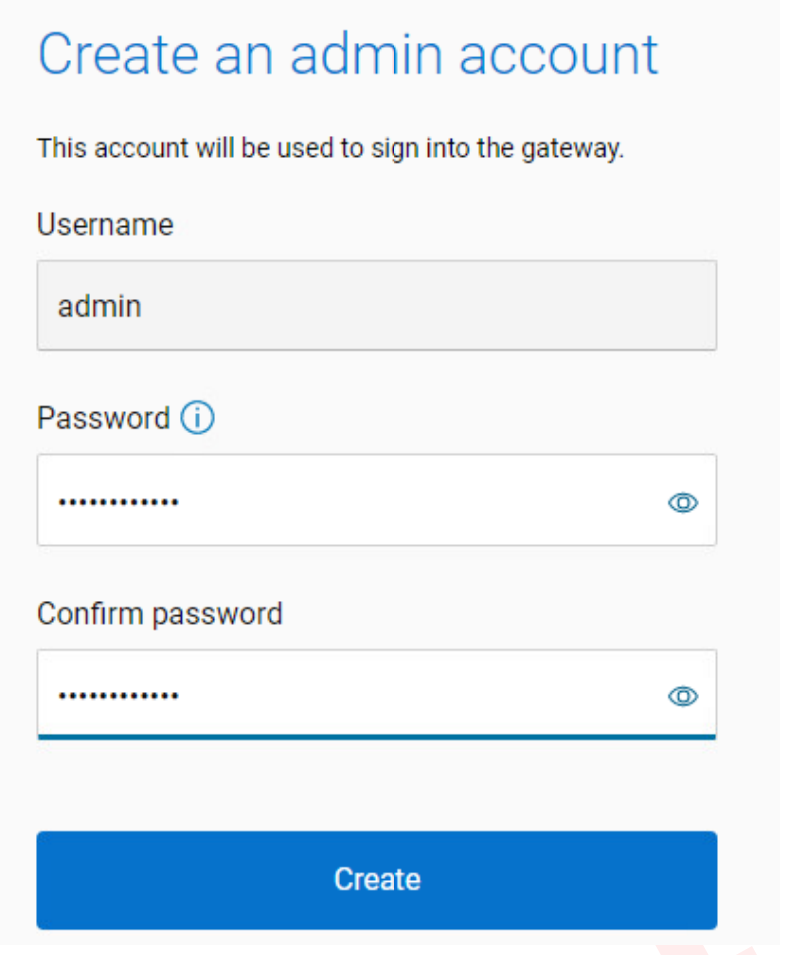
- Input a password for the administrator account and select 'Create' to proceed (This account is used to log into the SCG web UI).
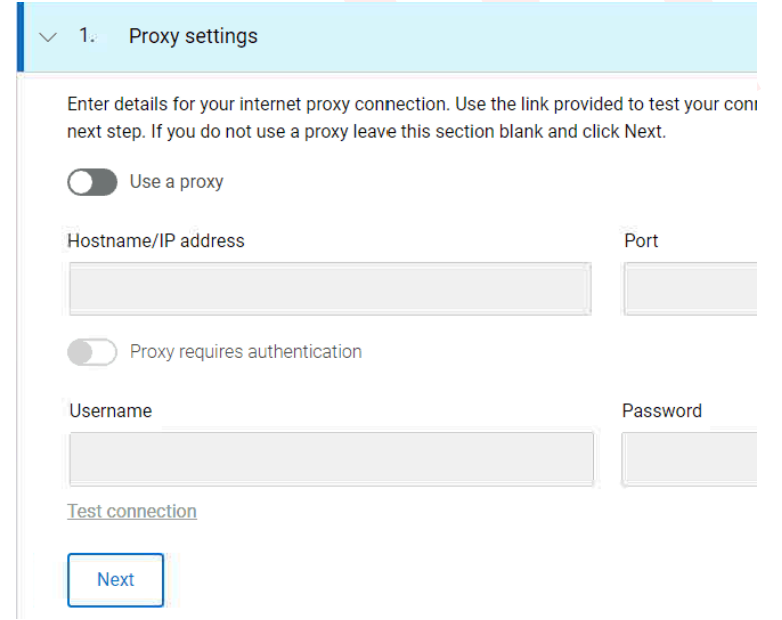
- Provide proxy details in case there are any and click next.
- Register SCG with the Access key received over email and a 4-digit PIN that created earlier.
- SCG is up and ready to use now
Produits concernés
Secure Connect Gateway, Secure Connect Gateway - Virtual EditionProduits
Secure Connect GatewayPropriétés de l’article
Numéro d’article: 000213535
Type d’article: How To
Dernière modification: 18 May 2026
Version: 7
Trouvez des réponses à vos questions auprès d’autres utilisateurs Dell
Services de support
Vérifiez si votre appareil est couvert par les services de support.