VxRail: How to find the product-serial number tag of a VxRail node
Summary: This article provides different methods to find the product-serial number tag (PSNT) of a node.
Ez a cikk a következő(k)re vonatkozik:
Ez a cikk nem vonatkozik a következő(k)re:
Ez a cikk nem kapcsolódik egyetlen konkrét termékhez sem.
Ez a cikk nem azonosítja az összes termékverziót.
Instructions
There are two identification tags on your appliance:
- The VxRail appliance-serial number: You can find the serial number in VxRail Manager or printed on the information tag. The product-serial number tag (PSNT) is a 14-digit number that is used to identify your appliance to Dell support.
- The Service Tag: You can find the Service Tag printed on the physical appliance. The service tag is a 7-digit service tag number.
Only use the VxRail appliance-serial number to contact Customer Support. The service tag number is required.
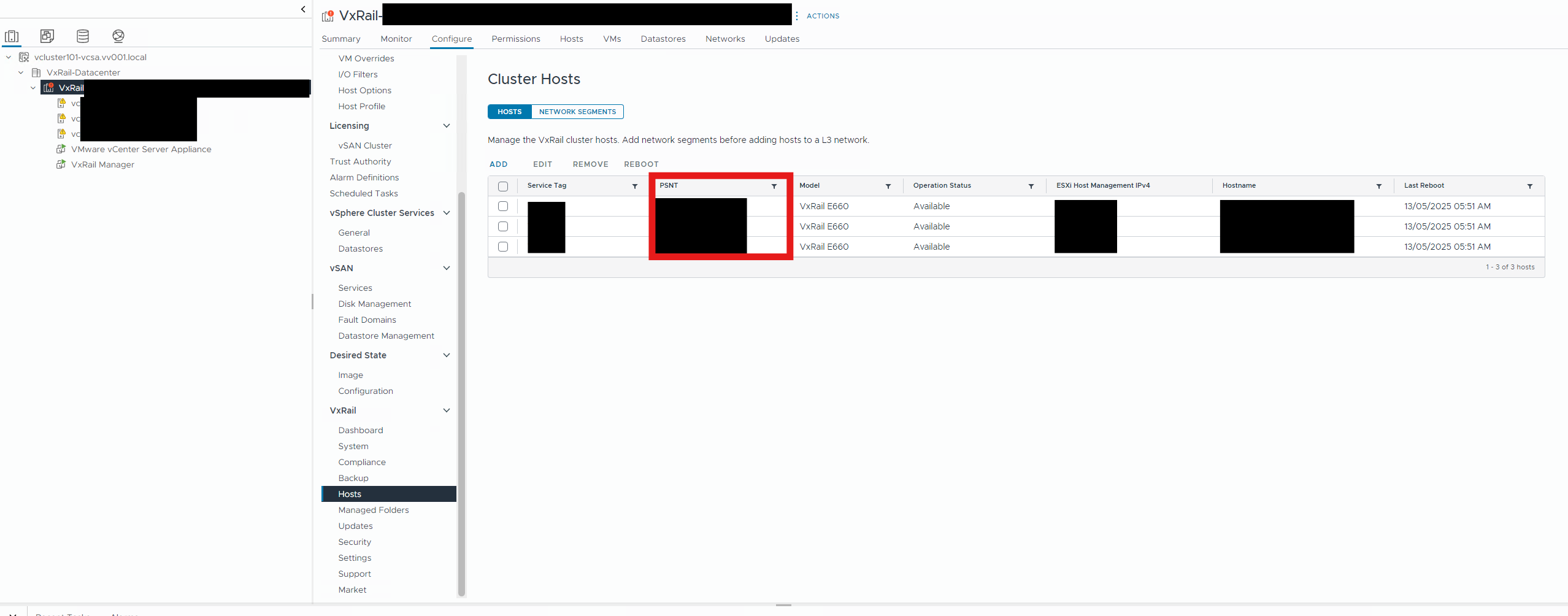
Method 1: Finding the PSNT from VxRail Plugin.
- Go to the VxRail cluster > Configure > VxRail hosts > check PSNT for the host.
Method 2: Finding the PSNT from the iDRAC.
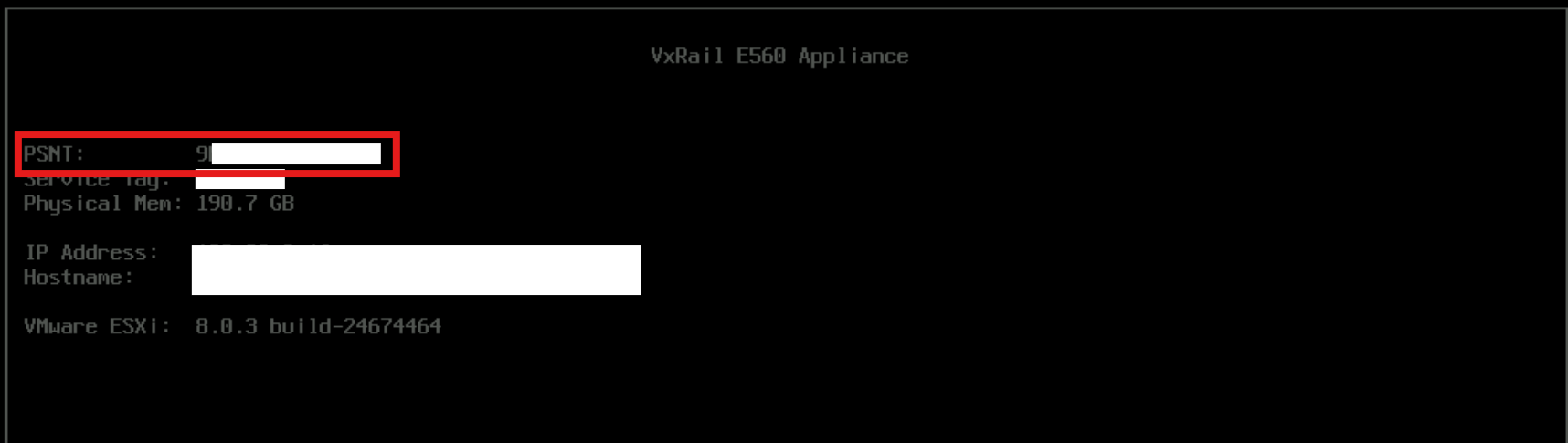
- Open the iDRAC for the Node.
- Open the Virtual console.
- The black screen has the PSNT written in it.
Method 3: Finding the PSNT from VxRail Manager Virtual Machine (VM).
- SSH to VxRail VM as mystic user and then
SUto root - Run the command:
psql -U postgres vxrail -c "select * from node.node";
Method 4: Finding the Model and PSNT from the ESXi Console.
- Once you are in the console for the VxRail appliance, run the following command to get both the Model and PSNT.
opt/dell/DellPTAgent/tools/ipmitool_static fru print 17 - If the location of the
ipmitoolchanges in a future version, run the following command to get the new location.find /* -name ipmitool_static - If you are only looking for the PSNT, run the following command. The first section of the Local Datastore name on each VxRail Appliance includes the 14-digit PSNT.
df -h
Method 5: Finding the PSNT from the Physical Node.
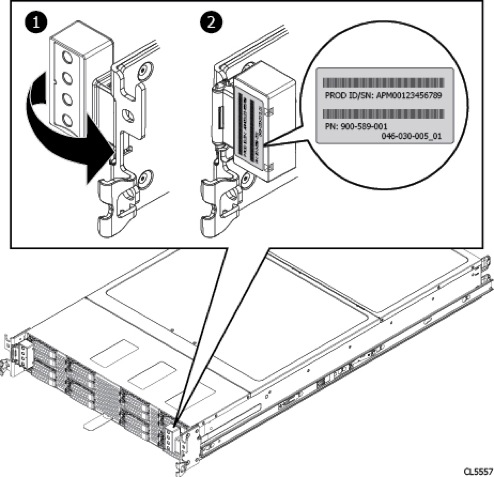
See the VxRail Product Guide.
https://dl.dell.com/content/docu67901_VxRail-Appliance-3.0-Product-Guide.pdf
- At the front of your VxRail Appliance, locate drives 2 and 3 on the left-side of the chassis.
- Pull out the blue-tabbed tag that is located above drives 2 and 3.
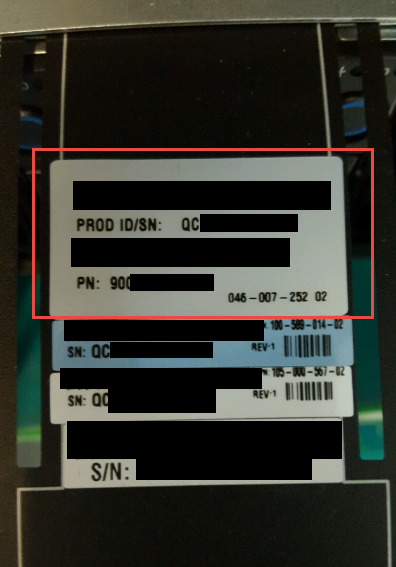
- Locate the appliance-serial number label on the pull-out tag.
Additional Information
How To Find The Product Serial Number Tag Of A Node For VxRail
Duration: 00:05:47 (hh:mm:ss)
When available, closed caption (subtitles) language settings can be chosen using the CC icon on this video player.
YouTube video link: VxRail: How to find the Product Serial Number Tag of a Node
Érintett termékek
VxRail, VxRail Appliance Series, VxRail G Series Nodes, VxRail D Series Nodes, VxRail D560, VxRail D560F, VxRail E Series Nodes, VxRail E460, VxRail E560, VxRail E560 VCF, VxRail E560F, VxRail E560F VCF, VxRail E560N, VxRail E560N VCF, VxRail E660
, VxRail E660F, VxRail E660N, VxRail E665, VxRail E665F, VxRail E665N, VxRail G560, VxRail G560 VCF, VxRail G560F, VxRail G560F VCF, VxRail P Series Nodes, VxRail P470, VxRail P570, VxRail P570 VCF, VxRail P570F, VxRail P570F VCF, VxRail P580N, VxRail P580N VCF, VxRail P670F, VxRail P670N, VxRail P675F, VxRail P675N, VxRail S Series Nodes, VxRail S470, VxRail S570, VxRail S570 VCF, VxRail S670, VxRail Software, VxRail V Series Nodes, VxRail V470, VxRail V570, VxRail V570 VCF, VxRail V570F, VxRail V570F VCF, VXRAIL V670F, VxRail VD-4000R, VxRail VD-4000W, VxRail VD-4000Z, VxRail VD-4510C, VxRail VD-4520C, VxRail VD Series Nodes, VxRail VE-660, VxRail VE-6615, VxRail VP-760, VxRail VP-7625, VxRail VS-760
...
Termék tulajdonságai
Article Number: 000197326
Article Type: How To
Utoljára módosítva: 13 máj. 2026
Version: 12
Választ kaphat kérdéseire más Dell-felhasználóktól
Támogatási szolgáltatások
Ellenőrizze, hogy a készüléke rendelkezik-e támogatási szolgáltatással.