How to Reset Google Authenticator for Multi Factor Authentication in Dell Security Management Server
Summary: When Multi Factor Authentication with Google Authenticator is enabled, it may be necessary to reset a user’s Google Authenticator.
Ez a cikk a következő(k)re vonatkozik:
Ez a cikk nem vonatkozik a következő(k)re:
Ez a cikk nem kapcsolódik egyetlen konkrét termékhez sem.
Ez a cikk nem azonosítja az összes termékverziót.
Instructions
Affected Products:
- Dell Security Management Server
- Dell Security Management Server Virtual
Affected Versions:
- v11.4.0 and Later
If Multi Factor Authentication is enabled using Google Authenticator, there are times when a user must have their authenticator reset such as if they lose their phone. The following steps describe this process.
- Log in to the administration console with an account that has the account administrator role.
Note: For more information about administrator roles, reference the Administrator Roles section of the Security Management Server admin help document in the Manuals and Documents.
- Click Users under Populations.
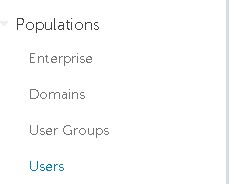
- Click the specific User that needs google authenticator reset.
Note: Reset is user specific because each user has their own Google Authenticator token.
- Click the Admin tab.

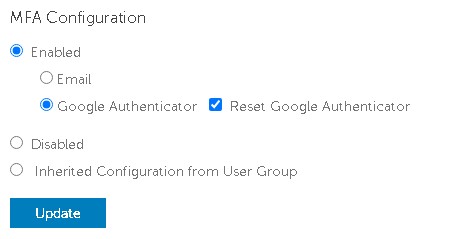
- Check Reset Google Authenticator.
- Click Update.
To contact support, reference Dell Data Security International Support Phone Numbers.
Go to TechDirect to generate a technical support request online.
For additional insights and resources, join the Dell Security Community Forum.
Érintett termékek
Dell EncryptionTermék tulajdonságai
Article Number: 000199488
Article Type: How To
Utoljára módosítva: 01 júl. 2024
Version: 5
Választ kaphat kérdéseire más Dell-felhasználóktól
Támogatási szolgáltatások
Ellenőrizze, hogy a készüléke rendelkezik-e támogatási szolgáltatással.