NetWorker: How To Identify Binary Version Details
概要: This KB gives a general overview of how to identify NetWorker binary or executable version details for both Linux and Windows NetWorker hosts. This information can be useful in confirming if the correct version is in use or when comparing default vs. debug files. ...
この記事は次に適用されます:
この記事は次には適用されません:
この記事は、特定の製品に関連付けられていません。
すべての製品パージョンがこの記事に記載されているわけではありません。
手順
This KB gives a general overview of how to identify NetWorker binary or executable version details for both Linux and Windows NetWorker hosts. This information can be useful in confirming if the correct version is in use or when comparing default vs. debug files.
Linux:
- On Linux based NetWorker hosts, confirm the install path:
find / -name binary_name
Or:
which PROCESS_NAME
- Use the strings command against the binary file:
strings /path/to/binary | grep -i "@(#)"
Example:
nve:~ # strings /usr/sbin/nsrexecd | grep -i "@(#)"
@(#) Product:      NetWorker
@(#) Release:      19.12.0.0.Build.21
@(#) Build number: 21
@(#) Build date:   Sat Dec 21 17:59:07 2024
@(#) Build arch.:  linux86w
@(#) Build info:   DBG=0,OPT=-O2 -fno-strict-aliasing
NOTE: For full details remove the
| grep -i "@(#)" from the command.
Windows:
- Open Windows File Explorer and go to the NetWorker install path.
- Go to the NetWorker bin directory, e.g:
..\Program Files\EMC NetWorker\nsr\bin - Open the file properties of the executable in question, and select the Details tab:
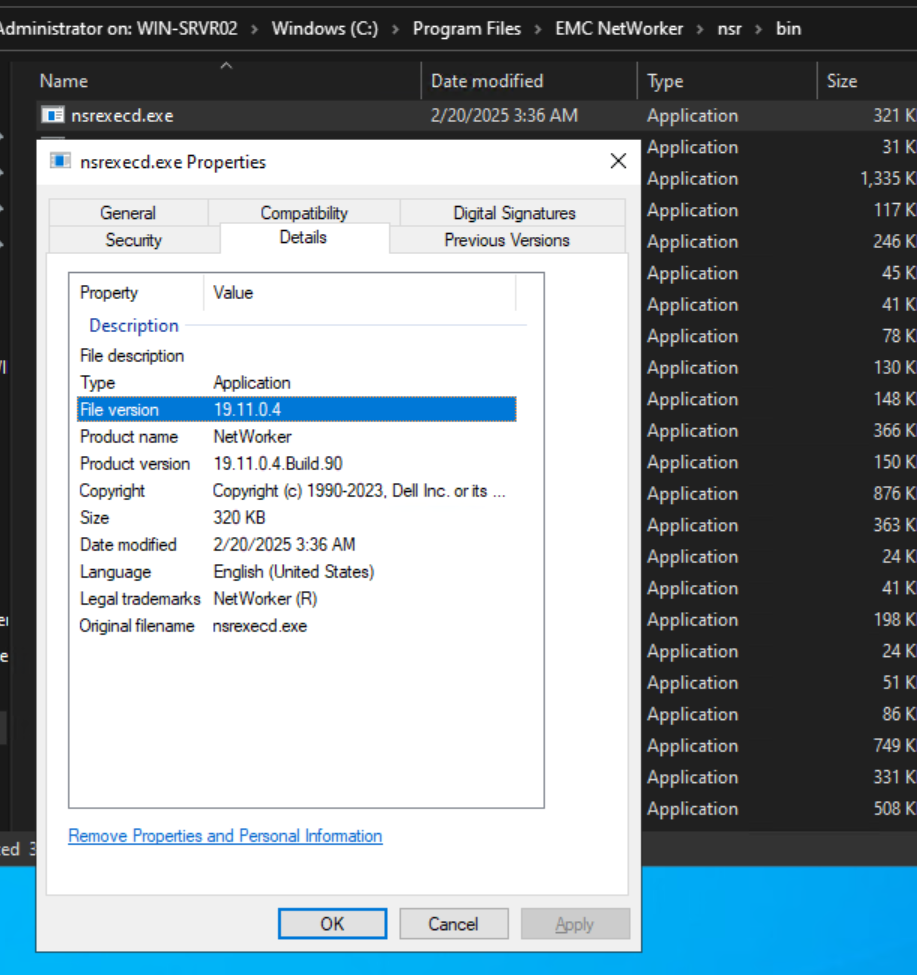
その他の情報
対象製品
NetWorker製品
NetWorker文書のプロパティ
文書番号: 000158059
文書の種類: How To
最終更新: 09 6月 2025
バージョン: 6
質問に対する他のDellユーザーからの回答を見つける
サポート サービス
お使いのデバイスがサポート サービスの対象かどうかを確認してください。