Dell Unity: How to add SMTP server settings for Unity array
요약: Dell Unity: How to add SMTP server settings for Unity array.
이 문서는 다음에 적용됩니다.
이 문서는 다음에 적용되지 않습니다.
이 문서는 특정 제품과 관련이 없습니다.
모든 제품 버전이 이 문서에 나와 있는 것은 아닙니다.
지침
- From the "Update system setting" on the upper right corner, choose "Alerts" tab, then email and SMTP option.
- Add the required list of mails that would like to receive system alerts.
- Add the severity level of the alerts to send.
Here is the figure of the different severity levels:
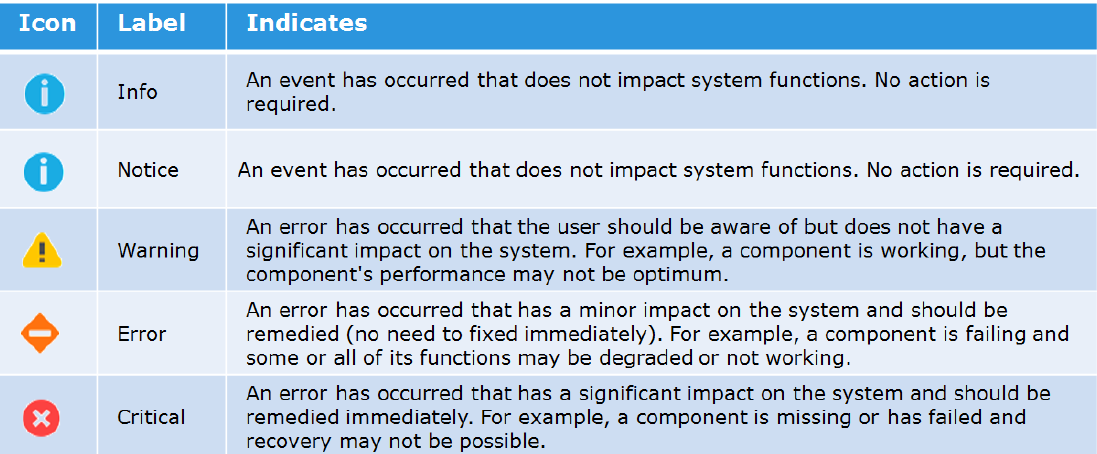
- Then type the IP address or hostname of the Simple Mail Transport Protocol (SMTP) server required to send emails.
Changing the default port for SMTP (25) is not supported with Unity OE version older than Nighthawk (4.5.0).
From Nighthawk onward, unity starts to support customize of SMTP port:06:34:56 service@Peggy spa:~/user> uemcli /net/smtp -hStorage system address: 127.0.0.1Storage system port: 443HTTPS connection
Manage SMTP server settings. Use SMTP to have system alerts emailed to specified addresses.
Actions:[Show]/net/smtp [ -id <value> ] show [ -output { nvp | csv | table [ -wrap ] } ] [ { -brief | -detail | -filter <value> } ][Set]/net/smtp -id <value> set -addr <value> [ -port <value> ] [ -encryptLevel { none | startTLS | ssl } ] [ -authType { none | plain | login | cram_md5 | digest_md5 } ] [ -user <value> { -passwd <value> | -passwdSecure } ] [ -bypassProxy { yes | no } ]
해당 제품
Dell EMC Unity Family제품
Dell EMC Unity Family문서 속성
문서 번호: 000022531
문서 유형: How To
마지막 수정 시간: 22 10월 2025
버전: 4
다른 Dell 사용자에게 질문에 대한 답변 찾기
지원 서비스
디바이스에 지원 서비스가 적용되는지 확인하십시오.