Dell EMC Unity:如何升級 Dell EMC Unity OE 程式碼 (使用者可修正)。
요약: 如何升級 Unity OE 程式碼
이 문서는 다음에 적용됩니다.
이 문서는 다음에 적용되지 않습니다.
이 문서는 특정 제품과 관련이 없습니다.
모든 제품 버전이 이 문서에 나와 있는 것은 아닙니다.
지침
如何升級 Unity OE 程式碼
方法 1:使用 Unisphere GUI
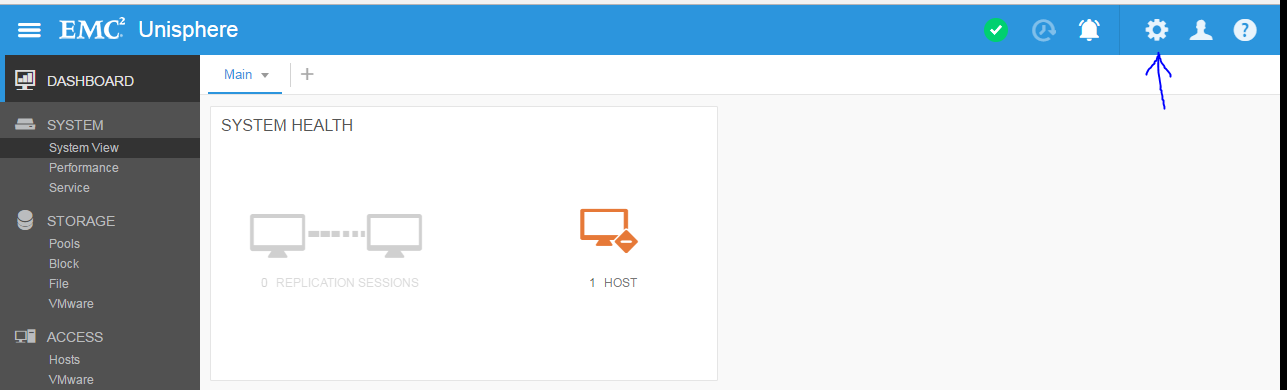
1.以「admin 或同級使用者」登入 Unisphere,並前往設定功能表
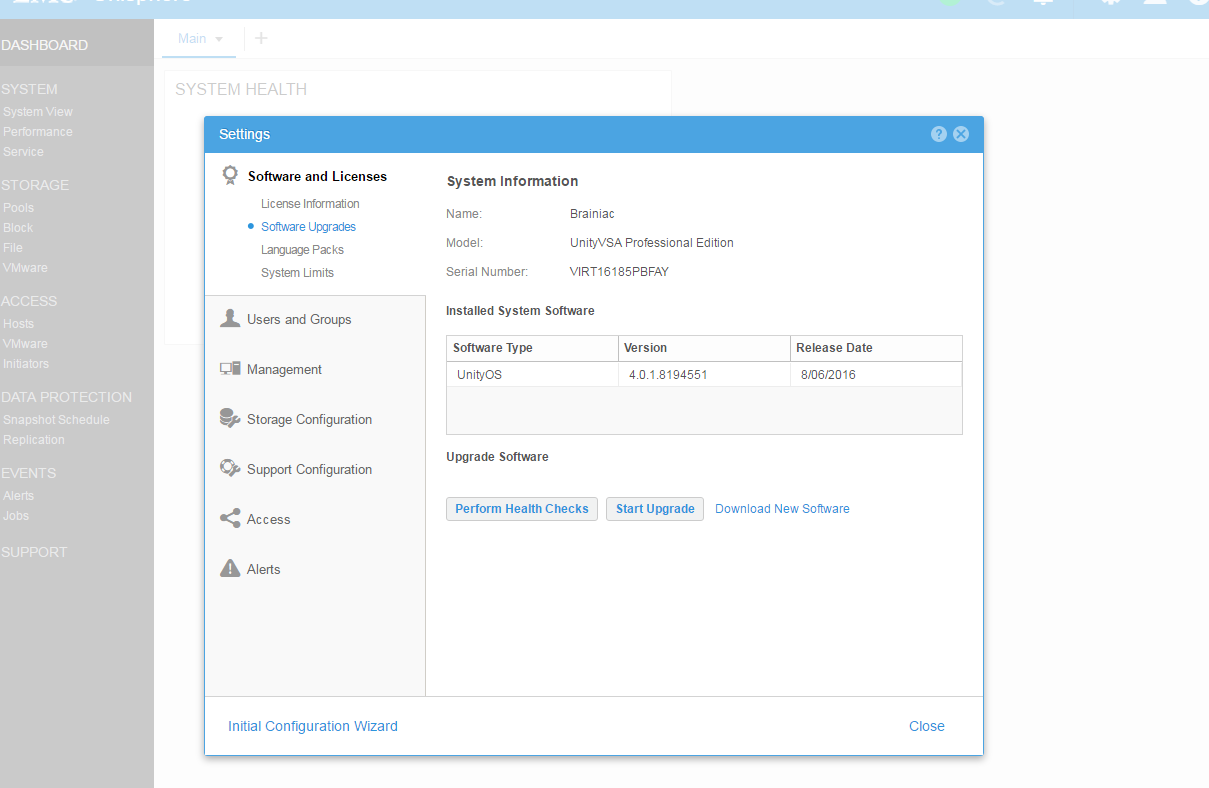
2.瀏覽至 「軟體和授權 > 軟體升級」
注意:
此處會顯示您目前使用的 Unity OE 版本,以及這 3 個選項
- 進行執行狀況檢查
- 開始升級
- 下載 Dell 軟體
3。準備好開始升級時。
- 從 https://www.dell.com/support/home/en-us/product-support/product/unity-family/drivers 下載新軟體檔案
- 進行執行狀況檢查 (選用,因為在「開始升級」精靈中也會進行檢查)
- 按一下「開始升級」以啟動升級精靈。
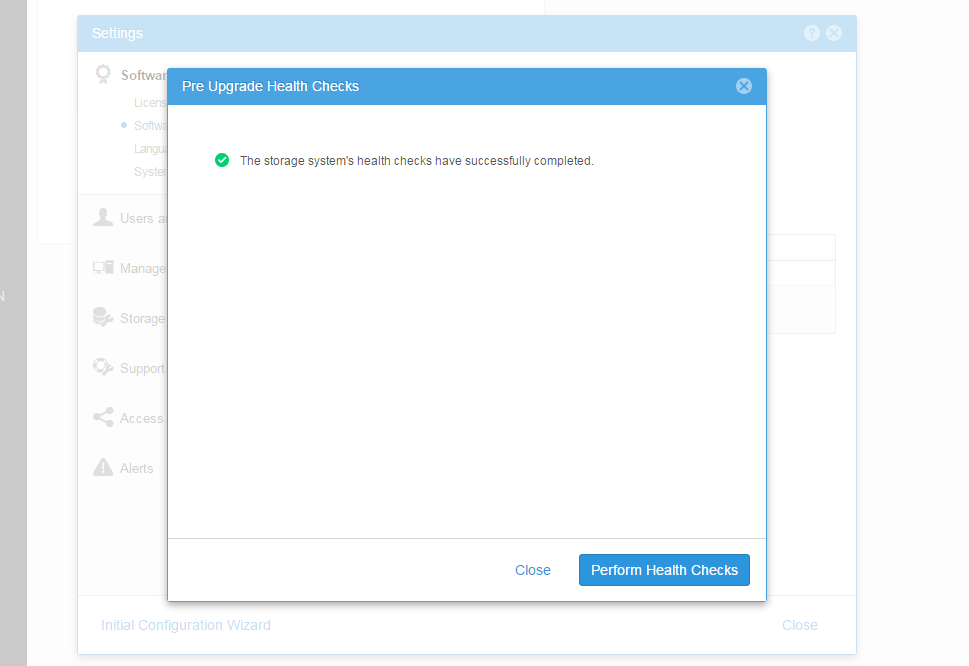
4.升級前的「進行執行狀況檢查」選項
注意:
若有任何警示,請在升級前解決問題。
5.上傳從 https://www.dell.com/support/home/ 網站下載的 Unity OE 升級檔案。
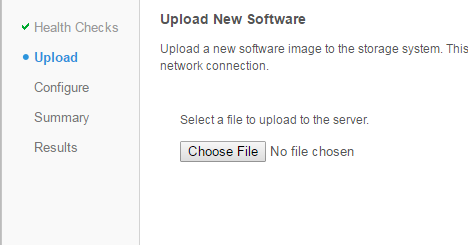
上傳 Unity OE 檔案後的樣子:
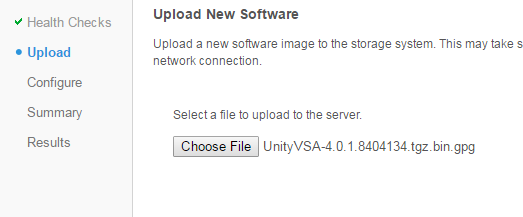
注意:
按下「下一步」按鈕後,系統將會準備檔案以進行升級。這可能需要大約 5-10 分鐘的時間。
注意:如果在此步驟後取消升級,請確定從主要 SP 上的 /var/tmp/upgrade 刪除映像。保持 root FS 處於高使用率狀態,可能會導致 SP 當機。
6.下一個步驟是決定何時重新開機 SP。如果保持選取,SP 會在執行升級時依次重新開機。如果未勾選,您可以稍後自行重新開機 SP (透過「繼續升級」)。預設值為自動選取,以允許 Unity 視需要重新開機 SP。
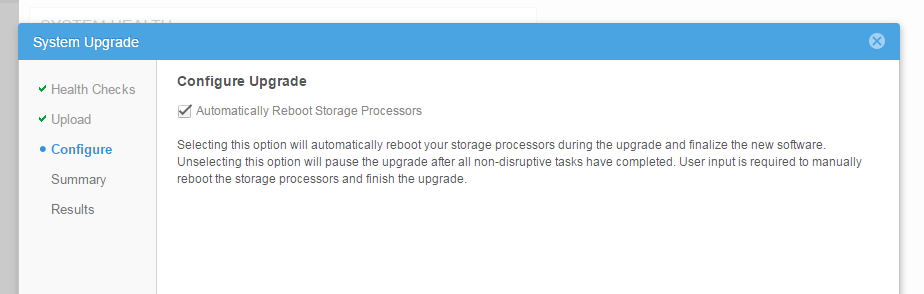
7.檢閱摘要頁面,確定舊版本已升級至新版本
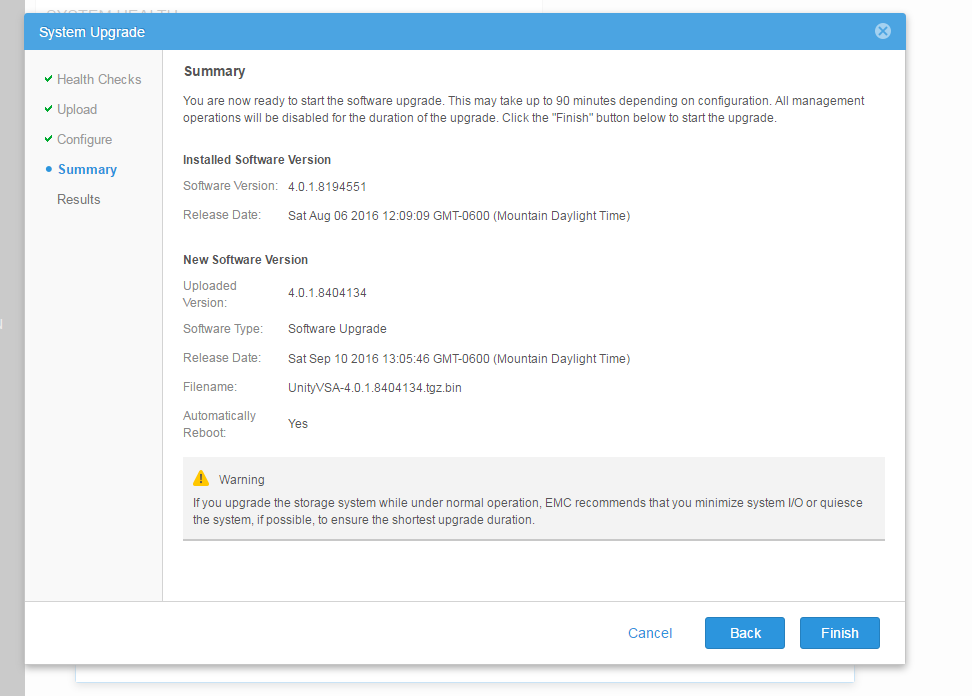
注意:
請閱讀關於何時該執行升級的建議。
8.按一下完成按鈕以開始 Unity OE 升級。
如果升級期間發生任何錯誤,請參閱訊息和補救措施以「重試」。如有任何問題,請聯絡您的服務提供者。
在升級期間,環境可能會因為 SP 重新開機、空間不足等原因顯示錯誤或警示。
9.Unity OE 升級完成後,請重新載入 Unisphere。新程式碼現在應該會顯示在「系統檢視」中的「摘要標籤」中。
Method 2 : Using Command Line (uemcli)
1) Download the image first (We can use any clients that supports uemcli like windows, linux or even unity console itself. If Unity console is used, the image need to be copied to peer SP) Below is an example for a complete upgrade by uemcli.


a) SSH Login to the array using service account [Example: SPA is managing SP and SPB is peer SP ]
b) Get the upgrade image file using winSCP or sftp to /cores/service(Example: Unity-4.1.2.9257522.tgz.bin.gpg )
For OE 4.5+:
/cores/service/user/
c) Copy the image to peer SP : scp /cores/service/Unity-4.1.2.9257522.tgz.bin.gpg peer:/cores/service
For OE 4.5+:
scp /cores/service/user/Unity-4.1.2.9257522.tgz.bin.gpg peer:/cores/service/user
d) Delete the image from local SP (SPA in this example) : rm /cores/service/Unity-4.1.2.9257522.tgz.bin.gpg
For OE 4.5+:
rm /cores/service/user/Unity-4.1.2.9257522.tgz.bin.gpg
e) ssh to peer SP : ssh peer


2) Upload the image :
C:\> uemcli -d <unity_management_ip> -u admin -securePassword -upload -f c:\data\Unity-4.2.0.9392909.tgz.bin.gpg upgrade
Password:
Uploaded 2.01 GB of 2.01 GB [ 100%] -PROCESSING-
Operation Completed successfully

If the file was uploaded to Unity via SCP/SFTP:
uemcli -d <unity_management_ip> -u admin -securePassword -upload -f /cores/service/user/Unity-4.1.2.9257522.tgz.bin.gpg upgrade

Note: If the upgrade is cancelled after this step, make sure the image is deleted from /var/tmp/upgrade on the primary SP. Leaving the root FS in high usage could lead to SP panic.


3) Verify the image candidate ID
C:\> uemcli -d 10.0.0.1 -u admin -securePassword /sys/soft/ver show
Password:
1:    ID           = INST_1
      Type         = installed
      Version      = 4.1.1.9138882
      Release date = 2017-02-09 14:30:02

2:    ID           = CAND_1
      Type         = candidate
      Version      = 4.2.0.9392909
      Release date = 2017-06-28 11:28:31


4) Create (start) the upgrade (optional to specify pause before reboot, if not given full upgrade will start immediately):
C:\> uemcli -d 10.0.0.1 -u admin -securePassword /sys/soft/upgrade create -candId CAND_1 -pauseBeforeReboot

5) Monitor the upgrade :
C:\> uemcli -d 10.0.0.1 -u admin -securePassword /sys/soft/upgrade show -detail

6) Resume the upgrade if pause before reboot is given or any health checks failed (like Replication session not paused earlier) :
C:\> uemcli -d 10.0.0.1 -u admin -securePassword /sys/soft/upgrade resume

7) Verify after it completes

04:48:27 service@(none) spb:~> uemcli /sys/soft/ver show -detail

1:    ID              = INST_1
      Type            = installed
      Version         = 4.2.0.9392909
      Release date    = 2017-06-28 11:28:37
      Image type      =
      Reboot required =
      Pause allowed   =
      Image filename  =

04:48:36 service@(none) spb:~> uemcli /sys/soft/upgrade show -detail

1:    Status              = completed
      Creation time       = 2017-08-03 03:30:10
      Elapsed time        = 55m 36s
      Estimated time left =
      Progress            =
      Percent complete    = 100%
추가 정보
DELL EMC 建議您在低生產期間執行 Unity OE 程式碼升級。升級期間不應該會發生任何 DU/DL,但在升級期間可能會降低速度,並使 CPU 使用率增加。
在升級之前,核心/服務應至少有 5GB 的可用空間。通常來說,刪除舊資料收集是釋出空間的最佳方式。
如果升級至 4.5 或 4.5.1,請參閱 KB
Dell EMC Unity:在升級 4.5.0 或 4.5.1 後,複寫資料存放區未更新 (使用者可修正) https://support.emc.com/kb/531543
本文已於 DELL EMC 社群網路 (DECN) 推廣為 HVC:https://community.emc.com/docs/DOC-56665
해당 제품
Dell EMC Unity Family제품
Dell EMC Unity Family문서 속성
문서 번호: 000022755
문서 유형: How To
마지막 수정 시간: 01 12월 2025
버전: 9
다른 Dell 사용자에게 질문에 대한 답변 찾기
지원 서비스
디바이스에 지원 서비스가 적용되는지 확인하십시오.