如何存取 Dell Data Security 伺服器管理主控台
요약: 瞭解如何依照這些逐步指示存取 Dell Data Security 或 Dell Data Protection 伺服器管理主控台。
이 문서는 다음에 적용됩니다.
이 문서는 다음에 적용되지 않습니다.
이 문서는 특정 제품과 관련이 없습니다.
모든 제품 버전이 이 문서에 나와 있는 것은 아닙니다.
지침
Dell Data Security (先前稱為 Dell Data Protection) 需要管理主控台來管理:
- 原則
- 報告
- 加密金鑰
受影響的產品:
- Dell Security Management Server
- Dell Data Protection Enterprise Edition Server
- Dell Security Management Server Virtual
- Dell Data Protection Virtual Edition
受影響的版本:
- 8.0 及更新版本
根據 Dell Data Security 伺服器的版本而定,登入管理主控台的指示會有所不同。
按一下適當的產品版本,瞭解存取管理主控台的特定步驟。如需版本控制資訊,請參閱 如何識別 Dell Data Security 伺服器版本。
9.2 及更新版本
- 開啟網頁瀏覽器並前往 https://servername.company.com:8443/webui。
 註:
註:- FQDN (完整網域名稱) 範例會與環境中的伺服器不同。
- 連接埠 8443 可能與環境中的管理主控台連接埠不同。
- 登入管理主控台。
 註:
註:- 在版本 11.4 及更新版本中,如果已為使用者設定 Google Authenticator 或電子郵件 MFA (多重因素驗證),系統會提示使用者輸入 OTP (一次性密碼)。
- 如需更多有關設定 MFA 的資訊,請參閱 如何在 Dell Security Management Server 管理主控台中管理多重因素驗證。
8.0 至 9.1.5
- 在 Windows 檔案總管中,前往:
- Dell Data Protection Enterprise Edition 伺服器:
C:\Program Files\Dell\Enterprise Edition - 端點:
C:\Program Files\Dell\Virtual Edition
註:- 端點存取需要從 Dell Data Protection Virtual Edition 媒體安裝管理主控台 (先前稱為遠端管理主控台)。
- 如需安裝步驟,請參閱如何安裝 Dell Data Protection 遠端管理主控台。
- Dell Data Protection Enterprise Edition 伺服器:
- 按兩下
Credant.Console。

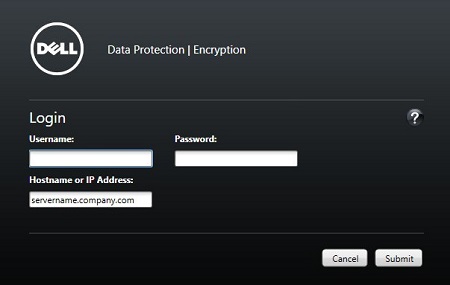
- 提交登入資料,以登入管理主控台。
추가 정보
비디오
해당 제품
Dell Encryption문서 속성
문서 번호: 000126852
문서 유형: How To
마지막 수정 시간: 21 7월 2026
버전: 16
다른 Dell 사용자에게 질문에 대한 답변 찾기
지원 서비스
디바이스에 지원 서비스가 적용되는지 확인하십시오.