How to Collect Logs for Absolute
요약: Learn step-by-step instructions to collect logs for Absolute running on a Windows operating system by following these instructions.
이 문서는 다음에 적용됩니다.
이 문서는 다음에 적용되지 않습니다.
이 문서는 특정 제품과 관련이 없습니다.
모든 제품 버전이 이 문서에 나와 있는 것은 아닙니다.
지침
This article describes how to collect logs for Absolute. It is highly recommended to collect logs for Absolute before troubleshooting or contacting Dell Data Security ProSupport. For more information, reference Dell Data Security International Support Phone Numbers.
Affected Products:
- Absolute
Affected Operating Systems:
- Windows
Install Logs and Agent Logs may be manually captured when troubleshooting Absolute. Select the appropriate section below for the steps to gather logs.
Install Logs
- Right-click the Windows start menu and then click Run.

- In the Run UI, type
%temp%and then click OK. Note:
Note:%temp%is the Windows variable forC:\Users\<USERNAME>\AppData\Local\Temp. - Capture the MSI logs named
MSIXXXXX.LOG. Note: The
XXXXXis randomly generated letters and numbers.
Agent Logs
- Right-click the Windows start menu and then click Run.
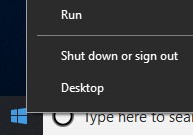
- In the Run UI, type
%programdata%\ctesand then click OK. Note:
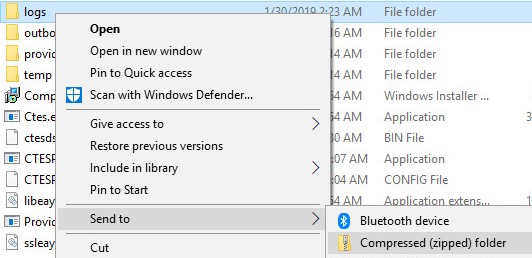
Note:%programdata%is the Windows variable for theprogramdatadirectory. - Right-click the logs folder, select Send to, and then click Compressed (zipped) folder.
To contact support, reference Dell Data Security International Support Phone Numbers.
Go to TechDirect to generate a technical support request online.
For additional insights and resources, join the Dell Security Community Forum.
해당 제품
Absolute문서 속성
문서 번호: 000129351
문서 유형: How To
마지막 수정 시간: 16 9월 2025
버전: 9
다른 Dell 사용자에게 질문에 대한 답변 찾기
지원 서비스
디바이스에 지원 서비스가 적용되는지 확인하십시오.