How to Install Ubuntu Developer Edition 14.04 on a Dell personal computer Configured for the Unified Extensible Firmware Interface (UEFI) BIOS
요약: Steps for installing Ubuntu Developer Edition 14.04 on Dell computers with the Unified Extensible Firmware Interface (UEFI) BIOS.
이 문서는 다음에 적용됩니다.
이 문서는 다음에 적용되지 않습니다.
이 문서는 특정 제품과 관련이 없습니다.
모든 제품 버전이 이 문서에 나와 있는 것은 아닙니다.
지침
First you must ensure that the BIOS is set to UEFI, disable "Legacy option ROMS" and enable secure boot (Secure boot is optional). (Figures 1 - 3)
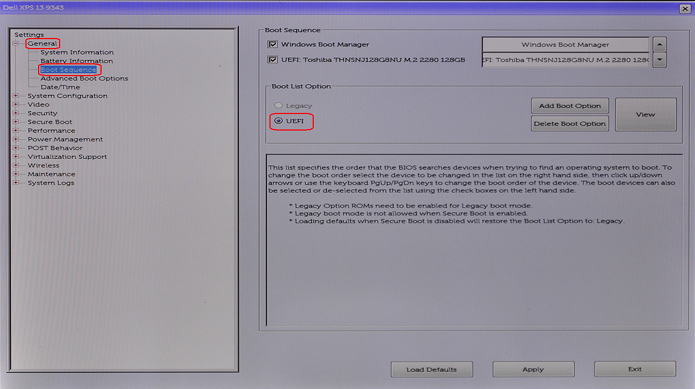
Figure 1
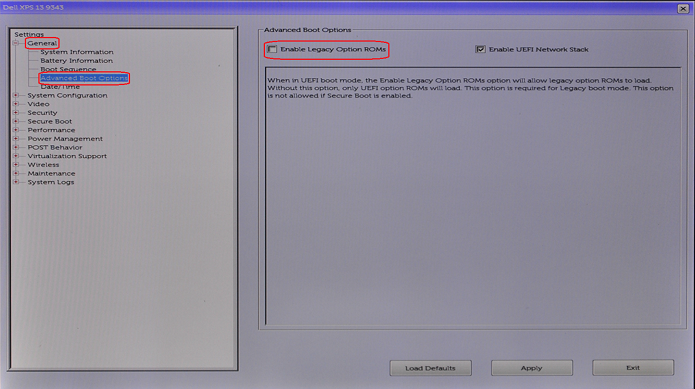
Figure 2
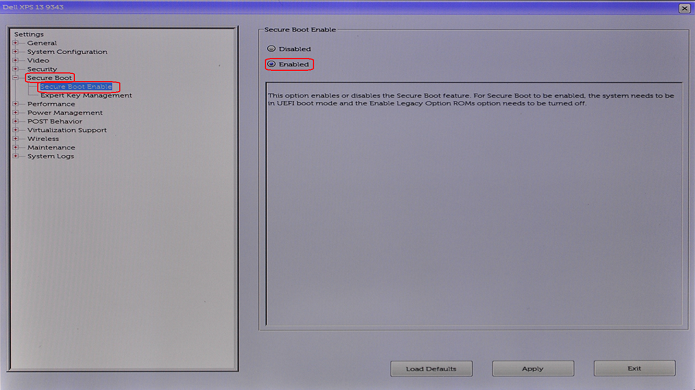
Figure 3
Follow the steps indicated below to install Ubuntu 14.04/15.04 on your Dell computer and configure the BIOS to use SHIMx64.EFI (Required for normal operation):
-
Download and create a bootable Ubuntu Linux
USB drive. (You may want to use a third-party application like Rufus
NOTE: Dell does not recommend or support applications like Rufus. Use third-party applications at your own risk.
-
Once the UBUNTU install from the USB drive is finished and you reboot the system, Press F2 when you see the Dell logo to enter the BIOS. Once in the BIOS, choose Boot Sequence.
-
In the boot sequence screen that appears, click the Add Boot Option button. The Add Boot Option window appears. Type a name in the Boot Option Name text area (Ubuntu for example). Click the button to the left of the File Name text area. The EFI Boot Selection window appears. (Figure 4)
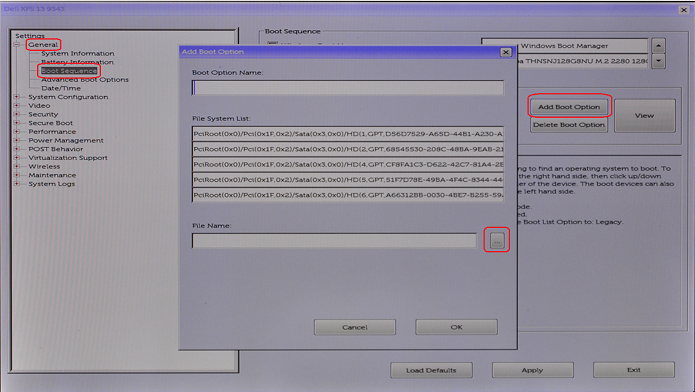
Figure 4
-
In the File System drop down menu, choose "FS0:" Then using the Directories section, navigate until you can choose the SHIMx64.EFI file in the Files section. (Figures 5 - 7)
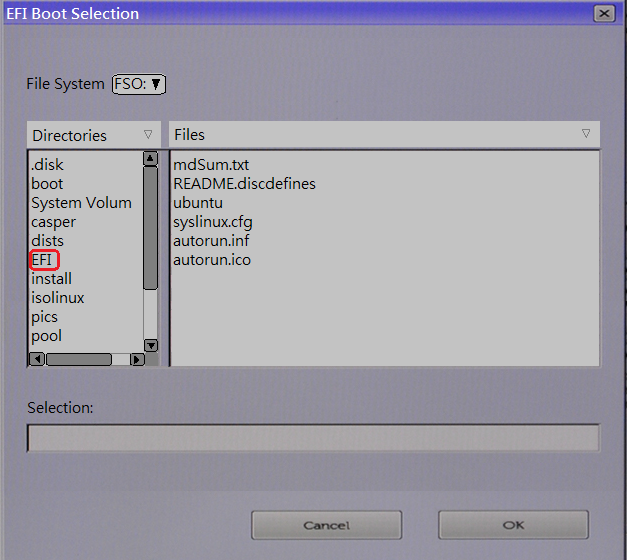
Figure 5
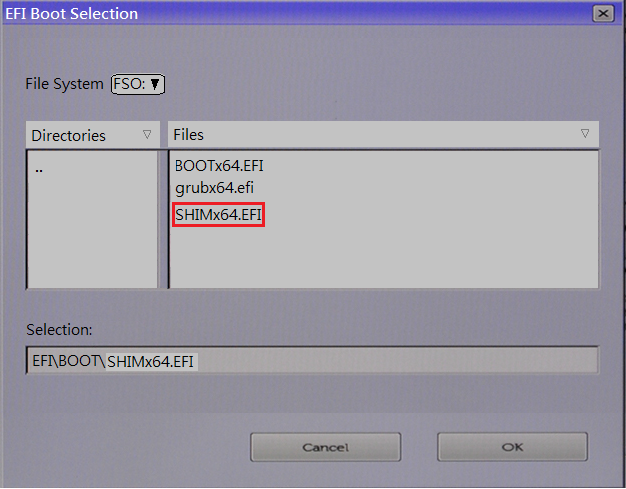
Figure 6
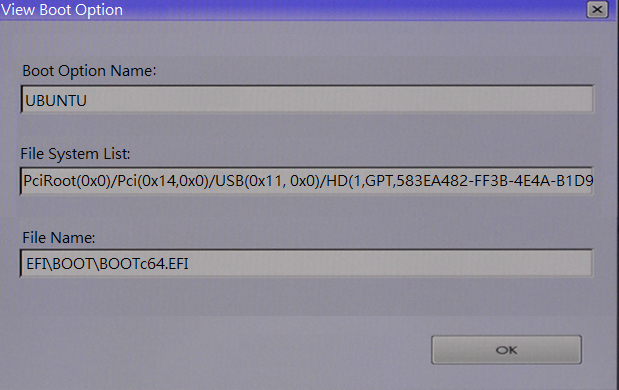
Figure 7
-
Type a name in the Boot Option Name text area (Ubuntu for example). Click OK. Click Apply. (Figure 8)
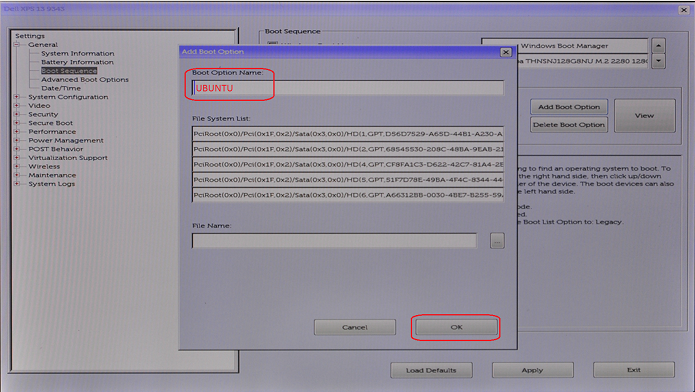
Figure 8
-
Exit the BIOS and you should now be able to boot to UBUNTU from the boot drive.
NOTE: Dell has moved to the 16.04 and later version of Ubuntu for newer systems. If you are having issues with a newer system or version of Ubuntu, check out the link below to see a list of the most commonly used Ubuntu articles on the Dell Support Site.
추가 정보
 Out of warranty? No problem. Browse to the Dell.com/support website and enter your Dell Service Tag and view our offers.
NOTE: Offers are only available for US, Canada, UK, and France personal computer customers. Server and Storage not applicable.
해당 제품
XPS 13 9343문서 속성
문서 번호: 000141125
문서 유형: How To
마지막 수정 시간: 30 7월 2025
버전: 9
다른 Dell 사용자에게 질문에 대한 답변 찾기
지원 서비스
디바이스에 지원 서비스가 적용되는지 확인하십시오.