How to Use System Restore in Microsoft Windows
요약: This article provides information about System Restore in Microsoft Windows. Learn how to create a restore point and how to restore the system files and settings in Microsoft Windows. Find step-by-step instructions to recover the computer using the System Restore feature in Microsoft Windows. ...
이 문서는 다음에 적용됩니다.
이 문서는 다음에 적용되지 않습니다.
이 문서는 특정 제품과 관련이 없습니다.
모든 제품 버전이 이 문서에 나와 있는 것은 아닙니다.
지침
System Restore in Microsoft Windows helps make restore points when you install a new app, driver, Windows update, or create a restore point manually. Using System Restore will not affect your personal files, but it will remove apps, drivers, and updates installed after the restore point was made.
System Restore automatically creates a restore point once a day. It continually monitors system activity and creates a restore point when activities such as installing apps, drivers, or Windows Updates occur.
NOTE: System Restore does not affect any of your documents, figures, or other personal data. Recently installed programs and drivers might be uninstalled.
Supported operating systems
- Windows 11
- Windows 10
System Restore utility in Microsoft Windows can be used as an effective tool to recover the computer to the last-known working condition while troubleshooting software-related issues.
How to enable System Restore in Windows
- Click Start.
- Search for Create a restore point and open System Properties.
- In the System Properties window, go to the System Protection tab.
- If the 'system' drive (Figure 1) protection is turned on, System Restore is already enabled on your computer. If the 'system' drive protection is off, go to the next step.

Figure 1: System restore section in the system properties window. The image is in English. - Click Configure.
- Select Turn on system protection.
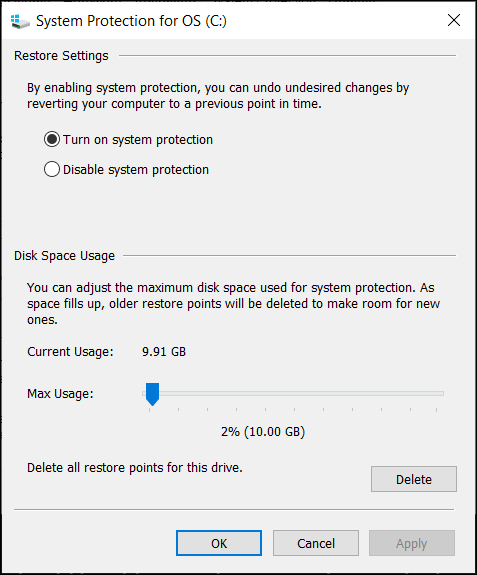
Figure 2: Turn on or disable system protection in Windows. The image is in English. - Click Apply.
- Click OK to confirm.
Microsoft Windows automatically creates a restore point after applying a new Windows update or if specific system changes are made.
WARNING: System Restore is not a data backup solution. System Restore does not back up your apps, documents, figures, and other personal data.
How to create a System Restore checkpoint in Windows
- Click Start.
- Search for Create a restore point and open System Properties.
- In the System Properties window, go to the System Protection tab.
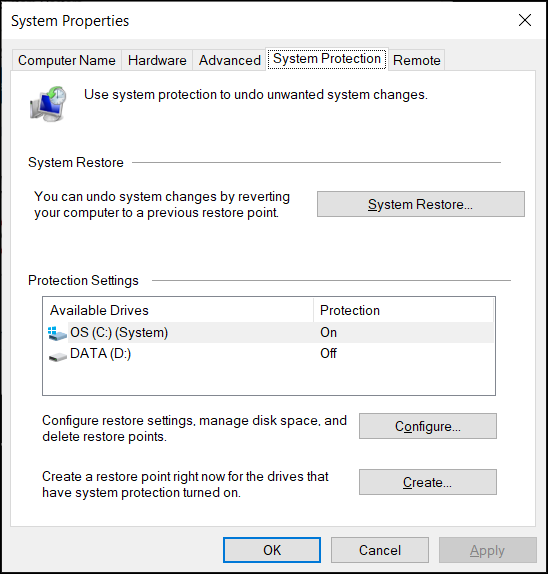
Figure 3: System restore section in the system properties window. The image is in English. - Click Create.
- Type a descriptive name for the restore point. For example, type 'before installing ABC software'
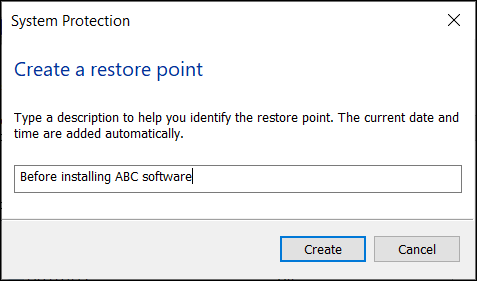
Figure 4: Type a description of the restore point. The image is in English. - Click Create.
- Click Close.
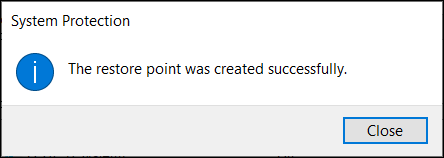
Figure 5: Confirmation message that the restore point was created successfully. The image is in English. - Click OK.
How to recover the computer using System Restore in Windows
- Click Start.
- Search for Create a restore point and open System Properties.
- In the System Properties window, go to the System Protection tab.
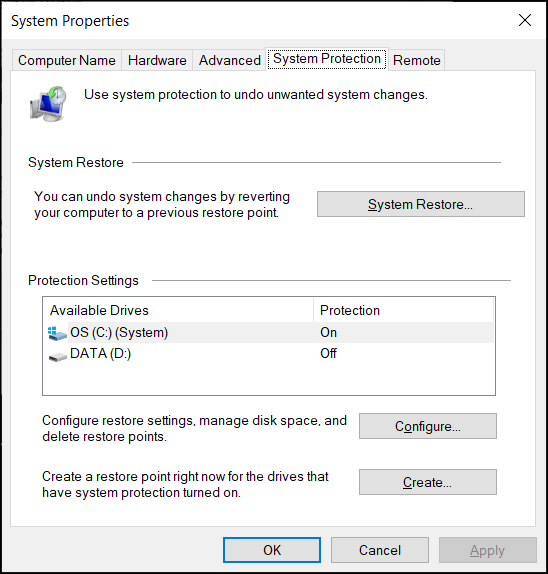
Figure 6: System restore section in the system properties window. The image is in English. - Click System Restore.
NOTE: The System Restore option is disabled if there are no system restore checkpoints available on the computer.
- Click Next.
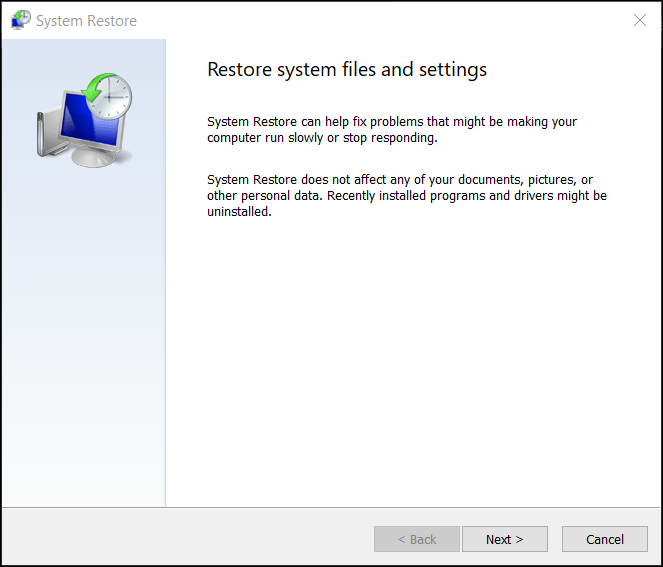
Figure 7: Restore the system files and settings. The image is in English. - Select the restore point to revert the changes and fix problems.
NOTE: Select the restore point when the computer was working without any issues.
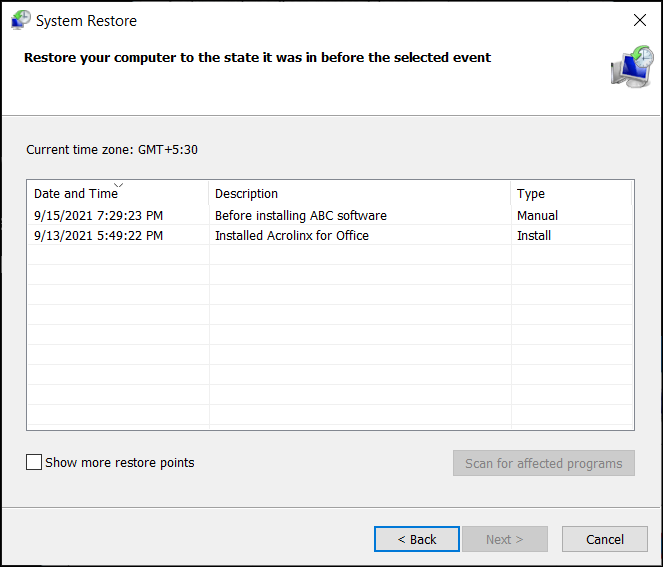
Figure 8: Select a restore point from the list. The image is in English. - Click Scan for affected programs to confirm which apps and drivers will be removed because they were added after creating the restore point.
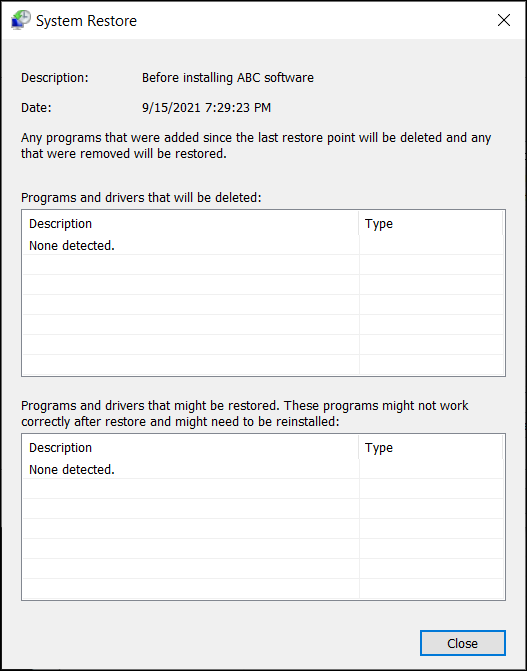
Figure 9: Scan and identify the list of programs and drivers that are deleted during the system restore process. The image is in English. - Click Close.
- Click Next to begin restoring the system files and settings.
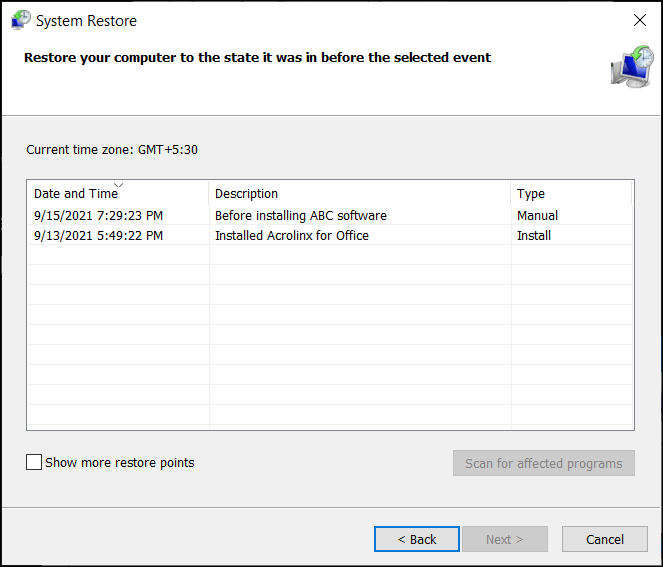
Figure 10: Select a restore point from the list. The image is in English. - Click Finish.
NOTE: If one or more apps or drivers were affected, reinstall them again after the recovery process (if required).
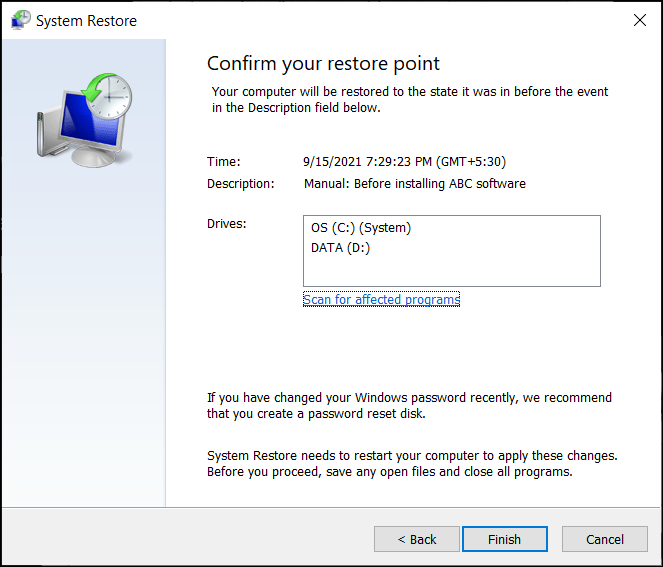
Figure 11: Confirm the system restore point to apply the changes. The image is in English.
If you receive a Bitlocker error after using System Restore, refer to article BitLocker is Prompting for a Recovery Key, and You Cannot Locate the Key
추가 정보
Frequently asked questions
Click a section below for more information.
The system restore utility can be accessed through the Windows Recovery Environment (WinRE) in Windows 11, Windows 10. The computer automatically boots into the Windows Recovery Environment (WinRE) if the operating system fails to boot two times consecutively.
To manually boot into Windows Recovery Environment (WinRE):
- Press and hold the power button for 10 seconds to turn off the computer.
- Turn on the computer.
- At the Windows startup screen, press and hold the power button for 10 seconds to turn off the computer.
- Turn on the computer.
- At the Windows startup screen, press and hold the power button for 10 seconds to turn off the computer.
- Turn on the computer. The computer boots into the Windows Recovery Environment (WinRE).
- Click Troubleshoot.
- Click Advanced Options.
- Click System Restore.
- System Refresh - reinstall Windows and keep your personal files and settings. Refresh also keeps the apps that came with your computer and the apps you installed from the Microsoft Store.
WARNING: System refresh deletes apps that were not preinstalled on the computer. For example, apps installed by the user from CD, DVD, USB, or downloaded files
- System Reset - reinstall Windows but delete your files, settings, and apps. Except for the apps that were preinstalled on the computer.
해당 제품
Alienware, Dell All-in-One, Dell Pro All-in-One, Dell Pro Max Micro, Dell Pro Max Slim, Dell Pro Max Tower, Dell Pro Micro, Dell Pro Slim, Dell Pro Tower, Dell Slim, Dell Tower, Inspiron, Legacy Desktop Models, OptiPlex, Vostro, XPS, G Series
, G Series, Alienware, Dell Laptops, Dell Plus, Dell Pro, Dell Pro Max, Dell Pro Plus, Dell Pro Premium, Inspiron, Latitude, Dell Pro Rugged, Vostro, XPS, Legacy Laptop Models, Fixed Workstations, Mobile Workstations, Dell Pro Max Micro XE FCM2250, Dell Pro Max Slim XE FCS1250, Dell Pro Max Tower T2 XE FCT2250, Dell Pro Max 16 XE MC16250, Dell Pro Micro Plus XE QBM1250, Dell Pro Slim Plus XE5 QBS1250, Dell Pro Tower Plus XE5 QBT1250
...
문서 속성
문서 번호: 000148025
문서 유형: How To
마지막 수정 시간: 20 6월 2025
버전: 13
다른 Dell 사용자에게 질문에 대한 답변 찾기
지원 서비스
디바이스에 지원 서비스가 적용되는지 확인하십시오.