PowerEdge: Microsoft SQL Server Error Log
요약: The Microsoft SQL Server Error Log reports events on Microsoft SQL Server activity. Database version information, startup events, shutdown events, database activity, and error events are found in the Microsoft SQL Server Error Log. ...
이 문서는 다음에 적용됩니다.
이 문서는 다음에 적용되지 않습니다.
이 문서는 특정 제품과 관련이 없습니다.
모든 제품 버전이 이 문서에 나와 있는 것은 아닙니다.
증상
SQL Server service events like service start failures and databases failing to come online can occur anytime with Microsoft SQL Server. The SQL Server Error Log may provide valuable information required to troubleshoot and resolve services and database failures.
원인
Many different types of causes can result in SQL Server service and database failure events requiring the inspection of the SQL Server Error Log to resolve the issue.
해결
- The SQL Server Error Log is accessed in multiple ways. One way is in SQL Server Management Studio (SSMS). Under the Server instance tree in the left column of SSMS, it can be opened in the "SQL Server Logs" section under the "Management" container.
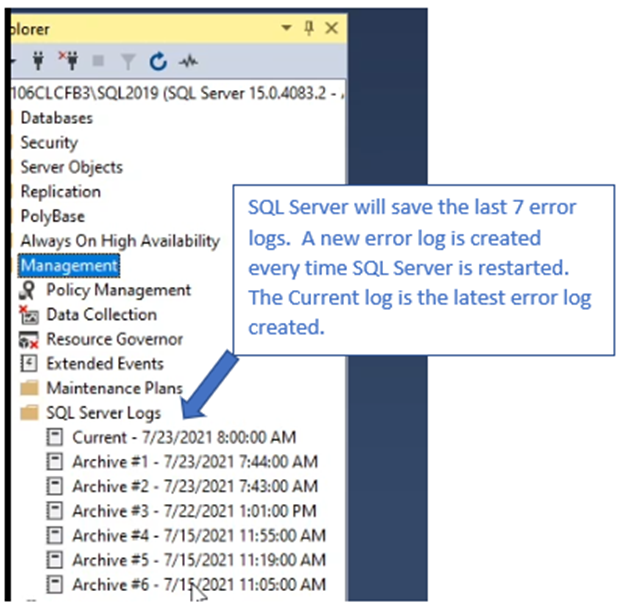
Figure 1: Screenshot of SQL Server Management Studio Location of SQL Server Logs
- In the Error Log, general SQL Server instance information is found such as edition and version number. Other items such as Authentication mode, location of Error Log, SQL Server service account, and startup parameters are also included.
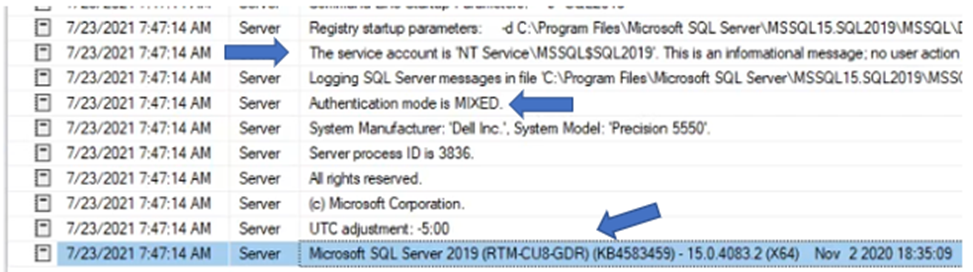
Figure 2: Screenshot of General SQL Server Instance Information
- The amount of physical server memory and number of server cores is also seen in the Log.
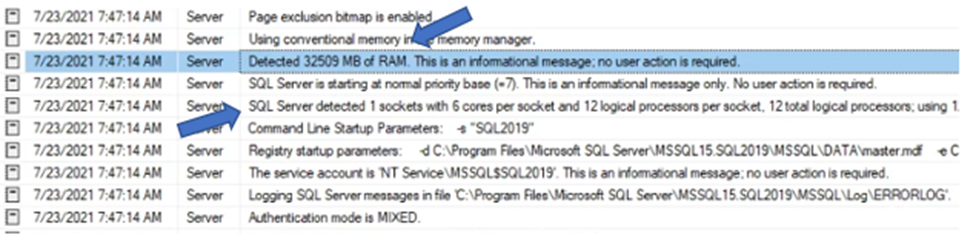
Figure 3: Screenshot of Physical Server Memory and Number of Server Cores
- Database online status is reported as databases are brought online.
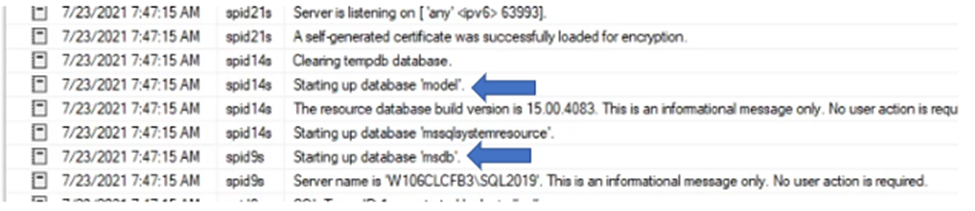
Figure 4: Screenshot of Database Online Status
- Error reporting is the most valuable factor of SQL Error Log functionality. The error in the screenshot below is related to the database files for the "Model" database missing when SQL Server starts up.
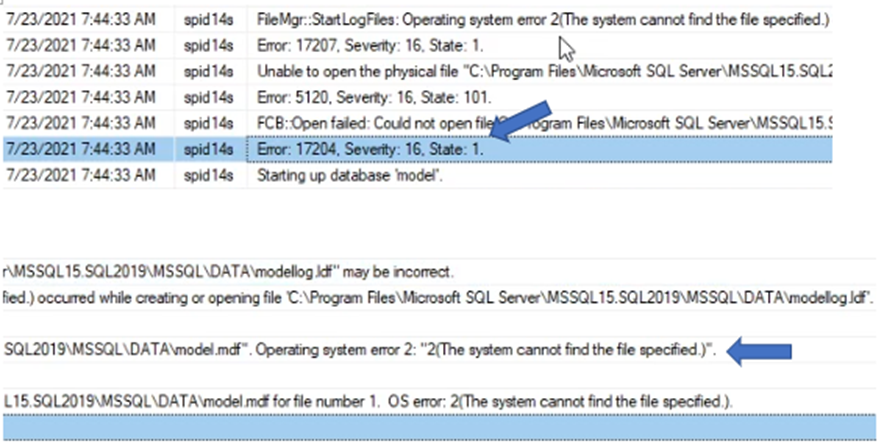
Figure 5: Screenshot of Error Reporting
- When an error entry in the Error Log is seen, we should see a message in the Server Application event log. Finding the event log message is an important step in the troubleshooting process as it might supply more information about the condition resulting in the errors found in both logs.
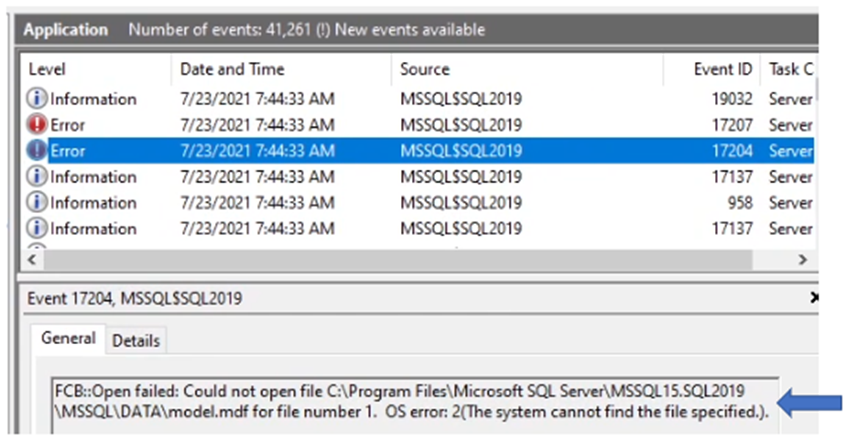
Figure 6: Screenshot of Error Entry in the Error Log
- The SQL Server Error Log is also accessed by going to the directory location holding the Error Logs. The directory location may be in a different location based on the location of the SQL Server application binary files.

Figure 7: Screenshot of SQL Server Error Log
- Another method of locating the Error Log and seeing the default location of the SQL Server instance database ".MDF" (database) and ."LDF" (Log) files are by using the "Sql Server Configuration Manager" tool. When viewing the properties of the "SQL Server Services," select the "Startup Parameters" section. We see the file locations for Error and Database files. The location of the SQL Server Error log may also be changed from here.
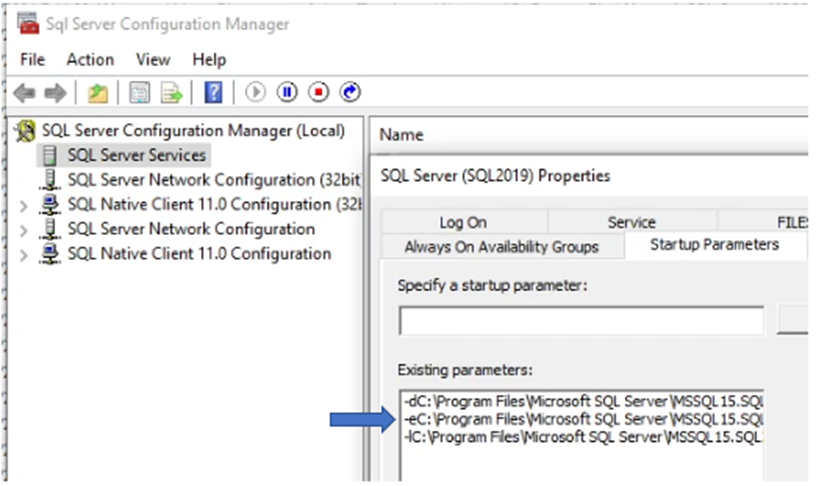
Figure 8: Screenshot of Startup Parameters Section
추가 정보
View this video:
해당 제품
Dell Quickstart Data Warehouse Appliance, Microsoft Windows Server 2016, Microsoft Windows Server 2019, Microsoft Windows Server 2022, Prosupport for Microsoft Software문서 속성
문서 번호: 000200766
문서 유형: Solution
마지막 수정 시간: 05 9월 2025
버전: 12
다른 Dell 사용자에게 질문에 대한 답변 찾기
지원 서비스
디바이스에 지원 서비스가 적용되는지 확인하십시오.