How to Enable XMP Memory Speed on Alienware Laptops
요약: Enabling Extreme Memory Profiles (XMP) memory on Alienware m16 R1 and Alienware m18 R1 using BIOS or Alienware Command Center (AWCC).
이 문서는 다음에 적용됩니다.
이 문서는 다음에 적용되지 않습니다.
이 문서는 특정 제품과 관련이 없습니다.
모든 제품 버전이 이 문서에 나와 있는 것은 아닙니다.
지침
There are two methods to enable XPM memory speed On Alienware m16 R1 and Alienware m18 R1.
Method 1: Enable in BIOS
- Press the F2 key as the computer boots, to enter the BIOS.
- Select Advanced > Performance Options (Figure 1).
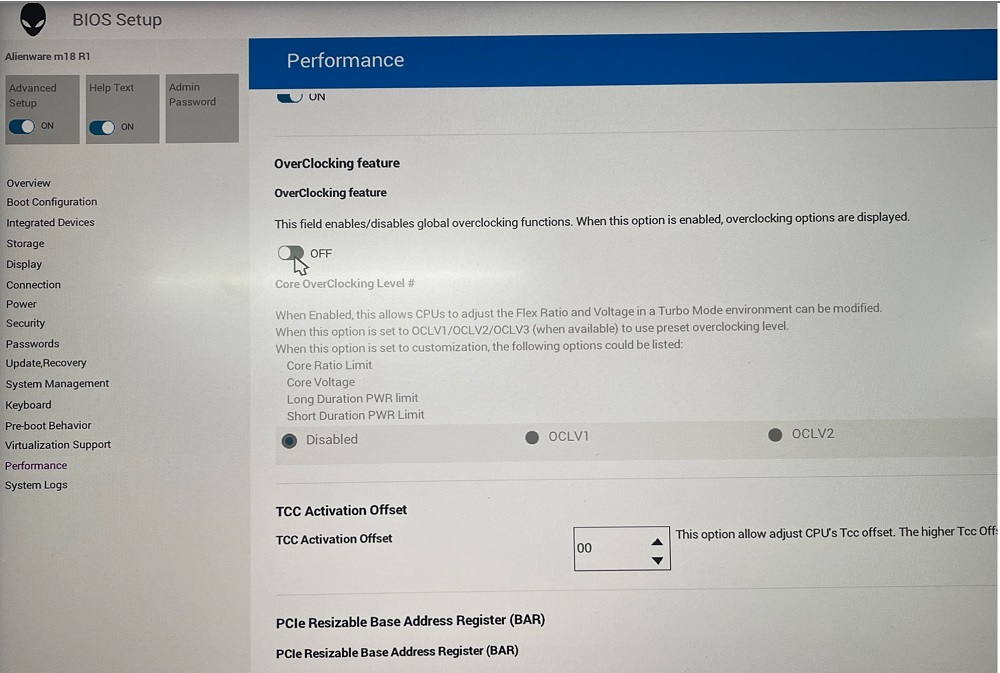
Figure 1: Performance Options - Overclocking Feature Disable change to Enable. Click OK when the warning message is displayed (Figure 2).
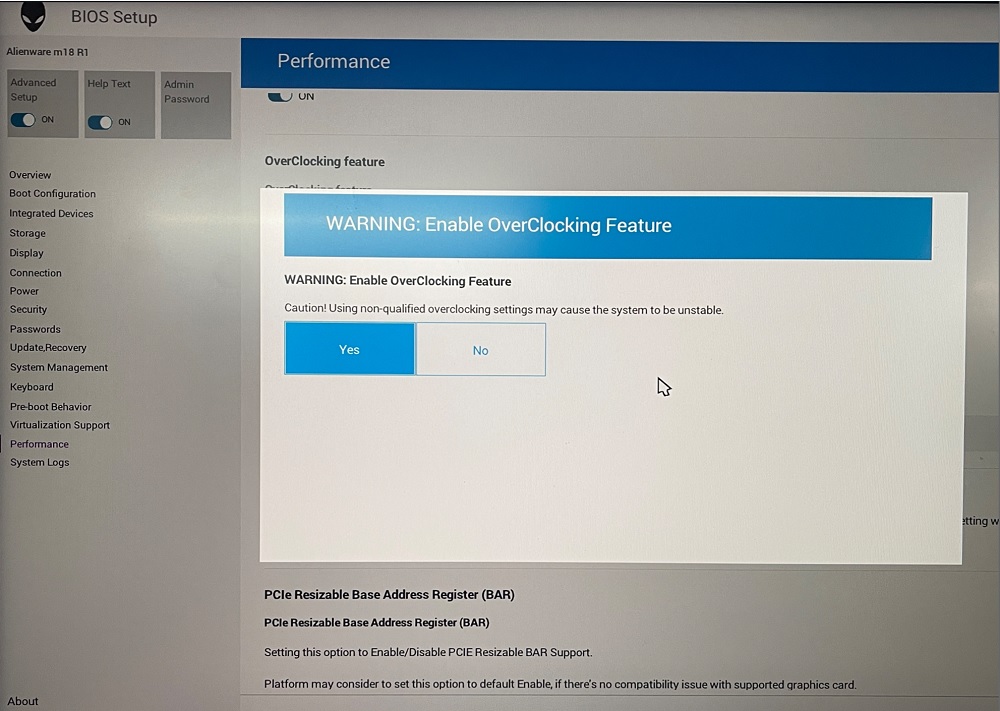
Figure 2: Warning Enable OverClocking Feature - Change XMP memory from Disable to XMP1 (Figure 3).
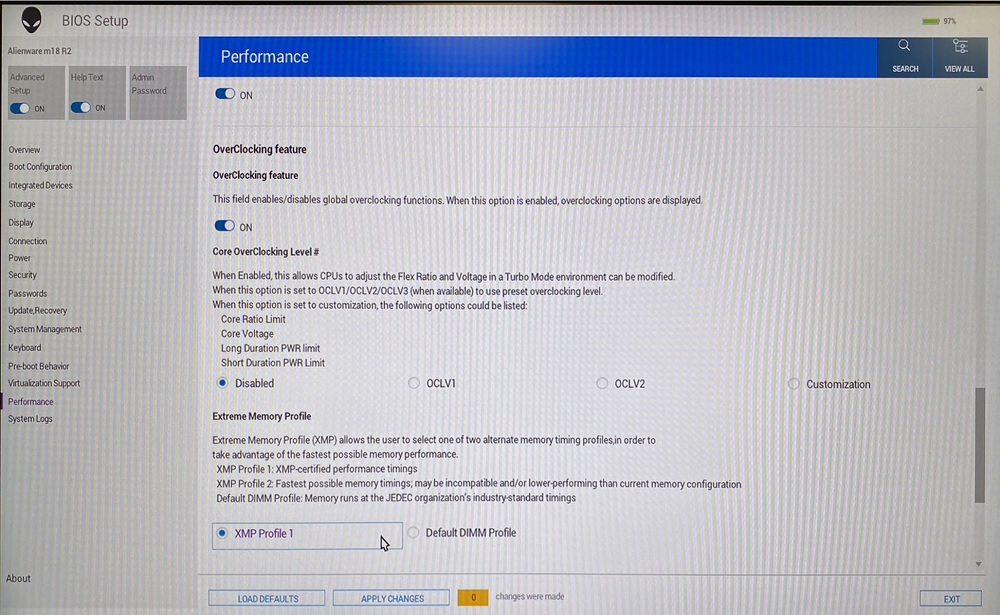
Figure 3: XMP1
Method 2: Enable in AWCC:
AWCC default set as RAM1, you could choose other XMP memory or turn off:
- Open AWCC choose Performance> Custom > Advanced View (Figure 4).
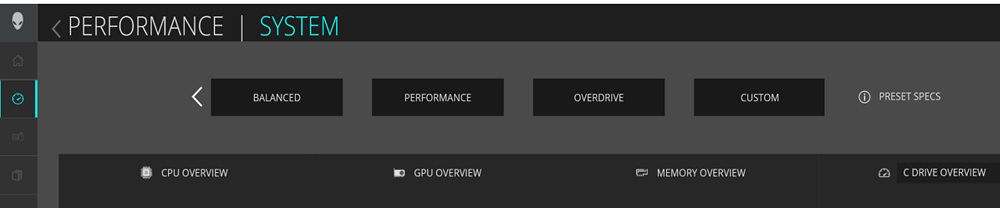
Figure 4: Performance Custom Advanced View - Switch to RAM2 or off per your request (Figure 5).
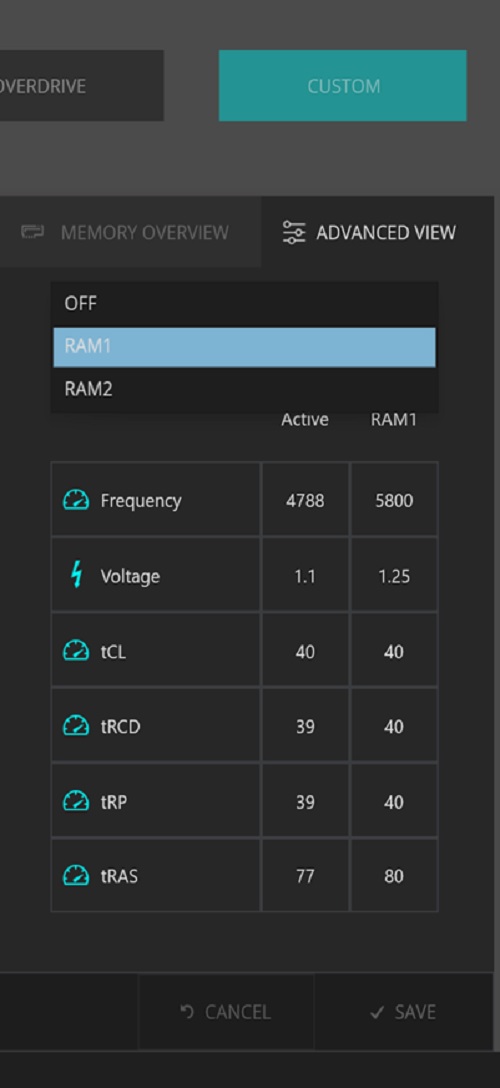
Figure 5: RAM2 or off
Note: After enabling the XMP memory for the first time, the bootup time will be longer, about 3 minutes and 30 seconds.
Affected Platforms:
- Alienware m16 R1
- Alienware m18 R1
Note: When purchasing your computer Dell offers an XMP memory configuration of 32 GB with 5800 MT/s speed. To use this speed, ensure that you enable XMP by going to the system settings or BIOS.
Your computer will not support upgrading to an XMP memory later after point of sale. Also, if the memory is upgraded from 32 GB to 64 GB, your computer will not support the XMP feature.
Your computer will not support upgrading to an XMP memory later after point of sale. Also, if the memory is upgraded from 32 GB to 64 GB, your computer will not support the XMP feature.
해당 제품
Alienware m16 R1, Alienware m18 R1문서 속성
문서 번호: 000218606
문서 유형: How To
마지막 수정 시간: 22 4월 2025
버전: 3
다른 Dell 사용자에게 질문에 대한 답변 찾기
지원 서비스
디바이스에 지원 서비스가 적용되는지 확인하십시오.