PowerEdge: How to Export the PERC Controller Log using OpenManage Server Administrator
Samenvatting: This article explains how to export the RAID controller log (TTYlog) directly from OpenManage Server Administrator (OMSA) using the interface or using the command lines.
Dit artikel is van toepassing op
Dit artikel is niet van toepassing op
Dit artikel is niet gebonden aan een specifiek product.
Niet alle productversies worden in dit artikel vermeld.
Instructies
In addition to this, you can also export the system's entire collection of support logs including Operating System logs, Application Data, and RAID controller logs by exporting the SupportAssist Collection via iDRAC9 or SupportAssist Collection via iDRAC7 or iDRAC8. An alternate method is to export the RAID controller log (TTY log) from RAID controller, see the detail in .
Table of content
Using the interface
-
Log in to OMSA, highlight the Controller on the left pan and click Information/Configuration (Figure 1):
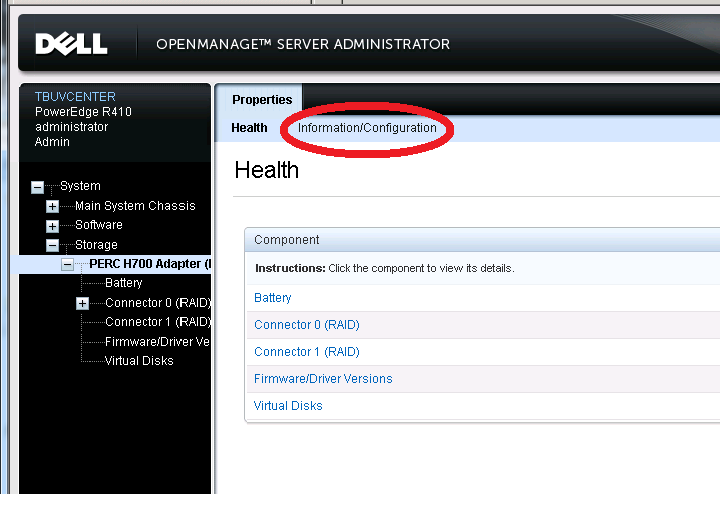
Figure 1: OMSA Controller Menu -
On the next screen (which will take several seconds to load) scroll down to controller tasks. Click the drop-down and select Export Log (Figure 2). Then click Execute.
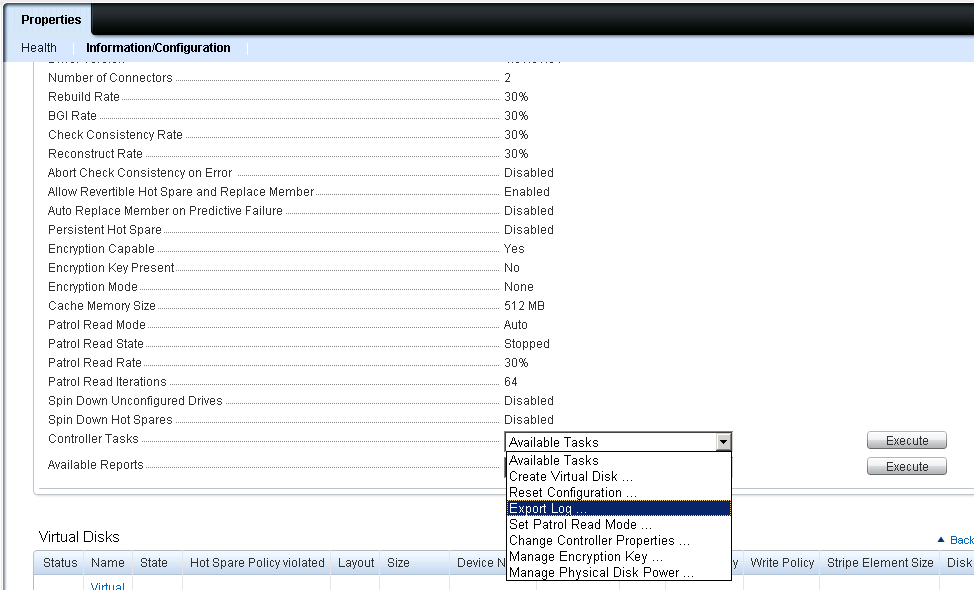
Figure 2: Drop Down Menu -
On the next screen, scroll down and click export log file (Figure 3).
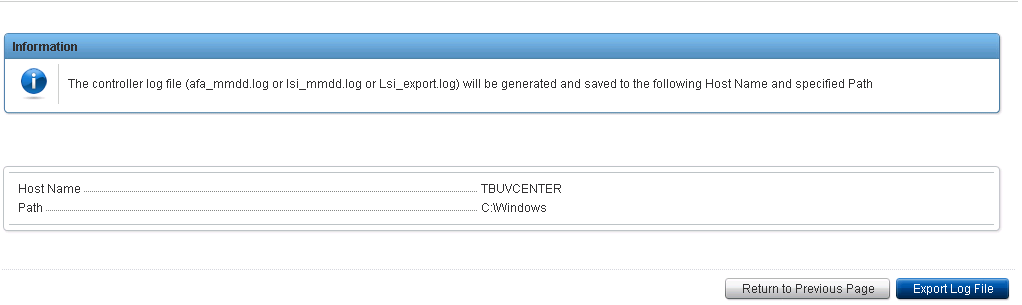
Figure 3: Export Log File -
Look for the export file in the specific folder:
- Linux:
\var\log\lsi_Date.log - Windows:
C:\Windows\lsi_Date.log - Citrix Xen Server:
\var\log\lsi_Date.log - ESX5:
\var\log\lsiexport.log
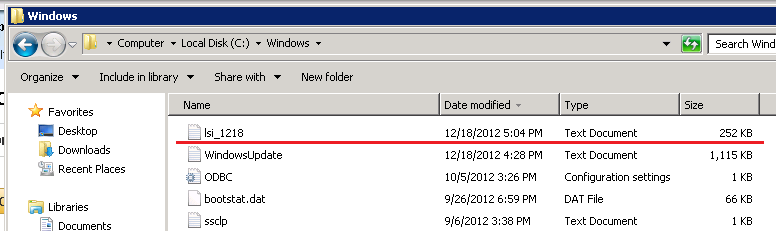
Figure 4: Example for Windows OS - Linux:
Note: Alternatively you can use the following command over CLI:
omconfig storage controller action=exportlog controller=0
Storage > PERC Controller > Information/Configuration
Available Reports drop down
Storage > PERC Controller > Information/Configuration
Available Reports drop down
Extract TTY Login OMSA Using the Command-Line Interface - CLI mode
OpenManage Server Administrator must be installed on the local server.
Steps:
- Open a Terminal (Linux) or DOS window.
- Enter the following command line to identify the « id » of the concerned controller.
omreport storage controller
- Extract the log of the controller with the following command. The ID represents the identifier of the controller, for example 0 for PERC H700 or 1 for PERCH800. If you have only one controller in the server, you can directly enter 0.
omconfig storage controller action=exportlog controller=id
For example:
omconfig storage controller action=exportlog controller=0
Once the command is ran, the log file LSI_Date.log is saved in the specified directory:
- For Windows:
C:\Windows - For Linux:
/var/log
Video (Only English):
Export RAID Controller Logs using OMSA
Getroffen producten
OpenManage Server Administrator, PowerEdge RAID Controller H345, PowerEdge RAID Controller H350 Adapter SAS, PowerEdge RAID Controller H355 Front SAS, PowerEdge RAID Controller H355 Adapter SAS, PowerEdge RAID Controller H730P MX
, PowerEdge RAID Controller H745, PowerEdge RAID Controller H745P MX, PowerEdge RAID Controller H750 Adapter SAS, PowerEdge RAID Controller H755 Adapter, PowerEdge RAID Controller H755 MX Adapter, PowerEdge RAID Controller H755 Front SAS, PowerEdge RAID Controller H310, PowerEdge RAID Controller H330, PowerEdge RAID Controller H710, PowerEdge RAID Controller H710P, PowerEdge RAID Controller H730, PowerEdge RAID Controller H730P, PowerEdge RAID Controller H740P, PowerEdge RAID Controller H810, PowerEdge RAID Controller H830, PowerEdge RAID Controller H840
...
Artikeleigenschappen
Artikelnummer: 000126422
Artikeltype: How To
Laatst aangepast: 16 okt. 2025
Versie: 10
Vind antwoorden op uw vragen via andere Dell gebruikers
Support Services
Controleer of uw apparaat wordt gedekt door Support Services.