PowerEdge: Export a SupportAssist Collection Using iDRAC7 and iDRAC8
Samenvatting: This article describes how to export the Tech Support Report (TSR) and SupportAssist Collection using the Dell iDRAC7, iDRAC8 graphical or command-line user interface.
Dit artikel is van toepassing op
Dit artikel is niet van toepassing op
Dit artikel is niet gebonden aan een specifiek product.
Niet alle productversies worden in dit artikel vermeld.
Instructies
iDRAC7 and iDRAC8 SupportAssist utility can create a SupportAssist collection, also known as Technical Support Report (TSR). iDRAC provides an application interface for gathering platform information that enables support services to resolve platform and system problems. iDRAC generates a SupportAssist collection of the server and then exports the collection to a location on the management station (local).
This could be a shared network location such as:
- FTP
- Trivial File Transfer Protocol (TFTP)
- HTTP
- HTTPS
- Common Internet File System (CIFS)
- Network File Share (NFS)
The collection may be sent to technical support for troubleshooting and inventory collection. The collection generates a standard ZIP file.
For PowerEdge servers with iDRAC9, see Export a SupportAssist Collection using iDRAC9.
Logging in to iDRAC
Steps- Open a supported web browser.
- In the Address field, type
https: // <iDRAC IP address>and press Enter. The defaultiDRAC IP address is 192.168.0.120 - The login page is displayed.
- In the Username and Password fields, enter your iDRAC username and password. The following are the default credentials:
User name: root
Password: calvin
NOTE: By default the iDRAC IP is set by DHCP. If no DHCP service is available, the iDRAC uses the default iDRAC
IP address 192.168.0.120.
To log in to the iDRAC using
racadm, see the following tutorial:
Tutorial on iDRAC RACADM Command Line
Duration: 00:05:18 (hh:mm:ss)
When available, closed caption (subtitles) language settings can be chosen using the CC icon on this video player.
For other operating systems, see How to export Tech Support Report with access to VMware ESXi 8 only.
In order to learn how to setup and access the iDRAC7 or iDRAC8 web interface, watch this informative video guide:
Connect to iDRAC8 and change the default Password.
Duration: 00:01:39 (hh:mm:ss)
When available, closed caption (subtitles) language settings can be chosen using the CC icon on this video player.
Generate a SupportAssist collection (TSR) using the web UI
iDRAC7 and iDRAC8 firmware version 2.30 and later.
- Log in to the iDRAC UI. (Fig.1)
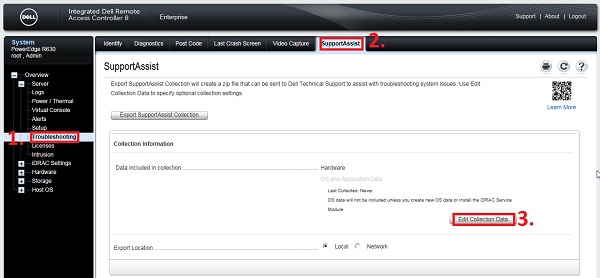
Figure 1: iDRAC UI
- Expand Overview → Server → Troubleshooting → SupportAssist. (Fig.1)
- Click Edit Collection Data. Select the data to include in the collection. (Fig.1)
- Select the data to include in the collection. (Fig.2)
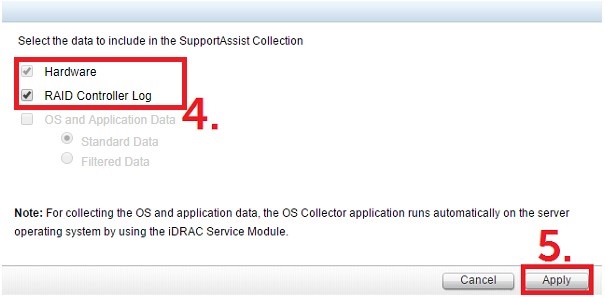
Figure 2: Collection Settings
Note: Operating system and Application Data requires the iDRAC Service Module (iSM) be installed and running.
Note: iSM is an optional software application that can include relevant operating system and Application Data in the SupportAssist collection.
Note: The Operating System and Application Data option is disabled and not selectable if (1) iDRAC Service Module is not installed.
- Click Apply (Fig.2
- Click Export Support Collection(Fig.1)
- The progress is displayed. (Fig.3)

Figure 3: SupportAssist collection progress
Note: Log collection typically takes around 15 minutes to complete, but it may vary depending on the customer environment. If it does not complete even after several hours, reset iDRAC and try again. How to Reset the Integrated Dell Remote Access Controller (iDRAC)?
- After the collection is generated, click OK. (Fig.4)

Figure 4: SupportAssist collection complete. - Specify the location to save the SupportAssist collection, to send the SupportAssist collection to Dell support.
Note: Updating the system's drivers and firmware may resolve many of the issues that are captured in a SupportAssist collection. See learn more about updating firmware and drivers on Dell PowerEdge servers.
Generate a SupportAssist (TSR) collection using the racadm command
iDRAC7 and iDRAC8 firmware version 2.30 and later.- Connect to the iDRAC using an SSH connection (Use an SSH client if needed)
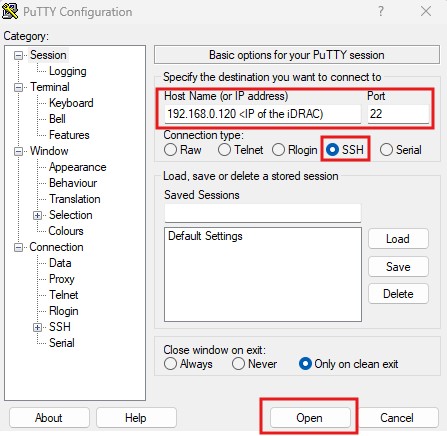
Figure 5: Putty application - Opening a connection to the iDRAC
- Run
racadm

Figure 6: Run the initial command.
- Run
racadm techsupreport generate -t SysInfo
[options for logs are added with comma (,) no spaces, logs are SysInfo [main log], TTYLog [Storage controller logs], OSAppAll [OS logs, available only if iDRAC Service Module [iSM] is installed on the OS and running]]

Figure 7: Running TSR collection command.
- Check the job queue to ensure that the file collection is complete
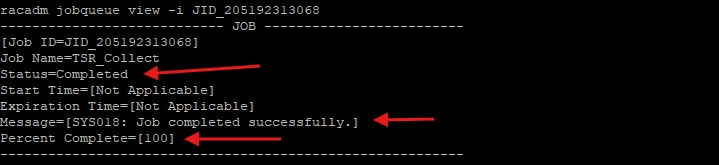
Figure 8: Running Job queue view command.
- Once the job has been successfully completed, run
racadm techsupreport collect -f <filename>.zip [Local save when run on the server]
orracadm techsupreport collect -l <your CIFS or NFS share name> [-u <your share username> -p <your share user password> as needed]

Figure 9: Local export

Figure 10: Remote export
Note: The -f for the file name is NOT needed when using a share to save the file.
iDRAC7 and iDRAC8 firmware versions from 2.10 to below 2.30
Generate a Tech Support Report with iDRAC8.Duration: 00:01:08 (hh:mm:ss)
When available, closed caption (subtitles) language settings can be chosen using the CC icon on this video player.
Updating the system's drivers and firmware may resolve many of the issues that are captured in a SupportAssist collection. See learn more about updating firmware and drivers on Dell PowerEdge servers.
Access iDRAC7 and iDRAC8 documentation by selecting the iDRAC version, then the installed firmware version, and then documentation.
Getroffen producten
iDRAC7, iDRAC8Producten
Poweredge FC430, Poweredge FC830, PowerEdge M420, PowerEdge M520, PowerEdge M520 (for PE VRTX), PowerEdge M620, PowerEdge M620 (for PE VRTX), PowerEdge M630, PowerEdge M630 (for PE VRTX), PowerEdge M820, PowerEdge M820 (for PE VRTX), PowerEdge M830
, PowerEdge M830 (for PE VRTX), PowerEdge R220, PowerEdge R230, PowerEdge R320, PowerEdge R330, PowerEdge R420, PowerEdge R420XR, PowerEdge R430, PowerEdge R520, PowerEdge R530, PowerEdge R530xd, PowerEdge R620, PowerEdge R630, PowerEdge R720, PowerEdge R720XD, PowerEdge R730, PowerEdge R730xd, PowerEdge R820, PowerEdge R830, PowerEdge R920, PowerEdge R930, PowerEdge T320, PowerEdge T330, PowerEdge T420, PowerEdge T430, PowerEdge T630
...
Artikeleigenschappen
Artikelnummer: 000126803
Artikeltype: How To
Laatst aangepast: 05 nov. 2025
Versie: 17
Vind antwoorden op uw vragen via andere Dell gebruikers
Support Services
Controleer of uw apparaat wordt gedekt door Support Services.