NetWorker: How To Identify Binary Version Details
Samenvatting: This KB gives a general overview of how to identify NetWorker binary or executable version details for both Linux and Windows NetWorker hosts. This information can be useful in confirming if the correct version is in use or when comparing default vs. debug files. ...
Dit artikel is van toepassing op
Dit artikel is niet van toepassing op
Dit artikel is niet gebonden aan een specifiek product.
Niet alle productversies worden in dit artikel vermeld.
Instructies
This KB gives a general overview of how to identify NetWorker binary or executable version details for both Linux and Windows NetWorker hosts. This information can be useful in confirming if the correct version is in use or when comparing default vs. debug files.
Linux:
- On Linux based NetWorker hosts, confirm the install path:
find / -name binary_name
Or:
which PROCESS_NAME
- Use the strings command against the binary file:
strings /path/to/binary | grep -i "@(#)"
Example:
nve:~ # strings /usr/sbin/nsrexecd | grep -i "@(#)"
@(#) Product:      NetWorker
@(#) Release:      19.12.0.0.Build.21
@(#) Build number: 21
@(#) Build date:   Sat Dec 21 17:59:07 2024
@(#) Build arch.:  linux86w
@(#) Build info:   DBG=0,OPT=-O2 -fno-strict-aliasing
NOTE: For full details remove the
| grep -i "@(#)" from the command.
Windows:
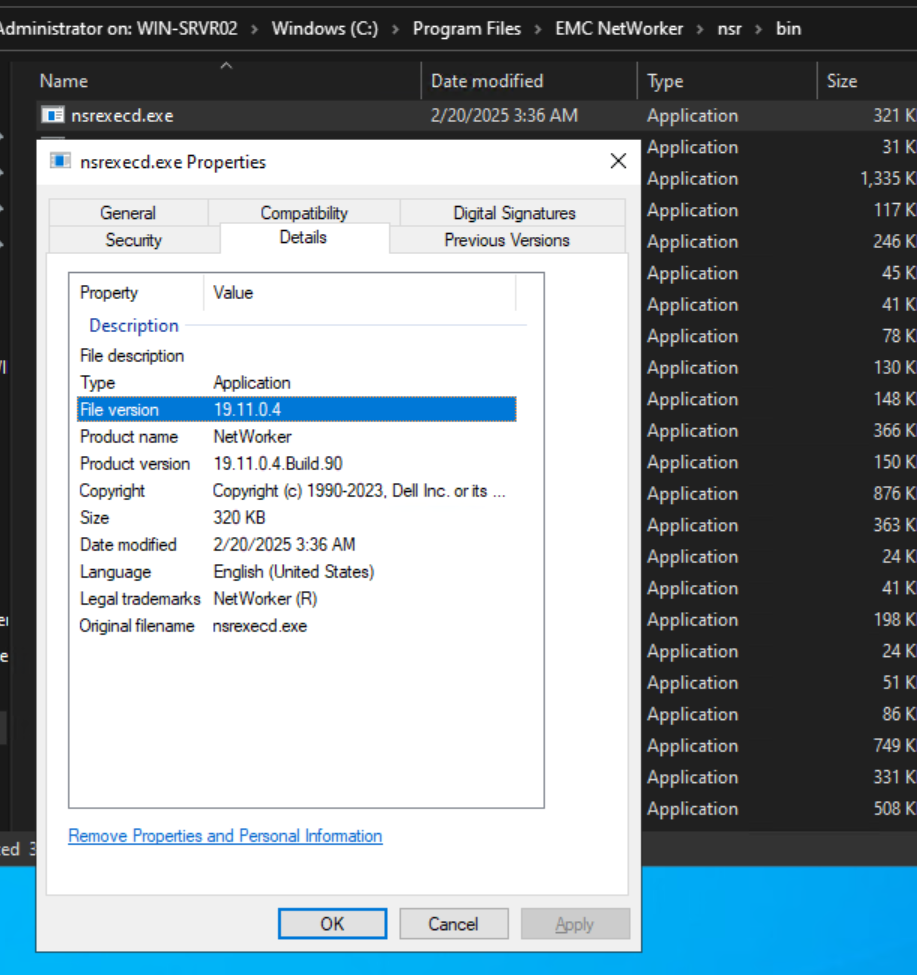
- Open Windows File Explorer and go to the NetWorker install path.
- Go to the NetWorker bin directory, e.g:
..\Program Files\EMC NetWorker\nsr\bin - Open the file properties of the executable in question, and select the Details tab:
Extra informatie
Getroffen producten
NetWorkerProducten
NetWorkerArtikeleigenschappen
Artikelnummer: 000158059
Artikeltype: How To
Laatst aangepast: 09 jun. 2025
Versie: 6
Vind antwoorden op uw vragen via andere Dell gebruikers
Support Services
Controleer of uw apparaat wordt gedekt door Support Services.