Data Domain - Joining a Data Domain System to a Windows Domain
Summary: This article provides instructions on: Verifying Mode=Active Directory Joining a Data Domain system to a Windows Domain Verifying that DNS is configured properly.
Acest articol se aplică pentru
Acest articol nu se aplică pentru
Acest articol nu este legat de un produs specific.
Acest articol nu acoperă toate versiunile de produs existente.
Symptoms
Joining a Data Domain System to a Windows Domain
SUMMARY
This article provides instructions on:
- Verifying Mode=Active Directory
- Joining a Data Domain system to a Windows Domain
- Verifying that DNS is configured properly
APPLIES TO
-
All Data Domain systems
- All Releases
Cause
None
Resolution
INSTRUCTION
Verify that DNS is configured properly (Forward and Reverse Lookup)
NOTE: You can also perform this function form the Data Domain system with the below command:
net lookup {<ipaddr> | <hostname>}
- Issue the following commands from any windows client which is part of AD:
-
C:\nslookup <IP address of DC> IP address to name resolution and will show FQDN of the host.
C:\nslookup <realm> will provide all the domain controller hostname assigned to IP addresses.
C:\nslookup <Data Domain systemFQDNhostname> will provide IP of the Data Domain system.
C:\nslookup <IP of Data Domain system> provides IP to name address.
-
For DD OS versions 4.8 and above:
cifs troubleshooting domaininfo
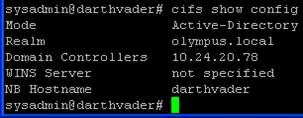
- Verify which authentication mode the restorer is in by entering at a command prompt:
cifs show config
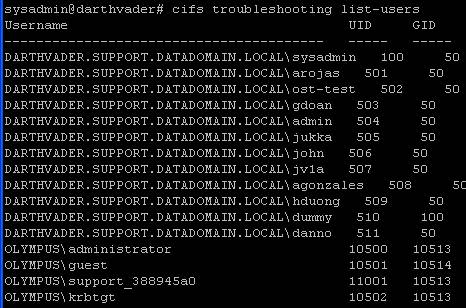
- Users from the domain will be listed by their domain\username and their UID, and GID should be a value of 10000 or greater.
- Once the status is confirmed to be enabled:
Example:
cifs set authentication active-directory <realm> (I.P. address of KDC server)
cifs set authentication active-directory Olympus.local 10.24.20.78
- After entering the set authentication active-directory command, you will be prompted for the admin username and password. Note: User Name only is required, do not prefix with domain\.
- Output of the above command will state that the Data Domain system has joined the Active directory successfully
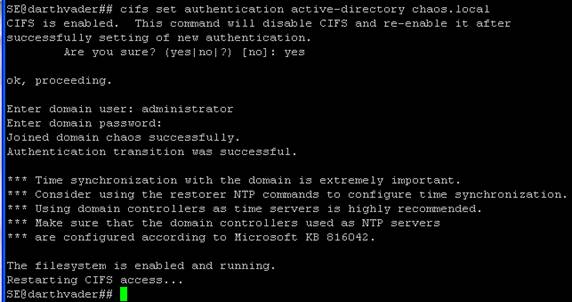
- If the Data Domain system is already in Active-Directory Authentication mode, and you want to re-join AD, it can help to put the Restorer in Workgroup mode. At the command prompt, enter workgroup mode by:
cifs set authentication workgroup workgroup
- Then issue the following commands:
cifs disable
cifs enable
- Check the status of CIFS by entering:
cifs status
Additional Information
Produse afectate
Data DomainProduse
Data DomainProprietăți articol
Article Number: 000043696
Article Type: Solution
Ultima modificare: 28 iul. 2026
Version: 8
Găsiți răspunsuri la întrebările dvs. de la alți utilizatori Dell
Servicii de asistență
Verificați dacă dispozitivul dvs. este acoperit de serviciile de asistență.