使用快捷方式和 CMD 命令访问 Windows 10 和 11 中的设备管理器
Summary: 了解如何使用快捷方式、命令和 CMD 打开设备管理器。介绍设备管理器快捷方式、设备管理器命令以及如何在 Windows 11 和 Windows 10 中访问设备管理器。
Acest articol se aplică pentru
Acest articol nu se aplică pentru
Acest articol nu este legat de un produs specific.
Acest articol nu acoperă toate versiunile de produs existente.
Instructions
提醒:Microsoft 将于 2025 年 10 月 14 日终止对 Windows 10 的支持。有关更多信息,请参阅我们的 Microsoft Windows 10 终止支持公告。
设备管理器背景
设备管理器是 Microsoft Windows 中的控制面板小程序,可用于查看和控制连接到计算机的硬件。如果驱动程序未正确安装,则该设备可能不会出现在“设备管理器”列表中。设备管理器中也会突出显示驱动程序方面的问题。
提醒:尽管访问设备管理器的方法有多种,但本文列出的是最简单的方法。
运行框方法
以下方法应适用于 Windows 10 和 11。
- 打开设备管理器。同时按下 Windows 徽标键和 R 键。这应该会打开 运行框。
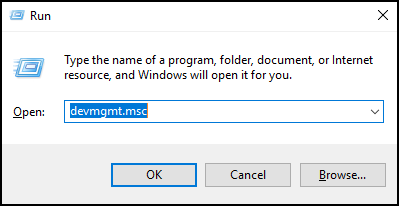
- Type:
devmgmt.msc - 单击确定或按 Enter 键。
- 此时将打开设备管理器 。
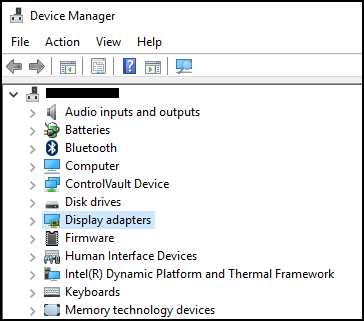
命令提示符方法
如果键盘没有 Windows 徽标键。备选方法是使用命令提示符。
- 单击 开始菜单 或 搜索栏。
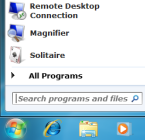
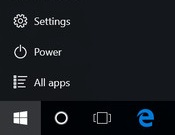
- 键入
CMD这应该会打开 命令提示符。
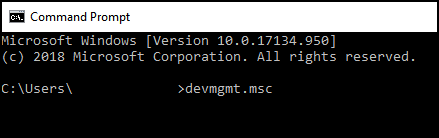
- 键入
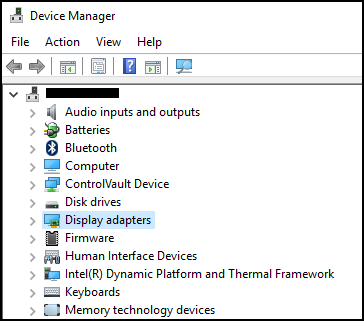
devmgmt.msc - 按Enter键。
- 此时将打开设备管理器 。
Produse afectate
Alienware, Dell All-in-One, Dell Pro All-in-One, Inspiron, OptiPlex, Vostro, XPS, G Series, G Series, Alienware, Dell Plus, Dell Pro, Dell Pro Max, Dell Pro Plus, Dell Pro Premium, Inspiron, Latitude, Dell Pro Rugged, Vostro, XPS, Fixed Workstations
, Mobile Workstations
...
Proprietăți articol
Article Number: 000123570
Article Type: How To
Ultima modificare: 19 apr. 2026
Version: 12
Găsiți răspunsuri la întrebările dvs. de la alți utilizatori Dell
Servicii de asistență
Verificați dacă dispozitivul dvs. este acoperit de serviciile de asistență.